Hi @Carter, Robb (Corporate),
Welcome to the Microsoft Q&A forum.
Thank you for reaching out regarding the Outlook rule that isn’t running automatically. I appreciate you bringing this to my attention and understand how important this is for your workflow.
To explain briefly, Outlook rules may fail to run automatically if they’re client-side and Outlook isn’t open, their conditions don’t match incoming emails, they’re disabled or conflicting, or they exceed size limits or become corrupted.
The Q&A Assist response correctly suggests checking rule settings, clearing the “On this machine only” option for PST rules, combining similar rules, reviewing for conflicts, testing the rule, and recreating it or updating Outlook if issues persist.
I’d like to provide some additional information, which I hope will be helpful to you:
1/ Server-side vs client-side rules
- If you use Exchange, server-side rules run even when Outlook is closed.
- Rules with actions like “play a sound” or “move to a local PST” are client-side and only work when Outlook is open.
2/ Check in Outlook Web app (Exchange only)
- Open Outlook Web app.
- Go to Settings → Mail → Rules.
-
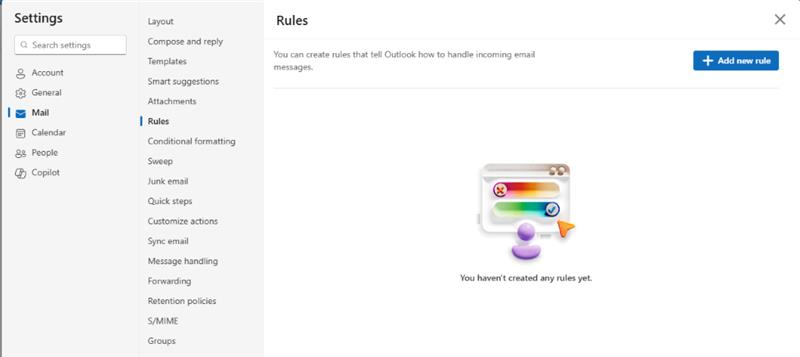
- If the rule appears, it’s server-side; if not, it’s client-side.
3/ Recreate if necessary
- Delete and recreate the rule if it’s corrupted or too large.
4/ Keep Outlook open for client-side rules
- Client-side rules require Outlook to be running.
For more details, you can refer to these articles:
Note: Microsoft is providing the above information as a convenience to you. Some of the websites are not under Microsoft's control. Microsoft cannot make any representations regarding the quality, safety, or suitability of any software or information found there. Please make sure that you completely understand the risk before retrieving any suggestions from the above link.
5/ Create a new Outlook profile
If all rule checks and recreating the rule don’t work, the problem may be caused by a corrupted Outlook profile. Creating a new profile forces Outlook to reload its configuration from scratch, eliminating errors related to rules or synchronization.
- Go to Control Panel → Mail (Microsoft Outlook) → Mail Setup → Show Profiles.
- Click Add, name the new profile, and reconfigure your email account.
- Set the new profile as default.
6/ Contact Microsoft Support
If the issue persists even after these steps, it may stem from a deeper system-level cause. In this case, I recommend contacting your organization's IT administrator, who can submit a support request to Microsoft through the Microsoft 365 Admin Center. They’ll be able to access system-level information to investigate the issue thoroughly and provide assistance. At the very least, they can offer the most effective workaround to ensure your experience remains smooth and secure.
We kindly ask for your understanding that, as moderators, we do not have access to the administrative tools or permissions required to investigate or modify these configurations. We also do not have the capability to initiate remote sessions for direct assistance. Our role is to guide users to the appropriate resources and support channels.
I hope this information is helpful. Please follow these steps and let me know if it works for you. If not, feel free to share them in the comments on this post so I can continue to assist you.
I look forward to hearing your thoughts on this.
If the answer is helpful, please click "Accept Answer" and kindly upvote it. If you have any extra questions about this answer, please click "Comment".
Note: Follow the steps in our documentation to enable email notifications if you want to receive email notifications related to this topic.
' cx='32' cy='32' r='32' /%3E%3Ctext x='50%25' y='55%25' dominant-baseline='middle' text-anchor='middle' fill='%23FFF' %3ECR%3C/text%3E%3C/svg%3E)


' cx='32' cy='32' r='32' /%3E%3Ctext x='50%25' y='55%25' dominant-baseline='middle' text-anchor='middle' fill='%23FFF' %3ECD%3C/text%3E%3C/svg%3E)