Dear @Bill Willis
Welcome to the Microsoft Q&A Community!
Thank you for reaching out. To ensure we recommend the correct approach and provide precise instructions, please share a few details about your scenario:
- As there are no specific tags chosen, may I have your reconfirmation if you are signed in with a personal account (e.g., @hotmail.com, @outlook.com), an education account (e.g., @school.edu), or a work account (e.g., @yourcompany.com)?
- Where are you accessing Planner: in Microsoft Teams or in a web browser?
- What is your intended final format and purpose: will you analyze and filter the data in Excel, share it with stakeholders, or convert it to another format such as PDF after export?
In case you'd like to export the whole plan to Excel, referring to the official article Export a plan to Excel - Microsoft Support
- Open your plan in Microsoft Planner
- In the plan header, select the three dots to open the plan menu.
- Choose Export plan to Excel.
- When prompted about the file named “[Plan name].xlsx,” select Open or Save.
- Review the workbook. It includes the plan name, plan ID, date of export, and all tasks with their details, each task on its own row. From there, you can use Excel features such as filtering, sorting, conditional formatting, tables, charts, PivotTables, and What‑If Analysis to analyze or present the data.
In some versions, you may see the Export plan to Excel after selecting the down arrow next to the plan name.
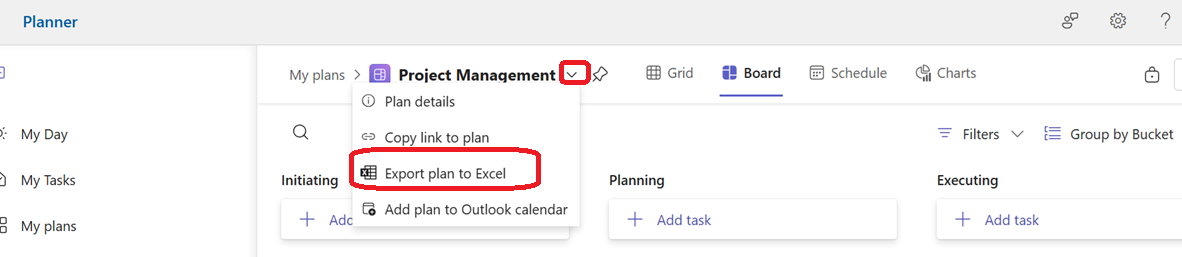
Please note that if you're using the new Planner experience, the feature is currently rolling out. 
Feel free to let me know if there are any misunderstandings or you need further clarifications, I am happy to assist you.
Note: Please follow the steps in our documentation to enable e-mail notifications if you want to receive the related email notification for this thread.
' cx='32' cy='32' r='32' /%3E%3Ctext x='50%25' y='55%25' dominant-baseline='middle' text-anchor='middle' fill='%23FFF' %3EBW%3C/text%3E%3C/svg%3E)

' cx='32' cy='32' r='32' /%3E%3Ctext x='50%25' y='55%25' dominant-baseline='middle' text-anchor='middle' fill='%23FFF' %3EPN%3C/text%3E%3C/svg%3E)