Hi @CC,
Thank you for posting your question on the Microsoft Q&A forum.
Regarding the error message “Cached credentials have expired,” I’d like to gather a bit more information to better understand your situation and assist you effectively:
- Does this issue also occur with other Office applications such as Word or Excel?
- Are other users in your organization experiencing the same problem?
In the meantime, you can try the following steps:
Note: Before performing the steps below, please make sure all your files are fully synced to OneDrive to avoid any potential data loss.
Clear Office Credentials:
- Remove the Work Account:
- Go to Settings > Accounts > Work or School Account, select your account, and choose Disconnect.
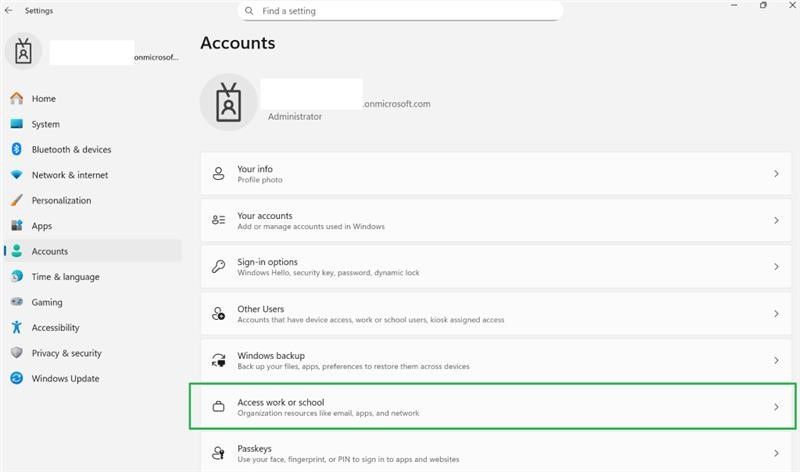
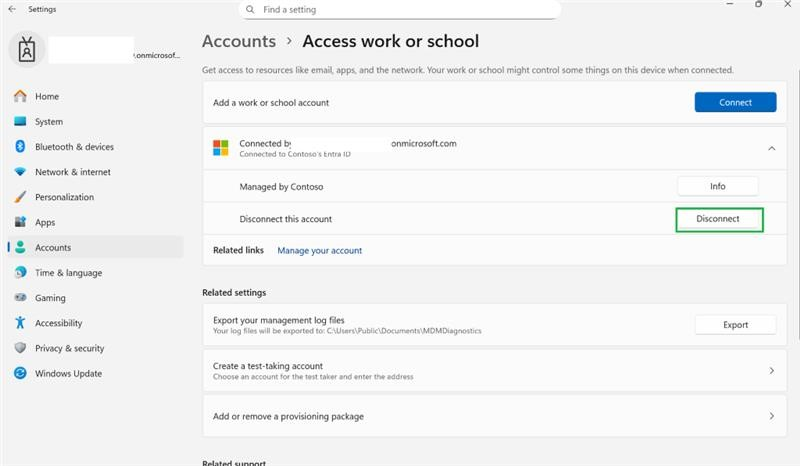
Clear Credentials:
- Head to Control Panel > Credential Manager and remove any cached Microsoft 365 or Office credentials.
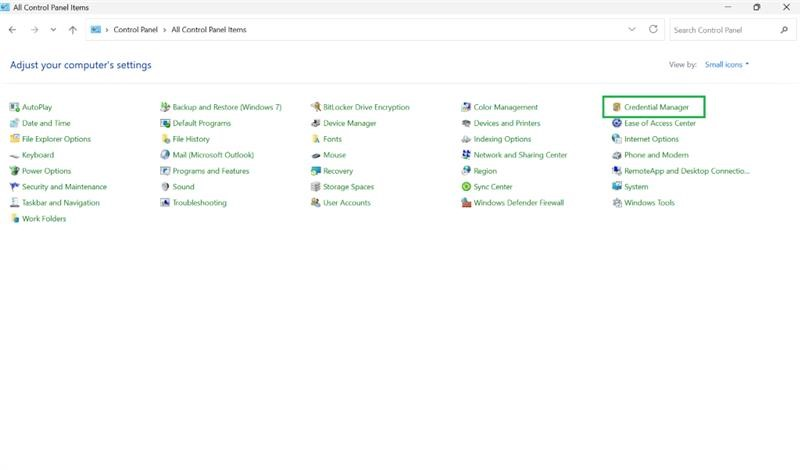
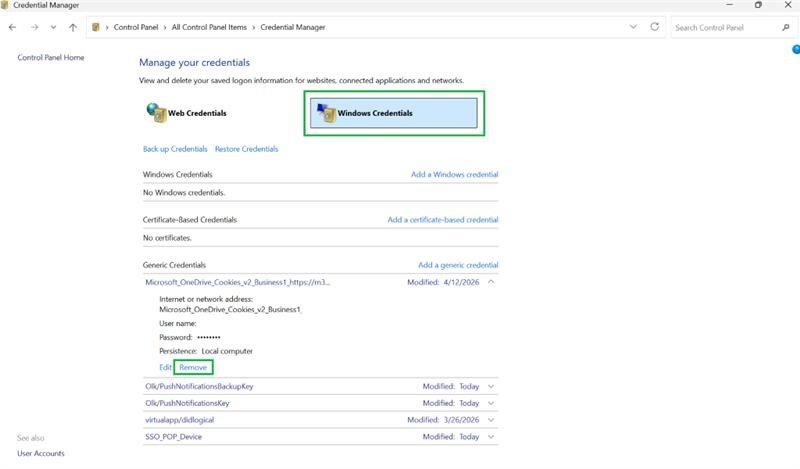
- Try Re-adding the Account:
- Once everything’s cleared, go back to Settings > Accounts and re-add your work account.
Locate the Microsoft directory
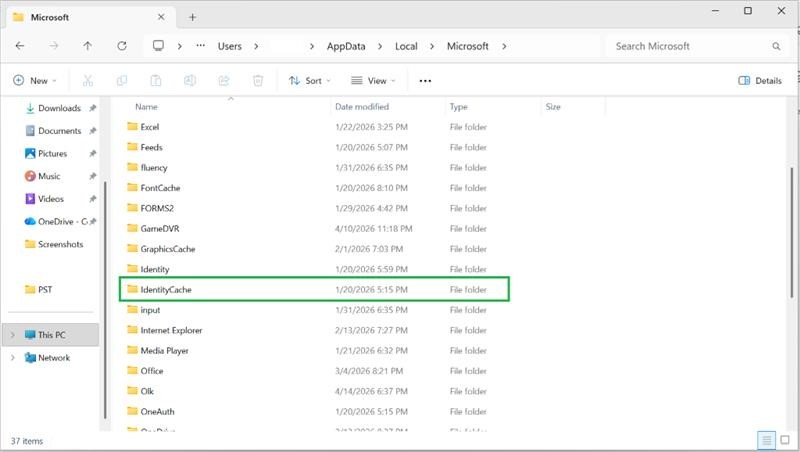
- Navigate to: C:\Users<YourUserName>\AppData\Local\Microsoft
- Delete the IdentityCache folder
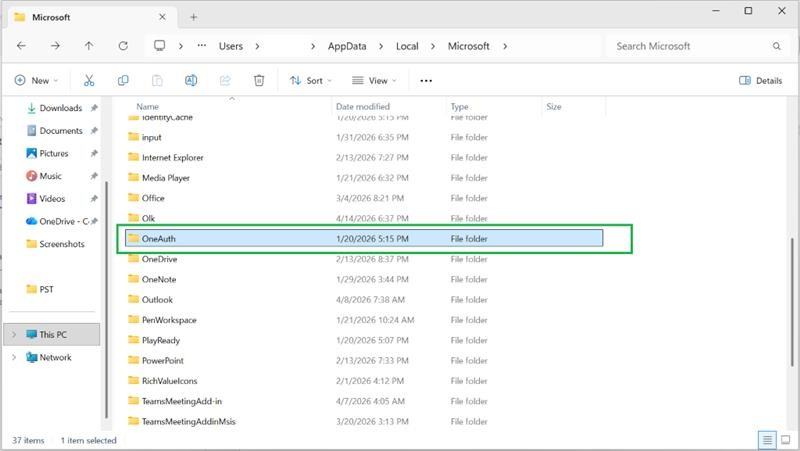
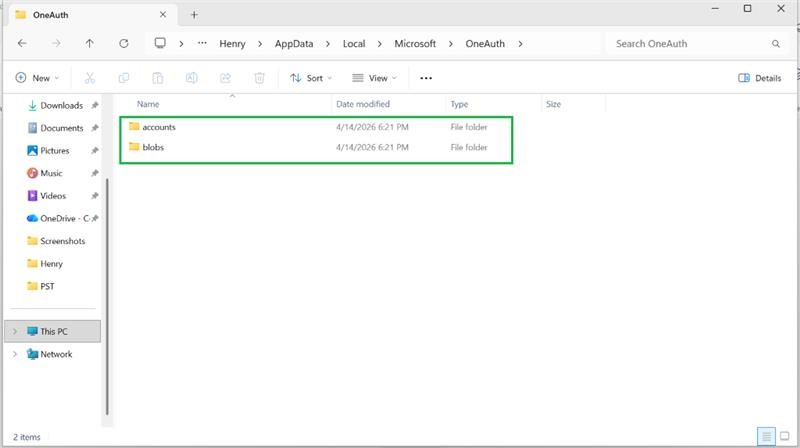
- Open the “OneAuth” folder. Inside, you’ll typically find subfolders like “blobs” and “accounts,” each containing information about your sign-in sessions.
- Delete the “blobs” and “accounts” folders
- Restart an Office app and sign in again
Repair Office
- Right-click the Start button (lower-left corner) and select Installed apps on the pop-up menu.
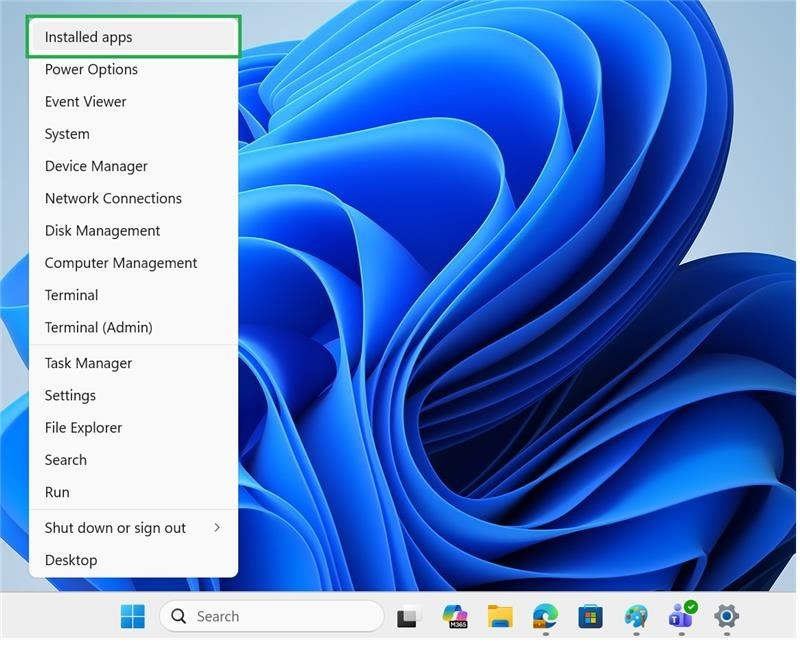
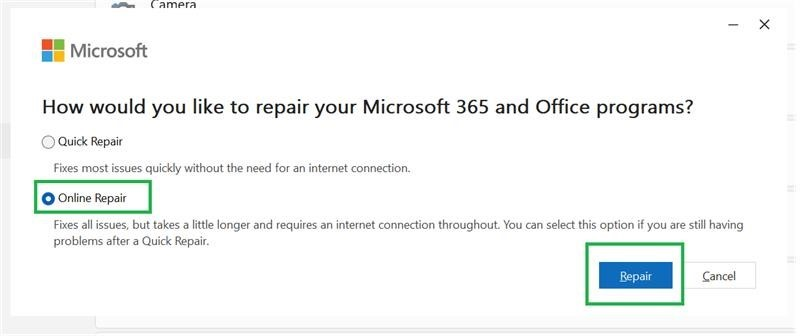
- Select the Microsoft 365 or Office product you want to repair, click the ellipses, and select Modify.
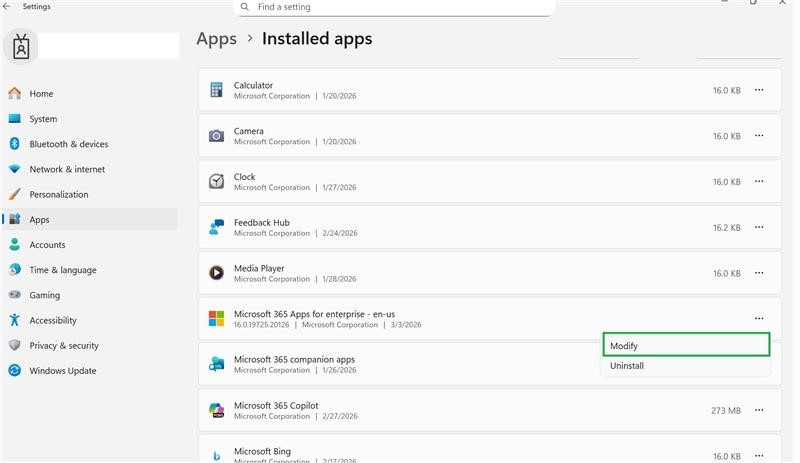
- If you see a notification that say " allow the change on your device" click yes. Then select online repair
Thank you again for your time and understanding. While my initial response may not resolve the issue immediately, I’d like to gather more details about your situation so I can assist you more effectively.
I really appreciate your patience, and I’m here to help. Looking forward to your response.
If the answer is helpful, please click "Accept Answer" and kindly upvote it. If you have extra questions about this answer, please click "Comment".
Note: Please follow the steps in our documentation to enable e-mail notifications if you want to receive the related email notification for this thread
' cx='32' cy='32' r='32' /%3E%3Ctext x='50%25' y='55%25' dominant-baseline='middle' text-anchor='middle' fill='%23FFF' %3EC%3C/text%3E%3C/svg%3E)

' cx='32' cy='32' r='32' /%3E%3Ctext x='50%25' y='55%25' dominant-baseline='middle' text-anchor='middle' fill='%23FFF' %3EHN%3C/text%3E%3C/svg%3E)