
To get 21H2 for example on Windows 10, you can do :
(Get-ItemProperty -Path "HKLM:\SOFTWARE\Microsoft\Windows NT\CurrentVersion" -Name DisplayVersion).DisplayVersion
This browser is no longer supported.
Upgrade to Microsoft Edge to take advantage of the latest features, security updates, and technical support.
' cx='32' cy='32' r='32' /%3E%3Ctext x='50%25' y='55%25' dominant-baseline='middle' text-anchor='middle' fill='%23FFF' %3EST%3C/text%3E%3C/svg%3E)
We have the GUI method to get Windows version and "version", ie Windows 8, 10 or 11 and for Windows 10, we have for example "version" 21H2.
So, what is the equivalence in program? Say in PowerShell, what is the command to get the value? I really mean the value, so that my script can run a if-then-else clause to do things differently according to the versions.
Thanks

To get 21H2 for example on Windows 10, you can do :
(Get-ItemProperty -Path "HKLM:\SOFTWARE\Microsoft\Windows NT\CurrentVersion" -Name DisplayVersion).DisplayVersion
Does your method work in Windows 11?
Is there a general method for versions as old as Windows 7 all the way up to Windows 11? What about distinguishing workstation from server editions?
I don't have Windows 11 to check, but DisplayVersion should exists on recent OS
By program, the usual way is with RtlGetVersion
There are also other methods like
[environment]::OSVersion
or
systeminfo and findstr to extract data, but they are localized (strings are different on my french OS for example)
I'm now using another computer with Win11. Your previous method gives me 21H2 too, which is also what "winver" gives me. But there is thus no distinction between Win10 21H2 and Win11 21H2. Hmm....
[environment]::OSVersion gives me (in this Win11)
Platform ServicePack Version      VersionString
-------- ----------- -------      -------------
 Win32NT             10.0.22000.0 Microsoft Windows NT 10.0.22000.0
That's also wrong info.
Can't Microsoft provide a standard way to give us this simple and basic information? Come on!
From this thread :
windows 10 OS build number will not up to 22000. At least for now, OS build number 22000 is the standard that distinguishes Windows 10 from Windows 11.
windows 10 OS build number will not up to 22000. At least for now, OS build number 22000 is the standard that distinguishes Windows 10 from Windows 11.
That's ridiculous! (Don't get it wrong. The comment is not towards you, but towards Microsoft!)
On a side-note to those in my situation. Here's the MS article showing the (complicated) correspondence between build number and version number:
https://learn.microsoft.com/en-us/windows/release-health/release-information
Otherwise, I traced Winver and it calls APIs from "C:\Windows\System32\winbrand.dll" like BrandingFormatString
I tested (in C++) and I get "Windows 10" or "Windows 10 Éducation" on my french Windows 10 OS, so it should work with Windows 11 too...
Alright. And in PowerShell, how to accomplish that?
' cx='32' cy='32' r='32' /%3E%3Ctext x='50%25' y='55%25' dominant-baseline='middle' text-anchor='middle' fill='%23FFF' %3EMI%3C/text%3E%3C/svg%3E)
Great! This really showed me the version info I needed (22H2).
Is there any possibility to run such script to get the same information in remote computer over company LAN?
' cx='32' cy='32' r='32' /%3E%3Ctext x='50%25' y='55%25' dominant-baseline='middle' text-anchor='middle' fill='%23FFF' %3ECC%3C/text%3E%3C/svg%3E)
Just like the add the voices saying 'wtf' (as if it'll make any difference)
@Castorix31 your script worked for me once I got rid of space at the start of line 25 and 14.
However, the results on Win11 are...interesting! Shortname is still windows 10, Longname is Windows 11 (Pro in my case)

I made this PowerShell test script (.ps1), only tested on Windows 10, where I get :
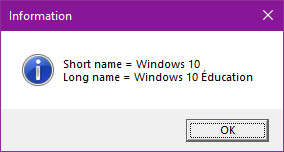
Add-Type -TypeDefinition @"
using System;
using System.Diagnostics;
using System.Runtime.InteropServices;
public static class User32
{
    [DllImport("User32.dll", CharSet=CharSet.Unicode)]
        public static extern int MessageBox(
            IntPtr hWnd,
            String lpText,
            String lpCaption,
            int uType);
}
"@

Add-Type -TypeDefinition @"
using System;
using System.Diagnostics;
using System.Runtime.InteropServices;
public static class WinBrand
{
        [DllImport("Winbrand.dll", CharSet = CharSet.Unicode)]
        public static extern string BrandingFormatString(string sFormat);
}
"@

$sShortName = [WinBrand]::BrandingFormatString("%WINDOWS_SHORT%");
$sLongName = [WinBrand]::BrandingFormatString("%WINDOWS_LONG%");
$sMessage = "Short name = " + $sShortName  + "`n" + "Long name = " + $sLongName
[User32]::MessageBox(0, $sMessage, "Information", 0x00000040) | Out-Null

you can try this;: but I have no Windows 11, so don't know what it returns
Get-WMIObject win32_operatingsystem | select Caption, Version

I can confirm that works on Win 11.
Caption                   Version
-------                   -------
Microsoft Windows 11 Home 10.0.22000