Note
Access to this page requires authorization. You can try signing in or changing directories.
Access to this page requires authorization. You can try changing directories.
This article provides a few examples on setting filters on subscriptions for Service Bus topics. For conceptual information about filters, see Filters.
Use Azure portal
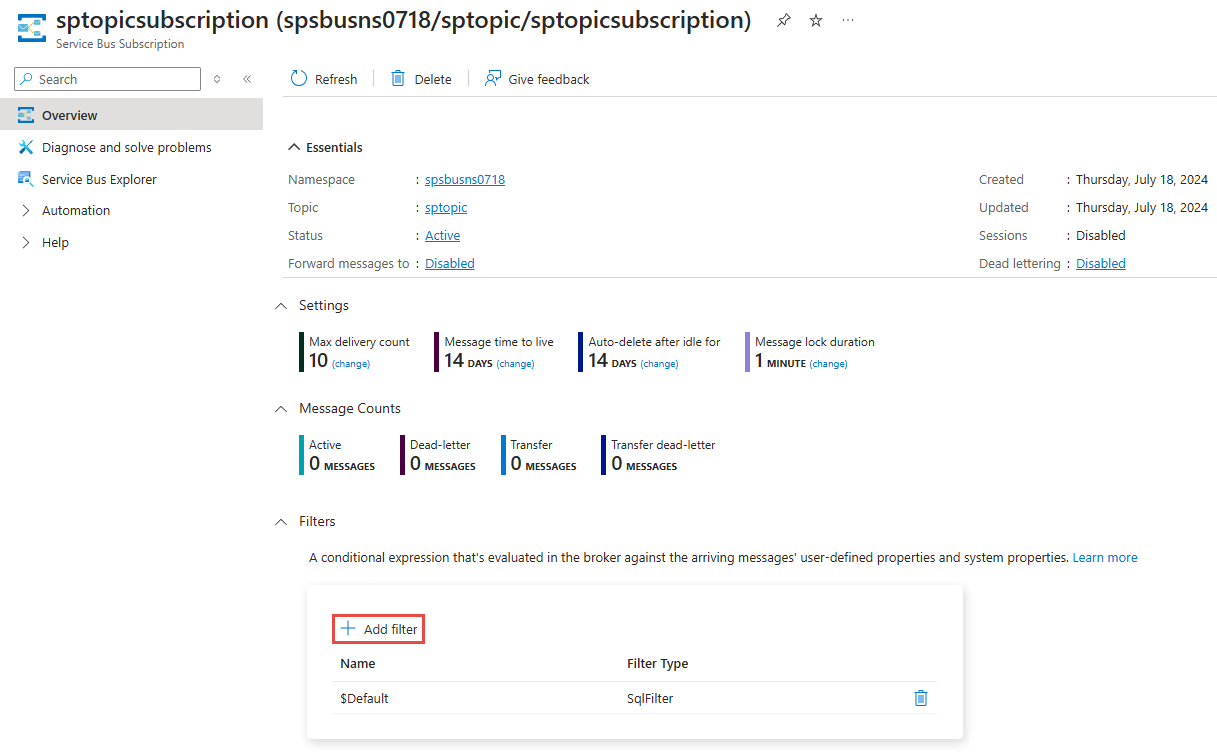
To set subscription filters in the Azure portal, use the Filters section of the Service Bus Subscription page.
Use Azure CLI
Use the az servicebus topic subscription rule create to create a rule or filter on a subscription.
Use Azure PowerShell
Use the Set-AzServiceBusRule to create a rule or filter on a subscription.
Note
A subscription rule consists of filters and actions. You can specify actions using CLI and PowerShell, but not using the Azure portal.
Filter on system properties
To refer to a system property in a filter, use the following format: sys.<system-property-name>.
sys.label LIKE '%bus%'
sys.messageid = 'xxxx'
sys.correlationid like 'abc-%'
Note
- For a list of system properties, see Messages, payloads, and serialization.
- Filter expressions use broker property names. For example, use
sys.Labelto filter the ServiceBusMessage.Subject property.
Filter on message properties
Access properties in ServiceBusMessage.ApplicationProperties by using user.property-name or property-name in a filter.
MessageProperty = 'A'
user.SuperHero like 'SuperMan%'
Filter on message properties with special characters
Use square brackets ([]) around a property name that contains spaces or punctuation. The brackets identify the property name; single quotation marks identify a string value. If the property name contains a closing bracket (]), represent that character as two closing brackets (]]).
The following examples use string-valued application properties. The matching and nonmatching values refer to the property named in the first column. Single quotation marks in the table delimit strings; they aren't part of the message property value.
| Property name | SQL filter | Matching value | Nonmatching value |
|---|---|---|---|
Order Type |
[Order Type] = 'priority' |
'priority' |
'standard' |
HR-EmployeeID |
user.[HR-EmployeeID] = 'E123' |
'E123' |
'E124' |
http://schemas.microsoft.com/xrm/2011/Claims/EntityLogicalName |
[http://schemas.microsoft.com/xrm/2011/Claims/EntityLogicalName] = 'account' |
'account' |
'contact' |
Order]Type |
[Order]]Type] = 'priority' |
'priority' |
'standard' |
Double quotation marks also delimit property names. For example, the following expression is equivalent to the bracket-delimited URI property example:
"http://schemas.microsoft.com/xrm/2011/Claims/EntityLogicalName" = 'account'
For the identifier grammar, see SQL filter syntax: property names.
Match strings with wildcards
Use LIKE to match a string-valued property against a pattern. % matches zero or more characters, and _ matches exactly one character. Use NOT LIKE to exclude values that match the pattern.
In the following examples, Code is an application property of type string. Single quotation marks delimit strings; they aren't part of the message property value. '' represents an empty string.
| SQL filter | Matching values | Nonmatching values |
|---|---|---|
user.Code LIKE 'order-%' |
'order-', 'order-123' |
'preorder-123' |
user.Code LIKE '%-complete' |
'-complete', 'order-complete' |
'order-complete-extra' |
user.Code LIKE '%order%' |
'order', 'preorder-123' |
'invoice-123' |
user.Code LIKE 'item-_' |
'item-A', 'item-7' |
'item-', 'item-AB' |
user.Code LIKE '%' |
'', 'order-123' |
A message without the Code property |
user.Code NOT LIKE 'test-%' |
'order-123' |
'test-', 'test-123' |
An absent application property evaluates as unknown, so it doesn't satisfy either LIKE or NOT LIKE. For the pattern grammar, see SQL filter syntax: patterns.
Match literal wildcard and escape characters
Use = for an exact string comparison. In an equality expression, % and _ are ordinary characters. To match them literally within a LIKE pattern, choose a single-character escape string with ESCAPE and put it before each literal wildcard.
The following examples use ! as the escape character and a string-valued Code application property:
| SQL filter | Matching values | Nonmatching values |
|---|---|---|
user.Code = 'discount%_code' |
'discount%_code' |
'discount10_code' |
user.Code LIKE '%!%%' ESCAPE '!' |
'discount%code', '%' |
'discount10code' |
user.Code LIKE 'order!_%' ESCAPE '!' |
'order_', 'order_123' |
'orderX123' |
user.Code LIKE 'folder!!%' ESCAPE '!' |
'folder!', 'folder!archive' |
'folderarchive' |
In '%!%%', the first and last % are wildcards, and !% represents a literal percent sign. In 'order!_%', !_ represents a literal underscore and the final % remains a wildcard. In 'folder!!%', !! represents the escape character itself.
These are SQL filter expressions. If you embed them in a programming-language string, a JSON document, or a shell command, apply that format's string-escaping rules separately. For the SQL escape grammar, see SQL filter syntax: escape characters.
Filter on string values with special characters
Enclose a string value in single quotation marks. Represent an embedded single quotation mark with two single quotation marks. Punctuation such as spaces, hyphens, slashes, and ampersands can appear directly in the string.
The following examples use a CustomerName application property of type string:
| SQL filter | Matching value | Nonmatching value |
|---|---|---|
user.CustomerName = 'O''Brien' |
'O''Brien' |
'OBrien' |
user.CustomerName = 'North & South - Retail/Online' |
'North & South - Retail/Online' |
'North & South - Retail' |
In the first row, the message property value is O'Brien, with one single quotation mark. This string-value escaping is separate from the brackets or double quotation marks used for property names. For the string grammar, see SQL filter syntax: string constants.
Combine string and numeric conditions
Use parentheses to group related conditions when you combine AND and OR. For example, this filter selects a code that begins with order- or return- when its quantity is at least 10:
(user.Code LIKE 'order-%' OR user.Code LIKE 'return-%') AND user.Quantity >= 10
In these examples, Code is an application property of type string and Quantity is an application property of type integer.
| Code value | Quantity value | Matches |
|---|---|---|
'order-123' |
10 |
Yes |
'return-123' |
15 |
Yes |
'order-123' |
9 |
No |
'return-123' |
9 |
No |
'invoice-123' |
15 |
No |
Filter on message properties with numeric values
The following examples show how you can use properties with numeric values in filters.
MessageProperty = 1
MessageProperty > 1
MessageProperty > 2.08
MessageProperty = 1 AND MessageProperty2 = 3
MessageProperty = 1 OR MessageProperty2 = 3
Parameter-based filters
Here are a few examples of using parameter-based filters. In these examples, DataTimeMp is a message property of type DateTime and @dtParam is a parameter passed to the filter as a DateTime object.
DateTimeMp < @dtParam
DateTimeMp > @dtParam

(DateTimeMp2-DateTimeMp1) <= @timespan //@timespan is a parameter of type TimeSpan
DateTimeMp2-DateTimeMp1 <= @timespan
Using IN and NOT IN
StoreId IN('Store1', 'Store2', 'Store3')

sys.To IN ('Store5','Store6','Store7') OR StoreId = 'Store8'

sys.To NOT IN ('Store1','Store2','Store3','Store4','Store5','Store6','Store7','Store8') OR StoreId NOT IN ('Store1','Store2','Store3','Store4','Store5','Store6','Store7','Store8')
For a C# sample, see Topic Filters sample on GitHub.
Correlation filters
Correlation filter using CorrelationID
new CorrelationRuleFilter("Contoso");
It filters messages with CorrelationID set to Contoso.
Note
The CorrelationRuleFilter class in .NET is in the Azure.Messaging.ServiceBus.Administration namespace. For sample code that shows how to create filters in general using .NET, see this code on GitHub.
Correlation filter using system and user properties
var filter = new CorrelationRuleFilter();
filter.Subject = "Important";
filter.ReplyTo = "johndoe@contoso.com";
filter.Properties["color"] = "Red";
It's equivalent to: sys.ReplyTo = 'johndoe@contoso.com' AND sys.Label = 'Important' AND color = 'Red'
.NET example for creating subscription filters
Here's a .NET C# example that creates the following Service Bus entities:
- Service Bus topic named
topicfiltersampletopic - Subscription to the topic named
AllOrderswith a True Rule filter, which is equivalent to a SQL rule filter with expression1=1. - Subscription named
ColorBlueSize10Orderswith a SQL filter expressioncolor='blue' AND quantity=10 - Subscription named
ColorRedwith a SQL filter expressioncolor='red'and an action - Subscription named
HighPriorityRedOrderswith a correlation filter expressionSubject = "red", CorrelationId = "high"
For more information, see the inline code comments.
namespace CreateTopicsAndSubscriptionsWithFilters
{
    using Azure.Identity;
    using Azure.Messaging.ServiceBus.Administration;
    using System;
    using System.Threading.Tasks;

    public class Program
    {
        // Service Bus Administration Client object to create topics and subscriptions
        static ServiceBusAdministrationClient adminClient;

        // fully qualified namespace for the Service Bus
        static readonly string fullyQualifiedNamespace = "<YOUR SERVICE BUS NAMESPACE>.servicebus.windows.net";

        // name of the Service Bus topic
        static readonly string topicName = "topicfiltersampletopic";

        // names of subscriptions to the topic
        static readonly string subscriptionAllOrders = "AllOrders";
        static readonly string subscriptionColorBlueSize10Orders = "ColorBlueSize10Orders";
        static readonly string subscriptionColorRed = "ColorRed";
        static readonly string subscriptionHighPriorityRedOrders = "HighPriorityRedOrders";

        public static async Task Main()
        {
            try
            {

                Console.WriteLine("Creating the Service Bus Administration Client object");
                adminClient = new ServiceBusAdministrationClient(fullyQualifiedNamespace, new DefaultAzureCredential());

                Console.WriteLine($"Creating the topic {topicName}");
                await adminClient.CreateTopicAsync(topicName);

                Console.WriteLine($"Creating the subscription {subscriptionAllOrders} for the topic with a True filter ");
                // Create a True Rule filter with an expression that always evaluates to true
                // It's equivalent to using SQL rule filter with 1=1 as the expression
                await adminClient.CreateSubscriptionAsync(
                        new CreateSubscriptionOptions(topicName, subscriptionAllOrders),
                        new CreateRuleOptions("AllOrders", new TrueRuleFilter()));


                Console.WriteLine($"Creating the subscription {subscriptionColorBlueSize10Orders} with a SQL filter");
                // Create a SQL filter with color set to blue and quantity to 10
                await adminClient.CreateSubscriptionAsync(
                        new CreateSubscriptionOptions(topicName, subscriptionColorBlueSize10Orders),
                        new CreateRuleOptions("BlueSize10Orders", new SqlRuleFilter("color='blue' AND quantity=10")));

                Console.WriteLine($"Creating the subscription {subscriptionColorRed} with a SQL filter");
                // Create a SQL filter with color equals to red and a SQL action with a set of statements
                await adminClient.CreateSubscriptionAsync(topicName, subscriptionColorRed);
                // remove the $Default rule
                await adminClient.DeleteRuleAsync(topicName, subscriptionColorRed, "$Default");
                // now create the new rule. notice that user. prefix is used for the user/application property
                await adminClient.CreateRuleAsync(topicName, subscriptionColorRed, new CreateRuleOptions
                                {
                                    Name = "RedOrdersWithAction",
                                    Filter = new SqlRuleFilter("user.color='red'"),
                                    Action = new SqlRuleAction("SET quantity = quantity / 2; REMOVE priority;SET sys.CorrelationId = 'low';")

                                }
                );

                Console.WriteLine($"Creating the subscription {subscriptionHighPriorityRedOrders} with a correlation filter");
                // Create a correlation filter with color set to Red and priority set to High
                await adminClient.CreateSubscriptionAsync(
                        new CreateSubscriptionOptions(topicName, subscriptionHighPriorityRedOrders),
                        new CreateRuleOptions("HighPriorityRedOrders", new CorrelationRuleFilter() {Subject = "red", CorrelationId = "high"} ));

                // delete resources
                //await adminClient.DeleteTopicAsync(topicName);
            }
            catch (Exception e)
            {
                Console.WriteLine(e.ToString());
            }
        }
    }
}
.NET example for sending receiving messages
namespace SendAndReceiveMessages
{
    using System;
    using System.Text;
    using System.Threading.Tasks;
    using Azure.Identity;
    using Azure.Messaging.ServiceBus;
    using Newtonsoft.Json;

    public class Program
    {
        const string TopicName = "TopicFilterSampleTopic";
        const string SubscriptionAllMessages = "AllOrders";
        const string SubscriptionColorBlueSize10Orders = "ColorBlueSize10Orders";
        const string SubscriptionColorRed = "ColorRed";
        const string SubscriptionHighPriorityOrders = "HighPriorityRedOrders";

        // fully qualified namespace for the Service Bus
        static string fullyQualifiedNamespace = "<YOUR SERVICE BUS NAMESPACE>.servicebus.windows.net";

        // the client that owns the connection and can be used to create senders and receivers
        static ServiceBusClient client;

        // the sender used to publish messages to the topic
        static ServiceBusSender sender;

        // the receiver used to receive messages from the subscription
        static ServiceBusReceiver receiver;

        public async Task SendAndReceiveTestsAsync(string fullyQualifiedNamespace)
        {
            // This sample demonstrates how to use advanced filters with ServiceBus topics and subscriptions.
            // The sample creates a topic and 3 subscriptions with different filter definitions.
            // Each receiver will receive matching messages depending on the filter associated with a subscription.

            // Send sample messages.
            await this.SendMessagesToTopicAsync(fullyQualifiedNamespace);

            // Receive messages from subscriptions.
            await this.ReceiveAllMessageFromSubscription(SubscriptionAllMessages);
            await this.ReceiveAllMessageFromSubscription(SubscriptionColorBlueSize10Orders);
            await this.ReceiveAllMessageFromSubscription(SubscriptionColorRed);
            await this.ReceiveAllMessageFromSubscription(SubscriptionHighPriorityOrders);
        }


        async Task SendMessagesToTopicAsync(string fullyQualifiedNamespace)
        {
            // Create the clients that we'll use for sending and processing messages.
            client = new ServiceBusClient(fullyQualifiedNamespace, new DefaultAzureCredential());
            sender = client.CreateSender(TopicName);

            Console.WriteLine("\nSending orders to topic.");

            // Now we can start sending orders.
            await Task.WhenAll(
                SendOrder(sender, new Order()),
                SendOrder(sender, new Order { Color = "blue", Quantity = 5, Priority = "low" }),
                SendOrder(sender, new Order { Color = "red", Quantity = 10, Priority = "high" }),
                SendOrder(sender, new Order { Color = "yellow", Quantity = 5, Priority = "low" }),
                SendOrder(sender, new Order { Color = "blue", Quantity = 10, Priority = "low" }),
                SendOrder(sender, new Order { Color = "blue", Quantity = 5, Priority = "high" }),
                SendOrder(sender, new Order { Color = "blue", Quantity = 10, Priority = "low" }),
                SendOrder(sender, new Order { Color = "red", Quantity = 5, Priority = "low" }),
                SendOrder(sender, new Order { Color = "red", Quantity = 10, Priority = "low" }),
                SendOrder(sender, new Order { Color = "red", Quantity = 5, Priority = "low" }),
                SendOrder(sender, new Order { Color = "yellow", Quantity = 10, Priority = "high" }),
                SendOrder(sender, new Order { Color = "yellow", Quantity = 5, Priority = "low" }),
                SendOrder(sender, new Order { Color = "yellow", Quantity = 10, Priority = "low" })
                );

            Console.WriteLine("All messages sent.");
        }

        async Task SendOrder(ServiceBusSender sender, Order order)
        {
            var message = new ServiceBusMessage(Encoding.UTF8.GetBytes(JsonConvert.SerializeObject(order)))
            {
                CorrelationId = order.Priority,
                Subject = order.Color,
                ApplicationProperties =
                {
                    { "color", order.Color },
                    { "quantity", order.Quantity },
                    { "priority", order.Priority }
                }
            };
            await sender.SendMessageAsync(message);

            Console.WriteLine("Sent order with Color={0}, Quantity={1}, Priority={2}", order.Color, order.Quantity, order.Priority);
        }

        async Task ReceiveAllMessageFromSubscription(string subsName)
        {
            var receivedMessages = 0;

            receiver = client.CreateReceiver(TopicName, subsName, new ServiceBusReceiverOptions() { ReceiveMode = ServiceBusReceiveMode.ReceiveAndDelete } );

            // Create a receiver from the subscription client and receive all messages.
            Console.WriteLine("\nReceiving messages from subscription {0}.", subsName);

            while (true)
            {
                var receivedMessage = await receiver.ReceiveMessageAsync(TimeSpan.FromSeconds(10));
                if (receivedMessage != null)
                {
                    foreach (var prop in receivedMessage.ApplicationProperties)
                    {
                        Console.Write("{0}={1},", prop.Key, prop.Value);
                    }
                    Console.WriteLine("CorrelationId={0}", receivedMessage.CorrelationId);
                    receivedMessages++;
                }
                else
                {
                    // No more messages to receive.
                    break;
                }
            }
            Console.WriteLine("Received {0} messages from subscription {1}.", receivedMessages, subsName);
        }

       public static async Task Main()
        {
            try
            {
                Program app = new Program();
                await app.SendAndReceiveTestsAsync(fullyQualifiedNamespace);
            }
            catch (Exception e)
            {
                Console.WriteLine(e.ToString());
            }
        }
    }

    class Order
    {
        public string Color
        {
            get;
            set;
        }

        public int Quantity
        {
            get;
            set;
        }

        public string Priority
        {
            get;
            set;
        }
    }
}
Next steps
See the following samples:
To explore Azure Service Bus features, try the samples in the language of your choice.