Note
Access to this page requires authorization. You can try signing in or changing directories.
Access to this page requires authorization. You can try changing directories.
The registration campaign allows you to nudge users to set up a passkey or Microsoft Authenticator during sign-in. When a user performs an interactive sign-in with multifactor authentication (MFA), they can be prompted to set up the targeted authentication method. You can include or exclude users or groups to control who gets nudged and create targeted campaigns that move users from less secure authentication methods to passkeys or Authenticator.
The registration campaign supports two authentication methods:
- Passkey (FIDO2): Nudges users to register a passkey.
- Authenticator: Nudges users to download and set up Authenticator for push notifications.
The registration campaign can target one authentication method at a time.
Prerequisites
You can choose from two registration campaigns:
- Authenticator campaign: Target users who don't already have Authenticator push notifications set up on their account. Enable users for Authenticator in the authentication methods policy. Authentication mode must be set to Any or Push. If the mode is set to Passwordless, users aren't eligible for the nudge. For more information, see Enable passwordless sign-in with Authenticator. Users targeted by the registration campaign must also be in scope for this authentication method.
- Passkey campaign: Enable the passkey (FIDO2) authentication method in the authentication methods policy. Also enable Allow self-service setup in the passkey (FIDO2) method configuration. For more information, see Enable passkeys. Users targeted by the registration campaign must also be in scope for this authentication method.
Optionally, determine the number of users who registered each authentication method before you configure the registration campaign. See Authentication methods activity report.
How a registration campaign works
A registration campaign prompts users to set up a stronger authentication method—a passkey (FIDO2) or Microsoft Authenticator—after they complete multifactor authentication (MFA).
The MFA requirement depends on the campaign state and targeted authentication method:
| Campaign state | Targeted authentication method | MFA requirement |
|---|---|---|
| Microsoft managed | Microsoft Authenticator | The user completes MFA by using SMS or voice call. |
| Microsoft managed | Passkey (FIDO2) | The user completes MFA by using any method. |
| Enabled | Microsoft Authenticator | The user completes MFA by using any method. |
| Enabled | Passkey (FIDO2) | The user completes MFA by using any method. |
For either campaign, a user is prompted only if they're eligible. A user's eligibility depends on the campaign state and the targeted authentication method.
Note
As users go through their regular sign-in, Microsoft Entra Conditional Access policies that govern security information registration apply before the user is nudged to set up an authentication method. For example, if a Conditional Access policy requires that security information updates can occur only on an internal network, users aren't prompted unless they're on the internal network.
Choose a campaign state
The campaign state determines who configures and manages the campaign settings.
| State | Who configures the campaign |
|---|---|
| Microsoft managed | Microsoft selects the targeted authentication method and settings, and updates them to match the current best practices. You define which users are included. |
| Enabled | You select the targeted authentication method, snooze settings, and included users. |
| Disabled | The registration campaign is disabled. |
Use Microsoft managed to apply Microsoft's recommended settings. Use Enabled when you need to control the targeted method or the snooze behavior, or when you need to run a passkey campaign for users whose passkey profile isn't eligible under Microsoft managed. For more information, see Passkey profile eligibility for Microsoft managed registration campaign.
The following table shows which settings you control in each state.
| Setting | Microsoft managed | Enabled |
|---|---|---|
| Targeted authentication method | Set by Microsoft | Passkey or Authenticator |
| Days allowed to snooze | Set by Microsoft | 0–14 |
| Limited number of snoozes | Set by Microsoft | On or off |
| Include and exclude users and groups | Configurable | Configurable |
Microsoft managed state
In the Microsoft managed state, Microsoft selects the targeted authentication method based on your tenant's authentication method configuration and applies the corresponding recommended settings. Microsoft targets passkey (FIDO2) when included users are enabled for passkeys, and Microsoft Authenticator when they aren't enabled for passkeys but are enabled for Authenticator.
The following table shows the settings and eligibility that Microsoft applies for each method.
| Property | Microsoft Authenticator | Passkey (FIDO2) |
|---|---|---|
| Days allowed to snooze | 1 | 1 |
| Limited number of snoozes | Enabled: After 3 snoozes, registration is required | Disabled: Unlimited snoozes |
| Eligible users | Users who meet all of the following: • Perform MFA by using voice call or text message (SMS) • Are enabled for Authenticator push notifications in the authentication methods policy • Don't already have Authenticator push set up |
Users who meet all of the following: • Sign in by using any MFA method • Are in at least one eligible passkey profile (see Passkey profile eligibility for Microsoft managed registration campaign) |
Passkey profile eligibility for Microsoft managed registration campaign
When your registration campaign is in the Microsoft managed state and targets passkeys, each scoped user's passkey profile is checked when they sign in. A user is nudged if they're in at least one passkey profile configuration that meets the following criteria. This check doesn't apply in the Enabled state.
| Passkey profile configuration | Details |
|---|---|
| Unrestricted | No passkey profile restrictions. |
| Synced-only | Synced passkeys only. No key restrictions. |
| Device-bound-only | Device-bound passkeys only. No key restrictions. |
| AAGUID-restricted | The allow list contains at least one AAGUID for the following providers: • iCloud Keychain • Google Password Manager (GPM) • Microsoft Authenticator passkey • Microsoft Entra passkey on Windows |
| Device-bound with attestation enforced | Key restrictions aren't evaluated. |
In AAGUID-restricted profiles:
- You can add other AAGUIDs as long as the allow list contains at least one AAGUID for a provider in the preceding table.
- Exclude and Block lists are ignored when campaign eligibility is determined. An admin can have entries in Exclude or Block, but the targeting logic doesn't evaluate them for eligibility.
- For iCloud Keychain or Google Password Manager AAGUIDs, select the Synced passkey profile type. For Microsoft Authenticator passkey or Microsoft Entra passkey on Windows AAGUIDs, select the Device bound passkey profile type. For a combination of synced and device-bound AAGUIDs, select both passkey profile types.
Note
A user needs only one eligible passkey profile to be nudged. If a user is in multiple passkey profiles and any one of them meets the preceding criteria, the user is eligible.
Enabled state
In the Enabled state, you select the targeted authentication method and configure the snooze settings and included users. The snooze settings (days allowed to snooze and whether snoozes are limited) are the same options for both methods; the eligibility rules differ by method.
The following table shows the configuration and eligibility for each method.
| Setting | Microsoft Authenticator | Passkey (FIDO2) |
|---|---|---|
| Days allowed to snooze | 0–14 | 0–14 |
| Limited number of snoozes | Enabled or disabled | Enabled or disabled |
| Eligible users | Users who meet all of the following: • Sign in by using any MFA method • Are enabled for Authenticator push notifications in the authentication methods policy • Don't already have Authenticator push set up |
Users who meet all of the following: • Sign in by using any MFA method • Are in any passkey profile configuration |
The Enabled state doesn't apply the Microsoft managed passkey-profile eligibility check. For example, use the Enabled state to deploy synced passkeys with AAGUID restrictions that aren't in scope for the Microsoft managed state.
Snooze experience
A user can postpone setup of the targeted authentication method by selecting Skip for now. When snoozes are limited, a user can snooze up to three times before registration is required. When snoozes aren't limited, a user can snooze indefinitely. After the snooze duration elapses, the user is prompted again the next time they sign in and perform MFA.
When the registration campaign state is set to Enabled, configure the snooze experience by using the following settings:
| Setting | Description |
|---|---|
| Days allowed to snooze | Sets the period between successive prompts. For example, if the period is three days, users who skip registration aren't prompted again for three days. |
| Limited number of snoozes | Enabled: Users can skip the prompt three times, after which they must register the targeted authentication method. Disabled: Users can snooze an unlimited number of times. |
Note
When Limited number of snoozes is set to Enabled, the snooze count is tracked per user and persists across campaign restarts or configuration changes (including targeted method updates).
User experience
Authenticator campaign
When you're targeted for an Authenticator registration campaign, you experience the following flow:
You need to complete MFA.
If you're enabled for Authenticator push notifications and it isn't set up, you're prompted to set up Authenticator to improve your sign-in experience.
Other security features, such as passwordless sign-in, self-service password reset, or security defaults, might also prompt you to set up an authentication method.
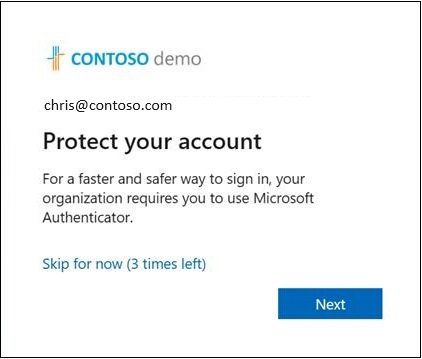
Select Next and step through Authenticator setup.
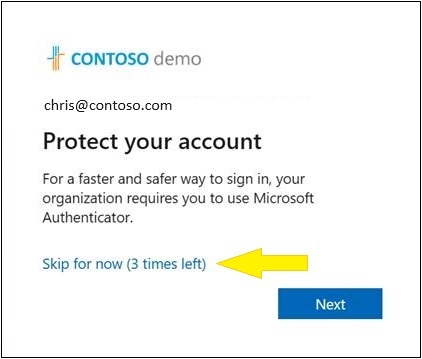
If you don't want to set up Authenticator, select Skip for now to snooze the prompt for the number of days configured by your administrator. Users with free and trial subscriptions can snooze the prompt up to three times.
Passkey campaign
When you're targeted for a passkey registration campaign, you experience the following flow:
You need to complete MFA.
If passkey registration is enabled for your account and a qualifying passkey isn't available for your current platform, you're prompted to set up a passkey.

Note
The passkey nudge evaluation determines whether you have a local passkey for your current OS and browser combination. If you already have a local passkey for that experience, you aren't nudged. The nudge evaluation is based on each device-and-browser combination that you use, rather than what is registered for your user account. For more information about which passkey types satisfy the nudge on each platform, see the Passkey nudge evaluation by platform section.
Select Next. Your device or browser displays the passkey creation prompt and shows where the passkey will be saved. Depending on your platform, you might be able to select a different passkey provider or save location.

Follow the device prompts to verify your identity by using your face, fingerprint, or PIN. After verification, the passkey is saved.
On the Let's name your passkey screen, enter a name that helps you identify the passkey, and then select Next.

On the Passkey created screen, select Done to finish signing in.

If you don't want to set up a passkey, select Skip for now to snooze the prompt.
If you encounter an error during passkey registration, you see an error screen with a Skip option. Skips from the error screen don't count toward your limited snooze count, so registration errors don't block your sign-in.


Enable the registration campaign policy by using the Microsoft Entra admin center
To enable a registration campaign in the Microsoft Entra admin center, follow these steps:
Sign in to the Microsoft Entra admin center as at least an Authentication Policy Administrator.
Browse to Entra ID > Authentication methods > Registration campaign, and select Edit.
For State:
- Select Enabled to enable and configure the registration campaign. When the state is set to Enabled, you can configure the target authentication method, snooze duration, limited number of snoozes, and included or excluded targets.
- Select Microsoft managed to enable the registration campaign with Microsoft-recommended defaults. When Microsoft managed is selected, the target authentication method, snooze duration, and limited number of snoozes are set automatically and can't be configured. You can still configure included or excluded targets. For more information, see Protecting authentication methods in Microsoft Entra ID.
For Authentication method, select the method to target:
- Microsoft Authenticator: Nudges users to set up Authenticator.
- Passkey: Nudges users to register a passkey that meets the requirements of at least one passkey profile configuration they're scoped to.
Select the users or groups to include in or exclude from the registration campaign, and then select Save.


How passkey registration nudges are evaluated
After a user meets the registration campaign’s eligibility requirements, their passkey profile determines whether existing registered passkeys suppress the nudge across all platforms or only for the current operating system and browser combination (platform). Start with the profile table. Use the platform table only when platform-specific evaluation applies.
These rules apply to passkey campaigns in both the Enabled and Microsoft managed states. They are separate from passkey profile eligibility for the Microsoft managed registration campaign. In the Microsoft managed state, only users assigned to at least one eligible passkey profile are nudged. In contrast, when the registration campaign is set to Enabled, any user who is enabled for passkeys can be nudged, regardless of their passkey profile.
Step 1: Determine how the passkey profile affects the nudge
Some passkey profiles evaluate credentials separately for each OS and browser combination. Other profiles suppress nudges across platforms after the user registers an eligible passkey.
| Passkey profile configuration | Does platform-specific evaluation apply? | When is the nudge suppressed? |
|---|---|---|
| Unrestricted | Yes | When the user has a qualifying credential available for the current OS and browser combination. See the platform table below. |
| Synced-only | Yes | When the user has a qualifying local synced passkey available for the current platform. Otherwise, the user is nudged on platforms where a compatible synced passkey can be registered. |
| Device-bound-only | Yes | When the user has a qualifying local device-bound passkey available for the current platform. Otherwise, the user is nudged on platforms where a compatible device-bound passkey can be registered. |
| AAGUID-restricted | No | After the user registers one eligible passkey, the nudge is suppressed across OS and browser combinations under this profile’s rule. |
| Device-bound with attestation enforced | No | After the user registers one eligible passkey, the nudge is suppressed across OS and browser combinations under this profile’s rule. |
An eligible passkey must meet the applicable profile requirements. Registering a passkey that doesn’t meet those requirements doesn’t satisfy the profile’s nudge-suppression condition. Windows Hello for Business registration doesn’t follow passkey profile restrictions. For example, a user assigned to a synced-only passkey profile can still register Windows Hello for Business.
Step 2: Evaluate the platform, when required
For unrestricted, synced-only, and device-bound-only profiles, the campaign evaluates whether a qualifying credential is available for the user’s current OS and browser combination.
A passkey registered on the account doesn’t necessarily suppress the nudge on every platform. It must qualify under the applicable profile and satisfy the platform-specific rule.
The following table shows which available passkey types suppress the nudge on each platform.
| Available passkey type | Windows + Chrome | Windows + other browsers | macOS + Chrome | macOS + other browsers | iOS | Android |
|---|---|---|---|---|---|---|
| Windows Hello for Business | ✓ | ✓ | — | — | — | — |
| Microsoft Entra passkey on Windows | ✓ | ✓ | — | — | — | — |
| Google Password Manager | ✓ | — | ✓ | — | — | ✓ |
| iCloud Keychain, including Managed | — | — | ✓ | ✓ | ✓ | — |
| macOS Platform SSO | — | — | ✓ | ✓ | — | — |
| Samsung Pass | — | — | — | — | — | ✓ |
| Passkey in Microsoft Authenticator | — | — | — | — | ✓ | ✓ |
| Any cross-platform provider, such as a security key | ✓ | ✓ | ✓ | ✓ | ✓ | ✓ |
✓ The available credential suppresses the platform-specific nudge, subject to the applicable profile requirements.
— The credential doesn’t suppress the nudge under this platform-specific rule. This symbol is not a statement about whether the credential can be used to authenticate on that platform.
Note
Linux users aren’t nudged by passkey registration campaigns.
Examples
The following examples assume that all other campaign requirements are met and that the user is scoped only to the profile described.
| Scenario | Expected nudge behavior |
|---|---|
| User 1 has an unrestricted profile, and their only registered passkey is Windows Hello for Business. They sign in on Windows with Chrome. | The nudge is suppressed for that platform. |
| User 1 then signs in on macOS with Chrome. | The user is nudged to register a compatible passkey. Their Windows Hello for Business credential doesn’t suppress the macOS nudge. |
| User 2 has a device-bound profile with attestation enforced. They have registered an eligible attested passkey. | The nudge is suppressed across OS and browser combinations under that profile’s rule; the platform table isn’t used. |
Enable the registration campaign policy by using Graph Explorer
In addition to using the Microsoft Entra admin center, you can enable the registration campaign policy by using Graph Explorer. You must use the authentication methods policy Graph APIs. Users who are assigned at least the Authentication Policy Administrator role can update the policy.
To configure the policy by using Graph Explorer:
Sign in to Graph Explorer and consent to the Policy.Read.All and Policy.ReadWrite.AuthenticationMethod permissions.

Retrieve the authentication methods policy:
GET https://graph.microsoft.com/v1.0/policies/authenticationmethodspolicyUpdate the
registrationEnforcementandauthenticationMethodsRegistrationCampaignsection of the policy to enable the nudge on a user or group.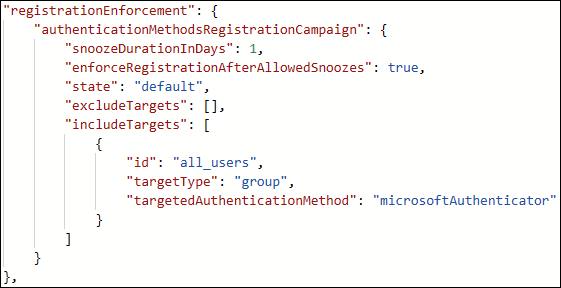
To update the policy, perform a
PATCHon the authentication methods policy with only the updatedregistrationEnforcementsection:PATCH https://graph.microsoft.com/v1.0/policies/authenticationmethodspolicy
The following table lists authenticationMethodsRegistrationCampaign properties.
| Name | Possible values | Description |
|---|---|---|
snoozeDurationInDays |
Range: 0 to 14 | Defines the number of days before the user is nudged again. If the value is 0, the user is nudged during every MFA attempt.Default: one day |
enforceRegistrationAfterAllowedSnoozes |
truefalse |
Dictates whether a user is required to perform setup after three snoozes. If true, the user is required to register.If false, the user can snooze indefinitely.Default: true |
state |
enableddisableddefault |
Allows you to enable or disable the feature. Default value is used when the configuration isn't explicitly set and uses the Microsoft Entra ID default value for this setting. Change state to enabled (for all users) or disabled as needed. |
excludeTargets |
Doesn't apply | Allows you to exclude different users and groups that you want omitted from the feature. If a user is in an excluded group and an included group, the user is excluded from the feature. |
includeTargets |
Doesn't apply | Allows you to include different users and groups that you want the feature to target. |
The following table lists includeTargets properties.
| Name | Possible values | Description |
|---|---|---|
targetType |
usergroup |
The kind of entity targeted. |
ID |
A globally unique identifier (GUID) | The ID of the user or group targeted. |
targetedAuthenticationMethod |
microsoftAuthenticatorfido2 |
The authentication method that the user is nudged to register. Use microsoftAuthenticator to nudge users to set up Authenticator, or use fido2 to nudge users to register a passkey. |
The following table lists excludeTargets properties.
| Name | Possible values | Description |
|---|---|---|
targetType |
usergroup |
The kind of entity targeted. |
ID |
A string | The ID of the user or group targeted. |
Examples
You can use the following sample JSON bodies to get started:
Include all users and target Authenticator.
To include all users in your tenant and nudge them to set up Authenticator, paste the following JSON in Graph Explorer and run
PATCHon the endpoint.{ "registrationEnforcement": { "authenticationMethodsRegistrationCampaign": { "snoozeDurationInDays": 1, "enforceRegistrationAfterAllowedSnoozes": true, "state": "enabled", "excludeTargets": [], "includeTargets": [ { "id": "all_users", "targetType": "group", "targetedAuthenticationMethod": "microsoftAuthenticator" } ] } } }Include all users and target passkeys.
If you want to include all users in your tenant and nudge them to register a passkey, update the following JSON example. Then paste it in Graph Explorer and run
PATCHon the endpoint.{ "registrationEnforcement": { "authenticationMethodsRegistrationCampaign": { "snoozeDurationInDays": 1, "enforceRegistrationAfterAllowedSnoozes": true, "state": "enabled", "excludeTargets": [], "includeTargets": [ { "id": "all_users", "targetType": "group", "targetedAuthenticationMethod": "fido2" } ] } } }Include specific users or groups of users.
If you want to include certain users or groups in your tenant, update the following JSON example with the relevant GUIDs of your users and groups. Then paste the JSON in Graph Explorer and run
PATCHon the endpoint.{ "registrationEnforcement": { "authenticationMethodsRegistrationCampaign": { "snoozeDurationInDays": 1, "enforceRegistrationAfterAllowedSnoozes": true, "state": "enabled", "excludeTargets": [], "includeTargets": [ { "id": "*********PLEASE ENTER GUID***********", "targetType": "group", "targetedAuthenticationMethod": "microsoftAuthenticator" }, { "id": "*********PLEASE ENTER GUID***********", "targetType": "user", "targetedAuthenticationMethod": "microsoftAuthenticator" } ] } } }Include and exclude specific users or groups.
If you want to include and exclude certain users or groups in your tenant, update the following JSON example with the relevant GUIDs of your users and groups. Then paste it in Graph Explorer and run
PATCHon the endpoint.{ "registrationEnforcement": { "authenticationMethodsRegistrationCampaign": { "snoozeDurationInDays": 1, "enforceRegistrationAfterAllowedSnoozes": true, "state": "enabled", "excludeTargets": [ { "id": "*********PLEASE ENTER GUID***********", "targetType": "group" }, { "id": "*********PLEASE ENTER GUID***********", "targetType": "user" } ], "includeTargets": [ { "id": "*********PLEASE ENTER GUID***********", "targetType": "group", "targetedAuthenticationMethod": "microsoftAuthenticator" }, { "id": "*********PLEASE ENTER GUID***********", "targetType": "user", "targetedAuthenticationMethod": "microsoftAuthenticator" } ] } } }
Identify user GUIDs for the JSON request body
Sign in to the Microsoft Entra admin center as at least an Authentication Policy Administrator.
In the Manage pane, select Users.
On the Users page, identify the specific user that you want to target.
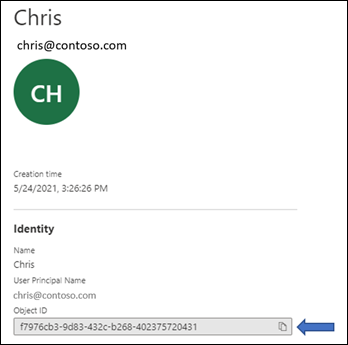
When you select the specific user, you see their object ID, which is the user's GUID.
Identify group GUIDs for the JSON request body
Sign in to the Microsoft Entra admin center as at least an Authentication Policy Administrator.
In the Manage pane, select Groups.
On the Groups page, identify the specific group that you want to target.
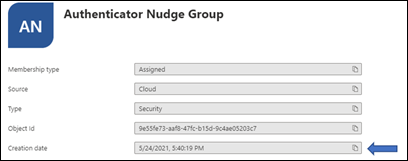
Select the group to get the object ID.
Frequently asked questions
What's the difference between the Enabled and Microsoft managed states?
In the Enabled state, you configure the campaign yourself: the targeted method, snooze duration, snooze limit, and who's included or excluded. In the Microsoft managed state, Microsoft sets the targeted method, snooze duration, and snooze limit for you based on best practices, and keeps them current. You can still set include/exclude targets in either state. For a full comparison, see Choose a campaign state.
Why isn't a user I scoped in getting nudged for passkeys under Microsoft managed?
Under Microsoft managed passkey targeting, a scoped user is nudged only if they're in at least one eligible passkey profile. If the user's only passkey profiles don't meet the criteria (for example, an AAGUID-restricted profile whose Allow list doesn't include any supported AAGUID), they aren't nudged. In the Enabled state, passkey targeting doesn't apply these profile checks. For the rules, see Passkey profile eligibility for Microsoft managed registration campaign.
Can users be nudged within an application?
Yes. Registration campaigns support embedded browser views in certain applications. The campaign doesn't nudge users in out-of-the-box experiences or in browser views embedded in Windows settings.
Can users be nudged within an SSO session?
Yes, during interactive sign-ins that satisfy multifactor authentication (MFA), provided users meet the registration campaign's other eligibility requirements. Silent SSO events that occur without user interaction, such as refresh token redemption, don't display nudges.
Can users be nudged on a mobile device?
It depends on the registration campaign:
Microsoft Authenticator registration campaigns aren't supported on mobile devices.
Passkey registration campaigns are supported on mobile devices, including:
- Browser-based experiences on mobile devices.
- Native iOS mobile apps. Native Android mobile app support isn't currently available.
How long does the campaign run?
You can enable the campaign for as long as you want. Whenever you want to be finished running the campaign, use the admin center or APIs to disable the campaign.
Can each group of users have a different snooze duration?
No. The snooze duration for the prompt is a tenant-wide setting and applies to all groups in scope.
What if I don't want users to be able to skip registration?
Set Days allowed to snooze to 0 and set Limited number of snoozes to Enabled. Users can still snooze up to three times, but they're prompted again the next time they complete MFA. After the third snooze, registration is required. These settings are available in the Enabled state, where you control the campaign configuration.
Can users be nudged to set up passwordless phone sign-in?
The registration campaign feature supports nudging users to set up MFA by using Authenticator or to register a passkey. Passwordless phone sign-in isn't a targeted method for registration campaigns.
Does a user who signs in with a non-Microsoft authenticator app see the nudge?
It depends on the targeted authentication method. A passkey campaign can nudge the user after MFA with a non-Microsoft authenticator app if the user meets the other eligibility requirements. An Authenticator campaign prompts the user only after MFA by SMS or voice call.
Does a user who has Authenticator set up only for time-based one-time password codes see the nudge?
The user is eligible for an Authenticator registration campaign if Authenticator isn't set up for push notifications. However, the prompt appears only after the user completes MFA by SMS or voice call, not after they use a time-based one-time password code.
Does a user who already has a passkey see the nudge?
The passkey nudge evaluates whether a user has a local passkey for their current OS and browser combination. If the user already has a local passkey for that experience, they aren't nudged. For this reason, a user might be nudged on one device but not another. For platform-specific information, see the Passkey nudge evaluation by platform section.
Can I run registration campaigns for both Authenticator and passkeys at the same time?
No. A registration campaign can target only one authentication method at a time. You can target either Authenticator or passkeys, but not both simultaneously in the same tenant.
If a user just went through MFA registration, are they nudged in the same sign-in session?
No. To provide a good user experience, users aren't nudged to set up Authenticator in the same session in which they registered other authentication methods.
Can I nudge my users to register another authentication method?
Yes. Registration campaigns support nudging users to set up Authenticator or to register a passkey (FIDO2). Select the targeted authentication method when you configure the campaign.
Can I hide the snooze option and require users to set up Authenticator?
You can't hide the snooze option immediately. Set Limited number of snoozes to Enabled so that users can postpone setup up to three times, after which setup is required.
Can I nudge my users if I'm not using Microsoft Entra MFA?
No. The nudge works only for users who are doing MFA by using Microsoft Entra MFA.
Are guest users in my tenant nudged?
They're nudged if they're included in a registration campaign for Authenticator. They're not nudged if they're included in a registration campaign for passkeys because passkey support for guest users isn't currently available.
What if the user closes the browser?
Closing the browser is the same as snoozing. If setup is required for a user after they snoozed three times, the user is nudged when they next sign in.
Why don't some users see a nudge when there's a Conditional Access policy for "Register security information"?
A nudge doesn't appear if a user is in scope for a Conditional Access policy that blocks access to the Register security information page.
Do users see a nudge when a terms-of-use screen appears during sign-in?
A nudge doesn't appear if a terms of use screen appears during sign-in.
Do users see a nudge when Conditional Access custom controls apply to the sign-in?
A nudge doesn't appear if a user is redirected during sign-in because of Conditional Access custom controls settings.