Note
Access to this page requires authorization. You can try signing in or changing directories.
Access to this page requires authorization. You can try changing directories.
This article describes how to migrate WordPress from Azure App Service on Windows or from external hosting providers to App Service on Linux.
Note
Migrate the content to a test instance, and validate all scenarios. If everything works as expected, swap this instance to the production slot.
You can migrate your site to WordPress on Azure App Service in two ways:
Migrate WordPress by using All-in-One WP Migration plugin
The All-in-One WP Migration and Backup plugin is popular for migrating sites with ease. This approach is recommended for sites that are less than 256 MB. For larger sites, you can either purchase the premium version of the plugin or migrate manually by using the steps outlined in the manual migration process.
By default, the file upload size for WordPress on App Service (Linux) is limited to 50 MB, and it can be increased to a maximum limit of 256 MB. To change the file upload limit, add the following application settings in App Service.
| Application setting | Default value | New value |
|---|---|---|
| UPLOAD_MAX_FILESIZE | 50M | 256M |
| POST_MAX_SIZE | 128M | 256M |
Important
Install the All-in-One WP Migration and Backup plugin on both the source and target sites.
Export the data from the source
- Sign in to the WordPress admin dashboard for the source site.
- Open the All-in-One WP Migration and Backup plugin.
- Select Export, and then specify the export type as File.
- Download the file.
Import the data at the destination
- Sign in to the WordPress admin dashboard for your target site.
- Open the All-in-One WP Migration and Backup plugin.
- Select Import, and choose File as the import source.
- Upload the file downloaded in the previous section, then select Proceed.
- Select Permalink Settings to update the permalinks structure. Select Save changes.
- Select Finish to complete the import process.
Manual migration process
As a prerequisite, the WordPress instance on App Service must have been created with an appropriate Linux hosting plan.
Manually export the data at source site
Note
Depending on the size of your content and your internet connection, this operation could take several minutes.
Download the wp-content folder from the source site. You can use FTP tools like FileZilla to connect to the web server and download the content.
Export the contents of the source database into a SQL file. You can perform this task either by using MySQL client tools like HeidiSQL, MySQL workbench, phpMyAdmin, or by using the command-line interface. For more information, see Data Export and Import Wizard.
Manually import the data at destination site
Create a new WordPress app by using our WordPress on App Service template for Linux.
Under Development Tools on the sidebar menu, select SSH.
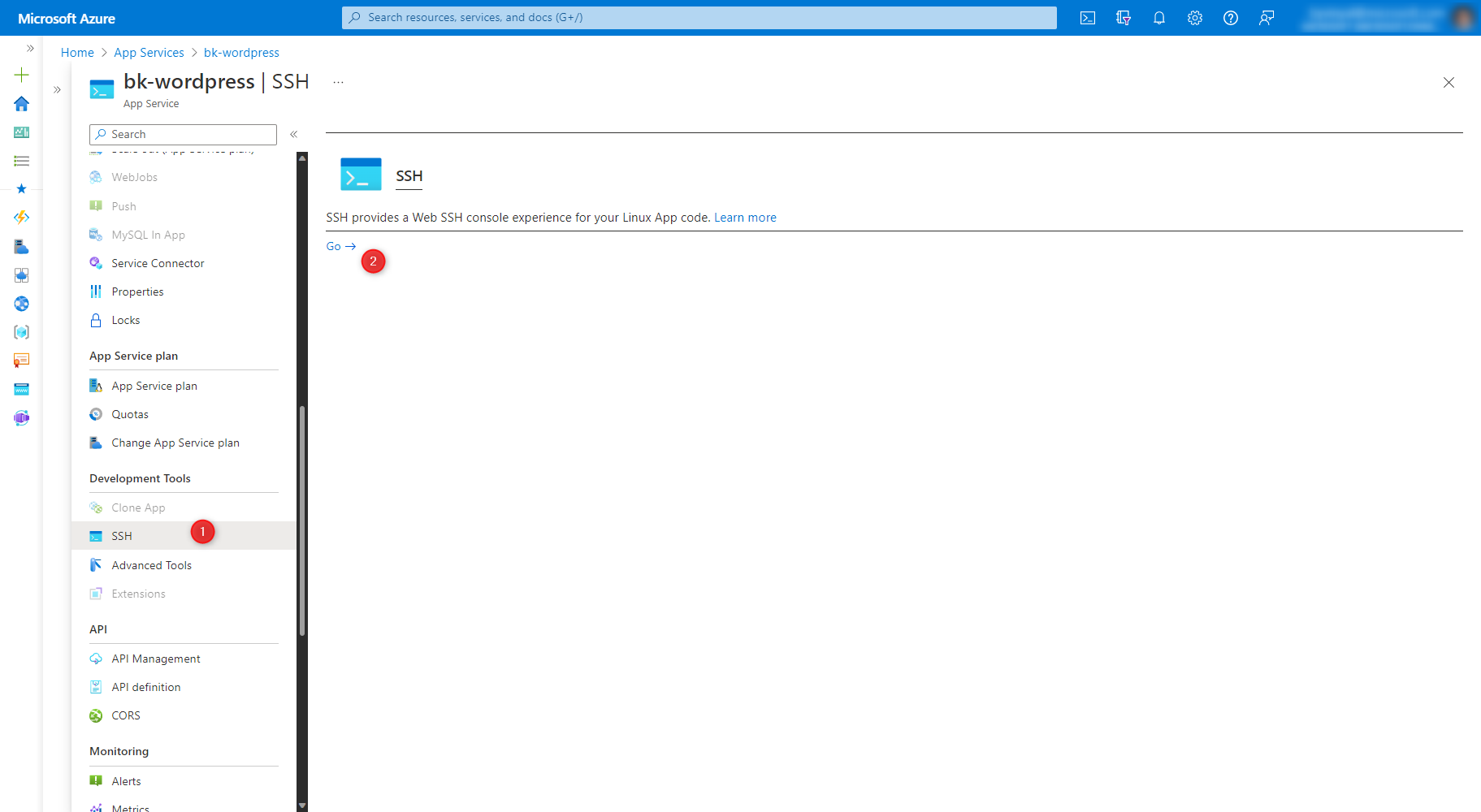
Delete the existing content of the /home/site/wwwroot/wp-content folder using the following command.
rm -rf /home/site/wwwroot/wp-content/*Upload the new contents of the wp-content folder using the File Manager. Select the label that says Drag a File/Folder here to upload, or click to select one.
You can either use an existing MySQL database or migrate the content to a new Azure MySQL Flexible Server created by App Service on Linux.
Note
Azure Database for MySQL - Single Server was retired in 2024. If your existing MySQL database is hosted on Azure Database for MySQL - Single Server, consider migrating to Azure Database for MySQL - Flexible Server by using the following steps, or by using Azure Database Migration Service (DMS).
If you migrate the database, import the SQL file downloaded from the source database into the database of your newly created WordPress site. You can do it via the PhpMyAdmin dashboard available at
<sitename>.azurewebsites.net/phpmyadmin. If you're unable to use one single large SQL file, separate the files into parts and try uploading again. To import the database through phpMyAdmin, see Import.In your App Service app, select Settings, then choose Environment variables. Under App Settings, update DATABASE_NAME with the source database name. This restarts your app and the new changes are reflected. To learn more, see WordPress Application Settings.
Application setting Update required? DATABASE_NAME Yes, replace with the source (exported) database name DATABASE_HOST Not required DATABASE_USERNAME Not required DATABASE_PASSWORD Not required 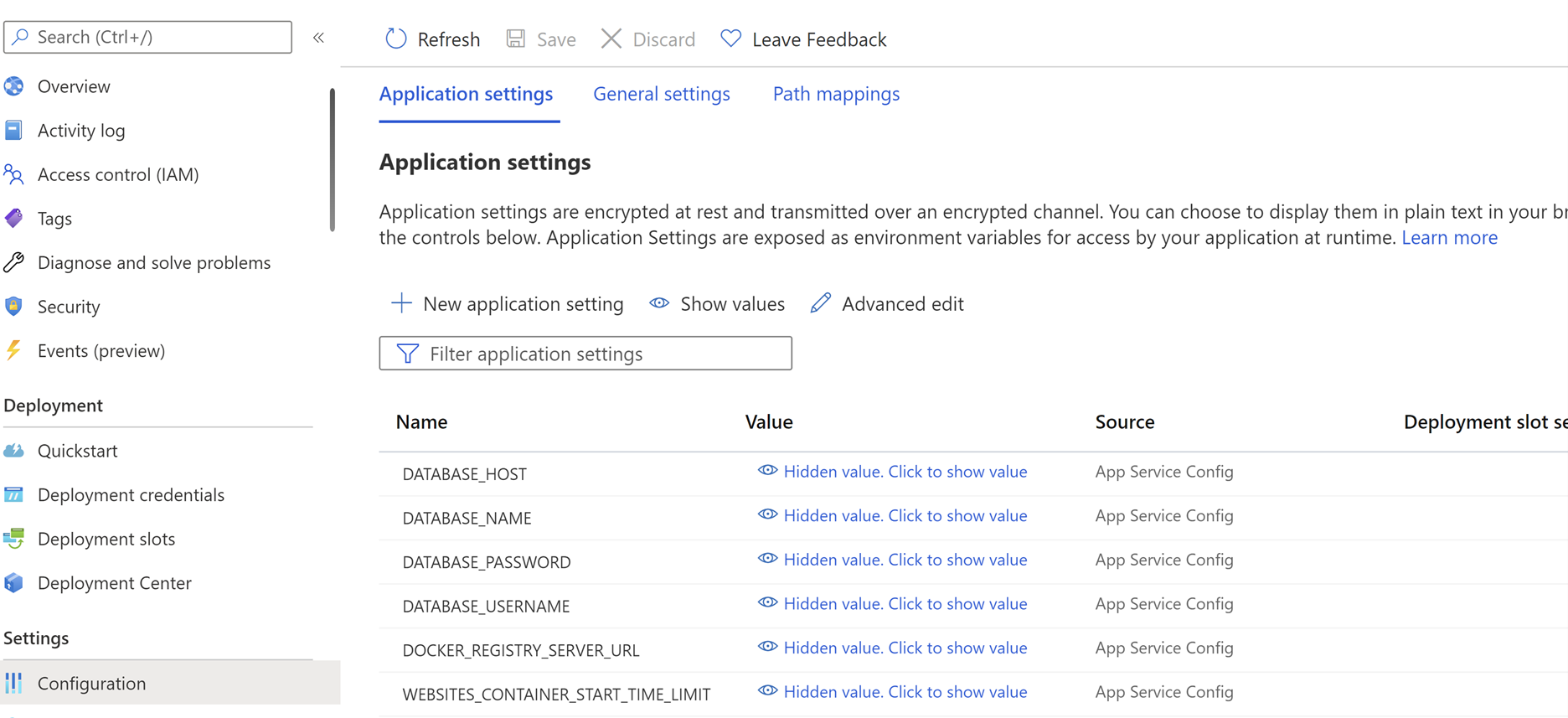
Post migration actions
Install recommended plugins
After the site migration, you should validate that you have the default recommended or equivalent plugins activated and configured as before. If you're prohibited from not configuring them as per your organization governing policies, then you can uninstall the plugins.
The W3TC plugin should be activated and configured properly to use the local Redis cache server and Azure Blob Storage (if it was configured to use them originally). For more information, see the following articles:
WP Smush plugin is activated and configured properly for image optimization. For more information, see Image Optimizations in WordPress.
Configure recommended WordPress settings
The following WordPress settings are recommended. However, when the users migrate their custom sites, it's up to them to decide whether to use these settings or not.
- Open the WordPress admin dashboard.
- Set the permalink structure to day and name since it performs better compared to the plain permalinks that use the format ?p=123.
- Under the comment settings, enable the option to break comments into pages.
- Show excerpts instead of the full post in the feed.
Search and replace (paths and domains)
One common issue that users face during migration is that some of the contents of their old site use absolute URLs or paths instead of relative ones. To resolve this issue, you can use plugins like Search and Replace to update the database records.
Configure a custom domain
To configure your site with a custom domain, see Set up an existing custom domain.
Migrate a custom domain
When you migrate a live site and its DNS domain name to App Service, that DNS name is already serving live traffic. You can avoid DNS resolution downtime by binding the active DNS name to your app as described in Migrate an existing domain.
Update SSL certificates
If your site is configured with Secure Sockets Layer (SSL) certs, then follow Add and manage TLS/SSL certificates to configure SSL.