Note
Access to this page requires authorization. You can try signing in or changing directories.
Access to this page requires authorization. You can try changing directories.
Mutual authentication, or client authentication, allows Application Gateway to authenticate the client sending requests. Usually, only the client authenticates the Application Gateway. Mutual authentication allows both the client and Application Gateway to authenticate each other.
Note
We recommend using TLS 1.2 with mutual authentication because TLS 1.2 will be mandated in the future.
Mutual authentication
Application Gateway supports certificate-based mutual authentication. You can upload trusted client CA certificates to Application Gateway, and the gateway uses those certificates to authenticate clients sending requests. With the rise in IoT use cases and increased security requirements across industries, mutual authentication provides a way for you to manage and control which clients can communicate with your Application Gateway.
Application Gateway provides the following two options to validate client certificates:
Mutual TLS passthrough mode
In mutual TLS (mTLS) passthrough mode, Application Gateway requests a client certificate during the TLS handshake but doesn't terminate the connection if the certificate is missing or invalid. The connection to the backend proceeds regardless of the certificate's presence or validity. If a certificate is provided, Application Gateway can forward it to the backend if required by the application. The backend service is responsible for validating the client certificate.
Benefits of mTLS passthrough mode
mTLS passthrough mode provides the following advantages:
- Simplified gateway configuration: No CA certificate upload is required at the gateway level.
- Flexible authentication: Supports mixed traffic scenarios where some clients use certificates and others use token-based authentication.
- Backend policy enforcement: Allows your backend application to implement custom certificate validation logic and policies.
- Reduced gateway overhead: Offloads certificate validation to the backend, reducing processing on the gateway.
- Gradual migration support: Enables phased rollout of mTLS without disrupting existing traffic patterns.
To forward client certificates to the backend, configure server variables. For more information, see Server variables.
Configure mTLS passthrough mode
You can configure mTLS passthrough mode using the Azure portal or ARM templates.
To configure mTLS passthrough mode in the Azure portal:
Navigate to your Application Gateway resource.
Under Settings, select SSL profiles.
Select + Add to create a new SSL profile.
Enter a name for your SSL profile.
On the Client Authentication tab, select Passthrough.
In Passthrough mode, the client certificate is optional. The backend server is responsible for client authentication.
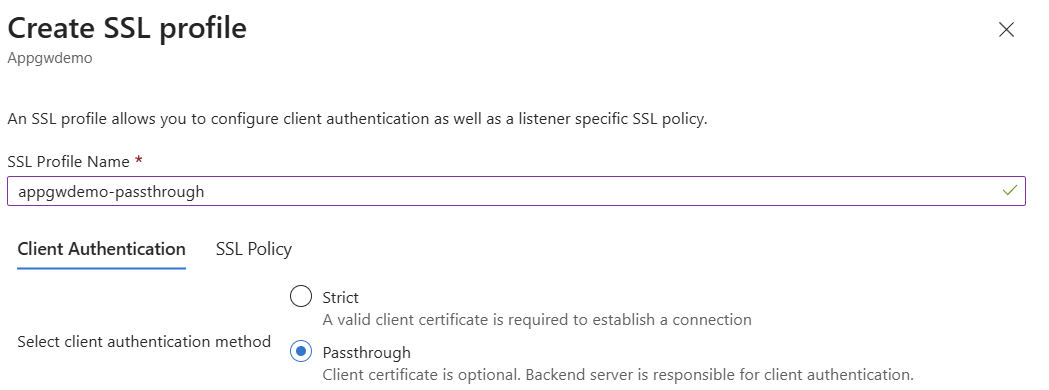
Configure SSL Policy settings as needed.
Select Add to create the SSL profile.
Associate the SSL profile with your HTTPS listener.
Note
PowerShell and CLI support for passthrough configuration are currently unavailable.
Mutual TLS strict mode
In mutual TLS strict mode, Application Gateway enforces client certificate authentication during the TLS handshake by requiring a valid client certificate. To enable strict mode, upload a trusted client CA certificate that contains a root CA and optionally intermediate CAs as part of the SSL profile. Associate this SSL profile with a listener to enforce mutual authentication.
Configure mutual TLS strict mode
To configure mutual authentication strict mode, upload a trusted client CA certificate as part of the client authentication portion of an SSL profile. Then associate the SSL profile with a listener to complete the configuration. The client certificate that you upload must always include a root CA certificate. You can upload a certificate chain, but the chain must include a root CA certificate in addition to any intermediate CA certificates. The maximum size of each uploaded file must be 25 KB or less.
For example, if your client certificate contains a root CA certificate, multiple intermediate CA certificates, and a leaf certificate, upload the root CA certificate and all intermediate CA certificates to Application Gateway in one file. For more information on how to extract a trusted client CA certificate, see Extract trusted client CA certificates.
If you're uploading a certificate chain with root CA and intermediate CA certificates, upload the certificate chain as a PEM or CER file to the gateway.
Important
Upload the entire trusted client CA certificate chain to Application Gateway when you use mutual authentication.
Each SSL profile can support up to 100 trusted client CA certificate chains. A single Application Gateway can support a total of 200 trusted client CA certificate chains.
Note
- Mutual authentication is available only on Standard_v2 and WAF_v2 SKUs.
- Configuration of mutual authentication for TLS protocol listeners is currently available through REST API, PowerShell, and CLI.
Certificates supported for mutual TLS strict mode authentication
Application Gateway supports certificates issued from both public and privately established certificate authorities.
- CA certificates issued from well-known certificate authorities: Intermediate and root certificates are commonly found in trusted certificate stores and enable trusted connections with little to no extra configuration on the device.
- CA certificates issued from organization-established certificate authorities: These certificates are typically issued privately through your organization and aren't trusted by other entities. Import intermediate and root certificates into trusted certificate stores for clients to establish chain trust.
Note
When you issue client certificates from well-established certificate authorities, consider working with the certificate authority to see if an intermediate certificate can be issued for your organization. This approach prevents inadvertent cross-organizational client certificate authentication.
Client authentication validation for mutual TLS strict mode
Verify client certificate DN
You can verify the client certificate's immediate issuer and only allow Application Gateway to trust that issuer. This option is off by default, but you can enable it through the portal, PowerShell, or Azure CLI.
If you enable Application Gateway to verify the client certificate's immediate issuer, the following scenarios describe how the client certificate issuer DN is extracted from the uploaded certificates:
- Scenario 1: Certificate chain includes root certificate, intermediate certificate, and leaf certificate.
- The intermediate certificate's subject name is extracted as the client certificate issuer DN.
- Scenario 2: Certificate chain includes root certificate, intermediate1 certificate, intermediate2 certificate, and leaf certificate.
- The intermediate2 certificate's subject name is extracted as the client certificate issuer DN.
- Scenario 3: Certificate chain includes root certificate and leaf certificate.
- The root certificate's subject name is extracted as the client certificate issuer DN.
- Scenario 4: Multiple certificate chains of the same length in the same file. Chain 1 includes root certificate, intermediate1 certificate, and leaf certificate. Chain 2 includes root certificate, intermediate2 certificate, and leaf certificate.
- The intermediate1 certificate's subject name is extracted as the client certificate issuer DN.
- Scenario 5: Multiple certificate chains of different lengths in the same file. Chain 1 includes root certificate, intermediate1 certificate, and leaf certificate. Chain 2 includes root certificate, intermediate2 certificate, intermediate3 certificate, and leaf certificate.
- The intermediate3 certificate's subject name is extracted as the client certificate issuer DN.
Important
We recommend uploading only one certificate chain per file. This recommendation is especially important if you enable the verify client certificate DN option. Uploading multiple certificate chains in one file results in scenario four or five, which might cause issues later when the client certificate presented doesn't match the client certificate issuer DN that Application Gateway extracted from the chains.
For more information on how to extract trusted client CA certificate chains, see Extract trusted client CA certificate chains.
Server variables
With mutual TLS authentication, you can use additional server variables to pass information about the client certificate to the backend servers behind Application Gateway. For more information about which server variables are available and how to use them, see Server variables.
Certificate revocation
When a client initiates a connection to an Application Gateway configured with mutual TLS authentication, the certificate chain and issuer's distinguished name can be validated. Additionally, the revocation status of the client certificate can be checked with OCSP (Online Certificate Status Protocol). During validation, the certificate presented by the client is looked up via the defined OCSP responder in its Authority Information Access (AIA) extension. If the client certificate has been revoked, Application Gateway responds to the client with an HTTP 400 status code and reason. If the certificate is valid, the request continues to be processed by Application Gateway and forwarded to the defined backend pool.
You can enable client certificate revocation through REST API, ARM template, Bicep, CLI, or PowerShell.
To configure client revocation check on an existing Application Gateway by using Azure PowerShell, use the following commands:
# Get Application Gateway configuration
$AppGw = Get-AzApplicationGateway -Name "ApplicationGateway01" -ResourceGroupName "ResourceGroup01"

# Create new SSL Profile
$profile  = Get-AzApplicationGatewaySslProfile -Name "SslProfile01" -ApplicationGateway $AppGw

# Verify Client Cert Issuer DN and enable Client Revocation Check
Set-AzApplicationGatewayClientAuthConfiguration -SslProfile $profile -VerifyClientCertIssuerDN -VerifyClientRevocation OCSP

# Update Application Gateway
Set-AzApplicationGateway -ApplicationGateway $AppGw
For a list of all Azure PowerShell references for client authentication configuration on Application Gateway, see the following articles:
To verify that OCSP revocation status was evaluated for the client request, access logs contain a property called sslClientVerify that shows the status of the OCSP response.
It's critical that the OCSP responder is highly available and that network connectivity between Application Gateway and the responder is possible. If Application Gateway can't resolve the fully qualified domain name (FQDN) of the defined responder, or if network connectivity is blocked to or from the responder, certificate revocation status fails and Application Gateway returns a 400 HTTP response to the requesting client.
Note
OCSP checks are validated via local cache based on the nextUpdate time defined by a previous OCSP response. If the OCSP cache wasn't populated from a previous request, the first response might fail. Upon retry of the client, the response should be found in the cache and the request is processed as expected.
Notes
- Revocation check via CRL isn't supported.
- Client revocation check was introduced in API version 2022-05-01.
Related content
After learning about mutual authentication, go to Configure Application Gateway with mutual authentication in PowerShell to create an Application Gateway that uses mutual authentication.