Note
Access to this page requires authorization. You can try signing in or changing directories.
Access to this page requires authorization. You can try changing directories.
Service groups are a new resource type in Azure Resource Manager (ARM) that help you organize related resources, like resource groups, subscriptions, and management groups, under one service, application, or workload. This article explains how to create a service group and configure it to use it with workload orchestration.
For more information, see RBAC for service groups.
Note
Service groups are in preview and require allowlisting of user subscriptions for access. You need to fill this form to get access to service groups.
What is a service group?
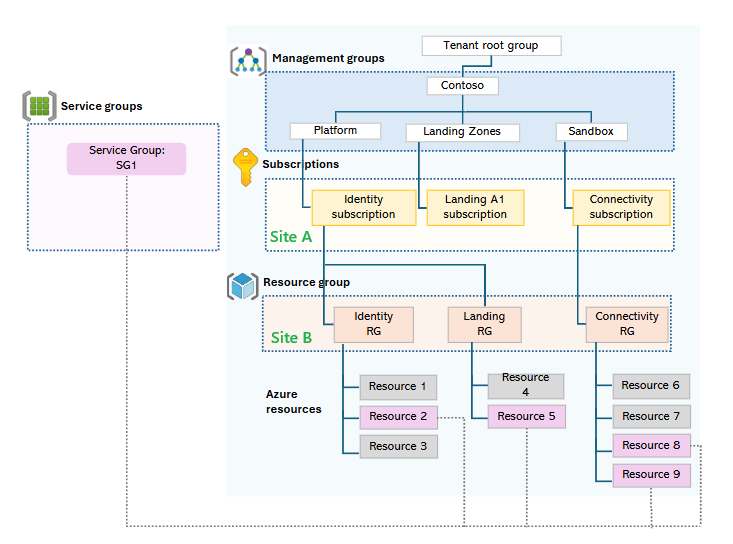
Service groups are tenant-level resource containers that represent a subset of collection of resources across Azure subscriptions or resource groups. They allow you to organize selected resources into a unified logical grouping, while maintaining your existing setup.
Service groups also allow you to create layers (self-nesting) so you can organize services in a way that matches your real-world structure. This setup gives you a consistent view of your services, making it easier to manage visibility, tagging, policy enforcement, and governance, no matter how your resources are actually organized.
Every service group has a display name and one parent service group. Relationships are created between resources to establish a hierarchical structure such as parent and child associations.
The following diagram shows how service groups structure groups related components and deployment targets into logical units, making the architecture more modular and easier to manage.
Prerequisites
- An Azure subscription. If you don't have an Azure subscription, create a free account.
- Set up your environment for workload orchestration. If you haven't, go to Prepare your environment for workload orchestration to set up the prerequisites.
- Download and extract the artifacts from the GitHub repository into a particular folder.
Note
You can reuse the global variables defined in Prepare the basics to run workload orchestration and the resource variables defined in Set up the resources of workload orchestration.
Create a service group
The following command creates a service group with the specified name and tenant ID. Make sure to replace <service-group-name> and <tenant-id> with your actual values. Service group names must be unique within the tenant and can only contain alphanumeric characters, underscores, and hyphens.
If your organization has multiple hierarchy levels, you need to create a service group at each level except for the target level. For more information, see Service groups at different hierarchy levels.
sg="<service-group-name>"
tenantId="<tenant-id>"

az rest \
  --method put \
  --headers "Content-Type=application/json" \
  --url "https://eastus2euap.management.azure.com/providers/Microsoft.Management/serviceGroups/$sg?api-version=2024-02-01-preview" \
  --body "{'properties':{'displayName':'$sg','parent': { 'resourceId': '/providers/Microsoft.Management/serviceGroups/$tenantId'}}}" \
  --resource https://management.azure.com
Create and tag Sites
Sites and Site addresses are used to identify the physical hierarchy such as plant, factory, and store. Sites can be created on top of subscriptions and resource groups. Site references are defined only for the highest hierarchy level. For example, if your hierarchy is [Factory, Line], then you create a Site at the factory level. If your hierarchy is [Region, Factory, Line], then you create a Site at the region level.
To ensure that Sites appear appropriately in the Azure portal, make sure to tag the Sites with the correct labels. The labels should be set according to the Site’s hierarchy level, as defined in your workload orchestration setup.
For example, if the hierarchy is [Factory, Line], then Site is created at the factory level and it should be tagged as {level: Factory}, where level is the label key and Factory is the label value.
To tag the Site correctly, you can use the following commands, ensuring that the site is tagged according to its respective hierarchy level:
# Tag a site
az rest \
  --method put \
  --url "https://management.azure.com/providers/Microsoft.Management/serviceGroups/$sg/providers/Microsoft.Edge/sites/$siteName?api-version=2025-03-01-preview" \
  --body "{'properties':{'displayName':'$sg','description': '$sg','labels': {'level': 'Factory'}}}" \
  --resource https://management.azure.com
If you have a Site previously created, to view the same on the workload orchestration portal, you need to patch the Site with the correct labels. The labels should be set according to the Site’s hierarchy level, as defined in your workload orchestration setup.
# Patch a site with correct labels
az rest \
  --method patch \
  --url "https://management.azure.com/providers/Microsoft.Management/serviceGroups/$sg/providers/Microsoft.Edge/sites/$siteName?api-version=2025-03-01-preview" \
  --body "{'properties':{'labels': {'<label-key>': '<label-value>'}}}" \
  --resource https://management.azure.com
Set up a service group hierarchy for workload orchestration
Once the service group is created and the sites are appropriately tagged, you need to grant the workload orchestration access to the service group hierarchy. This is done by assigning the
Service Group Contributorrole.# Assign the Service Group Contributor role providerAppId="cba491bc-48c0-44a6-a6c7-23362a7f54a9" # Workload orchestration Provider App ID providerOid=$(az ad sp show --id "$providerAppId" --query "id" --output "tsv") az role assignment create --assignee "$providerOid" \ --role "Service Group Contributor" \ --scope "/providers/Microsoft.Management/serviceGroups/$sg"To connect a service group site to a context, you need to create a site reference. This is done by using the
az workload-orchestration context site-reference createcommand. Make sure to replace the placeholders with your actual values.# Create a site reference az workload-orchestration context site-reference create \ --subscription "$subId" \ --resource-group "$rg" \ --context-name "$instanceName" \ --name "$siteReference" \ --site-id "/providers/Microsoft.Management/serviceGroups/$sg/providers/Microsoft.Edge/sites/$siteName"Update context-capabilities.json file with the target capabilities you want to add to the context. It can only exist one context per tenant. For example:
{
  "capabilities": [
    {
      "name": "soap",
      "description": "For soap production"
    },
    {
      "name": "shampoo",
      "description": "For shampoo production"
    }
  ]
}
Once the context capabilities JSON file is updated, you can create a new context. Make sure to replace the placeholders with your actual values.
# Create a new context
az workload-orchestration context create \
  --subscription "$subId" \
  --resource-group "$rg" \
  --location "$l" \
  --name "Contoso-Context" \
  --capabilities "@context-capabilities.json" \
  --hierarchies "[0].name=factory" "[0].description=Factory" "[1].name=line" "[1].description=Line"
Note
If you have a two-level hierarchy organization and you want to update the hierarchy levels to three or four levels, or vice versa, you can also use the
az workload-orchestration context createto update the context with the new hierarchy levels. For more information, see Service groups at different hierarchy levelsUpdate custom-location.json file with your custom location details.
Create a target. Make sure to update
solution-scopevalue and--capabilitieswith the necessary values as per your scenario.# Create a target az workload-orchestration target create \ --resource-group "$rg" \ --location "$l" \ --name "$childName" \ --display-name "$childName" \ --hierarchy-level "$level2" \ --capabilities "[0].name=soap" "[0].description=For soap production" "[1].name=shampoo" "[1].description=For shampoo production" \ --description "$childDesc" \ --solution-scope "new" \ --target-specification "@targetspecs.json" \ --extended-location "@custom-location.json" \ --context-id "/subscriptions/$subId/resourceGroups/$rg/providers/private.edge/contexts/$contextName"Get the ID for Target created in the previous step.
# Link the target ID to the factory service group
targetId=$(az workload-orchestration target show --resource-group "$rg" --name "$childName" --query id --output tsv)
Link the target ID to the factory service group.
az rest \
  --method put \
  --url "$targetId/providers/Microsoft.Relationships/serviceGroupMember/SGRelation?api-version=2023-09-01-preview" \
  --body "{'properties':{ 'targetId': '/providers/Microsoft.Management/serviceGroups/$sg'}}"
Update or refresh a target after connecting it to a service group to make sure hierarchy configuration is in sync with the service group. This step is optional.
# Update or refresh a target
az workload-orchestration target update --resource-group "$rg" --name "$childName"
Once the setup is completed, you can proceed with the solution authoring steps in Solution authoring and deployment.
Note
If you run into any issues while creating service groups or configuring them, see the Troubleshooting guide.
Service groups at different hierarchy levels
Service groups can be created for a two-level hierarchy organization, such as a factory and line, a three-level hierarchy organization, such as a region, factory, and line, and a maximum of four-level hierarchy organization, such as a country, region, factory, and line. The hierarchy names can be customized to match your organizational structure.
The previous sections show how to create a service group for a two-level hierarchy organization, which you can use as a reference to create service groups for a three-level or four-level hierarchy organization.
To ease the process, the following steps show how to create a four-level service group hierarchy organization. You need to consider the following points:
- Every level in the hierarchy must its own service group created. For example, for four-level hierarchy organization, you need to create a service group for each level: country, region, factory, and line.
- Site reference is defined at the highest level. Although the context has 4 levels, if the site reference is defined at region level, then the particular site will have only 3 levels: region, factory, and line. If the site reference is at factory level, then the particular site will have only 2 levels: factory and line.
- The
editable_atfield in the configuration schema only accepts the parent levels in addition to target level. For example, if the solution is to be deployed at factory level, then theeditable_atfield in the schema only accepts the country, region, and factory levels. If the solution is to be deployed at region level, then theeditable_atfield in the schema accepts only country and region levels.
Define the global variables.
# Enter resource group name
rg="<resource-group-name>"
tenantId="<tenant-id>"
# Enter name for the group representing the first hierarchy level. In this case, it is a country
level1Name="Italy"
# Enter name for the group representing the second hierarchy level. In this case, it is a region
level2Name="Naples"
# Enter name for the group representing the third hierarchy level. In this case, it is a factory
level3Name="ContosoLtd"
Define the service group names and hierarchy levels.
## Level 1 / Country
# Create Top / Level 1 Service Group Italy to link resources to:
az rest --method put --headers "Content-Type=application/json" --url "https://eastus2euap.management.azure.com/providers/Microsoft.Management/serviceGroups/$level1Name?api-version=2024-02-01-preview" --body "{'properties':{'displayName':'$level1Name','parent': { 'resourceId': '/providers/Microsoft.Management/serviceGroups/$tenantId'}}}" --resource https://management.azure.com

# Create Top / Level 1 Site Italy to visualize & store configuration onto:
az rest --method put --url "https://eastus2euap.management.azure.com/providers/Microsoft.Management/serviceGroups/$level1Name/providers/Microsoft.Edge/sites/$level1Name?api-version=2025-03-01-preview" --body "{'properties':{'displayName':'$level1Name','description': '$level1Name','labels': {'level': 'Country'}}}" --resource https://management.azure.com

## Level 2 / Region
# Create Level 2 Service Group Naples to link resources to:
az rest --method put --headers "Content-Type=application/json" --url "https://eastus2euap.management.azure.com/providers/Microsoft.Management/serviceGroups/$level2Name?api-version=2024-02-01-preview" --body "{'properties':{'displayName':'$level2Name','parent': { 'resourceId': '/providers/Microsoft.Management/serviceGroups/$level1Name'}}}" --resource https://management.azure.com

# Create Level 2 Site Naples to visualize & store configuration onto:
az rest --method put --url "https://eastus2euap.management.azure.com/providers/Microsoft.Management/serviceGroups/$level2Name/providers/Microsoft.Edge/sites/$level2Name?api-version=2025-03-01-preview" --body "{'properties':{'displayName':'$level2Name','description': '$level2Name','labels': {'level': 'Region'}}}" --resource https://management.azure.com

## Level 3 / Factory
# Create Level 3 Service Group ContosoLtd to link resources to:
az rest --method put --headers "Content-Type=application/json" --url "https://eastus2euap.management.azure.com/providers/Microsoft.Management/serviceGroups/$level3Name?api-version=2024-02-01-preview" --body "{'properties':{'displayName':'$level3Name','parent': { 'resourceId': '/providers/Microsoft.Management/serviceGroups/$level2Name'}}}" --resource https://management.azure.com

# Create Level 3 / Factory Site $level3Name to visualize & store configuration onto:
az rest --method put --url "https://eastus2euap.management.azure.com/providers/Microsoft.Management/serviceGroups/$level3Name/providers/Microsoft.Edge/sites/$level3Name?api-version=2025-03-01-preview" --body "{'properties':{'displayName':'$level3Name','description': '$level3Name','labels': {'level': 'Factory'}}}" --resource https://management.azure.com
Once the service groups are created, you need to grant access to the workload orchestration service. This is done by assigning the
Service Group Contributorrole to the workload orchestration provider app ID.providerAppId="cba491bc-48c0-44a6-a6c7-23362a7f54a9" # Workload orchestration Provider App ID providerOid=$(az ad sp show --id "$providerAppId" --query "id" --output "tsv") az role assignment create --assignee "$providerOid" \ --role "Service Group Contributor" \ --scope "/providers/Microsoft.Management/serviceGroups/$level1Name"To connect a service group site to a context, you need to create a site reference.
contextSubscriptionId="<subscription-id used to create the context for the first time>"
contextRG="<resource group used to create the context for the first time>"
# Enter the name of the context used during creation
contextName="Contoso-Context"
siteReference="Country-SG"
# Enter your specific region
l="eastus"

az workload-orchestration context site-reference create \
  --subscription "$contextSubscriptionId" \
  --resource-group "$contextRG" \
  --context-name "$contextName" \
  --name "$siteReference" \
  --site-id "/providers/Microsoft.Management/serviceGroups/$level1Name/providers/Microsoft.Edge/sites/$level1Name"
Update context-capabilities.json file with the target capabilities you want to add to the context.
Create a new context or use an already existing one. The example uses country, region, factory, and line as hierarchies. Make sure to replace the placeholders and the hierarchy values with your actual values.
# Only one context can exist per tenant.
# Enter your capabilities. These are tags which help relate applications and targets

capability1="soap"
capability2="shampoo"

# Create the capabilities JSON file
cat <<EOF > context-capabilities.json
{
  "capabilities": [
    {
      "name": "$capability1",
      "description": "For $capability1 production"
    },
    {
      "name": "$capability2",
      "description": "For $capability2 production"
    }
  ]
}
EOF

az workload-orchestration context create \
  --subscription "$contextSubscriptionId" \
  --resource-group "$contextRG" \
  --location "$l" \
  --name "$contextName" \
  --capabilities "@context-capabilities.json" \
  --hierarchies "[0].name=country" "[0].description=Country" "[1].name=region" "[1].description=Region" "[2].name=factory" "[2].description=Factory" "[3].name=line" "[3].description=Line"
Note
Once the setup is completed, the hierarchy level is displayed in workload orchestration in Azure portal. For more information, see Monitor your solutions with Azure portal.
For more details, see the following tutorials on how to create solutions with different targets in a four-level hierarchy organization:
- Create a solution with a leaf target: This tutorial shows how to create a solution with a target at line level in a four-level hierarchy organization.
- Create a solution with a non-leaf target: This tutorial shows how to create a solution with a target at factory level in a four-level hierarchy organization.
- Create a solution with multiple dependencies at different levels: This tutorial shows how to create a solution with multiple shared adapter dependencies at different levels in a four-level hierarchy organization.
- Create multiple solutions with a single dependency at different levels: This tutorial shows how to create multiple solutions with a single shared adapter dependency at different levels in a four-level hierarchy organization.