Note
Access to this page requires authorization. You can try signing in or changing directories.
Access to this page requires authorization. You can try changing directories.
Durable Functions provides several diagnostic tools for troubleshooting orchestrations. This article covers how to configure tracking and logging, write replay-safe code, inspect distributed traces, and debug locally.
In this article, you learn how to:
- Configure Application Insights tracking for lifecycle events
- Query orchestration instances with Kusto
- Enable Durable Task Framework (DTFx) logging for low-level diagnostics
- Set up distributed tracing to visualize end-to-end orchestration flows
- Write replay-safe logs in orchestrator functions
- Report custom orchestration status to external clients
- Debug orchestrations locally with breakpoints
Configure Application Insights tracking
Application Insights is the recommended way to monitor Durable Functions. The Durable extension emits tracking events that let you trace the end-to-end execution of an orchestration. You can find and query these tracking events using the Application Insights Analytics tool in the Azure portal.
Log level configuration
Configure the verbosity of tracking data emitted to Application Insights in your host.json file:
{
    "logging": {
        "logLevel": {
            "Host.Triggers.DurableTask": "Information",
        },
    }
}
By default, all non-replay tracking events are emitted. You can reduce the volume of data by setting Host.Triggers.DurableTask to "Warning" or "Error", which means tracking events are only emitted for exceptional situations. To enable emitting the verbose orchestration replay events, set logReplayEvents to true in the host.json configuration file.
Note
By default, the Azure Functions runtime samples Application Insights telemetry to avoid emitting data too frequently. Sampling can cause tracking information to be lost when many lifecycle events occur in a short period of time. The Azure Functions Monitoring article explains how to configure this behavior.
Input and output logging
By default, orchestrator, activity, and entity function inputs and outputs aren't logged. This approach is recommended because logging inputs and outputs could increase Application Insights costs. Function input and output payloads may also contain sensitive information. Instead, the number of bytes for function inputs and outputs are logged. If you want the Durable Functions extension to log the full input and output payloads, set the traceInputsAndOutputs property to true in the host.json configuration file.
Query orchestration instances
Use the following Kusto queries in Application Insights Analytics to inspect orchestration instances.
Single instance query
The following query shows historical tracking data for a single instance of the Hello Sequence function orchestration. It filters out replay execution so that only the logical execution path is shown. You can order events by sorting by timestamp and sequenceNumber as shown in the following query:
let targetInstanceId = "ddd1aaa685034059b545eb004b15d4eb";
let start = datetime(2018-03-25T09:20:00);
traces
| where timestamp > start and timestamp < start + 30m
| where customDimensions.Category == "Host.Triggers.DurableTask"
| extend functionName = customDimensions["prop__functionName"]
| extend instanceId = customDimensions["prop__instanceId"]
| extend state = customDimensions["prop__state"]
| extend isReplay = tobool(tolower(customDimensions["prop__isReplay"]))
| extend sequenceNumber = tolong(customDimensions["prop__sequenceNumber"])
| where isReplay != true
| where instanceId == targetInstanceId
| sort by timestamp asc, sequenceNumber asc
| project timestamp, functionName, state, instanceId, sequenceNumber, appName = cloud_RoleName
The result is a list of tracking events that shows the execution path of the orchestration, including any activity functions ordered by the execution time in ascending order.

Instance summary query
The following query displays the status of all orchestration instances that were run in a specified time range.
let start = datetime(2017-09-30T04:30:00);
traces
| where timestamp > start and timestamp < start + 1h
| where customDimensions.Category == "Host.Triggers.DurableTask"
| extend functionName = tostring(customDimensions["prop__functionName"])
| extend instanceId = tostring(customDimensions["prop__instanceId"])
| extend state = tostring(customDimensions["prop__state"])
| extend isReplay = tobool(tolower(customDimensions["prop__isReplay"]))
| extend output = tostring(customDimensions["prop__output"])
| where isReplay != true
| summarize arg_max(timestamp, *) by instanceId
| project timestamp, instanceId, functionName, state, output, appName = cloud_RoleName
| order by timestamp asc
The result is a list of instance IDs and their current runtime status.

Tracking data reference
Every orchestration instance generates tracking events as it progresses through its lifecycle. Each lifecycle event contains a customDimensions payload with several fields. Field names are all prepended with prop__.
| Field name | Description |
|---|---|
hubName |
The name of the task hub in which your orchestrations are running. |
appName |
The name of the function app. This field is useful when you have multiple function apps sharing the same Application Insights instance. |
slotName |
The deployment slot in which the current function app is running. This field is useful when you use deployment slots to version your orchestrations. |
functionName |
The name of the orchestrator or activity function. |
functionType |
The type of the function, such as Orchestrator or Activity. |
instanceId |
The unique ID of the orchestration instance. |
state |
The lifecycle execution state of the instance. |
state.Scheduled |
The function was scheduled for execution but hasn't started running yet. |
state.Started |
The function started running but hasn't yet awaited or completed. |
state.Awaited |
The orchestrator scheduled some work and is waiting for it to complete. |
state.Listening |
The orchestrator is listening for an external event notification. |
state.Completed |
The function completed successfully. |
state.Failed |
The function failed with an error. |
reason |
Additional data associated with the tracking event. For example, if an instance is waiting for an external event notification, this field indicates the name of the event it's waiting for. If a function fails, this field contains the error details. |
isReplay |
Boolean value indicating whether the tracking event is for replayed execution. |
extensionVersion |
The version of the Durable Task extension. The version information is especially important data when reporting possible bugs in the extension. Long-running instances may report multiple versions if an update occurs while the instance is running. |
sequenceNumber |
Execution sequence number for an event. Combined with the timestamp, this helps order the events by execution time. Note that this number resets to zero if the host restarts while the instance is running, so it's important to always sort by timestamp first, then sequenceNumber. |
Durable Task Framework logging (DTFx)
The Durable extension logs are useful for understanding the behavior of your orchestration logic. However, these logs don't always contain enough information to debug framework-level performance and reliability issues. Starting in v2.3.0 of the Durable extension, logs emitted by the underlying Durable Task Framework (DTFx) are also available for collection.
When looking at logs emitted by the DTFx, it's important to understand that the DTFx engine has two components: the core dispatch engine (DurableTask.Core) and one of many supported storage providers.
| Component | Description |
|---|---|
DurableTask.Core |
Core orchestration execution and low-level scheduling logs and telemetry. |
DurableTask.DurableTaskScheduler |
Backend logs specific to the Durable Task Scheduler. |
DurableTask.AzureStorage |
Backend logs specific to the Azure Storage state provider. These logs include detailed interactions with the internal queues, blobs, and storage tables used to store and fetch internal orchestration state. |
DurableTask.Netherite |
Backend logs specific to the Netherite storage provider, if enabled. |
DurableTask.SqlServer |
Backend logs specific to the Microsoft SQL (MSSQL) storage provider, if enabled. |
You can enable these logs by updating the logging/logLevel section of your function app's host.json file. The following example shows how to enable warning and error logs from both DurableTask.Core and DurableTask.AzureStorage:
{
  "version": "2.0",
  "logging": {
    "logLevel": {
      "DurableTask.AzureStorage": "Warning",
      "DurableTask.Core": "Warning"
    }
  }
}
If you have Application Insights enabled, these logs are automatically added to the trace collection. You can search them the same way you search for other trace logs using Kusto queries.
Note
For production applications, we recommend enabling DurableTask.Core and the appropriate storage provider (for example, DurableTask.AzureStorage) logs using the "Warning" filter. Higher verbosity filters such as "Information" are useful for debugging performance issues. However, these log events can be high-volume and can significantly increase Application Insights data storage costs.
The following Kusto query shows how to query for DTFx logs. The most important part of the query is where customerDimensions.Category startswith "DurableTask" since it filters the results to logs in the DurableTask.Core and DurableTask.AzureStorage categories.
traces
| where customDimensions.Category startswith "DurableTask"
| project
    timestamp,
    severityLevel,
    Category = customDimensions.Category,
    EventId = customDimensions.EventId,
    message,
    customDimensions
| order by timestamp asc
The result is a set of logs written by the Durable Task Framework log providers.
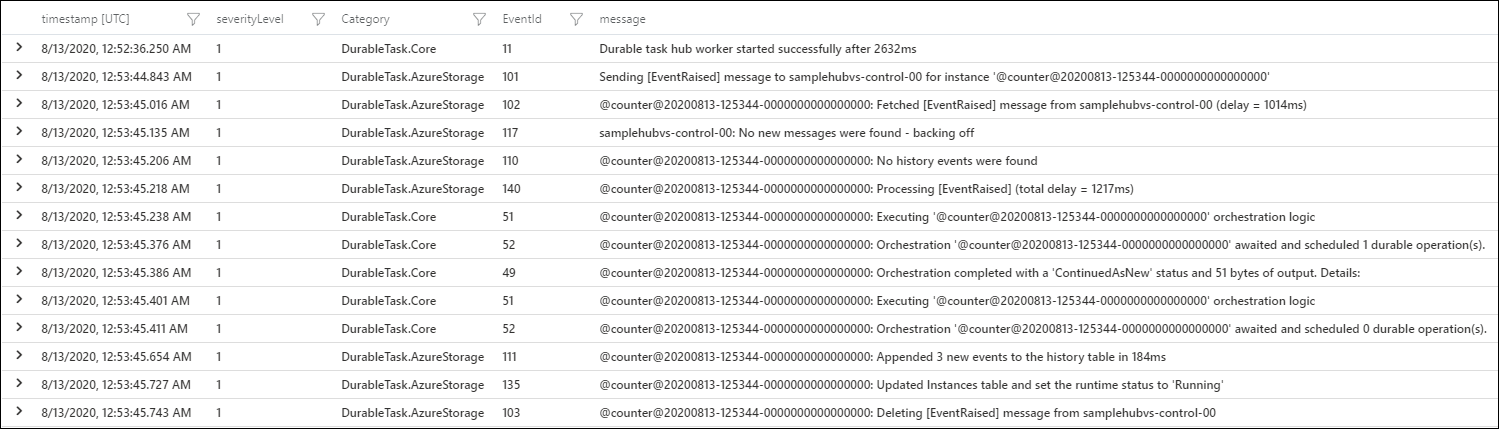
For more information about what log events are available, see the Durable Task Framework structured logging documentation on GitHub.
Distributed tracing
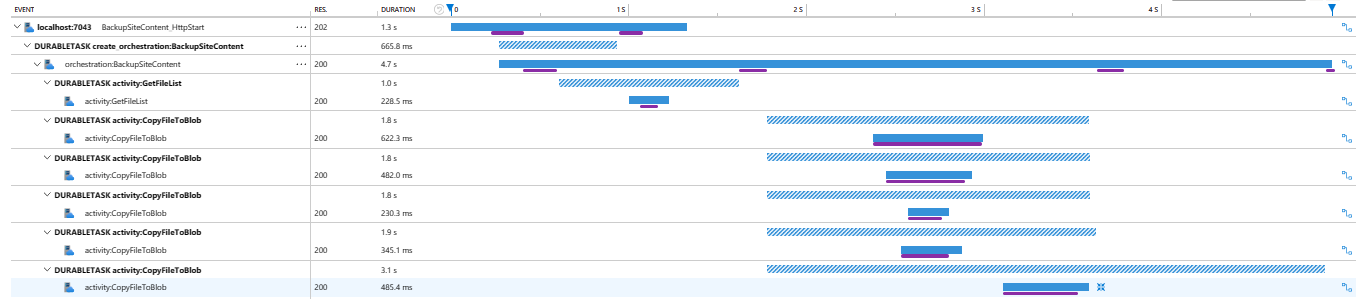
Distributed tracing tracks requests and shows how different services interact with each other. In Durable Functions, it correlates orchestrations, entities, and activities together. Distributed tracing shows execution time for each orchestration step relative to the entire orchestration and identifies where issues or exceptions occur. This feature is supported in Application Insights for all languages and storage providers.
Prerequisites
Distributed tracing requires specific minimum extension versions:
- For .NET Isolated apps, Microsoft.Azure.Functions.Worker.Extensions.DurableTask >= v1.4.0.
- For non-.NET apps, follow these instructions to manually install Microsoft.Azure.WebJobs.Extensions.DurableTask >= v3.2.0 for now. Distributed tracing will be available in extension bundles > v4.24.x.
Setting up distributed tracing
To configure distributed tracing, update the host.json and set up an Application Insights resource.
host.json
{
   "extensions": {
     "durableTask": {
       "tracing": {
         "distributedTracingEnabled": true,
         "version": "V2"
       }
     }
   }
 }
Application Insights
Configure your function app with an Application Insights resource.
Inspecting the traces
In your Application Insights resource, navigate to Transaction Search. In the results, look for Request and Dependency events that start with Durable-specific prefixes (for example, orchestration:, activity:, etc.). Selecting one of these events opens a Gantt chart that shows the end-to-end distributed trace. The chart displays each orchestration step as a horizontal bar, with activity and sub-orchestration calls nested under their parent orchestration. The bar length represents the wall-clock duration of each step, making it easy to spot bottlenecks or unexpectedly slow activities.
Note
Not seeing your traces in Application Insights? Wait about five minutes after running your application to ensure that all of the data propagates to the Application Insights resource.
Replay-safe logging in orchestrator functions
Orchestrator functions replay every time new input is received, which means any log statement in an orchestrator runs multiple times for a single logical execution. For example, a function with three activity calls produces log output like this during replay:
Calling F1.
Calling F1.
Calling F2.
Calling F1.
Calling F2.
Calling F3.
Calling F1.
Calling F2.
Calling F3.
Done!
To prevent duplicate log lines, check the "is replaying" flag so that logs only execute on the first (non-replay) pass. The following examples show replay-safe logging in each language.
Starting in Durable Functions 2.0, use CreateReplaySafeLogger to automatically filter out log statements during replay:
[FunctionName("FunctionChain")]
public static async Task Run(
    [OrchestrationTrigger] IDurableOrchestrationContext context,
    ILogger log)
{
    log = context.CreateReplaySafeLogger(log);
    log.LogInformation("Calling F1.");
    await context.CallActivityAsync("F1");
    log.LogInformation("Calling F2.");
    await context.CallActivityAsync("F2");
    log.LogInformation("Calling F3");
    await context.CallActivityAsync("F3");
    log.LogInformation("Done!");
}
With replay-safe logging, the log output is:
Calling F1.
Calling F2.
Calling F3.
Done!
Custom orchestration status
Use custom orchestration status to report workflow progress to external clients. Common patterns include completion percentages, step descriptions, and error summaries. External clients can view the custom status via the HTTP status query API or language-specific API calls.
The following code shows how to set a custom status value in an orchestrator function:
[FunctionName("SetStatusTest")]
public static async Task SetStatusTest([OrchestrationTrigger] IDurableOrchestrationContext context)
{
    // ...do work...

    // update the status of the orchestration with some arbitrary data
    var customStatus = new { completionPercentage = 90.0, status = "Updating database records" };
    context.SetCustomStatus(customStatus);

    // ...do more work...
}
Note
The previous C# example is for Durable Functions 2.x. For Durable Functions 1.x, you must use DurableOrchestrationContext instead of IDurableOrchestrationContext. For more information about the differences between versions, see the Durable Functions versions article.
While the orchestration is running, external clients can fetch this custom status:
GET /runtime/webhooks/durabletask/instances/instance123?code=XYZ
Clients get the following response:
{
  "runtimeStatus": "Running",
  "input": null,
  "customStatus": { "completionPercentage": 90.0, "status": "Updating database records" },
  "output": null,
  "createdTime": "2017-10-06T18:30:24Z",
  "lastUpdatedTime": "2017-10-06T19:40:30Z"
}
Warning
The custom status payload is limited to 16 KB of UTF-16 JSON text because it needs to fit in an Azure Table Storage column. You can use external storage if you need a larger payload.
Debugging
Azure Functions supports debugging function code directly, and that same support carries forward to Durable Functions, whether running in Azure or locally. Use the following workflow for the best debugging experience:
Start a new debug session with a fresh task hub or clear the task hub contents between sessions. Leftover messages from previous runs can cause unexpected re-execution.
Set breakpoints in your orchestrator or activity functions. For orchestrator functions, use a conditional breakpoint that breaks only when the "is replaying" value is
falseto avoid hitting the same breakpoint multiple times during replay.Step through your code as normal. Keep in mind the following behaviors:
Replay:
Orchestrator functions regularly replay when new inputs are received. A single logical execution of an orchestrator function can result in hitting the same breakpoint multiple times, especially if it's set early in the function code.Await:
Whenever anawaitis encountered in an orchestrator function, it yields control back to the Durable Task Framework dispatcher. If it's the first time a particularawaitis encountered, the associated task is never resumed. Because the task never resumes, stepping over the await (F10 in Visual Studio) isn't possible. Stepping over only works when a task is being replayed.Messaging timeouts:
Durable Functions internally uses queue messages to drive execution of orchestrator, activity, and entity functions. In a multi-VM environment, extended debugging sessions could cause another VM to process the message, resulting in duplicate execution. Although this behavior also exists for regular queue-trigger functions, this context is important to highlight because the queues are an implementation detail.Stopping and starting:
Messages in Durable Functions persist between debug sessions. If you stop debugging and terminate the local host process while a durable function is executing, that function might re-execute automatically in a future debug session.
Additional tools
Inspect storage state
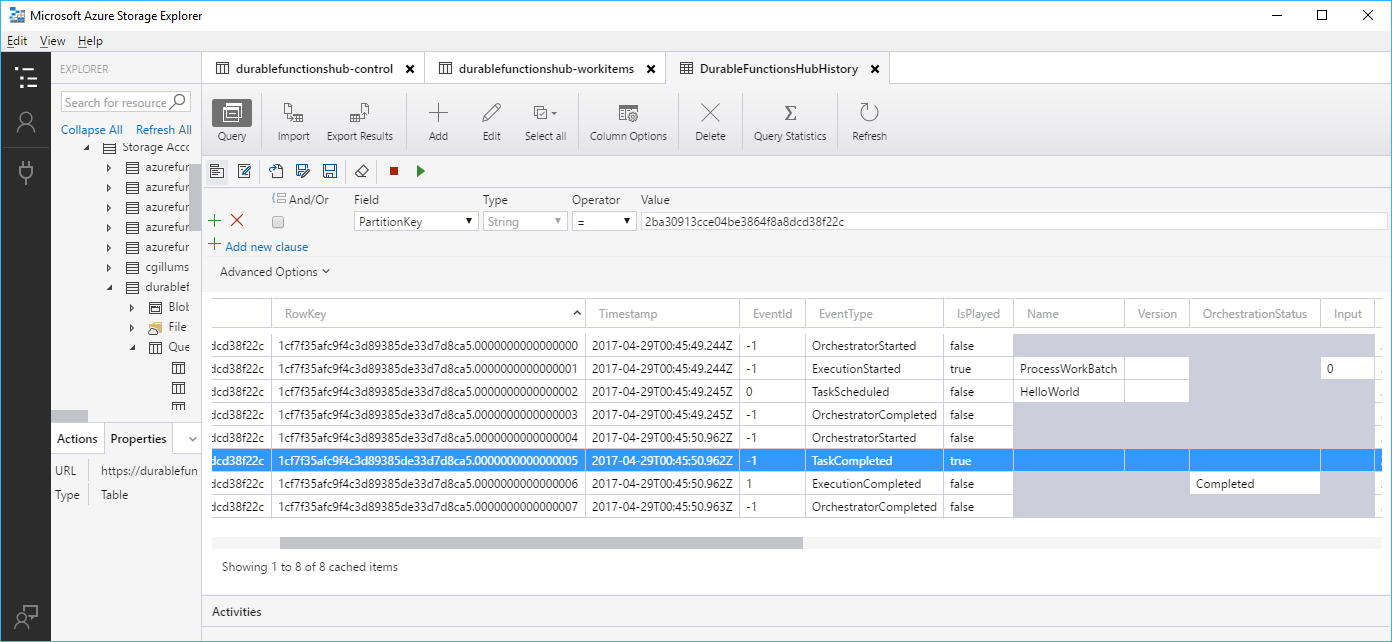
By default, Durable Functions stores state in Azure Storage. You can inspect orchestration state and messages using tools such as Microsoft Azure Storage Explorer.
Warning
While it's convenient to see execution history in table storage, avoid taking any dependency on this table. It might change as the Durable Functions extension evolves.
Note
You can configure other storage providers instead of the default Azure Storage provider. Depending on the storage provider configured for your app, you might need to use different tools to inspect the underlying state.
Durable Functions Monitor
Durable Functions Monitor is a graphical tool for monitoring, managing, and debugging orchestration and entity instances. It's available as a Visual Studio Code extension or a standalone app. For setup instructions and a list of features, see the Durable Functions Monitor Wiki.
Azure portal diagnostics
The Azure portal provides built-in diagnostic tools for your function apps.
Diagnose and solve problems: Azure Function App Diagnostics is a useful resource for monitoring and diagnosing potential issues in your application. It also provides suggestions to help resolve problems based on the diagnosis. For more information, see Azure Function App Diagnostics.
Orchestration traces: The Azure portal provides orchestration trace details to help you understand the status of each orchestration instance and trace end-to-end execution. When you view the list of functions inside your Azure Functions app, you see a Monitor column that contains links to the traces. You need to have Application Insights enabled for your app to access this information.
Roslyn Analyzer
The Durable Functions Roslyn Analyzer is a live code analyzer that guides C# developers to follow Durable Functions specific code constraints. For instructions on how to enable it in Visual Studio and Visual Studio Code, see Durable Functions Roslyn Analyzer.
Troubleshooting
To troubleshoot common problems such as orchestrations being stuck, failing to start, or running slowly, see the Durable Functions troubleshooting guide.