Note
Access to this page requires authorization. You can try signing in or changing directories.
Access to this page requires authorization. You can try changing directories.
By using static provisioning, you can use an existing Azure Managed Lustre file system with your AKS cluster. Manually create the necessary Kubernetes resources. This method involves creating storage classes that reference existing Lustre clusters and manually specifying the Lustre file system name and MGS IP address. Use this method for scenarios where you have preexisting Lustre infrastructure.
Prerequisites for static provisioning
- An existing Azure Managed Lustre file system. For information about creating a file system, see Create an Azure Managed Lustre file system by using the Azure portal.
- The MGS IP address and internal file system name from your Azure Managed Lustre cluster.
- An Azure account with an active subscription. Create an account for free.
- A terminal environment with the Azure CLI tools installed. See Get started with the Azure CLI.
- kubectl, the Kubernetes management tool, installed in your terminal environment.
- Network connectivity between your AKS cluster and Azure Managed Lustre virtual network. See Plan network architecture for AKS with Azure Managed Lustre for configuration options.
Create an Azure Managed Lustre file system cluster for static provisioning
If you didn't already create your Azure Managed Lustre file system cluster, create the cluster now. For instructions, see Create an Azure Managed Lustre file system by using the Azure portal. Static provisioning requires an existing Azure Managed Lustre file system.
Create an AKS cluster for static provisioning
If you didn't already create your AKS cluster, create a cluster deployment. See Deploy an Azure Kubernetes Service (AKS) cluster by using the Azure portal.
Create a virtual network peering for static provisioning
Note
Skip this network peering step if you installed AKS in a subnet on the Azure Managed Lustre virtual network.
The AKS virtual network is created in a separate resource group from the AKS cluster's resource group. You can find the name of this resource group by going to your AKS cluster in the Azure portal, going to Properties, and finding the Infrastructure resource group. This resource group contains the virtual network that needs to be paired with the Azure Managed Lustre virtual network. It matches the pattern MC_<aks-rg-name>_<aks-cluster-name>_<region>.
To peer the AKS virtual network with your Azure Managed Lustre virtual network, consult Virtual network peering.
Tip
Due to the naming of the MC_ resource groups and virtual networks, names of networks can be similar or the same across multiple AKS deployments. When you're setting up peering, be careful to choose the AKS networks that you intend to choose.
Connect to the AKS cluster for static provisioning
Open a terminal session with access to the Azure CLI tools and sign in to your Azure account.
az loginSign in to the Azure portal.
Find your AKS cluster. On the Overview pane, select the Connect button, and then copy the command for Download cluster credentials.
In your terminal session, paste the command to download the credentials. The command is similar to:
az aks get-credentials --subscription <AKS_subscription_id> --resource_group <AKS_resource_group_name> --name <name_of_AKS>Install kubectl if it's not present in your environment.
az aks install-cliVerify that the current context is the AKS cluster where you just installed the credentials and that you can connect to it.
kubectl config current-context
kubectl get deployments --all-namespaces=true
Install the driver for static provisioning
To install the Azure Lustre CSI Driver for Kubernetes, run the following command:
curl -skSL https://raw.githubusercontent.com/kubernetes-sigs/azurelustre-csi-driver/main/deploy/install-driver.sh | bash
To get sample commands for a local installation, see Install the Azure Lustre CSI driver on a Kubernetes cluster.
Create and configure a persistent volume for static provisioning
To create a persistent volume for an existing Azure Managed Lustre file system:
Copy the following configuration files from the /docs/examples/ folder in the azurelustre-csi-driver repository. If you cloned the repository when you installed the driver, you already have local copies available.
- storageclass_existing_lustre.yaml
- pvc_storageclass.yaml
If you don't want to clone the entire repository, you can download each file individually. Open each of the following links, copy the file's contents, and then paste the contents into a local file with the same file name.
In the storageclass_existing_lustre.yaml file, update the internal name of the Lustre cluster and the Lustre Management Service (MGS) IP address.
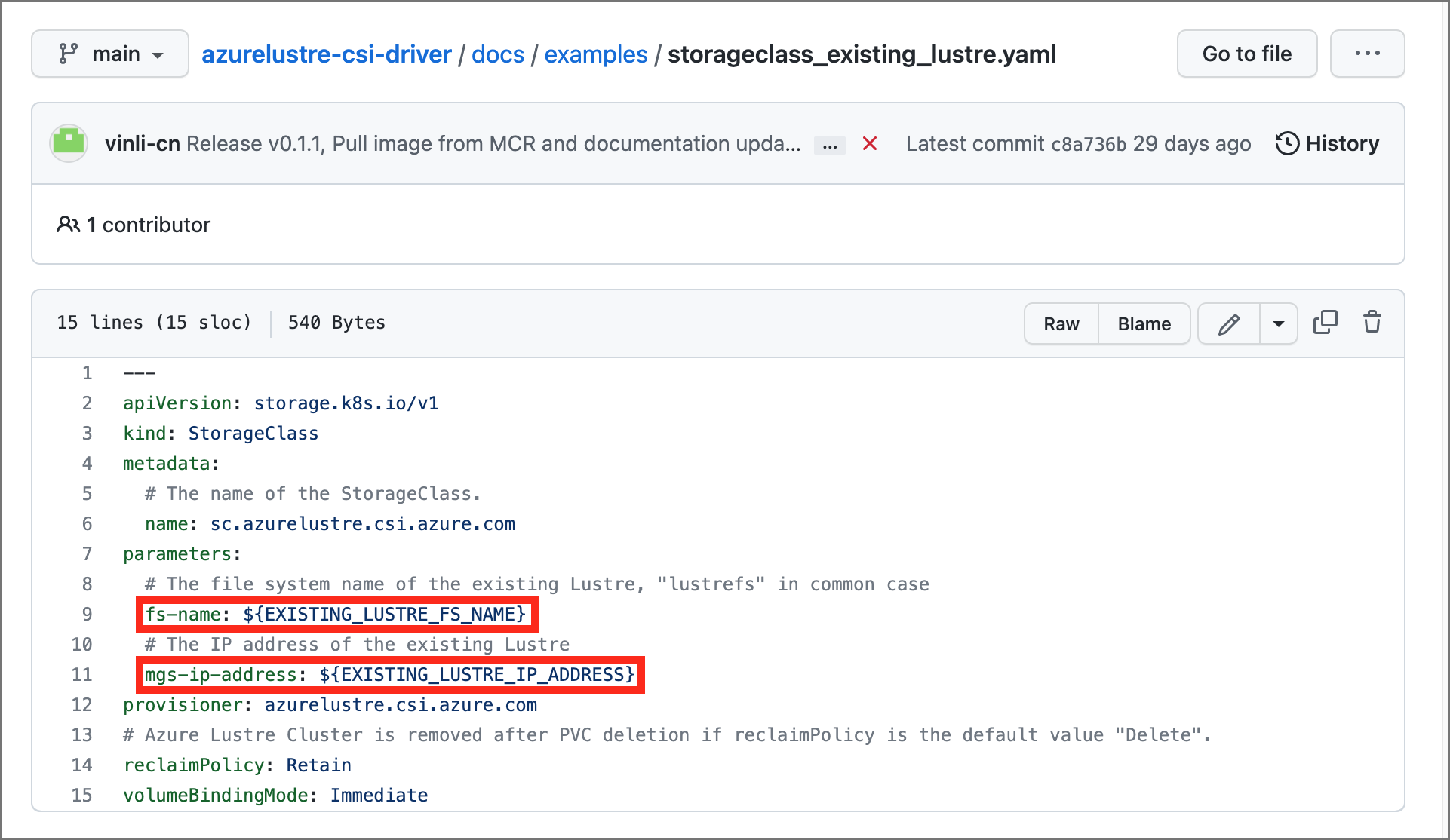
Both settings are displayed in the Azure portal, on the Client connection pane for your Azure Managed Lustre file system.
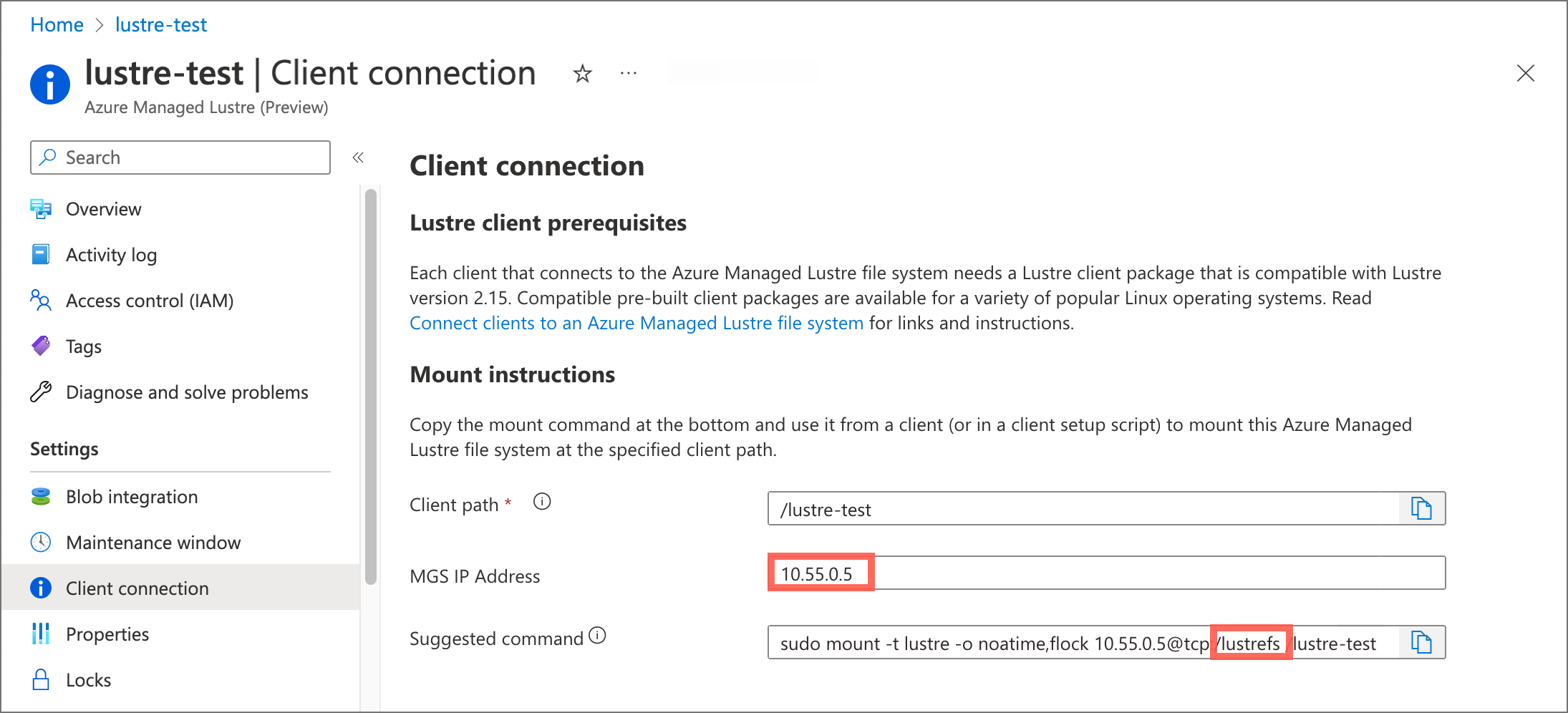
Make these updates:
Replace
EXISTING_LUSTRE_FS_NAMEwith the system-assigned internal name of the Lustre cluster in your Azure Managed Lustre file system. The internal name is usuallylustrefs. The internal name isn't the name that you gave the file system when you created it.The suggested
mountcommand includes the name highlighted in the following address string.
Replace
EXISTING_LUSTRE_IP_ADDRESSwith the MGS IP address.
To create the storage class and the persistent volume claim, run the following
kubectlcommand:kubectl create -f storageclass_existing_lustre.yaml kubectl create -f pvc_storageclass.yaml
Create a pod for static provisioning
Create a pod that uses the PVC to mount the Azure Managed Lustre file system.
Create a file called pod_echo_date.yaml and copy in the following YAML:
apiVersion: v1
kind: Pod
metadata:
  name: lustre-echo-date
spec:
  containers:
  - image: mcr.microsoft.com/oss/nginx/nginx:1.15.5-alpine
    name: lustre-echo-date
    command:
      - "/bin/sh"
      - "-c"
      - "while true; do echo $(date) >> /mnt/lustre/outfile; sleep 1; done"
    volumeMounts:
    - name: lustre-storage
      mountPath: /mnt/lustre
  volumes:
  - name: lustre-storage
    persistentVolumeClaim:
      claimName: pvc-lustre
Apply the pod to your AKS cluster:
kubectl apply -f pod_echo_date.yaml
Verify static provisioning
After the pod is running, you can verify that the Azure Managed Lustre file system is mounted correctly:
kubectl exec -it lustre-echo-date -- df -h
You should see the Azure Managed Lustre file system mounted at /mnt/lustre.
To view timestamps in the console during writes, run the following command:
kubectl logs -f lustre-echo-date
Clean up static resources
To clean up resources when you're done:
kubectl delete pod lustre-echo-date
kubectl delete pvc pvc-lustre
kubectl delete storageclass azurelustre-static
Important
This step only deletes the Kubernetes resources. The Azure Managed Lustre file system itself continues to exist and can be reused.
Troubleshooting
For troubleshooting issues with the Azure Lustre CSI Driver, see the CSI driver troubleshooting guide in the GitHub repository.
Common issues for static provisioning include:
- Network connectivity problems between AKS and Azure Managed Lustre - verify virtual network peering or subnet configuration.
- Incorrect configuration - double-check the MGS IP address and file system name in your storage class configuration.
- Pod scheduling issues - ensure you're using Ubuntu Linux OS SKU for node pools, as this is the only supported configuration.
- Permission issues - verify that the AKS service principal has appropriate permissions on the Azure Managed Lustre virtual network.
For additional troubleshooting resources, see: