Note
Access to this page requires authorization. You can try signing in or changing directories.
Access to this page requires authorization. You can try changing directories.
Try Azure SQL Database at no cost with the free tier. For each database, you get 100,000 vCore seconds, 32 GB of data, and 32 GB of backup storage free per month for the lifetime of your subscription. Each Azure subscription allows you to create up to 10 free tier General Purpose databases.
Tip
To get started and quickly create a new free Azure SQL Database, visit the Azure SQL hub at aka.ms/azuresqlhub. In the Create a database pane, select the Start free link.
To create the same database from an agent or the command line, use az sql db create with the free-limit parameters. The --use-free-limit parameter makes the database a free tier database. Without it, you get a regular billable serverless database.
Create an Azure SQL Database on the free tier.
1. Confirm the active Azure subscription and resource group. Verify that the logical
   server exists, and create it with `az sql server create` if it doesn't.
2. Create the database in that logical server with `az sql db create`, using the General Purpose, serverless
   configuration and the free-limit parameters:
   `--edition GeneralPurpose --family Gen5 --capacity 2 --compute-model Serverless
    --use-free-limit true --free-limit-exhaustion-behavior AutoPause`
3. Add a server firewall rule for the client IP address used to connect to the database.
4. Use `AutoPause` to pause the database when the monthly free limits are reached, or
   `BillOverUsage` to stay online and pay for usage beyond the free limits.
Format all commands for my current shell. Don't use Bash `\` line continuation in PowerShell.
Confirm the parameters against the official reference at
https://learn.microsoft.com/cli/azure/sql/db#az-sql-db-create before running the commands.
Create a database
You need an Azure account and subscription. Unlike the previous Azure free account offer, the free tier is available with most Azure subscription types. Microsoft Azure for Students Starter isn't supported.
Create a free tier database with the Azure portal, Azure CLI, or Azure PowerShell.
Use the Azure portal to create the new free Azure SQL Database. To create a free tier database, follow these steps:
In the pane Create a database, select Start free.
On the Basics tab:
- Under Project details:
- Select your Subscription. Your current subscription is already selected.
- An existing Resource Group is already selected. You can select a different resource group or create a new one.
- Under Database details:
- Use the automatically created unique Database name, or provide a new name.
- An existing logical Server is already selected. You can select a different logical server or create a new one.
The Cost summary card on the right side of the page shows an Estimated Cost/Month of zero. The database is created with default settings, including the option to pause the database when the free limits are reached. You can change these database settings later.
- Under Project details:
Select Review + create.
Review and select Create.
Query the database
After you create the database, connect to it with the tool or language of your choice. For a guided first query, see Query the database.
- Use the query editor in the Azure portal to run queries without installing a tool.
- Use SQL Server Management Studio, the MSSQL extension for Visual Studio Code, or
sqlcmdfor interactive queries. - To query the database from an application, choose a driver or provider from Microsoft SQL drivers and frameworks. For example, use
Microsoft.Data.SqlClientfor .NET ormssql-pythonfor Python. Then follow the language quickstarts to connect and run your first query.
Monitor and track service usage
Track free usage
Use the Azure portal to track the free amount remaining or consumed:
On the database Overview tab, you see a Free monthly vCore amount entry:
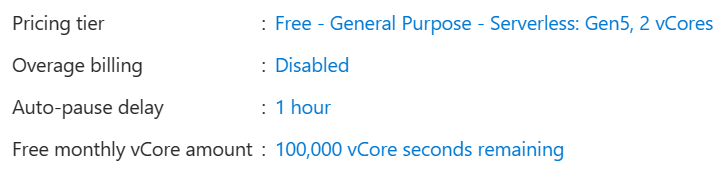
Select the seconds remaining amount. The Metrics chart launches where you can look at Free amount remaining or Free amount consumed metrics.
On the Metrics tab, you can also create an alert rule at no cost. Use the Free amount remaining metric to send an alert when the amount is less than 10,000 vCore seconds (10% of the monthly limit), so you know when you're running out for the month.
Monitor with Database Hub (preview)
Database Hub in Microsoft Fabric (preview) gives you an estate-wide view of Azure SQL databases that you have permission to access. It's available with a Fabric Free license and doesn't require Fabric capacity. Your databases stay in their existing subscriptions, resource groups, and regions; you don't move data into Fabric.
Use Database Hub to:
- Find this database and your other Azure SQL databases across subscriptions and resource groups.
- Review What needs attention? for issues and suggestions that require investigation.
- Inspect CPU, memory, storage, I/O, and workload pressure after you enable performance monitoring.
- Continue to the Azure portal or Visual Studio Code for configuration changes and query diagnostics.
Open the Database Hub, then follow Monitor a Microsoft SQL database for the guided workflow. To add performance data for this database, follow Enable performance monitoring for Microsoft SQL.
Important
Database Hub and Microsoft SQL performance monitoring are in preview. Review the linked documentation for current prerequisites, supported regions, and setup steps.
Tip
Use the Database Hub agent skills to explore your SQL estate:
Review my Azure SQL database estate in Database Hub. Identify databases that need
attention, summarize the issues and suggestions for my free tier database, and show
me where to investigate its performance in the Azure portal or Visual Studio Code.
Considerations and limitations
The following considerations and limitations apply to Azure SQL Database free tier databases:
- The free tier uses the same fully managed General Purpose infrastructure as a paid database, but it doesn't include a service-level agreement (SLA). Use it primarily for development and proof-of-concept scenarios.
- Choose the behavior for when you reach the monthly free limit:
- Auto-pause the database until next month stops charges, but the database is inaccessible until the allowance resets at the start of the next calendar month.
- Continue using database for additional charges keeps the database online and bills overages at standard General Purpose serverless rates. You can't switch back to the auto-pause option.
- Disconnect querying tools such as SQL Server Management Studio, including the Object Explorer, when you're done. An open connection prevents auto-pause and continues to consume vCore seconds. If the database doesn't auto-pause, review features that prevent auto-pause.
- You can apply the free tier only to a new database. You can't restore or convert an existing database to the free tier.
- If you use Advanced configuration, the region selected for the first free tier database applies to all free tier databases in that subscription and can't be changed.
For backup, scaling, copying, and feature compatibility details, see the Azure SQL Database free tier FAQ.