Note
Access to this page requires authorization. You can try signing in or changing directories.
Access to this page requires authorization. You can try changing directories.
This article describes how to view the status of Run Command executions in Azure VMware Solution and troubleshoot common issues.
View the status of an execution
You can view the status of any executed Run Command, including the output, errors, warnings, and information logs of the cmdlets.
Sign in to the Azure portal.
Note
If you need access to the Azure US Gov portal, go to https://portal.azure.us/
Select Run command > Run execution status.
You can sort by the various columns by selecting the column.
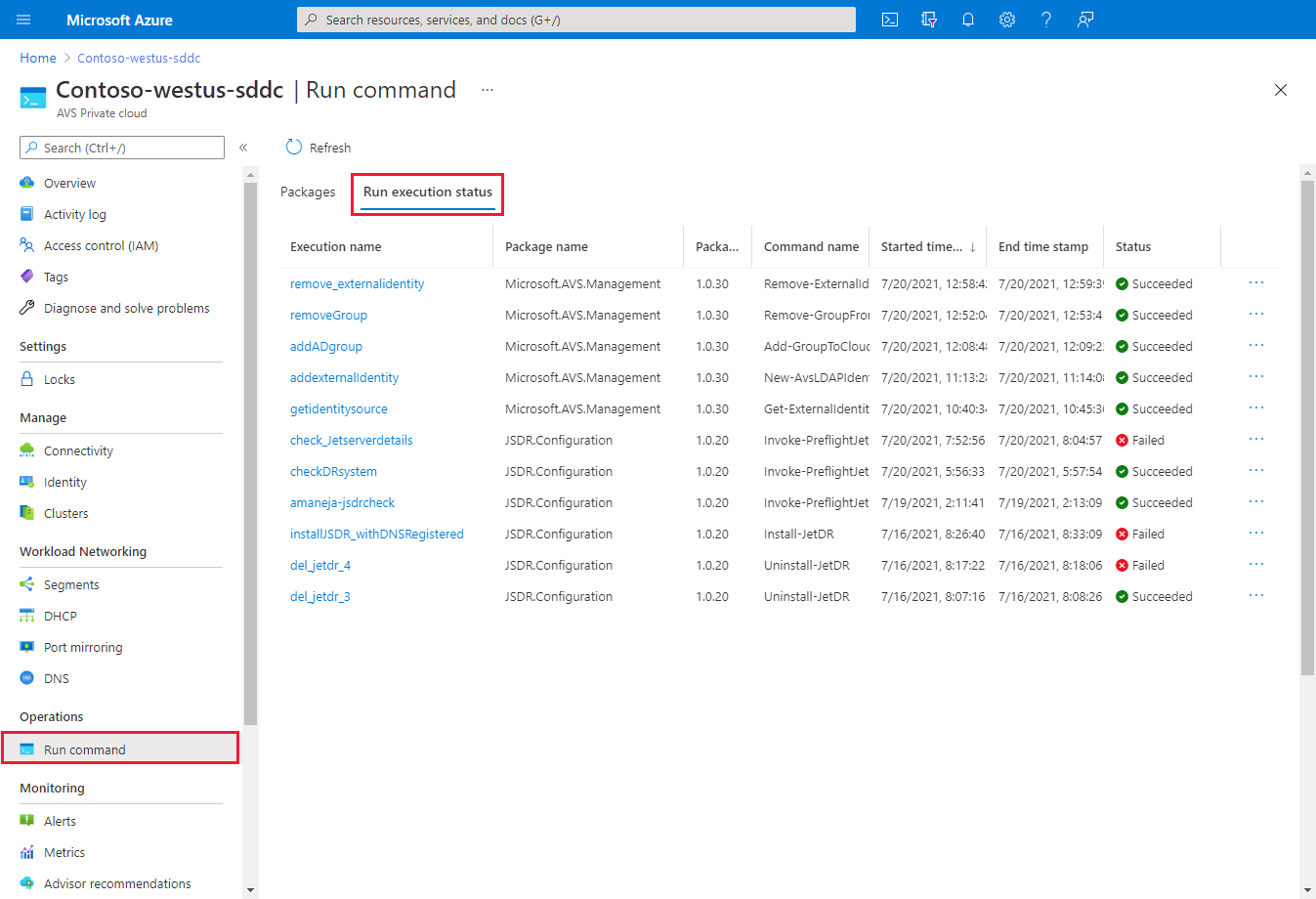
Select the execution you want to view. A tab opens with details about the execution and other tabs for the various types of output generated by the cmdlet.
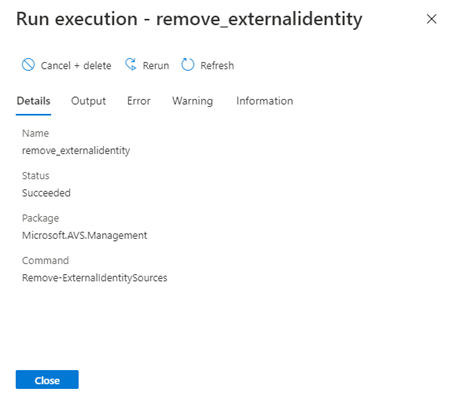
View more details about the execution including: output, error, warning, and information.
Details - Summary of the execution details, such as the name, status, package, cmdlet name, and error if the command failed.
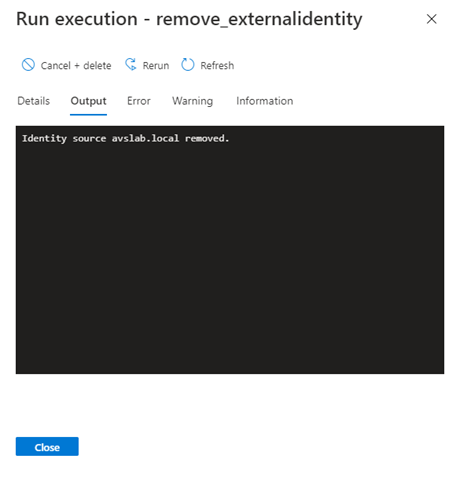
Output - Messages output by the cmdlet can include progress or the result of the operation. Not all cmdlets have output.
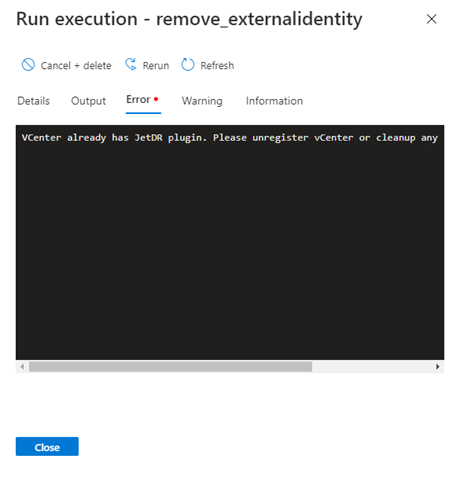
Error - Error messages generated in the execution of the cmdlet in addition to the terminating error message on the details tab.
Warning - Warning messages generated during the execution.
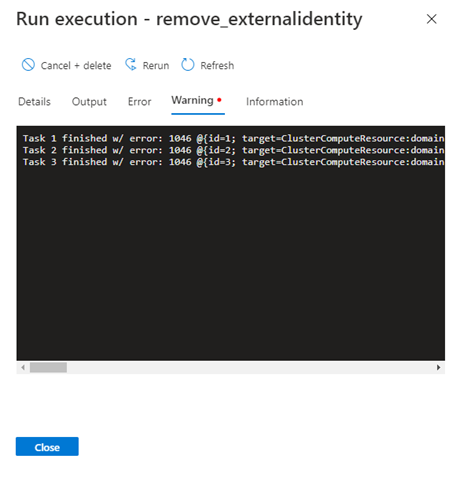
Information - Progress and diagnostic generated messages during the execution of a cmdlet.
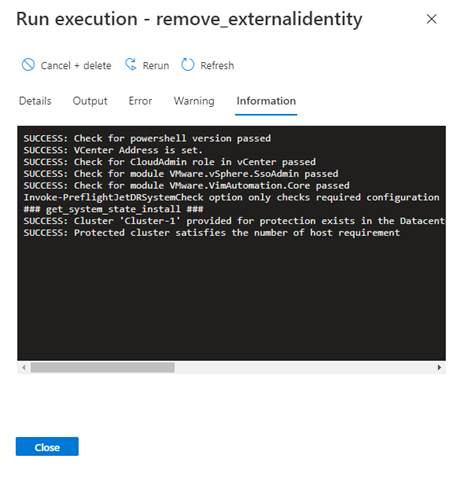
Cancel or delete a job
Method 1
This method attempts to cancel the execution, and then deletes it upon completion.
Important
Method 1 is irreversible.
Select Run command > Run execution status and then select the job you want to cancel.
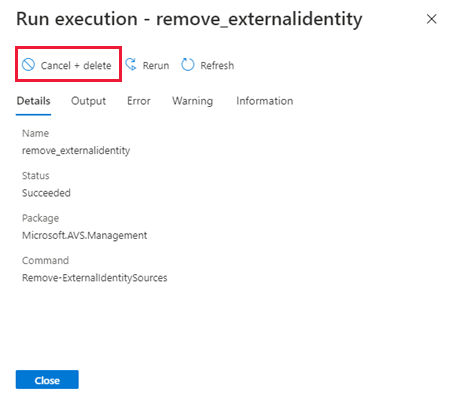
Select Yes to cancel and remove the job for all users.
Method 2
Select Run command > Packages > Run execution status.
Select More (...) for the job you want to cancel and delete.
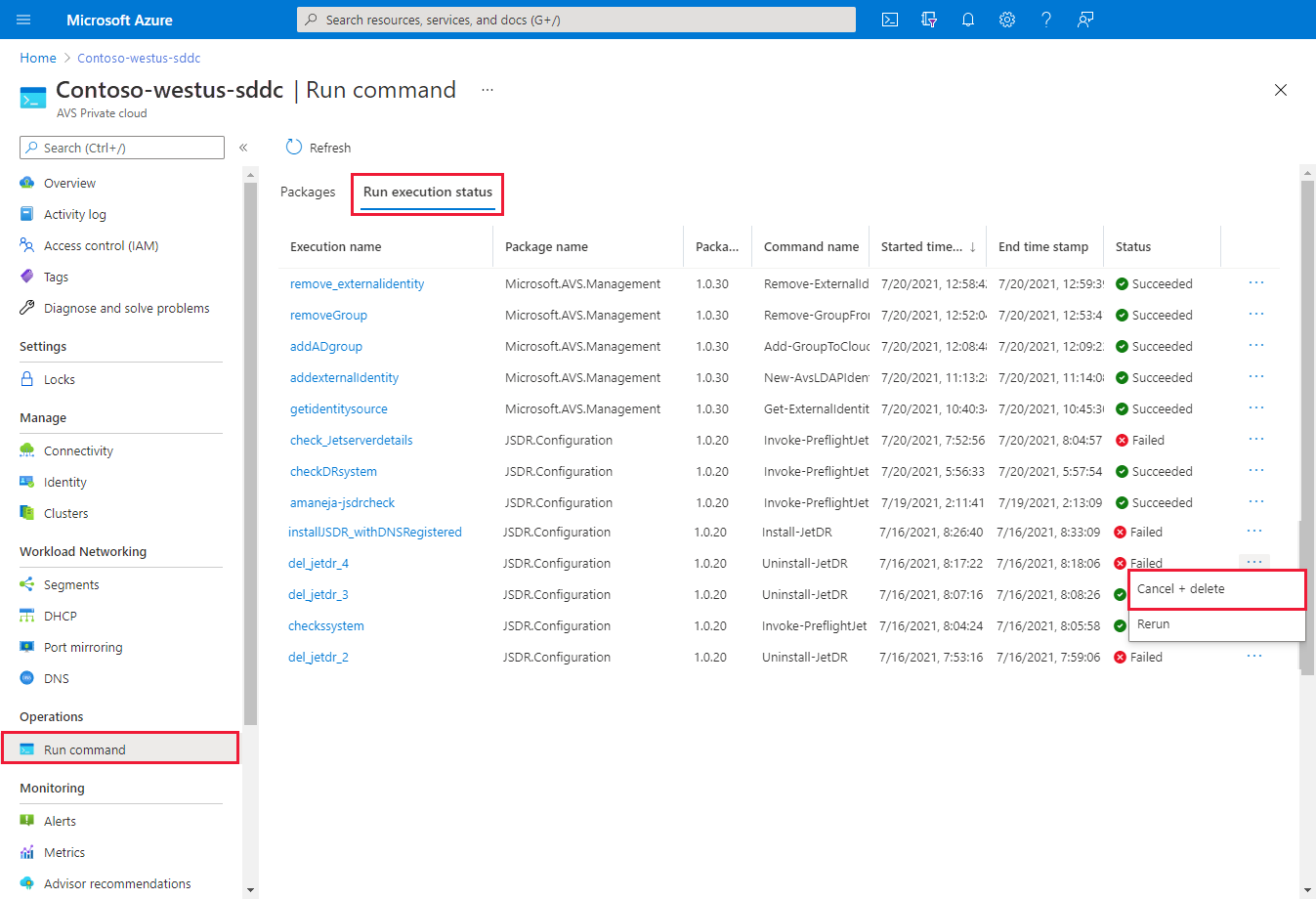
Select Yes to cancel and remove the job for all users.
Next steps
Now that you learned about the Run Command concepts, you can use the Run Command feature to:
Configure storage policy - Each VM deployed to a vSAN datastore gets assigned a vSAN storage policy. You can assign a vSAN storage policy in an initial deployment of a VM or when you do other VM operations, such as cloning or migrating.
Configure external identity source for vCenter Server (Run Command) - Configure Active Directory over LDAP(s) for vCenter Server to enable the use of an external identity source as an Active Directory. Then, you can add groups from the external identity source to the CloudAdmin role.
Deploy disaster recovery using JetStream - Store data directly to a recovery cluster in vSAN. The data gets captured through I/O filters that run within vSphere. The underlying vSphere datastore can be VMFS, vSAN, vVol, or any supported HCI platform.