Note
Access to this page requires authorization. You can try signing in or changing directories.
Access to this page requires authorization. You can try changing directories.
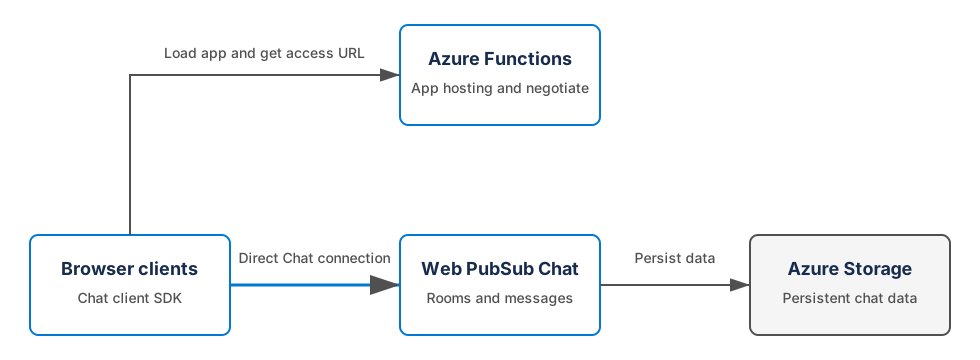
In this tutorial, you deploy a serverless browser chat application with Azure Functions and Azure Web PubSub Chat. Azure Functions hosts the web application and issues client access URLs from authenticated user identities. The Chat client SDK communicates directly with the Chat hub for rooms, members, messages, and persistent history.
The function app doesn't require a Web PubSub event handler, trigger, or output binding. Its functions run only for HTTP requests. Azure Web PubSub Chat handles the real-time data path.
The following diagram shows the application data flow. The browser calls the function app only to load the application and get a client access URL. Chat messages travel directly between the browser and Azure Web PubSub Chat.
In this tutorial, you learn how to:
- Run the Azure Functions Chat sample
- Issue Chat client access URLs from authenticated identities
- Use rooms and messaging from the Chat client SDK
- Deploy the function app and enable Microsoft Entra authentication
Prerequisites
- An Azure subscription
- An Azure Web PubSub resource with persistent storage and a Chat hub named
chat. To configure one, see Configure storage and enable Chat. - Git
- Node.js version 20 or later
- Azure Functions Core Tools version 4 or later
- Azure CLI
If you don't have an Azure account, create a free account before you begin.
Get the sample
Clone the Azure Web PubSub repository and go to the serverless Chat example.
git clone https://github.com/Azure/azure-webpubsub.git
cd azure-webpubsub/sdk/webpubsub-chat-client/examples/serverless-chatapp
npm install
The project contains the complete browser interface, Azure Functions, and deployment scripts. The following sections focus on the Chat integration.
Get the Web PubSub connection string
Get the connection string for the Web PubSub resource that contains the chat hub.
Raw connection strings appear in this article for demonstration purposes only. In production environments, always protect your access keys. Use Azure Key Vault to manage and rotate your keys securely and secure your connection with WebPubSubServiceClient.
az webpubsub key show --name <web-pubsub-name> --resource-group <web-pubsub-resource-group> --query primaryConnectionString --output tsv
Store the returned value in an environment variable in your current terminal. You use it for local testing and later add it to the function app configuration.
export WebPubSubConnectionString="<connection-string>"
Issue access URLs from authenticated identities
The negotiate function in src/functions/http.js reads the user identity set by App Service authentication. It uses that identity as the Chat user ID when it issues a short-lived client access URL.
app.http("negotiate", {
  methods: ["GET"],
  authLevel: "anonymous",
  route: "negotiate",
  handler: async (request) => {
    const userId = request.headers.get("x-ms-client-principal-name");
    if (!userId) {
      return {
        status: 401,
        jsonBody: { error: "Sign in before connecting to Chat." },
      };
    }

    const serviceClient = new WebPubSubServiceClient(
      process.env.WebPubSubConnectionString,
      "chat",
    );
    const token = await serviceClient.getClientAccessToken({ userId });
    return { jsonBody: { url: token.url } };
  },
});
Although the function uses the Functions anonymous authorization level, it isn't anonymous at the application level. It rejects requests that don't contain the trusted identity header injected by App Service authentication. Clients can't choose another user's Chat identity.
Connect from the browser
The browser code in src/client/client.js imports the Chat client through its npm package. Its credential callback calls the function without receiving the Web PubSub connection string.
import { ChatClient } from "@azure/web-pubsub-chat-client";

async function getClientAccessUrl() {
  const response = await fetch("/api/negotiate", {
    credentials: "same-origin",
  });
  if (!response.ok) throw new Error(await response.text());
  return (await response.json()).url;
}

const client = await ChatClient.start({ getClientAccessUrl });
Rooms are private and can't be discovered by another user. The first user creates a room with the second user as an initial member. The invited client receives the room through the room-joined event.
client.on("room-joined", ({ room }) => addRoom(room));

const room = await client.createRoom(title, [inviteeUserId]);
await client.sendToRoom(room.roomId, "Hello!");
Test locally
App Service authentication isn't emulated by the local Functions host. For local testing only, set AllowLocalUserId so the sample displays a user ID form. Never enable this setting in a deployed application.
export AllowLocalUserId=true
npm start
Open http://localhost:7071/api/index in two different browsers or two independent browser profiles. Connect as two users, copy the second user's ID, and invite that user when the first user creates a room.
Create and deploy the function app
Sign in and create the Azure resources. Storage account and function app names must be globally unique. Replace all placeholders with your values.
az login
az group create --name <resource-group> --location <location>
az storage account create --name <storage-name> --resource-group <resource-group> --location <location> --sku Standard_LRS
az functionapp create --name <function-app-name> --resource-group <resource-group> --storage-account <storage-name> --consumption-plan-location <location> --runtime node --runtime-version 20 --functions-version 4
Deploy the sample.
func azure functionapp publish <function-app-name>
The earlier npm start command prepares the browser assets before it starts the local Functions host. Azure Functions Core Tools publishes those prepared assets with the function app.
Configure the Web PubSub connection
Add the connection string that you stored earlier as the WebPubSubConnectionString application setting. You can use the Azure portal under Function App > Settings > Environment variables, or run one of the following commands.
az functionapp config appsettings set --name <function-app-name> --resource-group <resource-group> --settings WebPubSubConnectionString="$WebPubSubConnectionString"
Enable client authentication
Configure the function app's built-in authentication.
- In the Azure portal, open your function app.
- Select Authentication, and then select Add identity provider.
- Select Microsoft and complete the Microsoft Entra app registration settings.
- Set Restrict access to Allow unauthenticated access, and save the configuration.
Anonymous access allows the page and its assets to display a sign-in link. The negotiate function still returns 401 unless the authentication platform supplies x-ms-client-principal-name.
For other identity providers, see Authentication and authorization in Azure App Service and Azure Functions. If the provider doesn't populate x-ms-client-principal-name, decode x-ms-client-principal and select a stable user claim instead.
Try the application
Open the following URL in two different browsers or two independent browser profiles so each browser can maintain a different Microsoft Entra session:
https://<function-app-name>.azurewebsites.net/api/index
- In each window, select Sign in with Microsoft Entra ID and use a different account.
- Copy the second user's displayed ID.
- In the first window, paste the ID into Invite user, and create a room.
- Exchange messages in the room.
- Select Load history to load the persisted messages.
The function app doesn't receive each chat message. After negotiation, the browser uses the Chat client SDK to communicate directly with Azure Web PubSub Chat.
What you built
You deployed a serverless chat application in which:
- App Service authentication supplies a trusted identity to the function app.
- Azure Functions issues a short-lived client access URL for that identity.
- The browser communicates directly with Azure Web PubSub Chat after negotiation.
- Azure Web PubSub Chat manages private rooms, invitations, real-time messages, and persistent history without sending each message through the function app.
Clean up resources
If you don't plan to continue using the resources, delete the resource group that contains the function app. If Web PubSub is in a different resource group, it isn't affected.
az group delete --name <resource-group> --yes --no-wait