Note
Access to this page requires authorization. You can try signing in or changing directories.
Access to this page requires authorization. You can try changing directories.
This tutorial describes how to protect an Azure PostgreSQL flexible server or elastic cluster by using Azure Backup (preview) in the Azure portal. You create a backup policy, and configure vaulted backup for the server or elastic cluster.
In this article:
- Verify prerequisites
- Create a backup policy
- Configure vaulted backup.
- Run an on-demand backup.
- Track backup jobs.
Prerequisites
Before you protect an Azure PostgreSQL flexible server or elastic cluster (v2) by using the Azure portal, ensure that you meet the following prerequisites:
- Review the supported scenarios and limitations of the v2 solution.
- Identify or create a Backup vault in the same region as the datasource. The vault can be in a different subscription, as long as it's in the same tenant.
- Review the access permission if present to assign PostgreSQL Flexible Server Long Term Retention Backup Role over the source PostgreSQL flexible server or elastic cluster and Reader role over the source resource group to the Backup Vault.
Create a backup policy for Azure PostgreSQL flexible server or elastic cluster vaulted backup (v2)
A backup policy defines the backup schedule and retention rules for recovery points. Azure Backup evaluates retention rules in this order of priority: yearly, monthly, weekly, and daily. If a recovery point qualifies for multiple rules, the rule with the highest priority applies. If no other rule qualifies, the default retention settings apply.
Azure Backup also supports WORM immutable backups. If your compliance requirements prevent changes or deletions to recovery points before they expire, enable immutability on the Backup vault before you configure protection. After you lock immutability, no user, including a vault administrator, can alter, overwrite, or delete recovery points before their configured retention period expires.
Tip
Retention affects backup storage costs. For large servers with daily backups, use shorter retention for daily recovery points and longer retention for weekly, monthly, and yearly recovery points to reduce retained data and backup storage costs.
To create a backup policy for Azure PostgreSQL flexible server or elastic cluster vaulted backup (v2), follow these steps:
Go to Resiliency > Protection policies, and select + Create Policy > Create Backup Policy.
On the Start: Create Policy pane, select the Solution as Azure Backup, datasource type as Azure PostgreSQL flexible server/elastic cluster, select the vault under which you want to create the policy, and select Continue.
On the Create Backup Policy pane, enter a Policy name on the Basics tab.
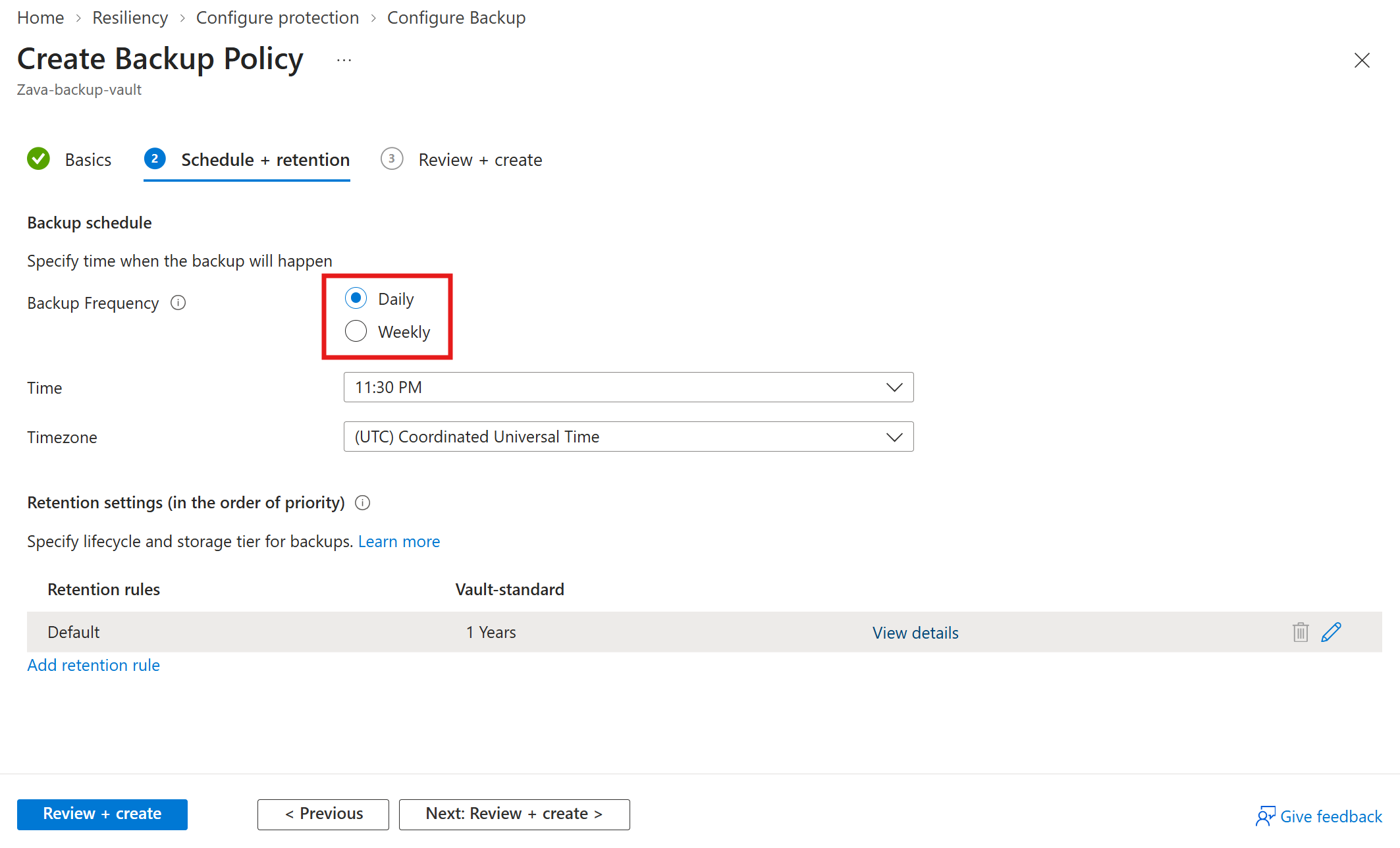
On the Schedule + retention tab, under Backup schedule, set the schedule for creating recovery points for backups.
Note
Azure Backup supports Daily and Weekly backup frequencies. Daily is selected by default and supports compliance requirements with a one-day recovery point objective (RPO).
Under Retention settings, edit the default retention rule or add a new rule to specify retention for recovery points.
Note
The default retention period is 3 months. You can define separate retention rules for weekly, monthly, and yearly recovery points, with retention periods from 7 days to 10 years.
Select Review + create to create the backup policy.
Configure vaulted backup for Azure PostgreSQL flexible server or elastic cluster (v2)
You can configure vaulted backup from the Backup vault, Resiliency, or the LTR (Vaulted Backups) pane of the flexible server or elastic cluster. This section describes how to configure vaulted backup for Azure PostgreSQL flexible server or elastic cluster (v2) from Resiliency and LTR (Vaulted Backups) pane.
To configure vaulted backup for Azure PostgreSQL flexible server or elastic cluster (v2) via Resiliency or LTR (Vaulted Backups) pane, follow these steps:
Go to Resiliency > Overview > + Configure protection.
Alternatively, to configure backup from the database manage pane, go to the flexible server pane, and select Settings > LTR (Vaulted Backups).
On the Configure protection pane, select Resource managed by as Azure, Datasource type as Azure PostgreSQL flexible server/elastic cluster, and Solution as Azure Backup. Then select Continue.
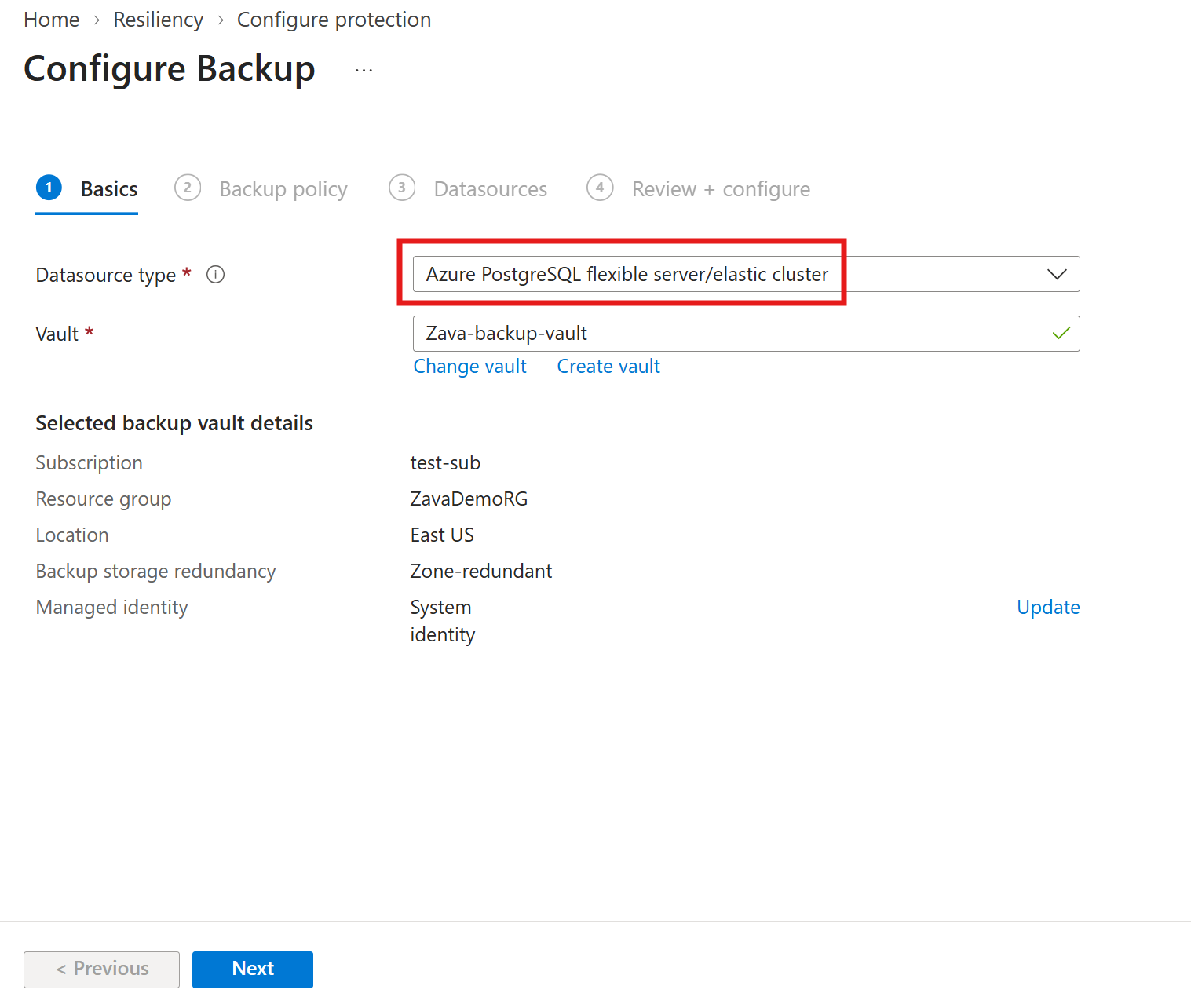
On the Configure Backup pane, on the Basics tab, ensure that Datasource type shows Azure PostgreSQL flexible server/elastic cluster, select Select vault under Vault, choose an existing Backup vault, and select Next. If you don't have a Backup vault, create one.
On the Backup policy tab, select a backup policy that defines the schedule and the retention duration, and select Next. If you don't have a suitable policy, select Create new. Learn how to create a backup policy.
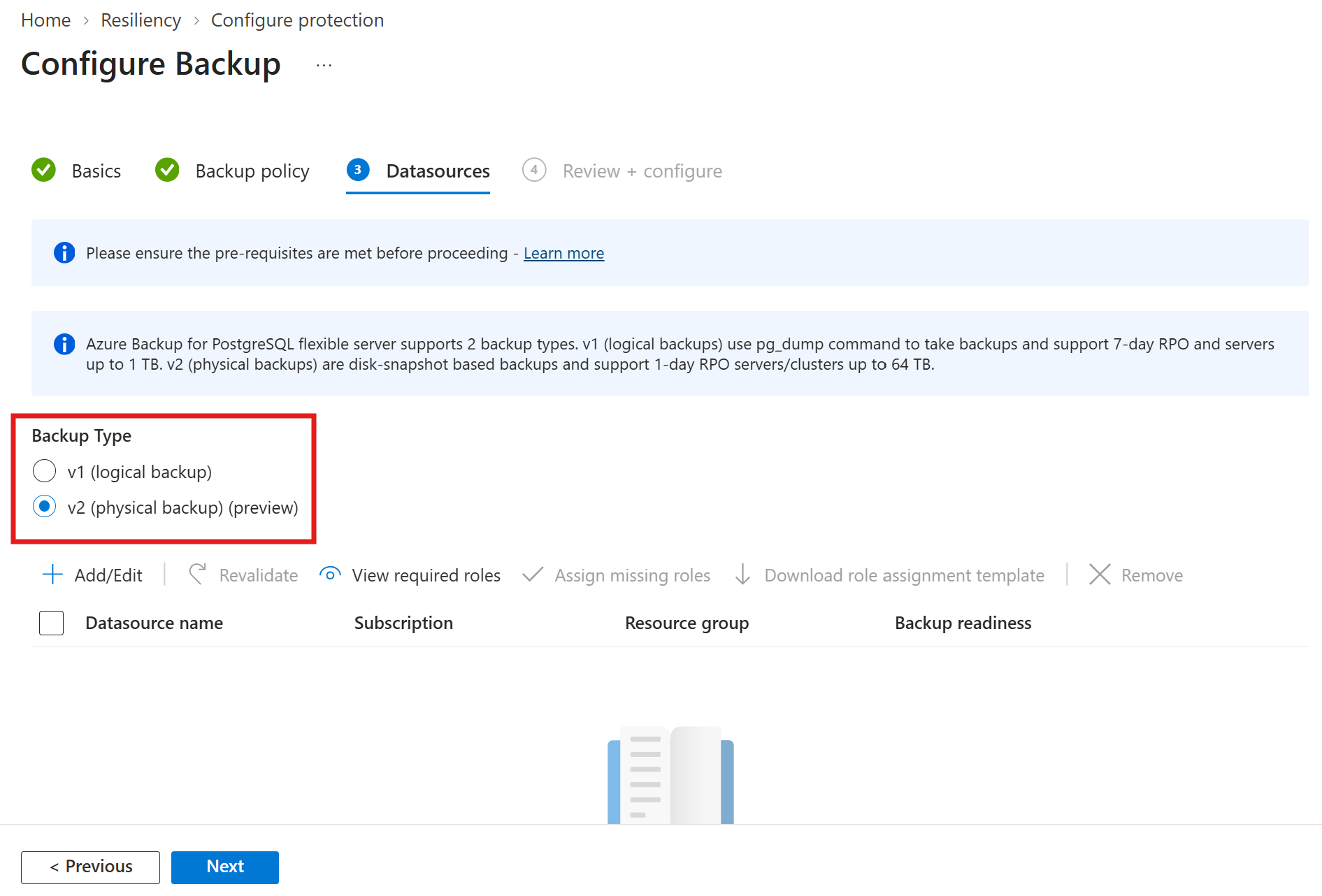
On the Datasources tab, select the Backup Type as v2 (physical backups) (preview).
Note
The backup type determines the protection stack for the datasource. v2 (physical backups) (preview) uses the disk-snapshot based solution. A stack can protect one datasource at a time, because multiple protection isn't supported.
On the Select resources to backup pane, select the flexible servers and elastic clusters to protect, and then choose Select.
Note
Choose datasources in the same region as the Backup vault.
When you're on the Datasources tab, Azure Backup validates the datasource and checks that it has the access permissions needed to connect to it. If one or more permissions are missing, one of the following messages appears:
- User cannot assign roles: you don't have write access on the datasource. Select Download role assignment template to fetch the ARM template, have a PostgreSQL database administrator run it, and then select Revalidate.
- Role assignment not done: you have write access on the datasource. Select Assign missing roles to grant the permissions inline. You can define the scope at which the permissions are granted. Revalidation starts automatically once the assignment completes.
Validation also fails with a user error if the datasource doesn't meet the v2 prerequisites.
For example, if the server is on the Burstable tier, is running PostgreSQL 14 or earlier, or is a replica.
After the validation shows Success, select Next.
On the Review + configure tab, select Configure backup.
When configuration completes, a backup instance (also called a protected item) is created. The first scheduled backup transfers the full contents of the disk; subsequent backups transfer only the changed blocks.
Run an on-demand backup for Azure Database for PostgreSQL flexible server or elastic cluster (v2)
After you configure protection, backups run automatically according to the schedule defined in the backup policy. You can also run an on-demand backup outside the configured schedule by following these steps:
Go to Resiliency > Backup and recovery > Protected items.
On the Protected items pane, select Datasource type as Azure Database for PostgreSQL flexible servers.
Select the protected item.
On the selected protected item pane, under Associated items, select the more icon corresponding to an item, and select Backup now.
On the Backup Now pane, review the retention rules from the associated backup policy, and select Backup now.
Track a backup job for Azure Database for PostgreSQL flexible server or elastic cluster (v2)
To track a backup job for Azure Database for PostgreSQL flexible server or elastic cluster (v2), follow these steps:
Go to Resiliency > Monitoring + Reporting > Jobs.
On the Jobs pane, review the list of backup and restore jobs and their status. The Jobs pane shows operations and their status for the past 24 hours.
Select a job to view its details, including progress.
Backups of very large servers can run for an extended period, particularly the first backup and any subsequent initial replication. The job remains in progress until the snapshot data is copied to the vault.