Note
Access to this page requires authorization. You can try signing in or changing directories.
Access to this page requires authorization. You can try changing directories.
In this tutorial, you map a source vault to a target vault in a different Microsoft Entra tenant. You then restore vaulted recovery points to the target tenant and delete the mapping when you no longer need it.
Important
Cross-tenant restore for Azure Backup is currently in preview. The Supplemental Terms of Use for Microsoft Azure Previews include additional legal terms that apply to Azure features that are in beta, in preview, or otherwise not yet released into general availability.
In this tutorial, you:
- Assign the roles that cross-tenant restore requires.
- Create and verify a cross-tenant vault mapping.
- Restore data from the source tenant to the target tenant.
- Delete the vault mapping.
Prerequisites
Before you start, make sure that you have:
- Vaulted recovery points for a supported workload in the source vault. The source and target vaults must be in the same region. For the supported workloads and regions, see Cross-tenant restore for Azure Backup. Note that only vaulted backups can be restored across tenants.
- A Resource Guard in the target tenant that's associated with the target vault. Enable the cross-tenant restore critical operation on the Resource Guard. To set up this configuration, see Create a Resource Guard, Select operations to protect using Resource Guard, and Enable MUA on a vault.
- Permission to assign roles in both tenants. For more information, see Steps to assign an Azure role.
Assign the required roles
Cross-tenant restore uses two personas. The following tables list the Azure built-in roles that each persona needs. For role details, see Backup Contributor and Backup MUA Operator.
Mapping creator creates the vault mapping:
| Scope | Required role |
|---|---|
| Source vault | Backup Contributor |
| Target vault | CTR Creator |
| Resource Guard associated with the target vault | Backup MUA Operator or higher |
Mapping and restore operator views and deletes mappings, browses protected items and recovery points, monitors jobs, and starts restores:
| Scope | Required role |
|---|---|
| Target vault | CTR Contributor, Backup Contributor |
| Resource Guard associated with the target vault | Backup MUA Operator or higher |
A guest user from the source tenant can act as the mapping creator if you assign the required roles temporarily at the appropriate scopes. Remove the temporary role assignments after you create the mapping, in accordance with your organization's access-management policies.
Assign each role at the scope that the previous tables list. For steps, see Assign Azure roles using the Azure portal. For other methods, see Assign Azure roles using Azure PowerShell or Azure CLI. For the permissions that the CTR roles include, see Permissions in the CTR roles.
Create a cross-tenant vault mapping
In the source tenant, open the source vault.
Select Properties.
Under Cyber recovery settings, in the Cross Tenant Restore (Preview) row, select View details.
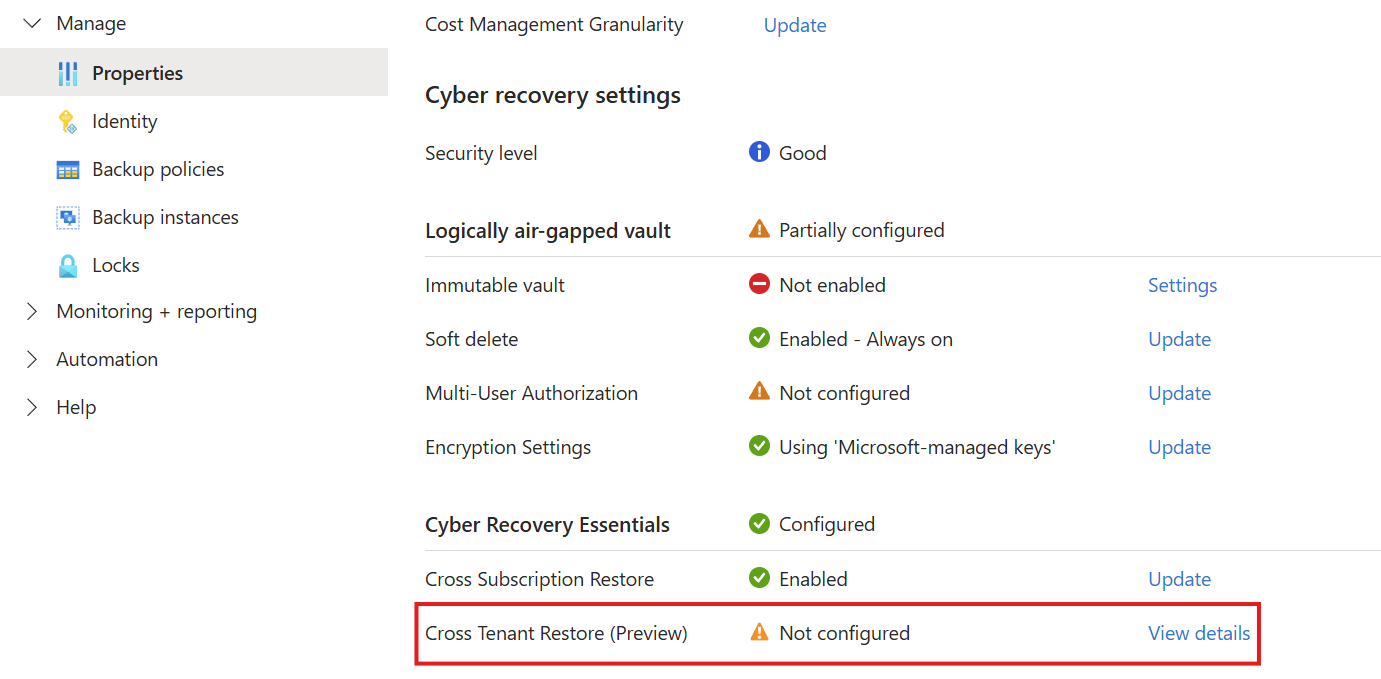
Select Configure.
On the Configure Cross tenant restore page, enter a mapping name, and then select the target tenant.
In the Select vault pane, select the target vault.
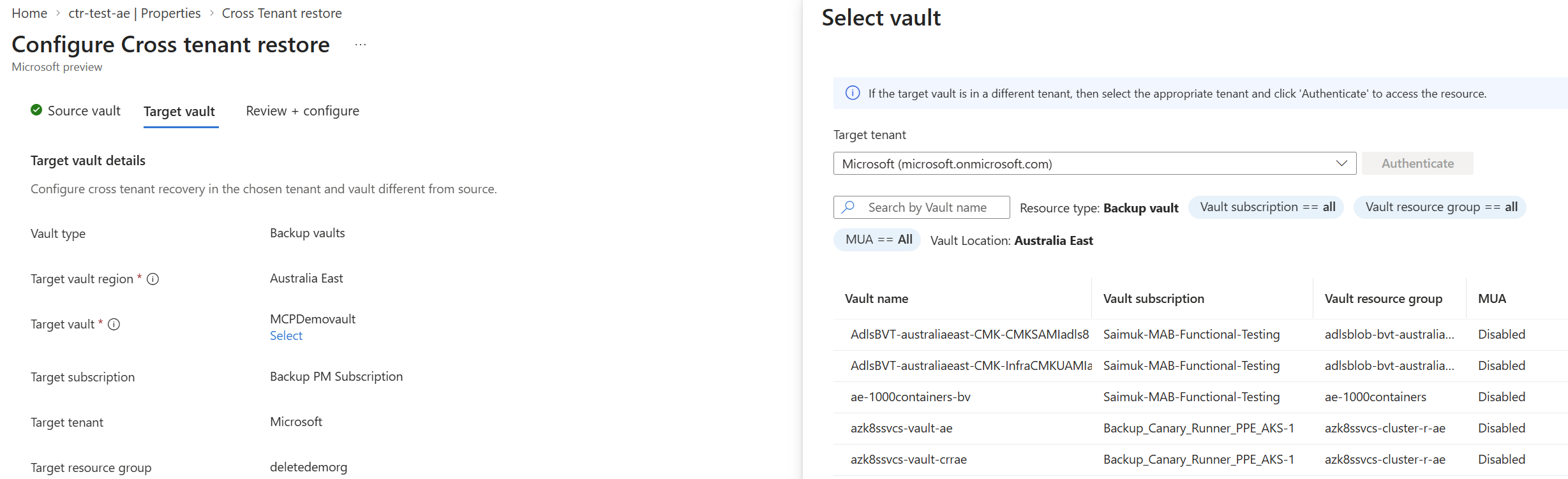
Validate the configuration.
Select Review + configure, and then select Configure Mapping.
If you're prompted, authorize the operation. Because a Resource Guard protects the target vault, you need the Backup MUA Operator role or higher on that Resource Guard.
Verify the mapping
Cross-tenant mappings and mapped-item details are intentionally not visible from the source tenant or source vault. This design helps prevent someone with unauthorized access to the source vault from discovering the target vault and mapping details. Use the target vault to view and manage mappings, browse mapped items, and perform restores, with the required permissions.
In the target vault, you can find cross-tenant mapped vaults through either of these paths:
- Properties > Cross Tenant Restore > View details > View Mapped Items.
- Backup items > Cross Tenant mapped vaults.
To verify the mapping through the vault properties:
- In the target tenant, open the target vault.
- Select Properties.
- Under Cross Tenant Restore, select View details.
- Select View Mapped Items, and then verify that the mapping status is Configured.
You can also go to Backup items, and then select Cross Tenant mapped vaults to view the mapped vaults.
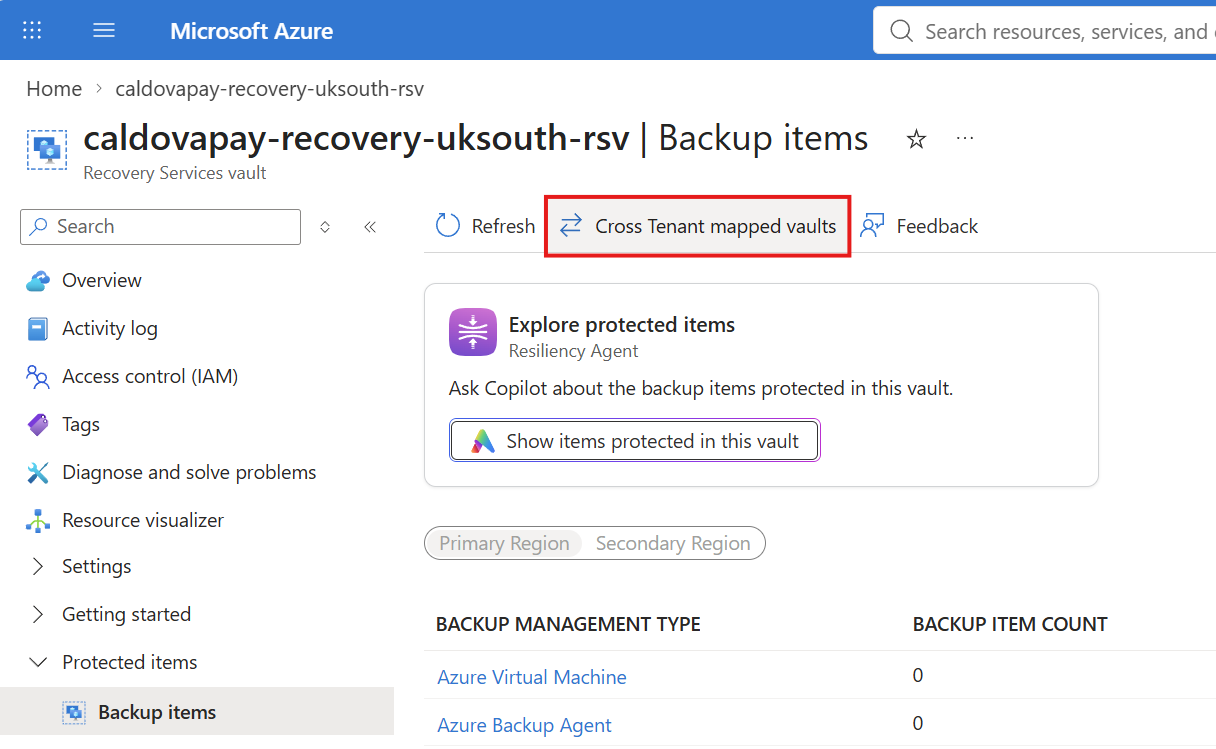
Use either path to view mappings later. You can review the mapping name, vault details, and mapping status. You need the CTR Contributor role on the target vault.
Restore data across tenants
You can restore only from vaulted recovery points, and only to an alternate location.
In the target tenant, open the target vault.
Under Protected items, select Backup items.
On the command bar, select Cross Tenant mapped vaults.
Select the mapped vault.
For the item that you want to restore, select Restore.
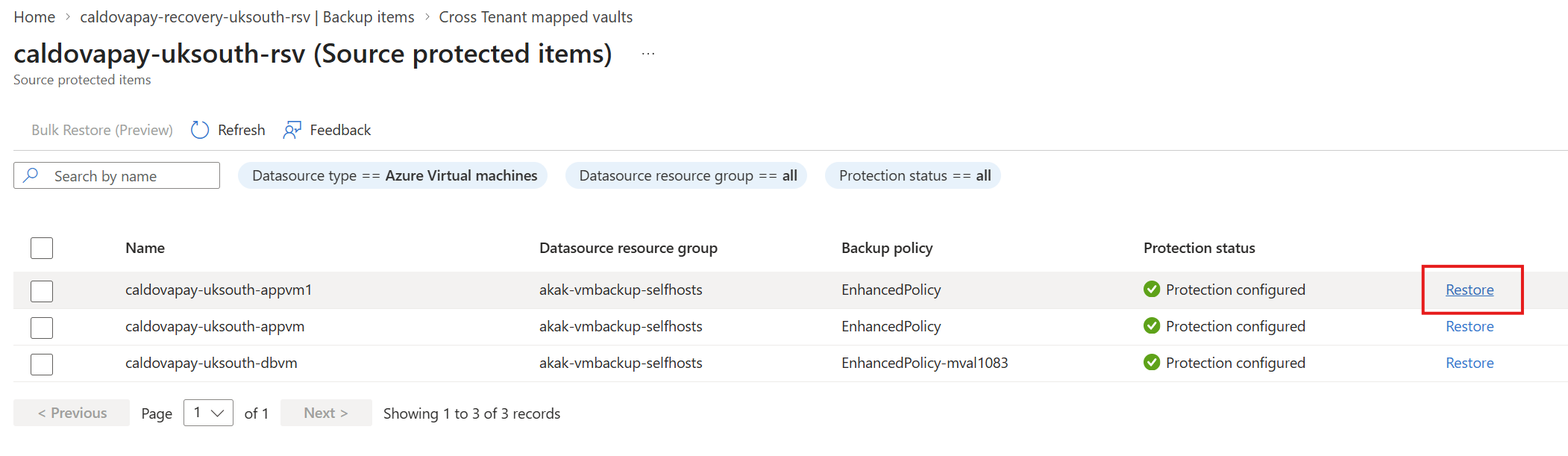
Select a recovery point.
Configure the restore settings for the target tenant.
Start the restore. If you're prompted, authorize the operation.
To monitor the restore, open Backup jobs in the target vault. For more information, see Monitor Azure Backup jobs.
To restore Azure VMs at scale, select the checkboxes for multiple items in the source protected items list, and then select Bulk Restore (Preview) on the command bar. Follow the prompts to configure and start the restores.
For workload-specific restore settings, see:
- Azure VMs
- Azure Files
- SQL Server in Azure VMs
- SAP HANA in Azure VMs
- SAP ASE in Azure VMs
- Azure Database for PostgreSQL - Flexible Server
- Azure Blobs
- Azure Cosmos DB
- Azure Data Lake Storage
- AKS clusters
Clean up resources
Delete the mapping when you no longer need cross-tenant restore. While a mapping exists, you can't delete the source vault, the target vault, or protected items in the source vault.
Before you delete the mapping, ensure that you have the CTR Contributor role on the target vault, and the Backup MUA Operator role or higher on the associated Resource Guard.
- Open the target vault.
- Select Cross Tenant Restore, and then select View Mapped Items.
- Select the mapping, and then select Delete.
- Confirm the operation. If you're prompted, authorize the operation.
Troubleshoot cross-tenant restore
- You can't see the Cross Tenant Restore option. Verify that you're signed in to the correct tenant and that you have the Backup Contributor role on the source vault.
- You can't create a mapping. Verify that:
- You have the Backup Contributor role on the source vault.
- You have CTR Creator on the target vault.
- The target vault is associated with a Resource Guard that isn't deleted and has the cross-tenant restore critical operation enabled.
- You have the Backup MUA Operator role on the Resource Guard.
- Role assignments have propagated and are assigned at the correct scope. For more information, see Troubleshoot Azure RBAC.
- You can't view mappings or browse protected items. Verify that you have the CTR Contributor role, that at least one mapping exists, and that the mapping status is healthy.
- You can't start a restore. Verify that the workload type and the recovery point type (vaulted only) are supported, and that the mapping status is healthy.
- You can't delete a protected item, the source vault, or the target vault. Check whether a cross-tenant restore mapping references it. Delete the mapping first.
Permissions in the CTR roles
The CTR Creator and CTR Contributor roles include the following actions on vaults.
CTR Creator
| Action | Description |
|---|---|
Microsoft.RecoveryServices/Vaults/read |
View the vault. |
Microsoft.RecoveryServices/Vaults/backupCrossTenantVaultMappings/write |
Create a vault mapping. |
Microsoft.RecoveryServices/Vaults/backupCrossTenantVaultMappings/read |
Read vault mappings. |
CTR Contributor
| Action | Description |
|---|---|
Microsoft.RecoveryServices/Vaults/backupCrossTenantVaultMappingStatus/action |
Retrieve the mapping status. |
Microsoft.RecoveryServices/Vaults/backupCrossTenantVaultMappings/read |
Read the list of mappings. |
Microsoft.RecoveryServices/Vaults/backupCrossTenantVaultMappings/backupTriggerValidateOperation/action |
Trigger a validation operation. |
Microsoft.RecoveryServices/Vaults/backupCrossTenantVaultMappings/backupValidateOperation/action |
Validate a mapping operation. |
Microsoft.RecoveryServices/Vaults/backupCrossTenantVaultMappings/remove/action |
Delete a mapping. |
Microsoft.RecoveryServices/Vaults/backupCrossTenantVaultMappings/backupJobs/read |
View backup jobs. |
Microsoft.RecoveryServices/Vaults/backupCrossTenantVaultMappings/backupUsageSummaries/read |
View backup usage summaries. |
Microsoft.RecoveryServices/Vaults/backupCrossTenantVaultMappings/vaultCredentials/generate/action |
Generate vault credentials. |
Microsoft.RecoveryServices/Vaults/backupCrossTenantVaultMappings/vaultCredentials/operationResults/read |
View vault credential operation results. |
Microsoft.RecoveryServices/Vaults/backupCrossTenantVaultMappings/vaultCredentials/operationStatus/read |
View vault credential operation status. |
Microsoft.RecoveryServices/Vaults/backupCrossTenantVaultMappings/backupFabrics/protectionContainers/protectedItems/read |
View protected items. |
Microsoft.RecoveryServices/Vaults/backupCrossTenantVaultMappings/backupFabrics/protectionContainers/protectedItems/operationResults/read |
View protected item operation results. |
Microsoft.RecoveryServices/Vaults/backupCrossTenantVaultMappings/backupFabrics/protectionContainers/protectedItems/operationsStatus/read |
View protected item operation status. |
Microsoft.RecoveryServices/Vaults/backupCrossTenantVaultMappings/backupFabrics/protectionContainers/protectedItems/recoveryPoints/read |
View recovery points. |
Microsoft.RecoveryServices/Vaults/backupCrossTenantVaultMappings/backupFabrics/protectionContainers/protectedItems/recoveryPoints/restore/action |
Restore recovery points. |
Microsoft.RecoveryServices/Vaults/backupCrossTenantVaultMappings/backupProtectedItems/read |
View backup protected items. |
Microsoft.RecoveryServices/Vaults/backupCrossTenantVaultMappings/backupValidateOperationResults/read |
View validation operation results. |
Microsoft.RecoveryServices/Vaults/backupCrossTenantVaultMappings/backupValidateOperationsStatuses/read |
View validation operation status. |