Events
Sep 16, 11 PM - Oct 18, 11 PM
Join us on a learning journey combining AI, apps and cloud-scale data to build unique solutions.
Learn moreThis browser is no longer supported.
Upgrade to Microsoft Edge to take advantage of the latest features, security updates, and technical support.
Companies that want a local presence or a hot backup choose to run services from multiple Azure regions. As a best practice, placing a container registry in each region where images are run allows network-close operations, enabling fast, reliable image layer transfers. Geo-replication enables an Azure container registry to function as a single registry, serving multiple regions with multi-primary regional registries.
A geo-replicated registry provides the following benefits:
Note
The user requires the following permissions (at the registry level) to create/delete replications:
| Permission | Description |
|---|---|
| Microsoft.ContainerRegistry/registries/write | Create a replication |
| Microsoft.ContainerRegistry/registries/replications/write | Delete a replication |
Contoso runs a public presence website located across the US, Canada, and Europe. To serve these markets with local and network-close content, Contoso runs Azure Kubernetes Service (AKS) clusters in West US, East US, Canada Central, and West Europe. The website application, deployed as a Docker image, utilizes the same code and image across all regions. Content local to that region is retrieved from a database, which is provisioned uniquely in each region. Each regional deployment has its unique configuration for resources like the local database.
The development team is located in Seattle, WA, and utilizes the West US data center.
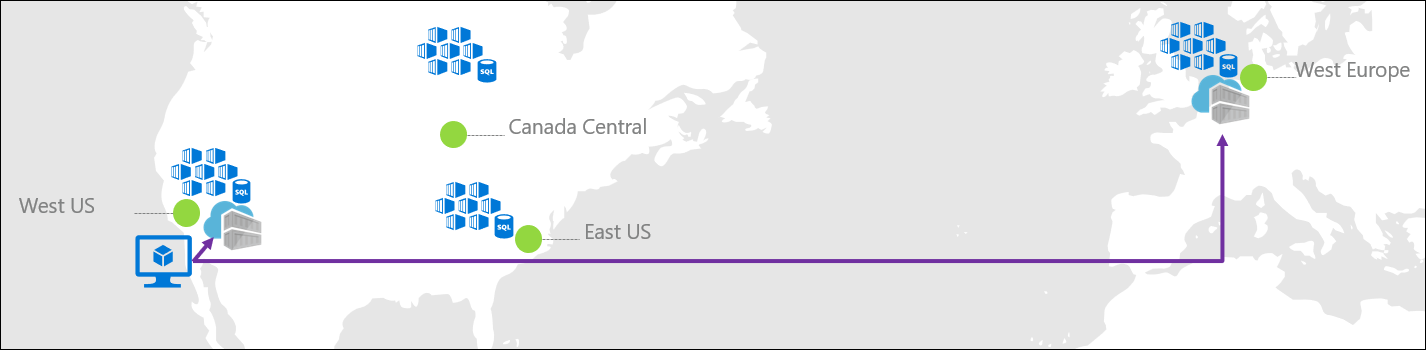
Pushing to multiple registries
Prior to using the geo-replication features, Contoso had a US-based registry in West US, with an additional registry in West Europe. To serve these different regions, the development team pushed images to two different registries.
docker push contoso.azurecr.io/public/products/web:1.2
docker push contosowesteu.azurecr.io/public/products/web:1.2
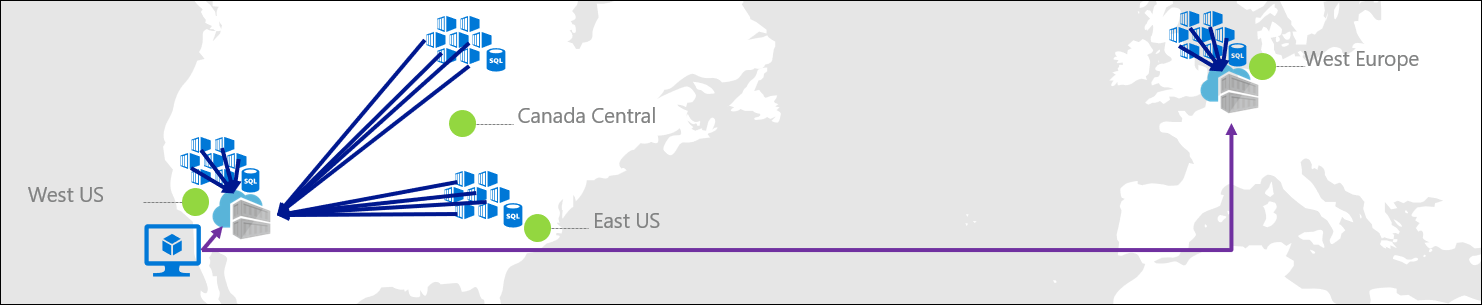
Pulling from multiple registries
Typical challenges of multiple registries include:
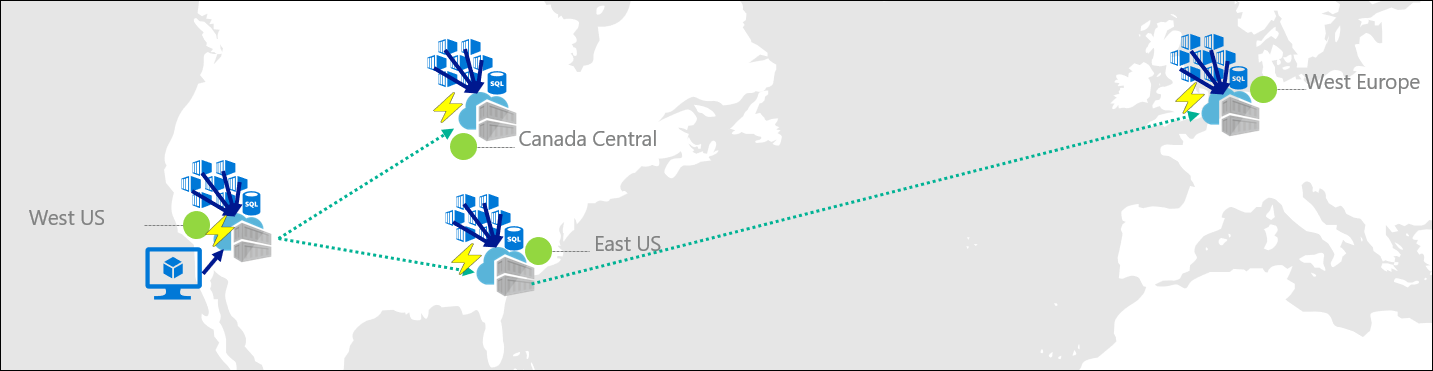
The geo-replication feature of Azure Container Registry has the following benefits:
contoso.azurecr.iocontoso.azurecr.io/public/products/web:1.2Azure Container Registry also supports availability zones to create a resilient and high availability Azure container registry within an Azure region. The combination of availability zones for redundancy within a region, and geo-replication across multiple regions, enhances both the reliability and performance of a registry.
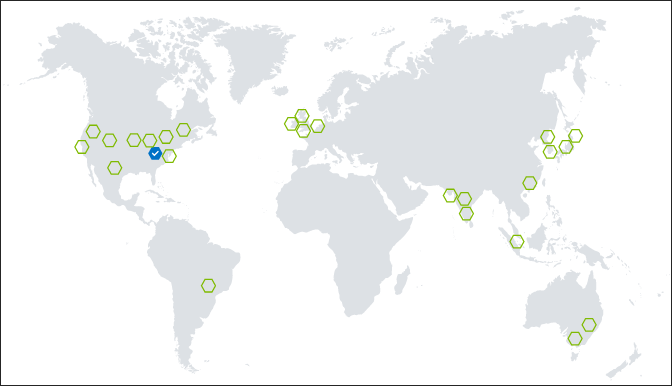
Configuring geo-replication is as easy as clicking regions on a map. You can also manage geo-replication using tools including the az acr replication commands in the Azure CLI, or deploy a registry enabled for geo-replication with an Azure Resource Manager template.
Geo-replication is a feature of Premium registries. If your registry isn't yet Premium, you can change from Basic and Standard to Premium in the Azure portal:
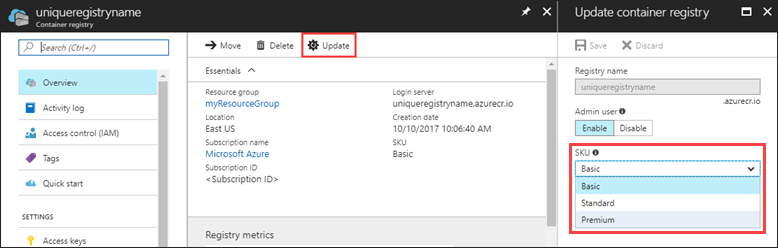
To configure geo-replication for your Premium registry, sign in to the Azure portal.
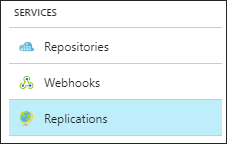
Navigate to your Azure Container Registry, and select Replications:
A map is displayed showing all current Azure Regions:
To configure a replica, select a green hexagon, then select Create:
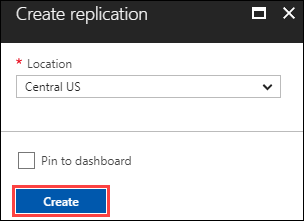
To configure additional replicas, select the green hexagons for other regions, then click Create.
ACR begins syncing images across the configured replicas. Once complete, the portal reflects Ready. The replica status in the portal doesn't automatically update. Use the refresh button to see the updated status.
After you've configured a replica for your registry, you can delete it at any time if it's no longer needed. Delete a replica using the Azure portal or other tools such as the az acr replication delete command in the Azure CLI.
To delete a replica in the Azure portal:
To use the Azure CLI to delete a replica of myregistry in the East US region:
az acr replication delete --name eastus --registry myregistry
Geo-replication is a feature of the Premium service tier of Azure Container Registry. When you replicate a registry to your desired regions, you incur Premium registry fees for each region.
In the preceding example, Contoso consolidated two registries down to one, adding replicas to East US, Canada Central, and West Europe. Contoso would pay four times Premium per month, with no additional configuration or management. Each region now pulls their images locally, improving performance and reliability without network egress fees from the West US to Canada and the East US.
A Docker client that pushes an image to a geo-replicated registry may not push all image layers and its manifest to a single replicated region. This may occur because Azure Traffic Manager routes registry requests to the network-closest replicated registry. If the registry has two nearby replication regions, image layers and the manifest could be distributed to the two sites, and the push operation fails when the manifest is validated. This problem occurs because of the way the DNS name of the registry is resolved on some Linux hosts. This issue doesn't occur on Windows, which provides a client-side DNS cache.
If this problem occurs, one solution is to apply a client-side DNS cache such as dnsmasq on the Linux host. This helps ensure that the registry's name is resolved consistently. If you're using a Linux VM in Azure to push to a registry, see options in DNS Name Resolution options for Linux virtual machines in Azure.
To optimize DNS resolution to the closest replica when pushing images, configure a geo-replicated registry in the same Azure regions as the source of the push operations, or the closest region when working outside of Azure.
To troubleshoot operations with a geo-replicated registry, you might want to temporarily disable Traffic Manager routing to one or more replications. Starting in Azure CLI version 2.8, you can configure a --region-endpoint-enabled option (preview) when you create or update a replicated region. When you set a replication's --region-endpoint-enabled option to false, Traffic Manager no longer routes docker push or pull requests to that region. By default, routing to all replications is enabled, and data synchronization across all replications takes place whether routing is enabled or disabled.
To disable routing to an existing replication, first run az acr replication list to list the replications in the registry. Then, run az acr replication update and set --region-endpoint-enabled false for a specific replication. For example, to configure the setting for the westus replication in myregistry:
# Show names of existing replications
az acr replication list --registry --output table

# Disable routing to replication
az acr replication update --name westus \
  --registry myregistry --resource-group MyResourceGroup \
  --region-endpoint-enabled false
To restore routing to a replication:
az acr replication update --name westus \
  --registry myregistry --resource-group MyResourceGroup \
  --region-endpoint-enabled true
When creating a new registry replication for the primary registry enabled with Private Endpoint, we recommend validating that the User Identity has valid Private Endpoint creation permissions. Otherwise, the operation gets stuck in the provisioning state while creating the replication.
Follow the below steps if you got stuck in the provisioning state while creating the registry replication:
Microsoft.Network/privateEndpoints/privateLinkServiceProxies/write permission for the User Identity.This permission check is only applicable to the registries with Private Endpoint enabled.
Check out the three-part tutorial series, Geo-replication in Azure Container Registry. Walk through creating a geo-replicated registry, building a container, and then deploying it with a single docker push command to multiple regional Web Apps for Containers instances.
Events
Sep 16, 11 PM - Oct 18, 11 PM
Join us on a learning journey combining AI, apps and cloud-scale data to build unique solutions.
Learn moreTraining
Module
Build and store container images with Azure Container Registry - Training
Learn how to use Docker to build, store, and manage private container images with the Azure Container Registry.
Certification
Microsoft Certified: Azure Database Administrator Associate - Certifications
Administer an SQL Server database infrastructure for cloud, on-premises and hybrid relational databases using the Microsoft PaaS relational database offerings.