Note
Access to this page requires authorization. You can try signing in or changing directories.
Access to this page requires authorization. You can try changing directories.
The Azure Copilot Troubleshooting Agent helps you diagnose issues, find solutions, and resolve problems in your Azure environment. When possible, the Troubleshooting Agent analyzes your specific environment to run root cause diagnostics. Once it identifies the root cause, the Troubleshooting Agent determines the appropriate mitigation steps and provides tailored solutions with step-by-step instructions. In many cases, the Troubleshooting Agent even offers a one-click fix to resolve the issue for you. If the Troubleshooting Agent can't resolve an issue, it can create a support request for you, gathering the necessary details so Microsoft Support can assist you more effectively.
The Troubleshooting Agent is generally available in Azure Copilot and Support + Troubleshooting in the Azure portal.
Alongside the Troubleshooting Agent, deep troubleshooting capabilities for Azure Compute and Azure Kubernetes Service (AKS) are also generally available. Troubleshooting capabilities for Azure Local and Microsoft Entra are available in public preview.
Note
Administrators can enable or disable access to the Azure Copilot Troubleshooting Agent and other Azure Copilot agents. If you don't see the Troubleshooting Agent as an option when starting a new chat, check with your administrator.
How it works
The Troubleshooting Agent moves from a customer's description of a problem to a grounded, resource-aware investigation in a few stages: it scopes the issue, gathers diagnostic evidence, determines a root cause when one is available, and then either resolves the issue directly or hands the customer off to the right next step.
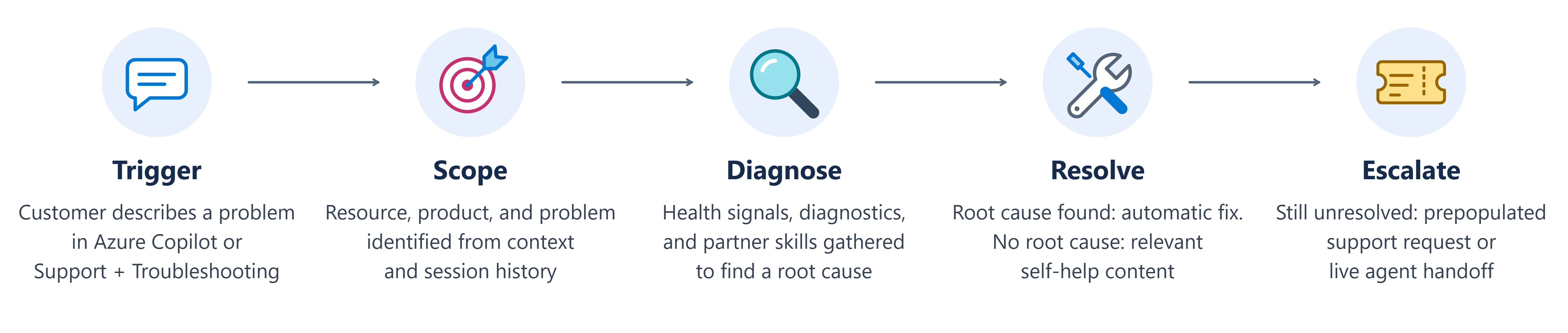
Trigger — The customer describes a problem in natural language, in the context of a resource, resource group, or subscription.
Scope — The agent identifies the affected resource, the product area, and the specific problem, asking clarifying questions only when needed.
Diagnose — The agent runs health signals, resource diagnostics, and (where available) product-specific diagnostic skills to gather evidence.
Resolve — When a root cause is found, the agent recommends or applies a fix. When no definitive root cause is found, it surfaces the most relevant self-help content instead.
Escalate — If the issue still isn't resolved, the agent creates a prepopulated support request or connects the customer to a live support agent with full session context already attached.
Troubleshooting is grounded in your Azure context and available diagnostic data. The experience respects your identity and Azure role-based access control (RBAC). Diagnostic depth and available remediation vary by resource type and issue, and you should review recommendations before making changes.
Deep troubleshooting for Azure Compute
The generally available Compute capabilities support Azure Virtual Machines, Virtual Machine Scale Sets, and Azure Compute Fleet. You can describe availability, connectivity, performance, deployment, or health symptoms. The agent identifies the target resource, runs relevant read-only diagnostics, and organizes the results into a likely diagnosis and recommends next steps.
These capabilities cover common problems such as unexpected restarts, RDP and SSH connectivity, sustained CPU or disk-performance issues, boot failures, allocation and deployment failures, VM agent health, unhealthy scale-set instances, update and availability-zone configuration issues, and Compute Fleet capacity.
Investigate application and cluster issues in AKS
Deep troubleshooting for AKS helps you investigate problems across applications, workloads, networking, scaling, upgrades, and cluster performance. The agent executes relevant checks against the selected cluster, explains the evidence it finds, and recommends remediation guidance and supporting documentation.
The AKS experience can help investigate CrashLoopBackOff and startup failures, stalled deployments, pod scheduling and capacity constraints, service discovery and connectivity, post-configuration traffic failures, scaling behavior, upgrade regressions, out-of-memory termination, image-pull failures, and throttling or degraded cluster performance.
Pricing
The Troubleshooting Agent is available to you at no additional cost. There is no separate license, subscription, or per-query charge to use the Troubleshooting Agent in Azure Copilot or in Support + Troubleshooting — it's included as part of your existing Azure experience. Standard charges for the underlying Azure resources you're troubleshooting continue to apply as normal, and any paid support plan benefits you already have are unaffected.
Get started
Start troubleshooting from Azure Copilot
Open Azure Copilot in the Azure portal.
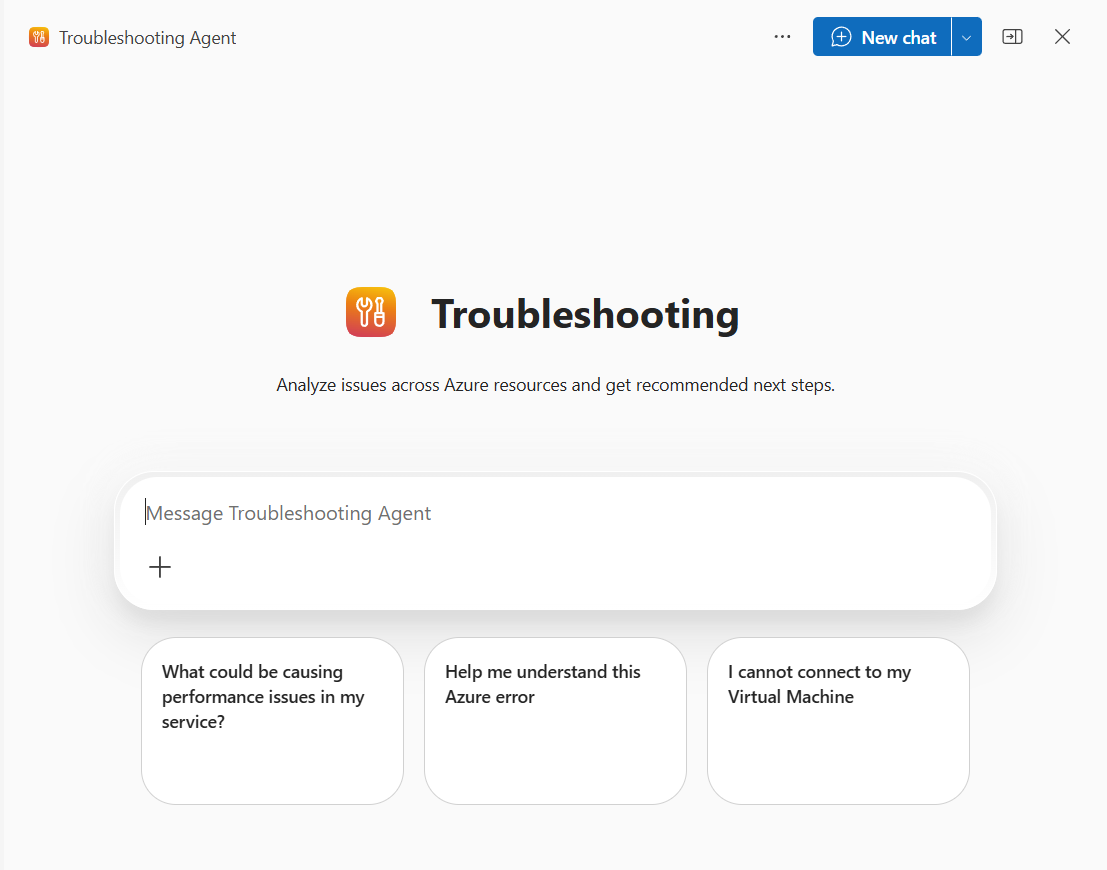
From New chat, select Troubleshooting.
Describe the issue you're experiencing. Include the affected resource or subscription if it isn't already clear from your current context.
Start troubleshooting from Support + Troubleshooting
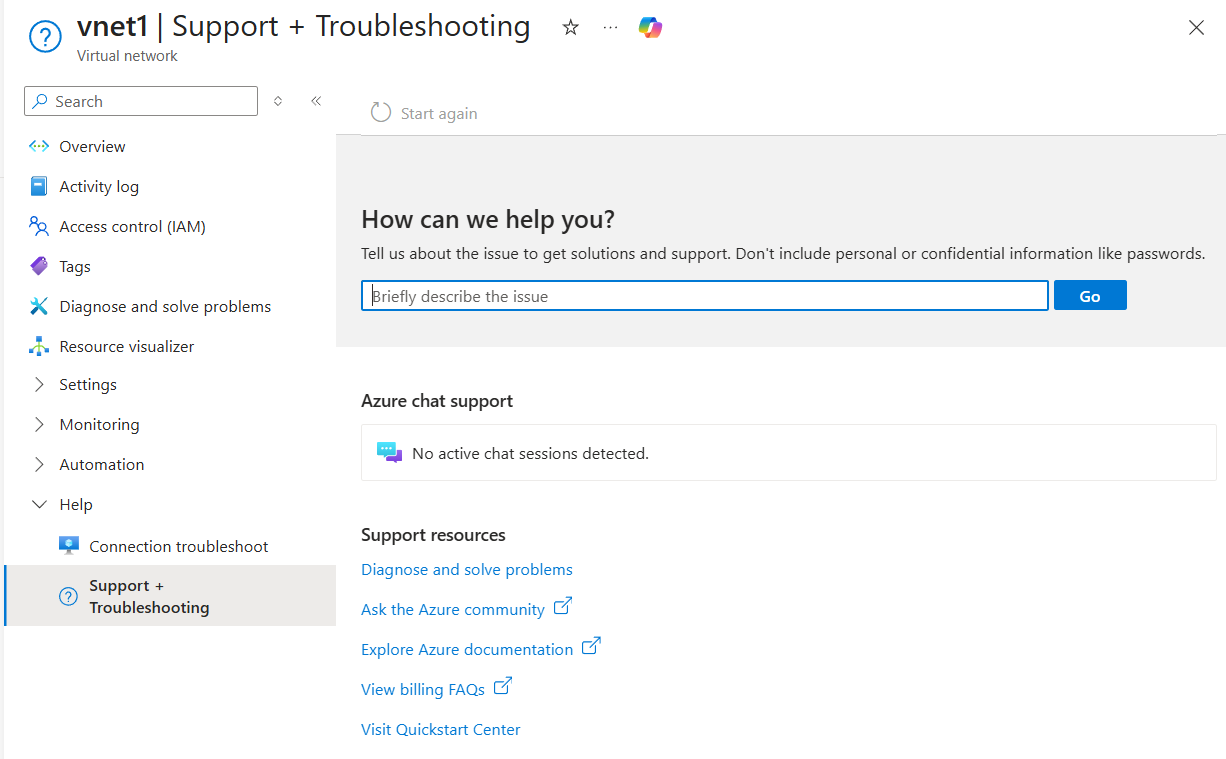
Go to the resource you want to troubleshoot.
Select ?, and then select Support + Troubleshooting.
Start a guided troubleshooting session and describe your issue.
If the Troubleshooting Agent can't resolve your issue, it can create a support request for you. It gathers all the necessary details to help Microsoft Support assist you more effectively. You can review and confirm the details before submitting the request.
Troubleshooting sample prompts
The following examples show prompts you can use with the Troubleshooting Agent. Adapt them to your scenario or create your own. If you aren't already viewing a resource, you might need to specify the resource you want to troubleshoot.
General
- "Help me investigate why my VM is unhealthy."
- "Check to see if my resource has active errors."
- "Are there any configuration changes impacting my resource?"
- "Create a support request."
- "Open a support ticket for my problem."
Compute (Virtual Machines, Scale Sets, Compute Fleet)
- "My VM restarted last night and nobody did it. What happened?"
- "I can't RDP into my Windows VM in resource group prod-rg."
- "My VM is showing high CPU usage consistently above 95%."
- "I'm getting an AllocationFailed error when starting my VM."
- "Why are instances in my VM scale set unhealthy?"
- "My Compute Fleet isn't reaching its target capacity."
AKS
- "My application containers keep restarting."
- "My deployment is stuck and won't finish rolling out."
- "New workloads aren't getting scheduled in my cluster."
- "My application can't find or reach other services in the cluster."
- "My cluster isn't scaling even though traffic is increasing."
- "My application started failing after I upgraded the cluster."
Azure Local
- “My Azure Local cluster update is failing. Can you help me identify the root cause?”
- "Why is my Azure Local cluster creation failing with an unauthorized error?”
Microsoft Entra
- "My user is unable to sign in to an application."
- "Help me troubleshoot why my user didn't receive an MFA prompt."
Current considerations and limitations
Keep in mind the following considerations and limitations when working with the Azure Copilot Troubleshooting Agent.
- Automatic mitigation of common issues isn't available for all issues or resource types. In these cases, the Troubleshooting Agent provides detailed instructions to help you resolve the issue, or it can create a support request for further investigation.
- Troubleshooting capabilities are based on currently available diagnostic data and predefined checks.
- Diagnostic depth and available remediation vary by Azure service, resource type, and issue category. Product-specific integrations provide additional diagnostic depth for supported scenarios, and coverage continues to expand.
- The agent uses the diagnostic information available to it. You remain in control of reviewing recommendations and deciding which actions to take.