Note
Access to this page requires authorization. You can try signing in or changing directories.
Access to this page requires authorization. You can try changing directories.
What this feature does
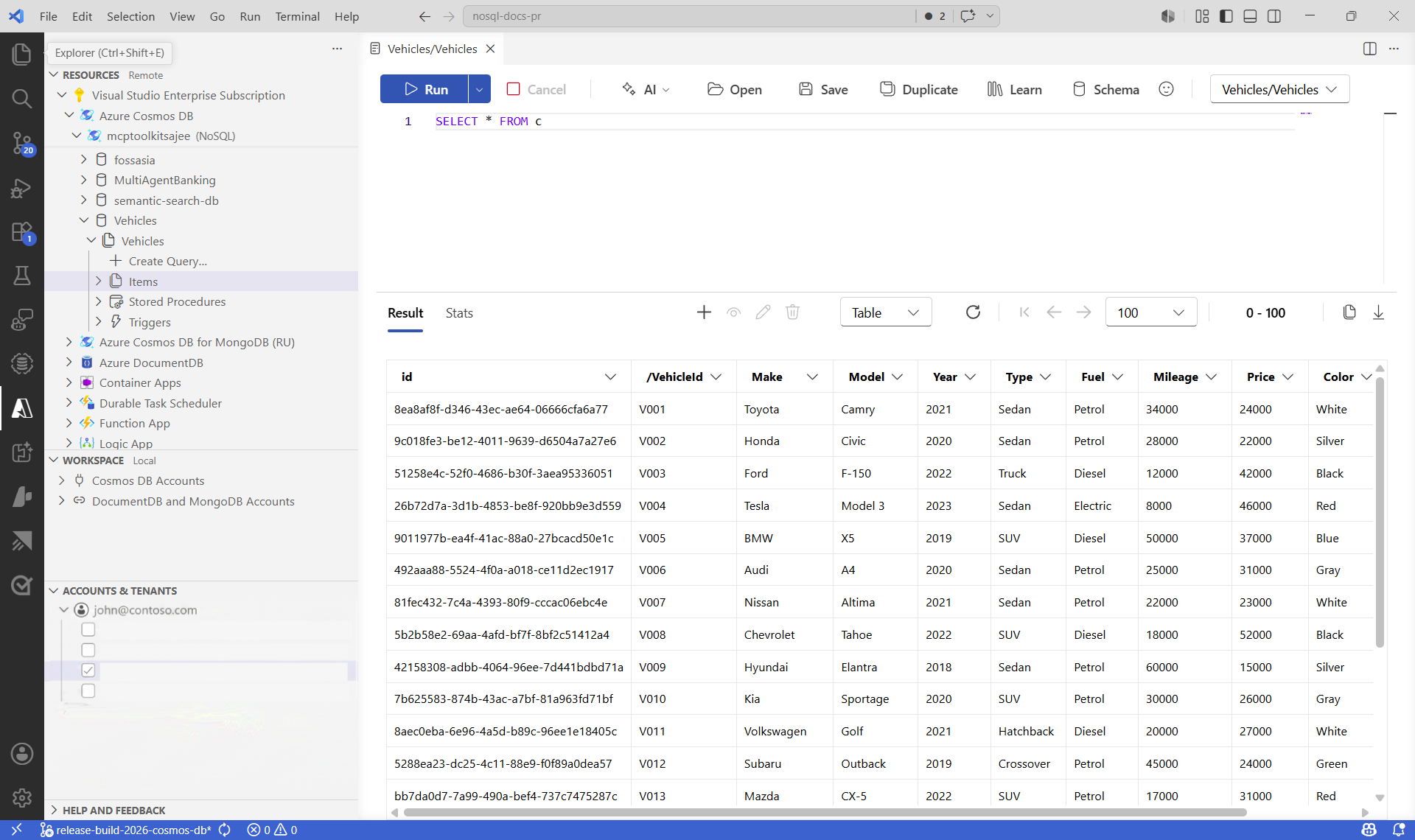
Use the extension's resource explorer to:
- View subscriptions and Azure Cosmos DB accounts.
- Expand databases and containers.
- Open context actions from account and container nodes.
Prerequisites
- Visual Studio Code with the Azure Databases extension installed.
- An Azure account with permission to view Azure Cosmos DB resources.
- At least one Azure Cosmos DB account in your selected subscription.
Sign in and load resources
- Open Visual Studio Code.
- Select the Azure icon in the activity bar.
- If prompted, sign in to Azure.
- Expand your subscription.
- Expand Azure Cosmos DB to list available accounts.
Browse account, database, and container resources
- Expand an Azure Cosmos DB account.
- Expand a database to view containers.
- Select a container node to view actions such as opening a query editor or item view.
Useful navigation tips
- Refresh a node when you create resources outside Visual Studio Code.
- Right-click account, database, and container nodes to discover available actions.
- Use container-level actions to jump directly to query and document workflows.
Troubleshooting
- If no accounts appear, verify that the correct subscription is selected.
- If you get authorization errors, verify your Azure role assignments.
- If the tree view is stale, reload the window and refresh the Azure node.