Note
Access to this page requires authorization. You can try signing in or changing directories.
Access to this page requires authorization. You can try changing directories.
The Azure Cosmos DB extension for Visual Studio Code is a versatile tool that you can use to connect to Azure Cosmos DB accounts, browse databases and containers, query data, and manage documents directly from your editor. It supports both cloud accounts and local emulator environments so you can stay in your development workflow without switching to the Azure portal.
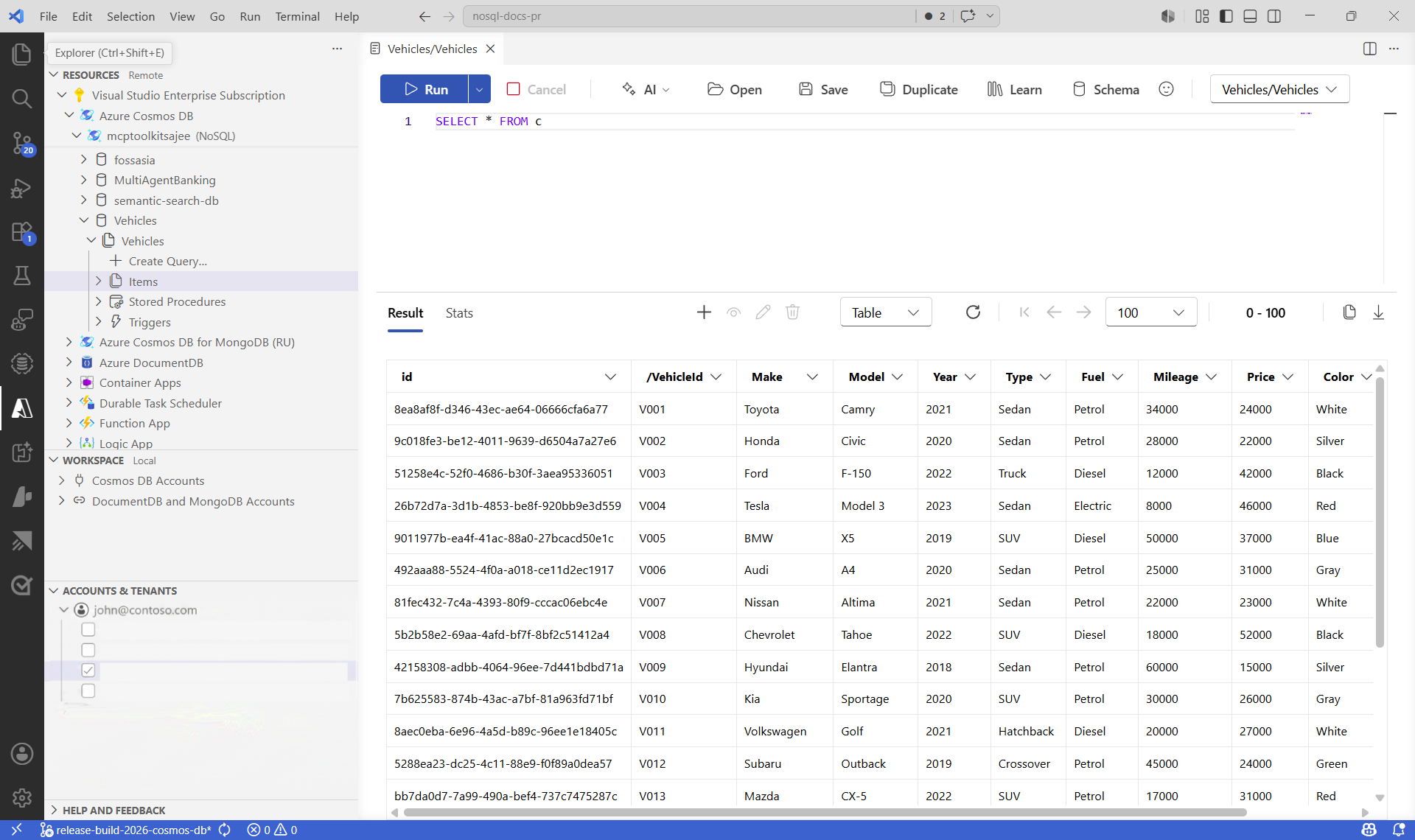
Key features
- Browse accounts and databases: Navigate your Azure Cosmos DB resource hierarchy directly from Visual Studio Code.
- Query editor with syntax highlighting: Write and run SQL queries with editor support, multiple result views (table, JSON, tree), and query metrics.
- Document management: Create, read, update, and delete documents with real-time editing and JSON import.
- Local emulator support: Connect to the Azure Cosmos DB emulator for local development and testing.
- Import and export data: Move data in and out of containers using JSON and CSV formats.
- Azure portal integration: Jump to portal views for advanced configuration and diagnostics.
- Natural language to query (preview): Generate query drafts from plain language prompts.
- Copilot Chat query assistance (preview): Get AI guidance to refine queries and troubleshoot query logic.
- IntelliSense and auto-completion (preview): Use schema-aware suggestions to author queries faster.
- Migration Assistant (preview): Get guided help when migrating relational data models to Azure Cosmos DB.
Prerequisites
- Visual Studio Code 1.85 or later installed on Windows, macOS, or Linux.
- An Azure Cosmos DB account configured with a database and container. Use any of these quickstarts to set up a resource:
Install the extension
- Open Visual Studio Code.
- Select View > Extensions or use the shortcut
Ctrl+Shift+Xon Windows (Cmd+Shift+Xon macOS). - In the search bar, enter Azure Databases and select the Azure Databases extension.
- Select Install.
- Reload Visual Studio Code if prompted.
Connect to your account
- In Visual Studio Code, select the Azure icon in the Activity Bar to open the Azure pane.
- Sign in to your Azure account via Microsoft Entra ID.
- In the Azure tree view, find your subscription and expand Azure Cosmos DB.
- Select an existing account or right-click to create a new resource.
Note
Use Microsoft Entra ID role-based access control when accessing your Azure Cosmos DB resources.
Use cases
- Development and testing: Quick access to data during development without context switching.
- Query authoring: Write, run, and optimize queries with real-time metrics and AI assistance.
- Data exploration: Browse containers and inspect documents interactively.
- Data operations: Import, export, and manage documents for seeding, backup, and migration tasks.
- Migration planning: Use the Migration Assistant to map relational schemas to Azure Cosmos DB models.
Documentation
- Browse accounts and databases
- Execute SQL queries
- Manage documents and collections
- Connect to local emulator
- Import and export data
- Azure portal integration
- Natural language to query (preview)
- Copilot Chat query assistance (preview)
- IntelliSense and auto-completion (preview)
- Migration Assistant (preview)