Note
Access to this page requires authorization. You can try signing in or changing directories.
Access to this page requires authorization. You can try changing directories.
What this feature does
The extension can connect to a local emulator for offline or preproduction development.
Prerequisites
- Azure Cosmos DB Emulator installed and running.
- Visual Studio Code with the Azure Databases extension.
Connect to the emulator
- Start the Azure Cosmos DB Emulator on your machine.
- In Visual Studio Code, open the Azure view.
- Use the extension action to connect to a local emulator endpoint.
- Provide the emulator endpoint and key when prompted.
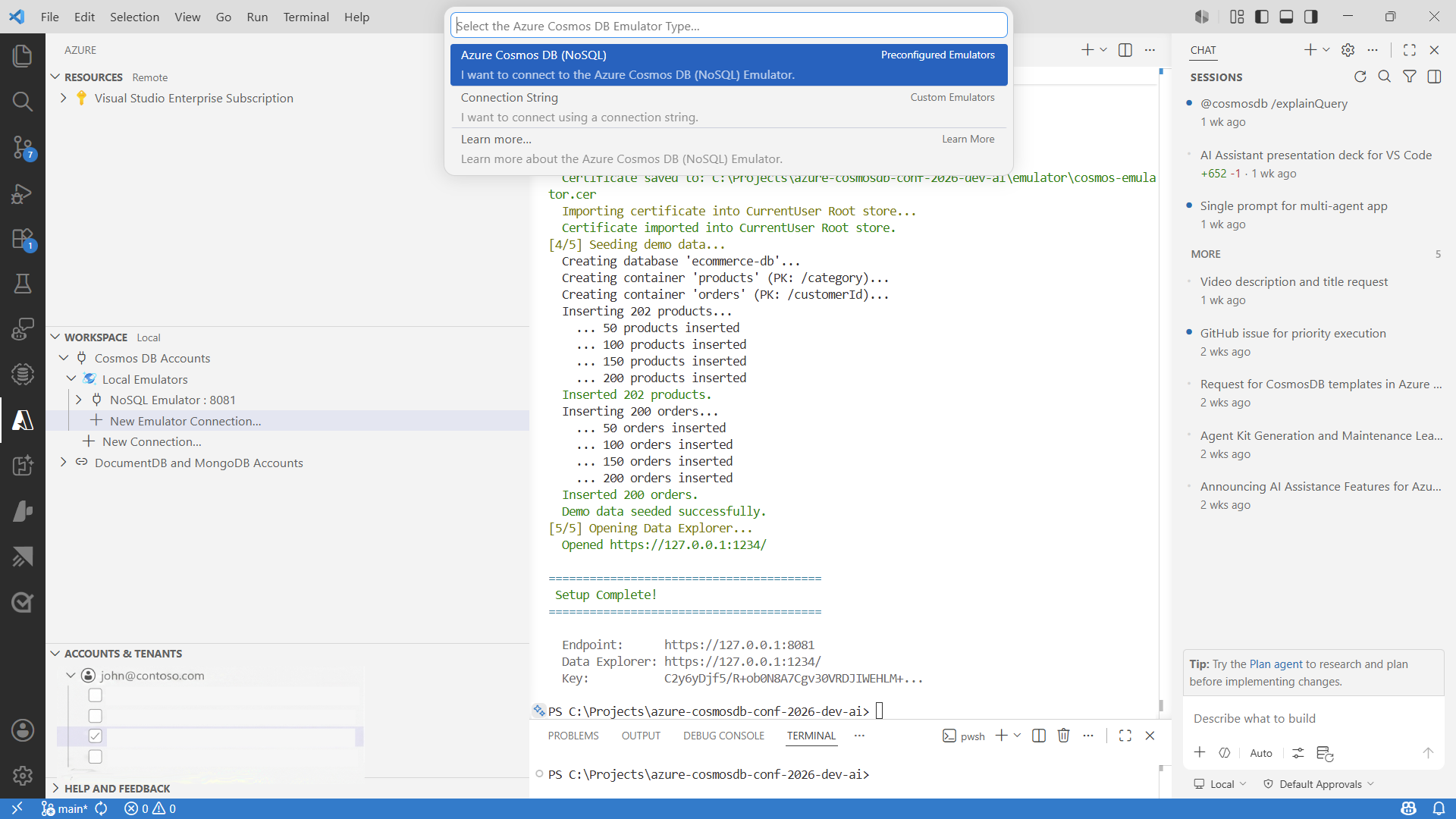
Common local endpoint:
https://localhost:8081
Validate the connection
- Expand the emulator connection in the resource tree.
- Open a database and container.
- Run a quick query:
SELECT TOP 10 * FROM c
Troubleshooting
- If TLS warnings appear, verify emulator certificates are trusted.
- If connection fails, confirm the emulator is running before connecting.
- If results are empty, verify that data exists in the local container.