Note
Access to this page requires authorization. You can try signing in or changing directories.
Access to this page requires authorization. You can try changing directories.
What this feature does
The query editor helps you author and run Azure Cosmos DB SQL queries with:
- Syntax highlighting.
- Multiple results views (table, JSON, tree).
- Query execution from the editor.
Open the query editor
- In the Azure view, expand your Azure Cosmos DB account.
- Expand a database and then a container.
- Right-click the container and select the query editor action.
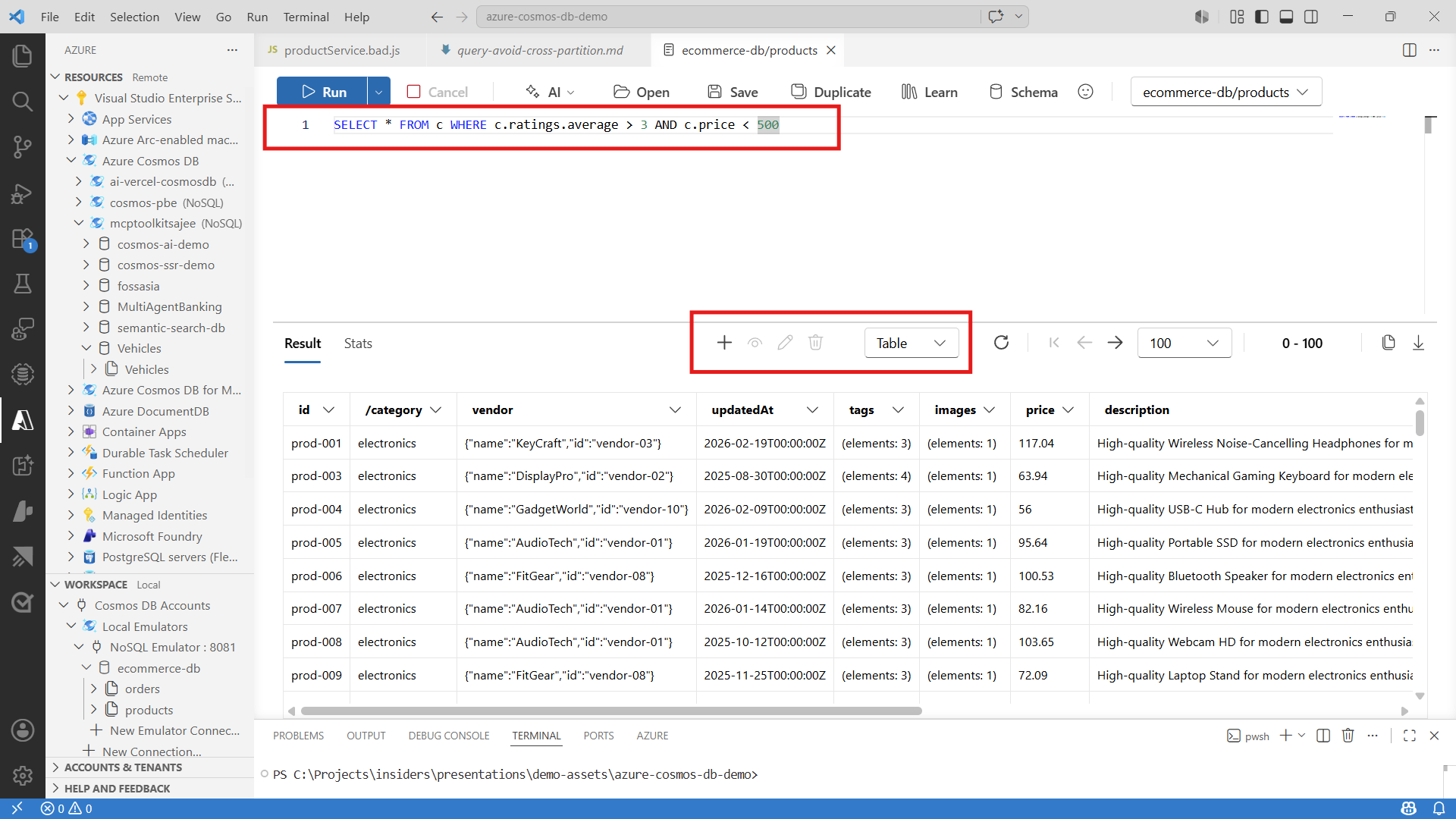
Write and run a query
- Enter a query in the editor.
- Run the query using the query action in the editor toolbar.
- Start with a validation query if needed:
SELECT TOP 10 * FROM c
- Iterate by adding filters and ordering:
SELECT c.id, c.status, c.updatedAt
FROM c
WHERE c.status = "active"
ORDER BY c.updatedAt DESC
Review results and stats
- Use table view to quickly scan fields.
- Use JSON view for full payload validation.
- Use tree view for nested documents.
- Check query statistics when tuning performance-sensitive queries.
Save and rerun patterns
- Keep reusable query snippets in your workspace.
- Re-run baseline and tuned variants to compare behavior.
Troubleshooting
- If query execution fails, validate SQL syntax and field names.
- If results are empty, run
SELECT TOP 10 * FROM cto inspect sample documents. - If access fails, verify account and data permissions in Azure.