Note
Access to this page requires authorization. You can try signing in or changing directories.
Access to this page requires authorization. You can try changing directories.
Important
This feature is in Private Preview. See Enable Governance Hub Security Posture Management.
In Governance Hub, the Security page shows the security posture of your Azure Databricks account. It evaluates every workspace daily against security controls based on the Azure Databricks security best practices, ranks findings by severity, and links each failed control to remediation guidance. Only account admins can access the Security page.
With the Security page, you can:
- Track posture across workspaces: See the percentage of controls passing account-wide and which workspaces have the most high-risk findings.
- Find the root cause of a failure: Drill into a failing control to see the affected workspaces, when it started failing, and why.
- Tune controls to your environment: Disable controls, adjust severity, and set thresholds at the account or workspace level.
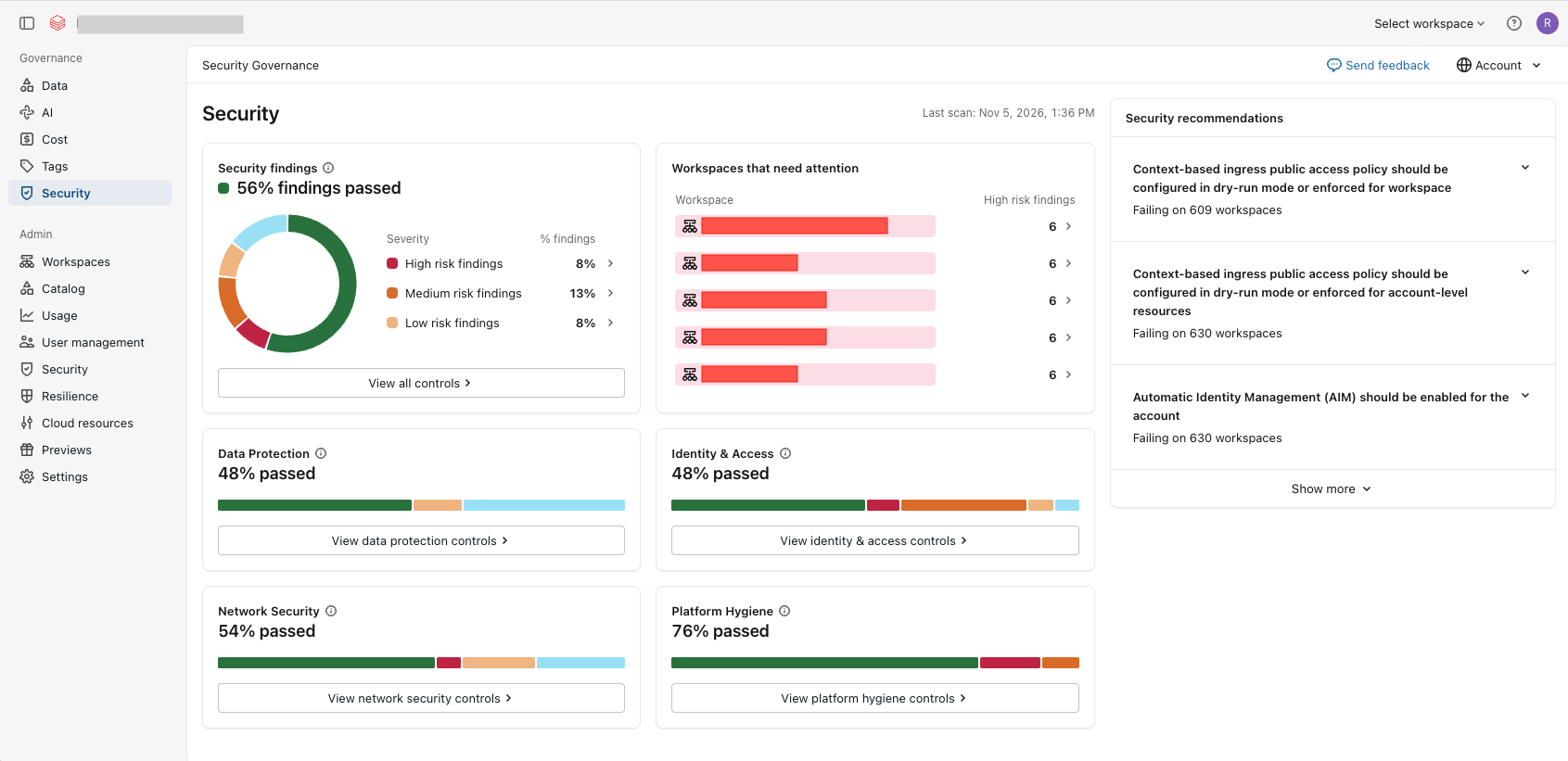
The Security page includes the following tiles:
| Tile | Description |
|---|---|
| Security findings | The total number of passed and failed findings in scope, by severity. A finding is the result of one security control evaluated against one workspace. |
| Workspaces that need attention | The workspaces in scope, ranked by the number of high-risk findings. |
| Category tiles (Data Protection, Identity & Access, Network Security, Platform Hygiene) | The percentage of passed and failed findings in scope, by severity and category. |
The Security recommendations panel on the right suggests actions to improve security posture across your account.
How security controls work
Controls are organized into four categories and ten subcategories:
| Category | Subcategory | What the controls check |
|---|---|---|
| Identity & Access | Authentication | Single sign-on (SSO), risky personal access tokens, stale service principal secrets, and emergency access configuration. |
| Identity & Access | Identity governance | Identity lifecycle management and over-privileged admins. |
| Data Protection | Encryption | Customer-managed keys and local disk encryption. |
| Data Protection | Data export | Notebook, query result, and file export controls. |
| Data Protection | UC readiness | Metastore assignment, risky storage credential use, and legacy DBFS disablement. |
| Network Security | Ingress controls | Context-based ingress and IP access controls, frontend private connectivity, backend private connectivity, and secure cluster connectivity. |
| Network Security | Egress controls | Serverless egress controls and serverless private connectivity. |
| Platform Hygiene | Compute hardening | Deprecated runtimes, long-running clusters, and clusters without user isolation. |
| Platform Hygiene | Software supply chain | Git repository controls, global cluster libraries, and global init scripts. |
| Platform Hygiene | Platform baseline | Legacy feature disablement, the compliance security profile, and enhanced security monitoring. |
Each control has a default severity of High, Medium, Low, or Informational, to show which findings need attention first. For the full list, see Security controls reference.
Change the scope
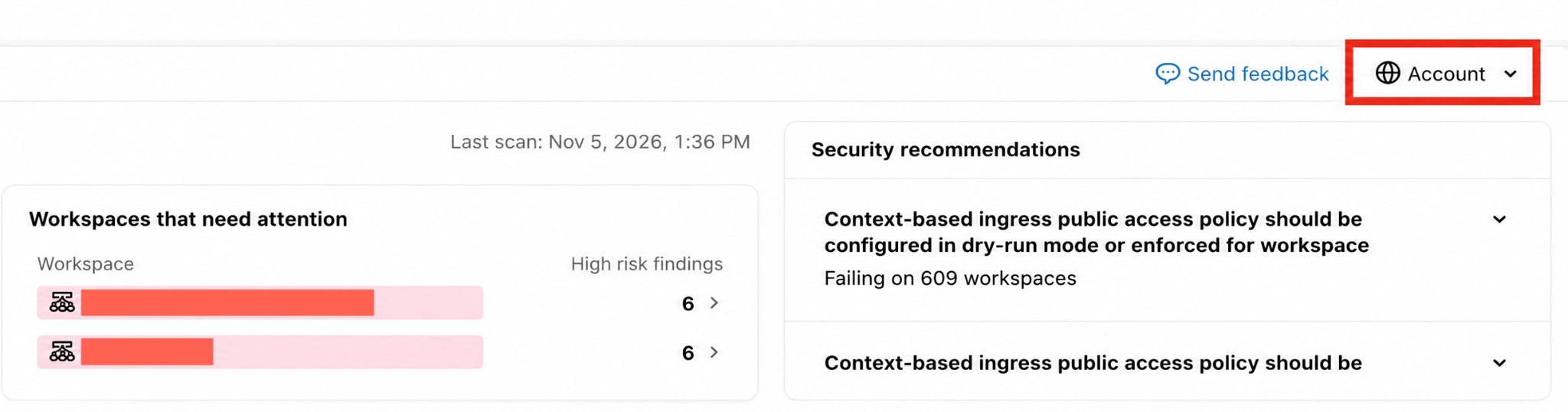
In Governance Hub, the data displayed depends on the chosen scope, which you can select in the upper-right corner. For account admins, this is set to  Account by default. Select a different scope, such as an individual workspace, to update the dashboards to reflect that scope. For more information about who can view each scope, see Access and permissions.
Investigate and drill down into issues
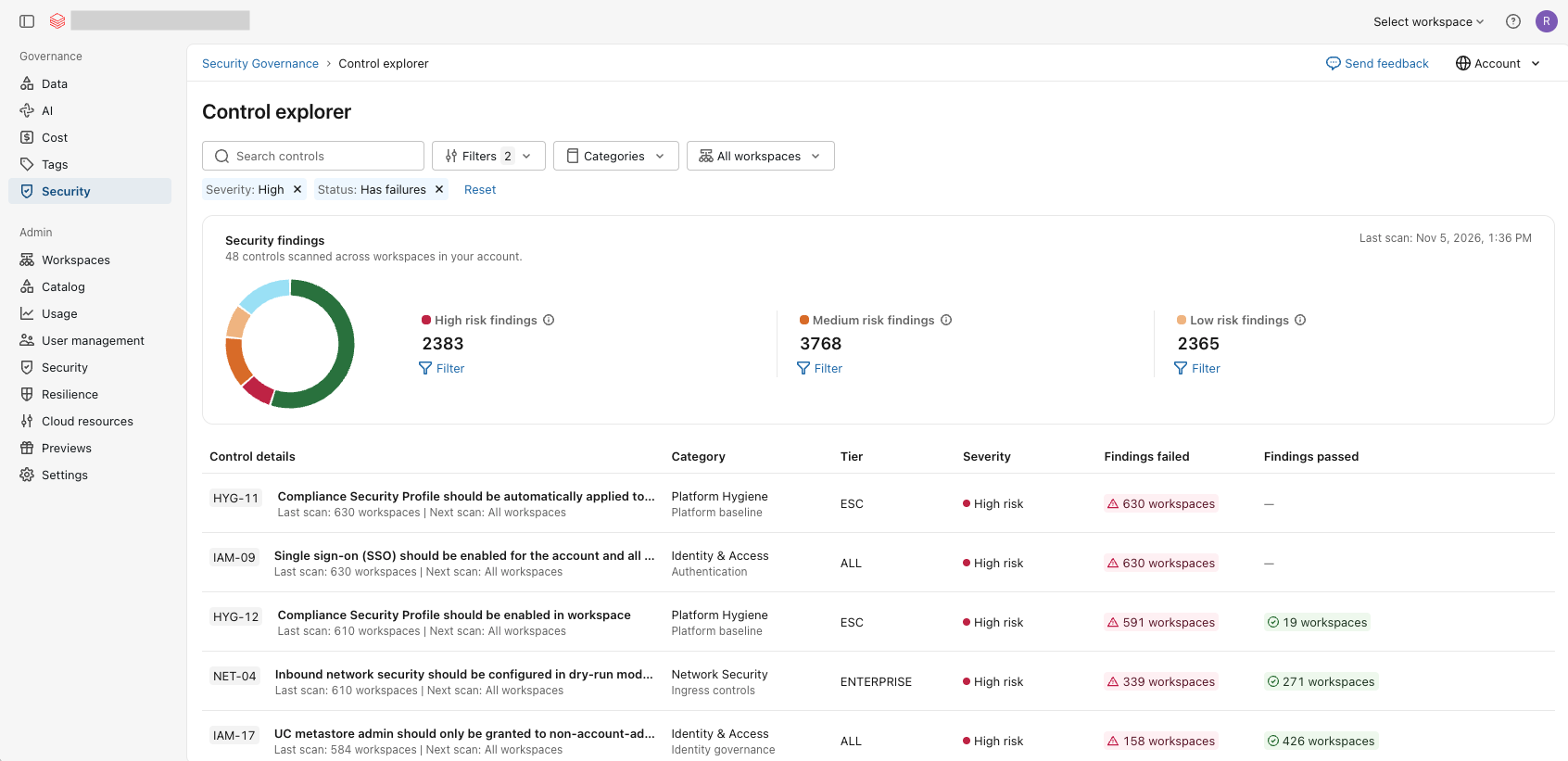
From the dashboard, filter by category, severity, or workspace to see the relevant controls and where they're passing or failing.
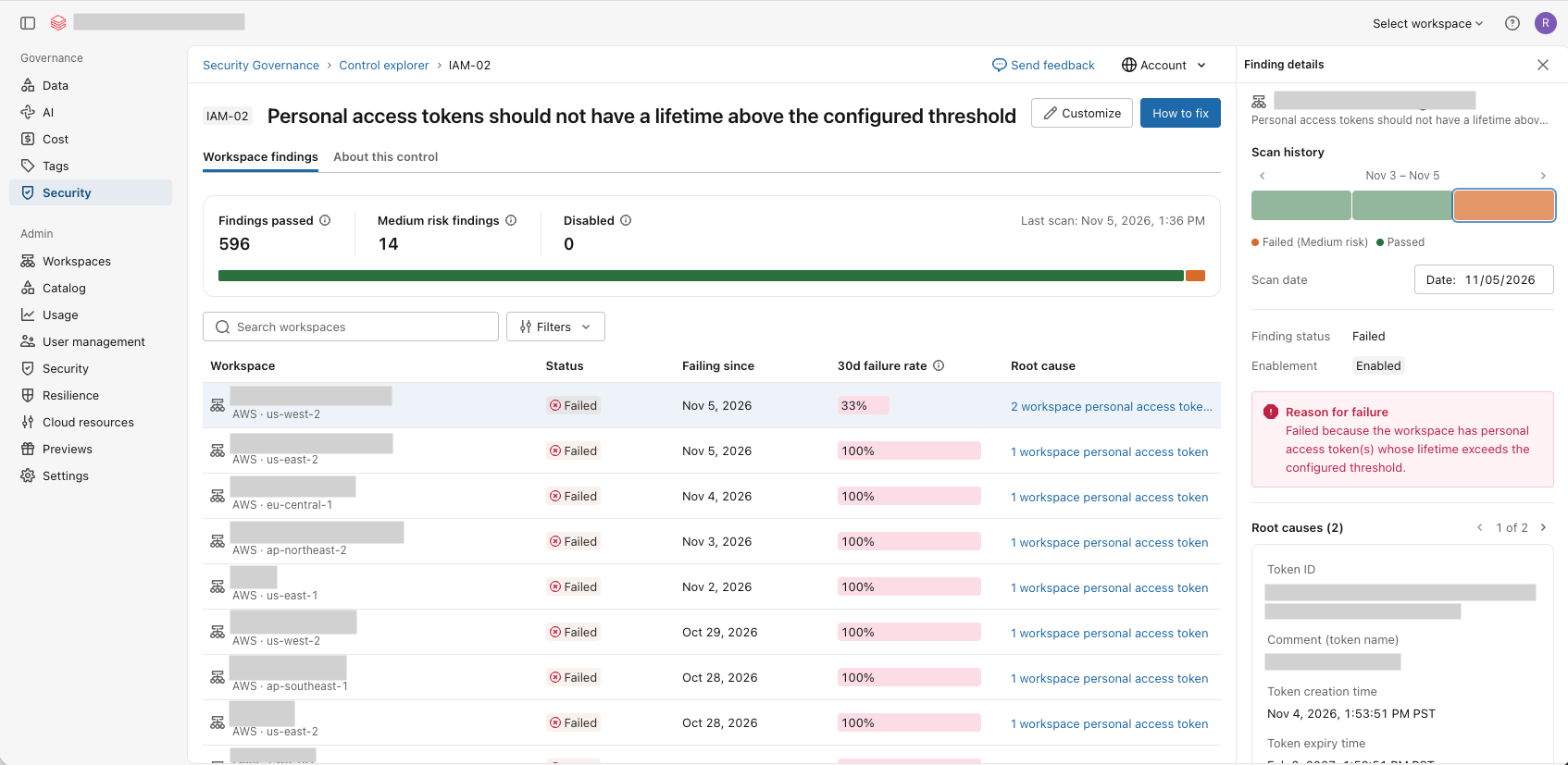
Select a control to see which workspaces are affected, then select a failing workspace to understand the root cause, including when the control started failing and why. For example, if your workspace has long-lived personal access tokens, you can see the token IDs, owners, and expiration dates to begin remediation.
Every failed control links to remediation guidance that explains how to address the issue. The guidance includes why the configuration matters, the potential impact of the change, and how to remediate without disrupting your environment.
Customize controls to match your security requirements
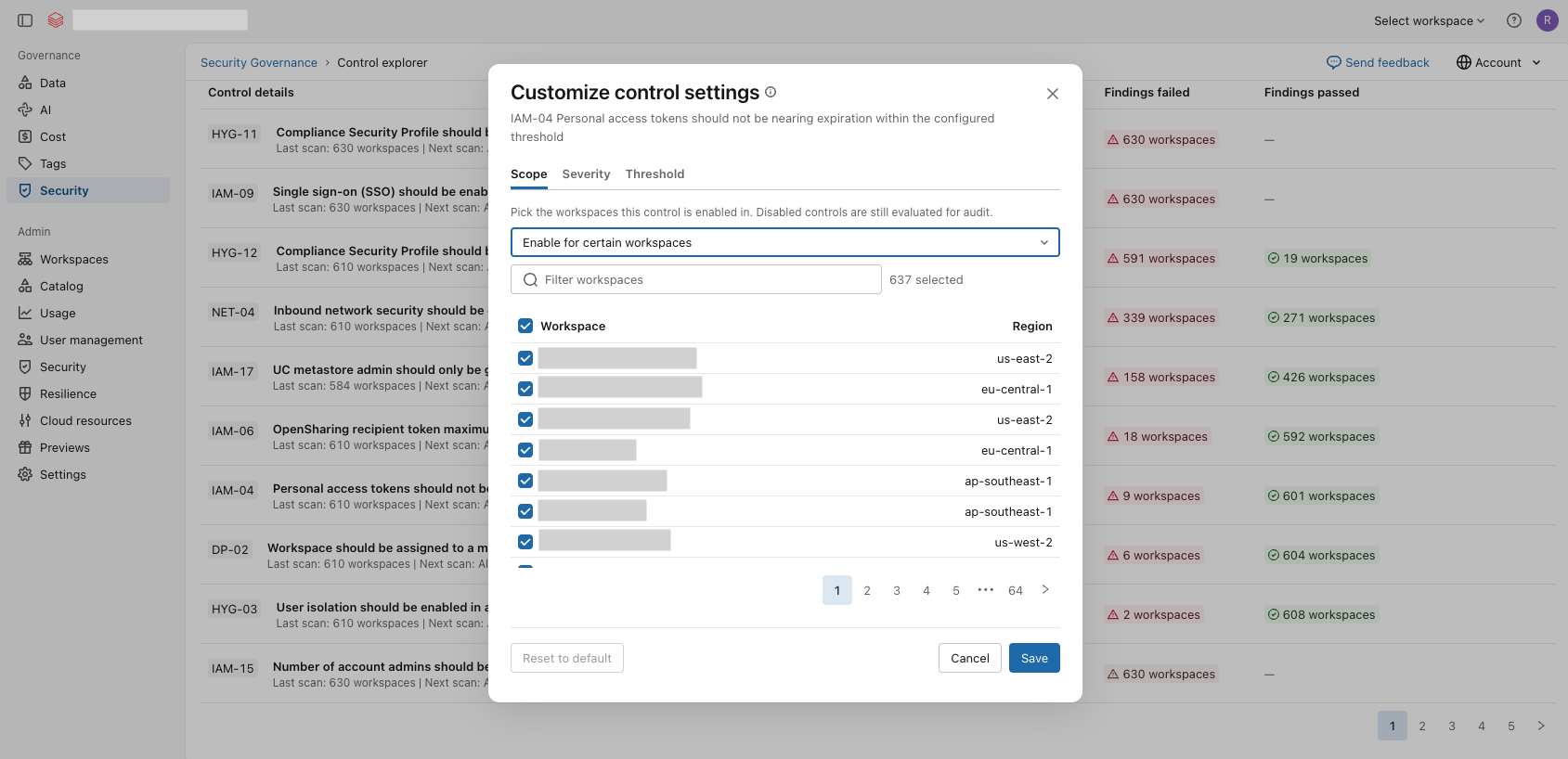
Tailor security controls to your organization's policies and risk tolerance:
- Disable controls: Disable controls at the account or workspace level when they don't apply to a particular environment, such as a development or sandbox workspace.
- Adjust severity levels: Change the severity of a control to reflect your organization's priorities.
- Tune thresholds: Set thresholds that match your policies. For example, choose the maximum allowed lifetime of service principal secrets before they are flagged.
Note
Disabled controls are still scanned, so you keep a full history of findings for investigation and audit. However, disabled controls don't appear as passing or failing in your dashboards.
Enable Governance Hub Security Posture Management
To enable Governance Hub Security Posture Management, an account admin turns on both the Governance Hub preview and the Governance Hub: Security Posture Management preview from the account console Previews page. See Manage account-level previews.
Governance Hub: Security Posture Management is in Private Preview. If you don't see it on the Previews page, reach out to your account team to enroll.
After you enable the preview, security controls are evaluated daily across all of your workspaces. Initial results might take up to one day to appear.