Note
Access to this page requires authorization. You can try signing in or changing directories.
Access to this page requires authorization. You can try changing directories.
Important
This feature is in Beta. Workspace admins can control access to this feature from the Previews page. See Manage Azure Databricks previews.
This page describes how to set up LinkedIn Ads as a data source for ingestion using Lakeflow Connect.
Before you begin
To set up LinkedIn Ads as a data source, you need:
- A LinkedIn account with access to the LinkedIn Page whose advertising data you want to ingest.
- A role on each sponsored ad account you plan to ingest. The connector can only read ad accounts that the authorizing user has a role on.
- Permission to create and configure an app in the LinkedIn Developers portal.
Create a LinkedIn developer app
If you do not already have a LinkedIn developer app, follow these steps to create one:
Sign in to https://www.linkedin.com/developers/apps.
Click Create app in the top right.
Fill in the app details:
Field Description App name A display name for the app, such as Databricks LinkedIn Ads Connector.LinkedIn Page The LinkedIn Page whose data you want to ingest. Privacy policy URL A URL that points to your organization's privacy policy. App logo An image for the app. LinkedIn recommends a square image at least 100 pixels on each side. Select the checkbox to agree to the LinkedIn API Terms of Use, then click Create app.
On the Settings tab, click Verify and complete the verification flow to confirm that the app is associated with your company. This step is required, because unverified apps cannot access the Advertising API.
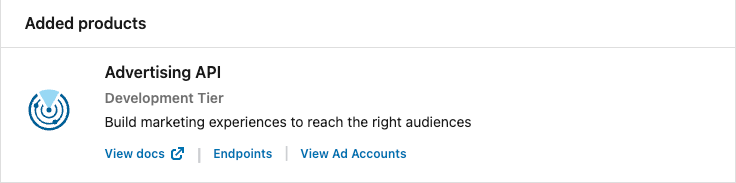
On the Products tab, add Advertising API from the list of available products. LinkedIn must approve your app for the Advertising API through the Marketing Developer Platform before the connector can read advertising data. For more information, see Marketing Developer Platform in the LinkedIn documentation.
On the Auth tab, record the Client ID and Primary Client Secret. You enter both when you create the Azure Databricks connection.
On the same tab, under Authorized redirect URLs for your app, add the following URL, replacing
<workspace-url>with your Azure Databricks workspace URL, then click Update:https://<workspace-url>/login/oauth/lakehousefederation.html