Note
Access to this page requires authorization. You can try signing in or changing directories.
Access to this page requires authorization. You can try changing directories.
Monitor Lakeflow pipelines in the Azure Databricks user interface to track update progress, alert on pipeline events, and view streaming source metrics. These built-in features support tasks such as:
- Observing the progress and status of pipeline updates. See Pipeline details available in the monitoring page.
- Alerting on pipeline events such as the success or failure of pipeline updates. See Add email notifications for pipeline events.
- Viewing metrics for streaming sources like Apache Kafka and Auto Loader (Public Preview). See View streaming metrics.
Add email notifications for pipeline events
You can configure one or more email addresses to receive notifications when the following occurs:
- A pipeline update completes successfully.
- A pipeline update fails, either with a retryable or a non-retryable error. Select this option to receive a notification for all pipeline failures.
- A pipeline update fails with a non-retryable (fatal) error. Select this option to receive a notification only when a non-retryable error occurs.
- A single data flow fails.
To configure email notifications, edit the settings for a pipeline. See Notifications.
Note
Create custom responses to events, including notifications or custom handling, by using Python event hooks.
View pipelines in the UI
Find your pipeline from the  Jobs & Pipelines option in the workspace sidebar. This opens the Jobs & pipelines page, where you can view information about each job and pipeline you have access to. Click the name of a pipeline to open the pipeline monitoring page. To edit the job or pipeline, click the
  menu and choose Edit.
Note
Jobs and different pipeline types have different editors. The Edit option opens the correct editor for the object you select.
Use the Jobs & pipelines list
To view the list of pipelines you have access to, click Jobs & Pipelines in the sidebar. The Jobs & pipelines tab lists information about all available jobs and pipelines, such as the creator, the trigger (if any), and the result of the last five runs.
Clicking the name of a pipeline or job takes you to the monitoring page for that pipeline or job. To edit the pipeline or job, click the , then select Edit.
To change the columns displayed in the list, click  and select or deselect columns. For example, to add the
 Pipeline Type as a column, select that column to view.
You can filter jobs in the Jobs & pipelines list as shown in the following screenshot.
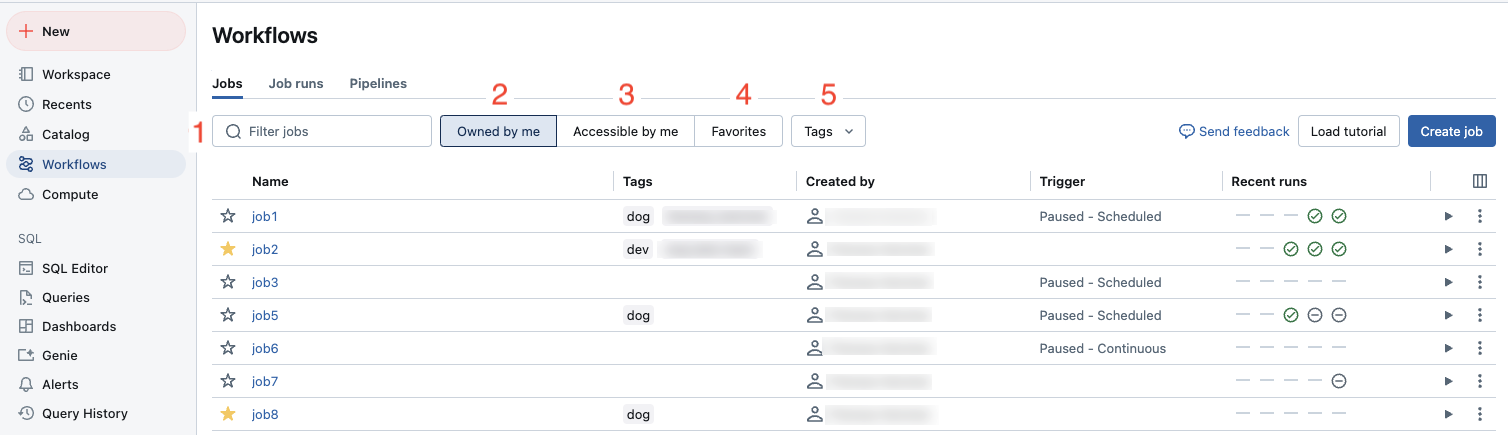
- Text search: keyword search is supported for the Name and ID fields. To search for a tag created with a key and value, you can search by the key, the value, or both the key and value. For example, for a tag with the key
departmentand the valuefinance, you can search fordepartmentorfinanceto find matching jobs. To search by the key and value, enter the key and value separated by a colon (for example,department:finance). - Type: filter by Jobs, Pipelines, or All. If you select Pipelines you can also filter by Pipeline type, which includes ETL and Ingestion pipelines.
- Owner: show only the jobs you own.
- Favorites: show jobs you have marked as favorites.
- Tags: Use tags. To search by tag you can use the tags drop-down menu to filter for up to five tags at the same time or directly use the keyword search.
- Run as: Filter by up to two
run asvalues.
To start a job or a pipeline, click the  play button. To stop a job or a pipeline, click the
  stop button. To access other actions, click the kebab menu . For example, you can edit or delete the job or pipeline, or access settings for a pipeline from that menu.
Pipeline details available in the monitoring page
Note
The Unified Runs List preview adds pipeline runs to the jobs run list. For details on the changes with that preview enabled, and how to enable it, see Changes in the Unified Runs List preview.
Clicking the name of a pipeline in the Jobs & Pipelines page shows the monitoring page for that pipeline. From here you can start a pipeline run, and view previous run details.
The pipeline graph, also called the directed acyclic graph (DAG), appears as soon as an update to a pipeline has successfully started. Arrows represent dependencies between datasets in your pipeline. By default, the pipeline monitoring page shows the most recent update for the table, but you can select older updates from a drop-down menu.
The right pane shows pipeline details at the top, including the pipeline ID, compute cost, product edition, and channel. Update details appear below the pipeline details. To access the pipeline source code, click Edit pipeline at the top of the page. To navigate to the code for a specific table, hover over the table in the pipeline graph and click  Navigate to code.
To see a tabular view of datasets, click the List tab. The List view allows you to see all datasets in your pipeline represented as a row in a table and is useful when your pipeline graph is too large to visualize in the Graph view. You can control the datasets displayed in the table using multiple filters such as dataset name, type, and status. To switch back to the pipeline graph, click Graph.
The Run as user is the pipeline owner, and pipeline updates run with this user's permissions. To change the run as user, click Permissions and change the pipeline owner.
Note
Update run behavior: Updates triggered by a schedule, the Pipelines API, or continuous pipelines use automatic retry and restart behavior. This includes continuous pipeline updates started from the monitoring UI or the pipeline editor. Updates for non-continuous pipelines started from the monitoring UI or the pipeline editor use fast-start, debugging-focused behavior. To override the behavior for a specific non-continuous pipeline run, use the Run now with different settings option in the drop-down. For more information, see Update run behavior.
Event log: When a pipeline update has errors, the errors appear in the bottom pane with a View logs button to access the event log for that run. The event log is also available by selecting  View event log from the run details in the right pane. When running an update in the Lakeflow Pipelines Editor, navigate to the Issues pane at the bottom of the editor, then click View logs or the Open in logs button next to any error. For more details, see Lakeflow Pipelines Editor and Pipeline setting for event log.
Changes in the Unified Runs List preview
If you have the Unified Runs List preview enabled, you can see pipeline run updates in the Jobs & Pipelines page.
Important
Unified runs list is in Public Preview. Workspaces are opted into the preview by default.
To disable Unified Runs List, a workspace admin must opt out of the preview. For details on opting in or out of a preview, see Manage account-level previews.
To access the unified runs list, either select  Runs from the workspace sidebar, or Click Jobs & Pipelines, then choose the Runs tab.
The tab shows a list of recent runs over the last 60 days. A graph showing success and failure of runs over the last 48 hours is displayed first, in the following cases:
- You are filtered to just Jobs or Pipelines.
- You are an admin, or filter to only runs
Run as: Me - Runs can take up to an hour to show on the graph.
You can filter the list and the graph by:
- Name of the job or pipeline.
- All, Jobs, or Pipelines.
- Pipeline type (ETL, Ingestion, MV/ST, or Database Table Sync).
- The Run as user.
- The run Start time (within the last 48 hours).
- The Run status.
- The Error code for failed runs.
Besides the above, you can view the following columns in the list:
- End time
- Run ID
- Whether the run was Launched manually or by a schedule.
- Run Duration.
- Run parameters.
To change the columns displayed in the runs list, click  and select or deselect columns.
Clicking the Start time, End time, or Name of a pipeline run takes you to the monitoring page for the pipeline.
When a pipeline is actively running, you can stop the run by clicking the  stop button. At any time, you can also click menu button on the row for the run, and choose Edit pipeline to view the pipeline in the editor.
View dataset details
Clicking on a dataset in the pipeline graph or dataset list shows information about the dataset in the bottom pane. The right pane continues to show pipeline and update details.
- Schema: Choose the table in the Tables tab of the bottom pane, then select Columns.
- Data quality metrics: Viewable in the bottom pane when a table is selected.
- Source code: To navigate to the code for a specific table, hover over the table in the pipeline graph and click the Navigate to code button.
- Query history: Choose Performance in the bottom pane.
- Table comments: Table comments are not available from the pipeline details page. To view table comments, open the table in Catalog Explorer. To navigate directly to the table, hover over it in the pipeline graph, click , then click
 View in catalog. To access Catalog Explorer from the tables list in the bottom pane, click the icon.
View update history
To view the history and status of pipeline updates, click the update history drop-down menu in the top bar.
Select the update in the drop-down menu to view the graph, details, and events for an update. To return to the latest update, click Show the latest update.
Note
Pipelines retain 60 days of past updates. Updates older than the retention window no longer appear here but remain in the event log.
Debug a failed pipeline update
When an update fails, start at the Issues pane in the Lakeflow Pipelines Editor or the bottom pane of the monitoring page. Failed updates surface errors there with a View logs button that jumps straight to the relevant event log entries, so you rarely need to search through raw logs by hand.
From there, work through the failure:
- Identify what failed. In the Graph view, failed tables and flows are highlighted directly on the DAG. Select one to see the error message, and check whether the failure is isolated to a single table or has cascaded to its downstream dependents.
- Query the event log for the full error. The UI can truncate messages. The event log's
erroranddetailscolumns carry the full stack trace and structured context. See Query the event log. - Re-run only what failed. Use Refresh failed tables to retry just the failed tables plus anything downstream of them, rather than reprocessing tables that already succeeded. See Start a pipeline update for failed tables.
- Validate before a full update. If the failure looks like a code or configuration problem rather than a data problem, run Validate first. It re-checks the pipeline graph and source code without materializing data, so you get a fast signal on whether your fix resolves the error before spending compute. See Check a pipeline for errors without waiting for tables to update.
- Account for retry behavior. Updates triggered manually from the editor disable automatic retries so you see errors immediately, while updates triggered by a schedule or the API retry recoverable failures automatically. A production failure alert might resolve itself on retry, while the same failure won't during interactive development. See Update run behavior.
Note
If the failure is specifically about an invalid or incompatible streaming checkpoint (common after changing a stateful operation such as dropDuplicates() or an aggregation, or after changing a source), a retry alone won't fix it. Recovering requires reprocessing data, either a full refresh or a selective checkpoint reset that replays from a chosen position and preserves existing table data. Because a reset replays source data, downstream writes must be idempotent. See Recover a pipeline from streaming checkpoint failure.
View streaming metrics
Important
Streaming observability for pipelines is in Public Preview.
You can view streaming metrics from the data sources supported by Spark Structured Streaming, like Apache Kafka, Amazon Kinesis, Auto Loader, and Delta tables, for each streaming flow in your pipeline. Metrics are displayed as charts in the pipeline UI's right pane and include backlog seconds, backlog bytes, backlog records, and backlog files. The charts display the maximum value aggregated by minute and a tooltip shows maximum values when you hover over the chart. The data is limited to the last 48 hours from the current time.
Tables in your pipeline with streaming metrics available display the  icon when viewing the pipeline graph in the UI Graph view. To view the streaming metrics, click the to display the streaming metric chart in the Flows tab in the right pane. You can also apply a filter to view only tables with streaming metrics by clicking List and then clicking Has streaming metrics.
Each streaming source supports only specific metrics. Metrics not supported by a streaming source are not available to view in the UI. The following table shows the metrics available for supported streaming sources:
| source | backlog bytes | backlog records | backlog seconds | backlog files |
|---|---|---|---|---|
| Kafka | ✓ | ✓ | ||
| Kinesis | ✓ | ✓ | ||
| Delta | ✓ | ✓ | ||
| Auto Loader | ✓ | ✓ | ||
| Google Pub/Sub | ✓ | ✓ |