Note
Access to this page requires authorization. You can try signing in or changing directories.
Access to this page requires authorization. You can try changing directories.
The Cloud Overview dashboard is the landing page for Microsoft Defender for Cloud in the unified security portal (Defender portal). It gives security teams a clear, actionable view of their cloud security status both pre and post breach helping them understand where to focus, track progress over time, and take immediate action. It also provides a scale view at the tenant-level or scope based.
Important
Microsoft Defender for Cloud is expanding to the Defender portal to provide a unified security experience across cloud and code environments. As part of this expansion, some features are now available in the Microsoft Defender Portal, and additional capabilities will be added to the Defender portal over time.
This change is designed to:
- Unlock new cloud and posture management experiences.
- Provide deep integration with other Microsoft security services.
- Empower security teams with streamlined workflows by bringing all tools together in one portal.
To identify documentation specific for the Defender Portal, look for the portal entry point at the top of the article. This pivot indicates whether the content applies to the Defender portal or the Azure portal.
Our documentation will be continuously updated to reflect these changes, so check back regularly for the latest guidance and feature availability.
Review the known limitations article to understand current gaps during the preview phase.
Who is this for?
- Cloud Security Admins & Architects: Monitor posture, threats, and trends across environments.
- Workload Owners (DevOps, Developers): Track scoped issues and act to resolve them.
Access the dashboard
You can access the Cloud Overview dashboard from the navigation bar in the Microsoft Defender portal:
- Sign in to the Defender portal.
- Go to Cloud security > Overview
Top controls
At the top of the dashboard, you’ll find key filters:
- Scope Filter: Narrow the dashboard view to a specific scope you’re authorized to access, based on unified scopes.
- Environment Filter: Pivot the dashboard by the cloud environment you want to view, such as Azure, AWS, GCP.
- Time Range: Select 30 days, 3 months, or 6 months to view trends over time. This applies to all historical graphs and trend indicators.

Dashboard sections
Security at a glance
This section gives you a quick snapshot of your current security status:
- Cloud Secure Score (preview): Your overall cloud security risk score with a trend indicator.
- Threat Protection: Number of alerts by severity.
- Assets Coverage: Number of protected assets by Defender for Cloud plans and their coverage status.
- Full - assets covered by posture and protection plans
- Partial - assets protected by posture or protection plans
- None - unprotected assets
In addition, all cloud and code environments that are currently connected to Defender for Cloud are presented.

Top Actions
This section helps you understand where to start and is designed to guide your next steps and reduce the attack surface efficiently. It highlights:
Critical Recommendations: Help you focus on the most critical recommendations found in your environment. High-Severity Incidents: Investigate active alerts. Attack Paths: Understand potential lateral movement.

Trends over time
Track how your security posture and threat detection evolve.
Security Posture: View over time of the new Cloud Secure Score in addition to recommendations by severity.

Threat Detection: View security alert trends by severity.

Each graph updates daily and reflects the selected time range. Hover over data points to see daily breakdowns.
Workload Insights
Each tile in this section surfaces insights from Microsoft’s CNAPP (Cloud-Native Application Protection Platform).
Workloads include:
- Compute (including virtual machines)
- Data
- Containers
- AI
- APIs
- DevOps
- CIEM
Each tile acts as a mini dashboard, showing top issues, protection coverage, and links to detailed views. This helps teams focus on what matters most for each workload.

Next steps
Microsoft Defender for Cloud gives a unified view of the security posture of hybrid cloud workloads with the interactive Overview dashboard. Select any element on the dashboard to get more information.
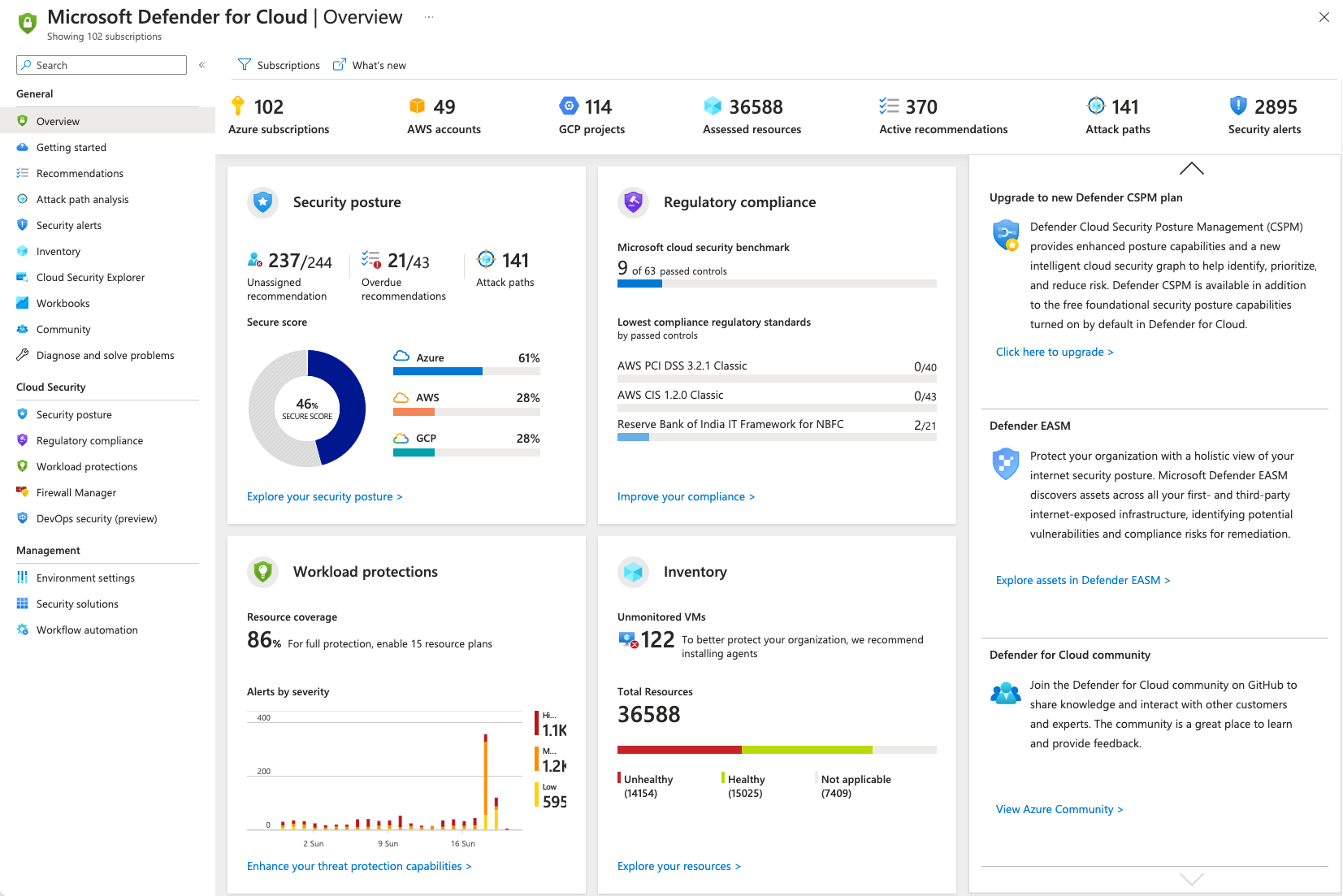
Metrics
The top menu bar offers:
- Subscriptions - View and filter the list of subscriptions by selecting this button. Defender for Cloud adjusts the display to reflect the security posture of the selected subscriptions.
- What's new - Opens the release notes to stay updated with new features, bug fixes, and deprecated functionality.
- High-level numbers for the connected cloud accounts, showing the context of the information in the main tiles, and the number of assessed resources, active recommendations, and security alerts. Select the assessed resources number to access Asset inventory. Learn more about connecting your Amazon Web Services (AWS) accounts and your Google Cloud Platform (GCP) projects.

Feature tiles
The center of the page displays the feature tiles, each linking to a high-profile feature or dedicated dashboard:
- Security posture - Defender for Cloud continually assesses your resources, subscriptions, and organization for security issues. It then aggregates all the findings into a single score so you can understand, at a glance, your current security situation: the higher the score, the lower the identified risk level. Learn more.
- Workload protections - The cloud workload protection platform (CWPP) integrated within Defender for Cloud for advanced, intelligent protection of your workloads running on Azure, on-premises machines, or other cloud providers. For each resource type, there's a corresponding Microsoft Defender plan. The tile shows the coverage of your connected resources (for the currently selected subscriptions) and the recent alerts, color-coded by severity. Learn more about the Defender plans.
- Regulatory compliance - Based on continuous assessments of your hybrid and multicloud resources, Defender for Cloud provides insights into your compliance with the standards that matter to your organization. Defender for Cloud analyzes risk factors in your environment according to security best practices. These assessments are mapped to compliance controls from a supported set of standards. Learn more.
- Inventory - The asset inventory page of Microsoft Defender for Cloud provides a single page for viewing the security posture of the resources you connected to Microsoft Defender for Cloud. All resources with unresolved security recommendations are shown in the inventory. If you enabled the integration with Microsoft Defender for Endpoint and enabled Microsoft Defender for Servers, you also have access to a software inventory. The tile on the overview page shows you at a glance the total healthy and unhealthy resources (for the currently selected subscriptions). Learn more.
Insights
The Insights pane offers customized items for your environment including:
- Actionable items to enhance your security.
- Tips to handle alerts and recommendations.
- Recommendations on how to upgrade your service to enhance your environment's protections.
- Recent blog posts by Microsoft Defender for Cloud experts.