Note
Access to this page requires authorization. You can try signing in or changing directories.
Access to this page requires authorization. You can try changing directories.
Azure DevOps Services | Azure DevOps Server | Azure DevOps Server 2022
Azure Artifacts enables developers to publish and download npm packages from feeds or public registries.
This article guides you through creating a feed, configuring your project, and publishing and downloading npm packages.
Prerequisites
- An Azure DevOps organization.
- An Azure DevOps project.
- Download and install Node.js and npm.
Create a feed
Sign in to your Azure DevOps organization and navigate to your project.
Select Artifacts, and then select Create Feed.
Enter a Name for your feed.
Choose a Visibility setting to control who can view packages in the feed.
Select Include packages from common public sources if you want your feed to use upstream packages from sources such as nuget.org or npmjs.com.
For Scope, choose whether the feed is scoped to the current project or the entire organization.
Select Create when you're done.

Sign in to your Azure DevOps server, and then go to your project.
Select Artifacts, and then select Create Feed.
Enter a Name for your feed.
Choose a Visibility setting to control who can view packages in the feed.
Select Include packages from common public sources if you want your feed to use upstream packages from sources such as nuget.org or npmjs.com.
For Scope, choose whether the feed is scoped to the current project or the entire organization.
Select Create when you're done.

Note
When you create a feed, the project's Build Service account, such as projectName Build Service (orgName), is assigned the Feed and Upstream Reader (Collaborator) role by default.
Set up npm authentication
Before you connect to a feed, set up authentication for the npm client on your machine. The steps differ depending on your operating system:
Windows
Install vsts-npm-auth, which generates and refreshes the credentials npm uses to connect to your Azure Artifacts feed.
npm install -g vsts-npm-auth --registry https://registry.npmjs.com
macOS and Linux
vsts-npm-auth isn't supported on macOS or Linux. Instead, create a personal access token (PAT) with Packaging > Read & write scope. Use that PAT when you configure your user-level .npmrc file in the next section.
Connect to a feed
Azure Artifacts recommends using two separate configuration files. The first should be kept locally in the $HOME directory (Linux/macOS) or $env.HOME (Windows) to securely store your credentials. This allows the npm client to access your credentials for authentication.
By using this setup, you can share project configuration with your team without exposing credentials in source control. For more details, see Connect to an Azure Artifacts feed - npm.
Sign in to your Azure DevOps organization, and then navigate to your project.
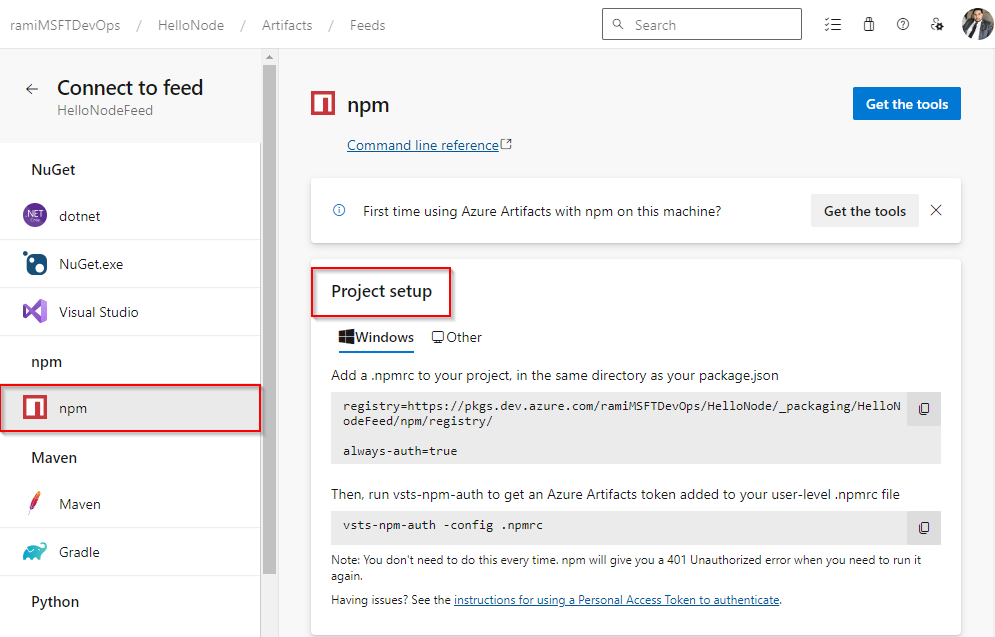
Select Artifacts, select your feed from the dropdown menu, and then select Connect to feed.
Select npm from the left navigation pane.
Under Project setup, select Windows or Other for your operating system, and then follow the provided instructions to update your user-level and project-level .npmrc files.
Note
The vsts-npm-auth is not supported in Azure DevOps Server.
Sign in to your Azure DevOps collection, and then navigate to your project.
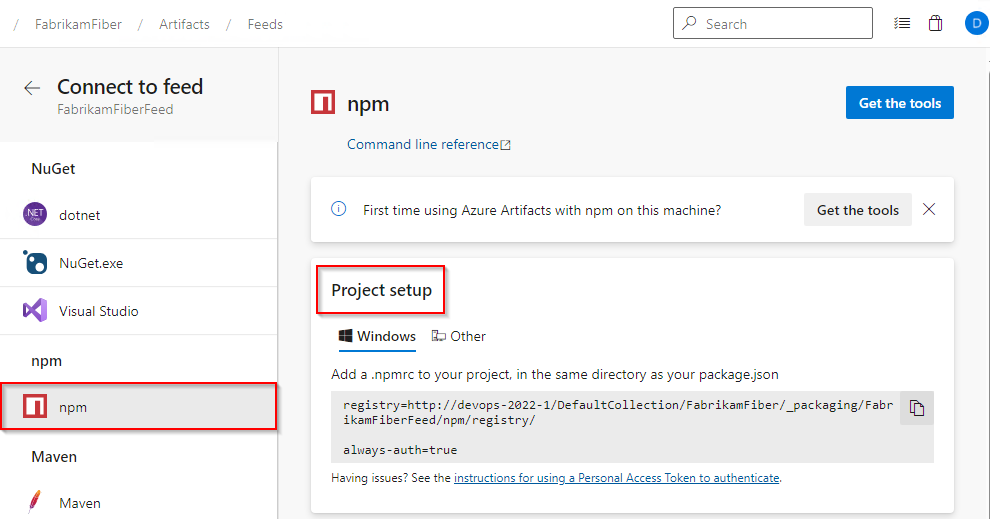
Select Artifacts, select your feed from the dropdown menu, and then select Connect to feed.
Select npm from the left navigation pane.
Under Project setup, select Windows or Other for your operating system, and then follow the provided instructions to update your user-level and project-level .npmrc files.
Important
npm supports only a single registry setting in your .npmrc file. If you need packages from multiple sources, use upstream sources or scopes instead of adding multiple registry entries.
Publish packages to your feed
Note
To publish packages to a feed, you must be a Feed Publisher (Contributor) or higher. See Manage permissions for more details.
Before you publish packages, ensure you authenticate with your feed. If you haven't done this yet, follow the steps in the Connect to a feed section, and then continue with the instructions in the following section.
In your project directory, run the following command to publish the package defined in your
package.jsonfile to your feed:npm publish
Important
Using the publishConfig property to override the registry configuration at publish time is not supported.
Restore packages from your feed
Before you restore packages, ensure you authenticate with your feed and update the .npmrc files for your project. If you haven't done this yet, complete the steps in Connect to a feed, and then continue.
In your project directory, run the following command to restore all packages listed in your
package.jsonfile:npm installTo install a specific package from the feed and add it as a dependency in your
package.jsonfile, run the following command:npm install --save <PACKAGE_NAME>