Add work item tags to categorize and filter lists and boards
Azure DevOps Services | Azure DevOps Server 2022 - Azure DevOps Server 2019
Tag work items to quickly filter the product backlog or a work item query by categories that you define. A tag corresponds to a one or two keyword phrase that you define and that supports your needs to filter a backlog or query, or define a query.
Tags are a better choice for filtering work items than using text strings as described in Define a query/Best practices.
You can add and modify tags from the web portal, from Team Explorer plug-in for Visual Studio. Also, you can open a query in Excel to modify tags in bulk.
Note
Tags are a shared resource associated with a project and not a team. If your project contains multiple teams, all teams add to and work from the same set of tags.
Prerequisites
- You must be added to a project.
- To view or modify work items, you must have your View work items in this node and Edit work items in this node permissions set to Allow. By default, the Contributors group has this permission set. For more information, see Set permissions and access for work tracking.
- To add new tags to add to work items, you must have Basic access or higher and have the project-level Create new tag definition permissions set to Allow. By default, the Contributors group has this permission set. Even if the permission is explicitly set for a Stakeholder, they don't have permission to add new tags, as they're prohibited through their access level. For more information, see Stakeholder access quick reference.
- All project members, even members in the Readers group, can send emails containing work items.
- You must be added to a project.
- To view or modify work items, you must have your View work items in this node and Edit work items in this node permissions set to Allow. By default, the Contributors group has this permission set. For more information, see Set permissions and access for work tracking.
- To add new tags to add to work items, you must have Basic access or higher and have the project-level Create new tag definition permissions set to Allow. By default, the Contributors group has this permission set. Even if the permission is explicitly set for a Stakeholder, they don't have permission to add new tags, as they're prohibited through their access level. For more information, see Stakeholder access quick reference.
- All project members, even members in the Readers group, can send emails containing work items.
- Users with Stakeholder access for public projects can add new tags.
- By default, all Contributors and Stakeholders of public projects are granted permissions to add new and existing tags. Stakeholders in private projects can add tags that are already defined, but not add new tags. To grant or restrict permissions to create new tags, you set the permission Create tag definition at the project-level. For more information, see Change project-level permissions.
Add tags to a work item
Tags should be 400 characters or less and not contain separators such as a , (comma), ; (semicolon), or other formatting character.
Recommendation: Don't use the @ character in a tag. Tags that start with the @ character can't be used in a work item query. The @ character signifies a macro within a query and therefore the tag isn't recognized as a tag.
From the web portal, open a work item and add a tag. Choose Add tag and type your keyword. Or, select from the list of previously assigned tags.
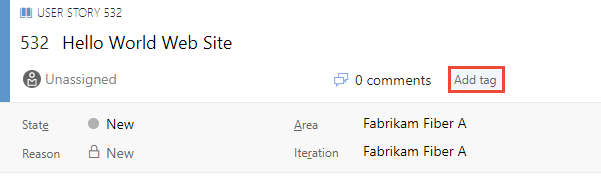
To add several tags at one time, type a comma between tags. Tags are case sensitive.
Tags that appear in the tag bar are already assigned to the work item. To unassign a tag, choose the x on the tag, .
.
Bulk add or remove tags
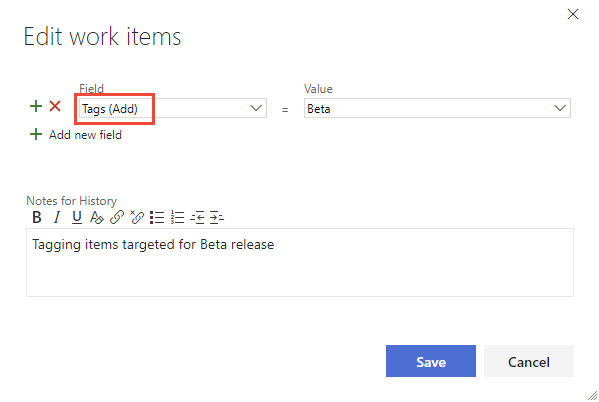
You can bulk update work items to add or remove tags from the web portal. You bulk modify tags in the same way as you bulk modify other fields using the web portal. Or, you can use Excel to bulk add or remove tags.
Note
Bulk modifying tags from Visual Studio or other supported clients isn't supported.
Query for work items based on tags
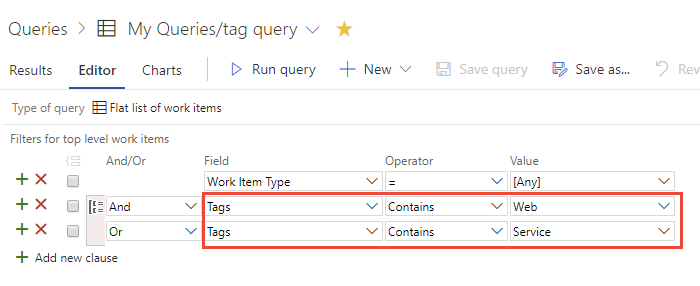
To query work items based on tags, add a clause for each tag you want to use to support your query.
Tip
To understand how AND/OR clauses are grouped, see Create and save managed queries, Group clauses. To view the WIQL syntax for a query, install the WIQL query editor extension which allows you to see the WIQL version of any query editor entry.
You can use the Contains or Does Not Contain operators. Tags that start with the @ character can't be used in a work item query as the query editor interprets the @ character as a macro. For more information, see Create managed queries.
For example, here we query for all work items that are tagged either Web or Service.
Note
You can't query for work items that don't have any tags attached to them. If you'd like to up vote the request to support this feature, you can do so on our Developer Community page, Be able to search for empty tags.
Show tags in your backlog or query results
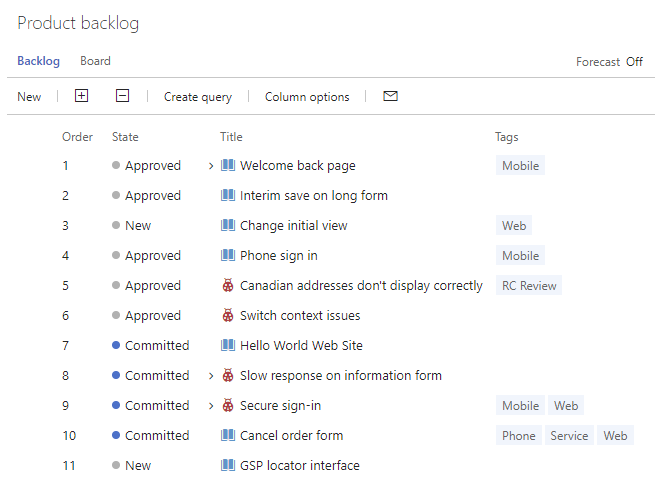
Choose Column Options to add the Tags field to the product backlog or a work item query. If the option doesn't appear, choose More commands  to select it from the menu of options.
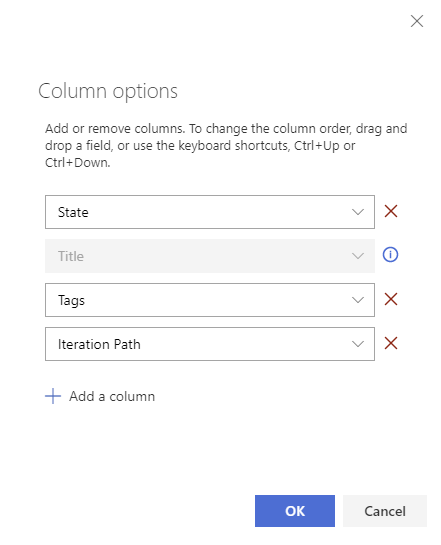
All tags added to the listed work items appear.
Filter lists using tags
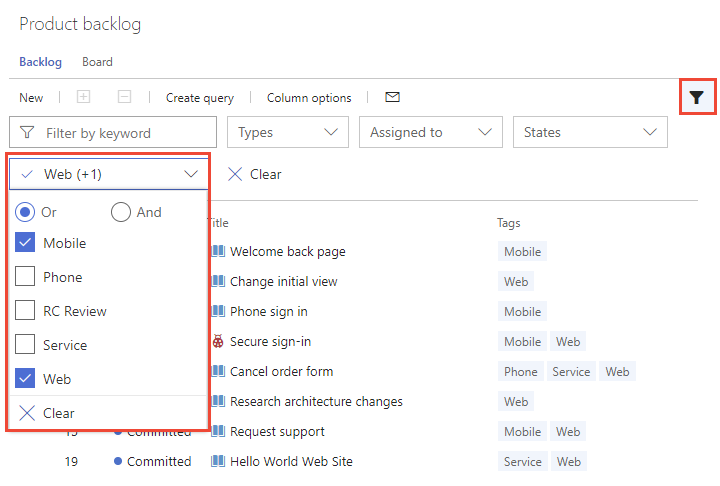
From the web portal, you can filter backlogs, boards, and query results using tags.
Begin by choosing Filter  .
.
Check the boxes of those tags that you want to filter on. Keep the OR selection to run a logical OR for all the tags you selected. Or, choose the AND option to run a logical AND on all the selected tags.
Delete, remove, or manage tags
You can't delete tags using the Azure DevOps Web UI.
If you need to remove a tag, you can create a script or application capable of a delete using the Azure DevOps REST API or the .NET client libraries. For more examples, see Azure-DevOps-Admin-CLI.
Another option is to install the Marketplace Tags Manager, which adds a Tags page under Boards or Work to manage tags, including deletes.
Color-code tags on boards
Highlight tags on board cards by color-coding them. These colors only appear on the board that you configure. They don't appear on backlogs or Taskboards. For more information, see Customize cards, color-code tags.
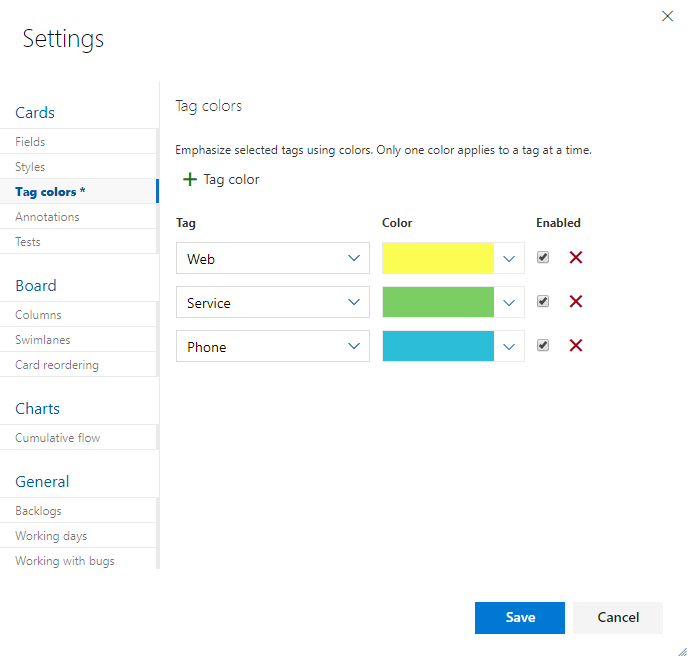
Chart work items and group by tags
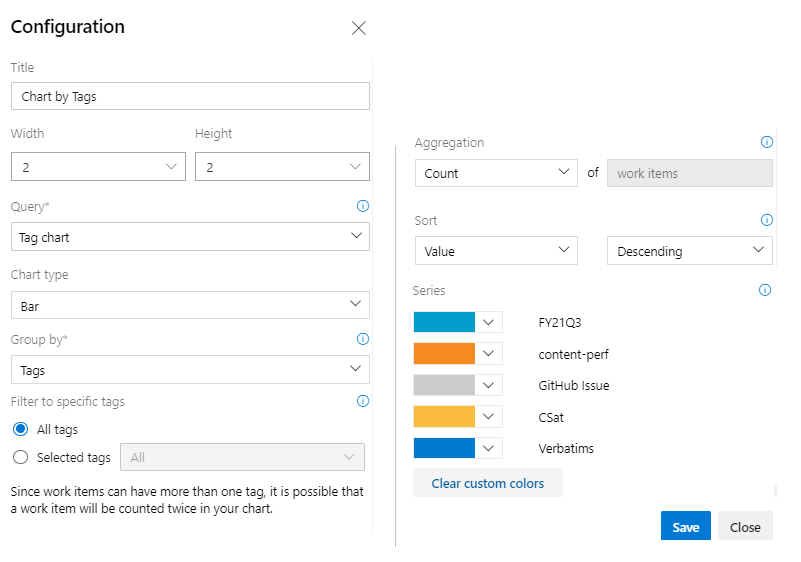
You can't group a query-based chart by tags, but, you can group a Chart for Work Items widget by tags that you add to a dashboard. This feature is in public preview. To enable it, see Manage or enable features and turn on Enable group by tags for work item chart widget on dashboard.
To group a Chart for Work Items widget by tags, complete the same steps provided in Track progress with status and trend query-based charts, Add a chart widget to a dashboard. Make sure that your flat-list query contains Tags in the query clause or as a column option. Then, choose Tags for the Group by selection. To filter the chart to show only some tags, choose the Selected tags radio button and then choose the tags you want the chart to display.
Limits on the number of tags
While no hard limit exists, creating more than 100,000 tags for a project collection can negatively affect performance. Also, the autocomplete dropdown menu for the tag control displays a maximum of 200 tags. When more than 200 tags are defined, begin entering to cause the tag control to display relevant tags.
You can't assign more than 100 tags to a work item or you receive the following message:
TF401243: Failed to save work item because too many new tags were added to the work item.
Save the work item with the tags (100 or less) that you added, and then you can add more tags.
Limit queries to fewer than 25 tags. More than that amount and the query likely times out.
Add tags to the default column view on the product backlog
To add the Tags field as a column field for the product backlog, you modify the ProcessConfiguration file to include System.Tags. For more information, see the Process configuration XML element reference.
Related articles
- Use the query editor to list and manage queries
- Show tags on cards
- Bulk modify work items from the web portal
- Bulk modify work items from Excel
Marketplace extension
Feedback
Coming soon: Throughout 2024 we will be phasing out GitHub Issues as the feedback mechanism for content and replacing it with a new feedback system. For more information see: https://aka.ms/ContentUserFeedback.
Submit and view feedback for