Note
Access to this page requires authorization. You can try signing in or changing directories.
Access to this page requires authorization. You can try changing directories.
Azure DevOps Services | Azure DevOps Server 2022 - Azure DevOps Server 2019
A board presents work items in the form of cards, where each card represents a work item that facilitates information sharing, progress tracking, and task assignment. These cards provide quick insights for you and your team. You can update a field on a card without having to open the corresponding work item. You can also apply style rules to highlight specific cards and tasks based on your set criteria.
Note
This article addresses customization of a board. For information on customizing a Taskboard, see Customize sprint Taskboards.
Prerequisites
| Category | Requirements |
|---|---|
| Access levels | At least Basic access. |
| Permissions | To configure team settings: Member of the Project Administrators security group or Team Administrator role. For more information, see Change project-level permissions. |
| Tasks (optional) | See the section, Card customization sequence |
Card customization options
You can show fields on cards based on what your team frequently refers to or updates when using the board. You can also add fields with information that you can use to filter the board.
Note
You can customize a work item type which is different than customizing the card displayed on the board. You customize a work item type by adding fields, changing the workflow, adding custom rules and more. You can also add custom work item types and custom backlog levels. For more information, see Customize an inheritance process.
Within the Settings dialog for a board, you have the following customization options.
| Setting | Customization action |
|---|---|
| Fields | Add or remove fields from cards. Includes adding the Parent field to cards. |
| Styles | Add styling rules to change card color and title style based on field criteria. |
| Tag colors | Specify a tag color and enable or disable a tag color. |
| Annotations | Enable or disable annotations to appear on cards. |
| Tests | Configure how you want tests to appear and behave on the cards. |
| Card reordering | Choose expected behavior when reordering cards on the board. |
Note
Each team can customize the cards for their board. Board settings are not inherited from other teams that they may share portions of area paths.
Card customization sequence
Before you configure the cards, ensure the following tasks are complete, or you might need to revisit your configuration.
Process Administrator:
- Add custom work item types that you want to appear on your backlog or board. For more information, see Add and manage work item types.
- Customize your product and portfolio backlogs to ensure all the work item types you want to have appear on the backlogs and boards. For details see Customize backlogs & boards.
- Customize each work item type to have any custom fields you want to show. For more information, see Customize a workflow.
Team Administrator:
- Meet with your team and determine how the team wants to manage bugs, similar to requirements or tasks.
- Add any tags you want to customize on cards to work items.
- Meet with your team and determine which annotations should appear on cards and how they want to configure inline tests.
Open your board settings
If you're not a team admin, get added as one. Only team and project admins can customize the board.
You can customize cards that appear on the board for your product backlog or portfolio backlog such as features and epics. You follow similar steps, however you start from the corresponding portfolio backlog.
Sign in to your organization (
https://dev.azure.com/{yourorganization}).Choose the backlog level that you want to customize.
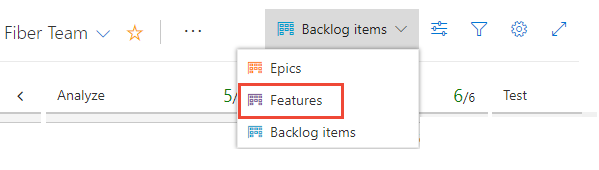
Choose the
 gear icon to configure the board and set general team settings.
Choose which fields appear on cards
You can edit a card field from the board, except for read-only fields like the Change By and Changed Date. This quick update feature is useful when you need to update many work items at once.
Do the following steps to update fields. To add a custom field, you must first add it to the process used to customize the project.
From the board settings page, choose Fields and then choose a work item type to see all the settings that you can modify. Your initial column settings appear similar to the following image.
Your choices vary based on the process used to create your project and whether your team has chosen to treat bugs like requirements or like tasks.
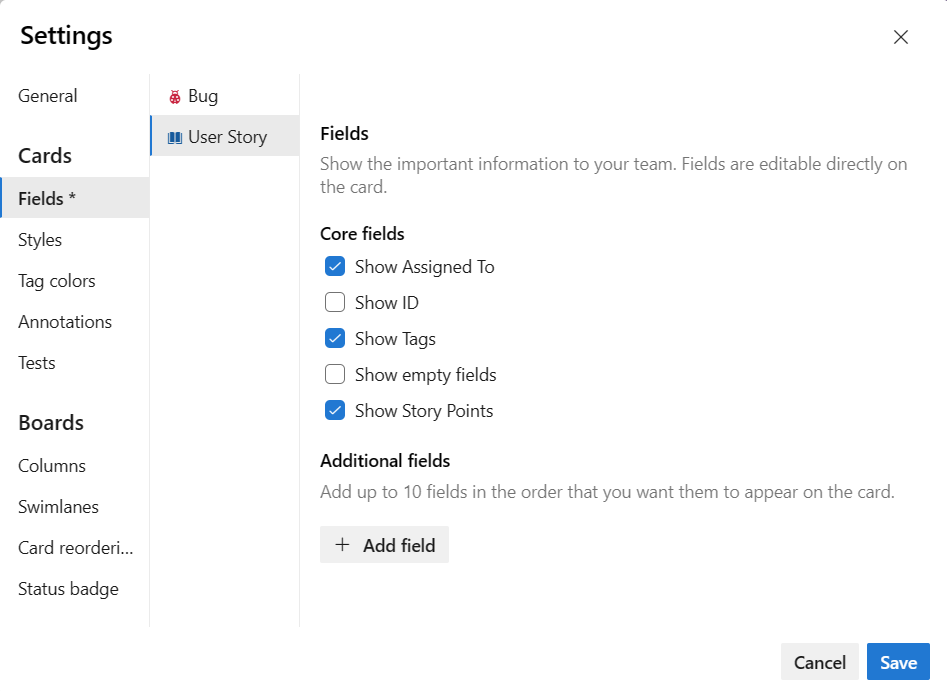
Add check mark in the box next to the fields that you want to appear on the board.
If you want work estimates to show, check Show Effort, which corresponds to the following fields: Effort (Scrum), Story Points (Agile), and Size (CMMI).
To add a field, select the
 plus icon and enter the name of a field you want to add.
To remove a field, select the
 delete icon next to the field.
When you're done, select Save.
Note
To show the Title of the parent work item, choose the Parent field. Choosing the Parent title from a card opens the parent work item. To change the parent work item, open the child work item and remove the link and add a different parent work item. You can filter your board based on parent work items, whether the Parent field is added to cards or not.
Define style rules to highlight cards
With styling rules, you can cause cards to change color when their corresponding work items meet criteria that you set. Here, we highlight severity 1 bugs by having the cards display as yellow.
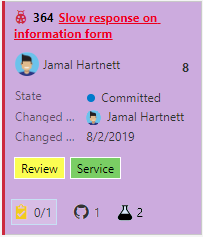
Examples of styling rules
Which rules should you apply to highlight work items? Here are a few examples and their associated criteria.
| Work items | Criteria |
|---|---|
| High priority items | Priority = 1 |
| High effort items | Effort 20 or Story Points 20 |
| Stale items unchanged in the last 5 days | Changed Date @Today-5 |
| Title contains a key word | Title Contains Yes |
| Severity 1 bugs | Severity = 1 - Critical AND Work Item Type = Bug |
| High value business items | Business Value 50 |
| Items assigned to specific feature area | Area Path Under Fabrikam Fiber\Phone |
| Contains specific tag | Tags Contain RTM |
| Blocked tasks (Scrum process only) | Blocked = Yes |
You can apply style rules to change the color of cards on boards and Taskboards.
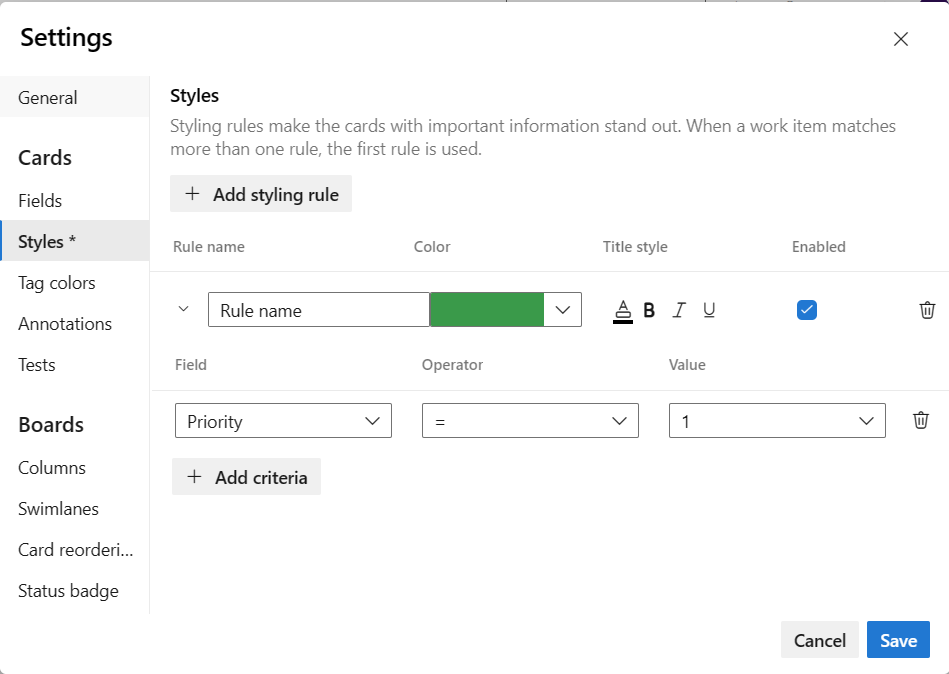
From the board settings page, select Styles to specify a style rule.
Select + Add styling rule. Select the color to apply to the card and define the criteria for the style rule.
In the following example, we show the Styles page for the Dashboard.
Tip
Note the following information about style rules:
- The criteria you specify works in a similar fashion as when constructing a query.
- All clauses are considered AND clauses, grouping clauses isn't supported.
- Card rules apply to all work items that meet the rule criteria.
- Rule color applies to work items based on the order in which rules are listed. If you add more than one style rule, make sure that you move them in the order of most importance. Drag them into the order you want them applied.
- You can quickly enable and disable a style rule.
In the following example, we add a Stale tasks rule, which highlights tasks that haven't changed in the last five days.
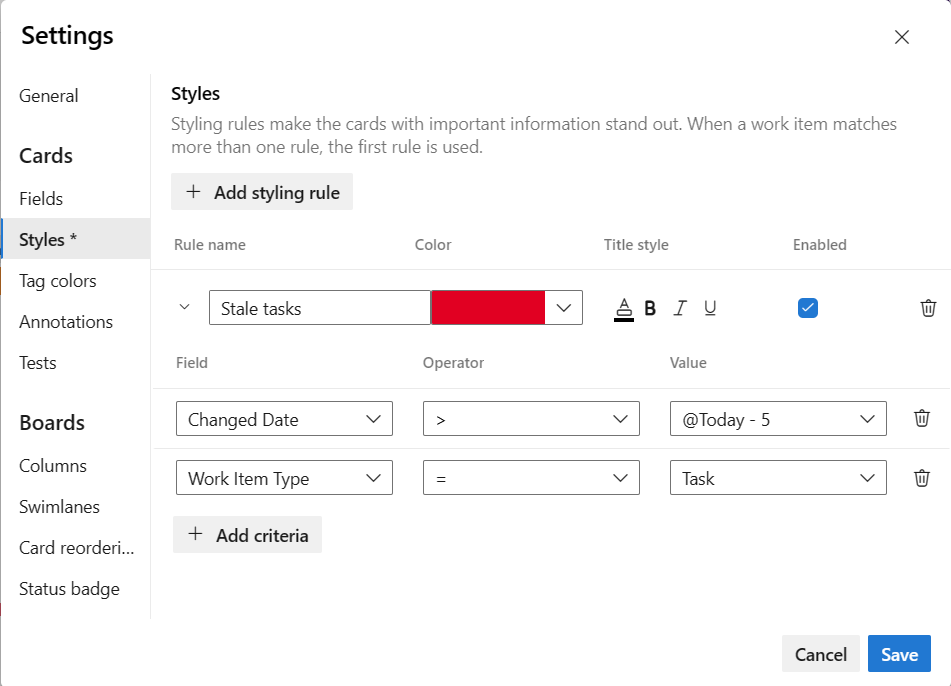
To copy or delete a style rule, choose the
 actions icon and select Clone or Delete.
When you're done, select Save.
Assign tag colors
Before you set tag colors, add tags to backlog items that you want to highlight with color.
From the Settings dialog, select Tag colors, and then + Add tag color. Then, select the tag and the color you want to appear on the cards.
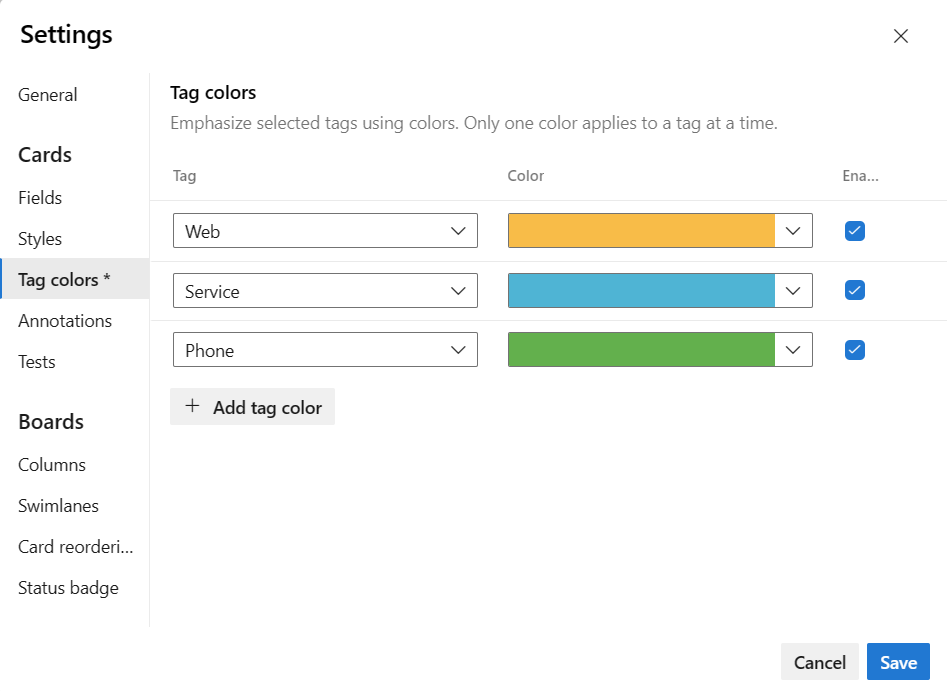
Tip
If tags don't display on the cards, select Fields and make sure that you've checked Show Tags.
When you're done, select Save.
Enable or disable annotations
All applicable annotations for the selected board are enabled by default. These annotations include all work item types added to the next level backlog, GitHub, and Tests. Disable any unused annotations or ones that you want to restrict for a specific backlog level.
When you disable an annotation, you also disable the feature to add the associated object from the board. For example, if you disable the Tests annotation, you disable the ability to add tests from the currently selected board.
Complete the following steps to manage annotations.
From your board settings page, select Annotations.
Check those annotations that you want enabled. For example, to enable tasks but disable tests, check the following boxes.
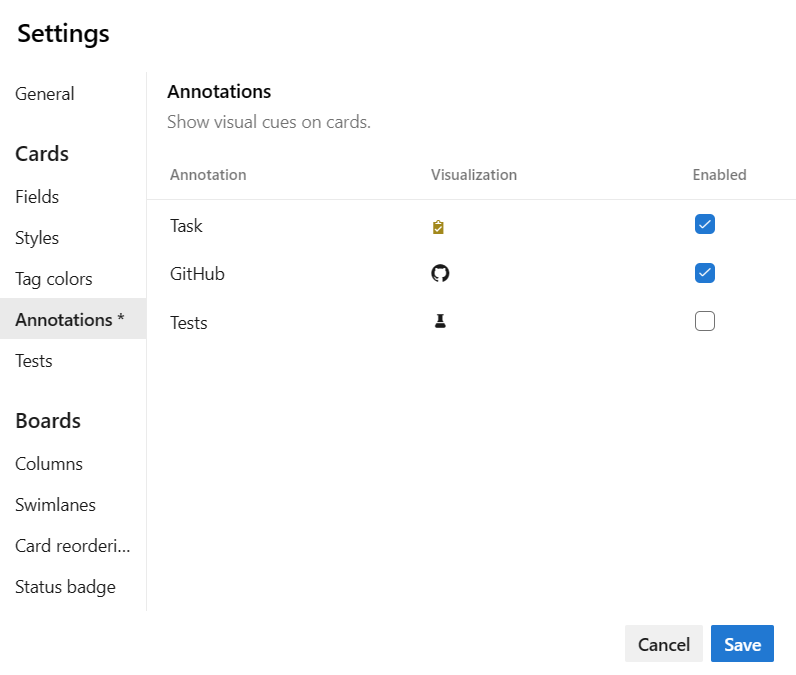
Note
GitHub annotations requires Azure DevOps Server 2019 Update 1 or later version. For more information, see Link GitHub commits, pull requests, branches, and issues to work items.
When you're done, select Save.
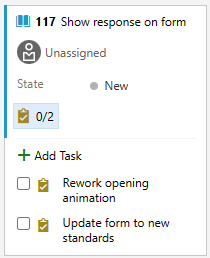
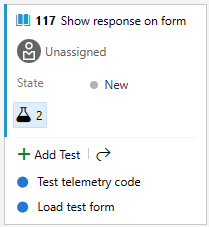
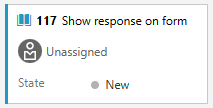
As shown in the following examples, the Task and Test annotations indicate that two each of tasks and tests are defined for the work item.
| Task annotations | Test annotations | No annotations |
|---|---|---|
 |
 |
 |
For more information, see Add tasks or child items as checklists and Add, run, and update inline tests.
Configure inline tests
You can control the test plan where you create inline tests through your board. Choose to create a new test plan for each new test that you add or add all new tests to a selected test plan.
From the board settings page (product backlog only), choose Annotations. Make sure that Test annotation is enabled, a requirement to configure inline tests.
Select Tests, and then choose the options you want. Choose an existing test plan from the
actions icon results.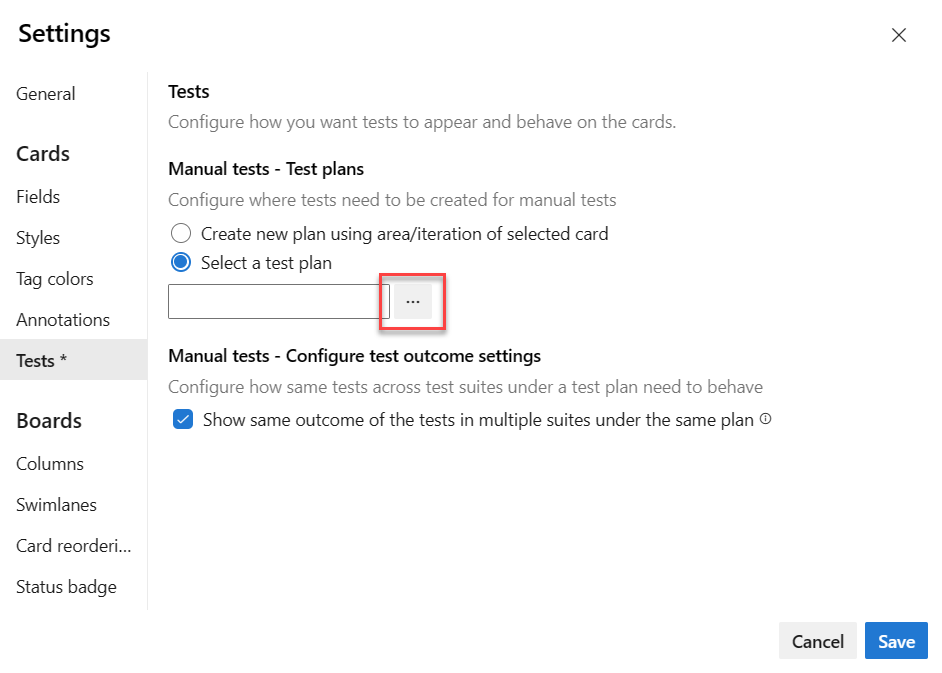
Tip
In a test plan, a test case can exist in multiple test suites. For example, you may define several test suites for each product feature and the test cases test scenarios across features. The test case might exist in both feature's test suite with the same configurations and test steps. Because of this setup, the tester might run the same test case multiple times for the same product version. To avoid the redundancies that can occur under this scenario, you should choose Show same outcome of the tests in multiple suites under the same plan checkbox. When checked, the Test Points of the same Test Case and configuration, shows the same latest outcome. When the tester runs any one test, the output is synced with all other test points (which are of the same Test Case work item and same configuration) in the Test Plans. The tester can use the outcome and choose not to run the test again.
Select Save.
Open the test plan, test suite from a card
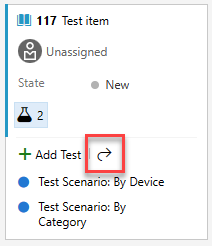
From a card on the board, you can go to the underlying test plan and test suite under which the tests are created. Choose the  open icon to open another browser tab showing Test and associated test plan and test suite that controls the inline tests.
Reorder cards
You can drag any work item to any column or swimlane on a board. You can even change the order of items as you move a card to a new column.
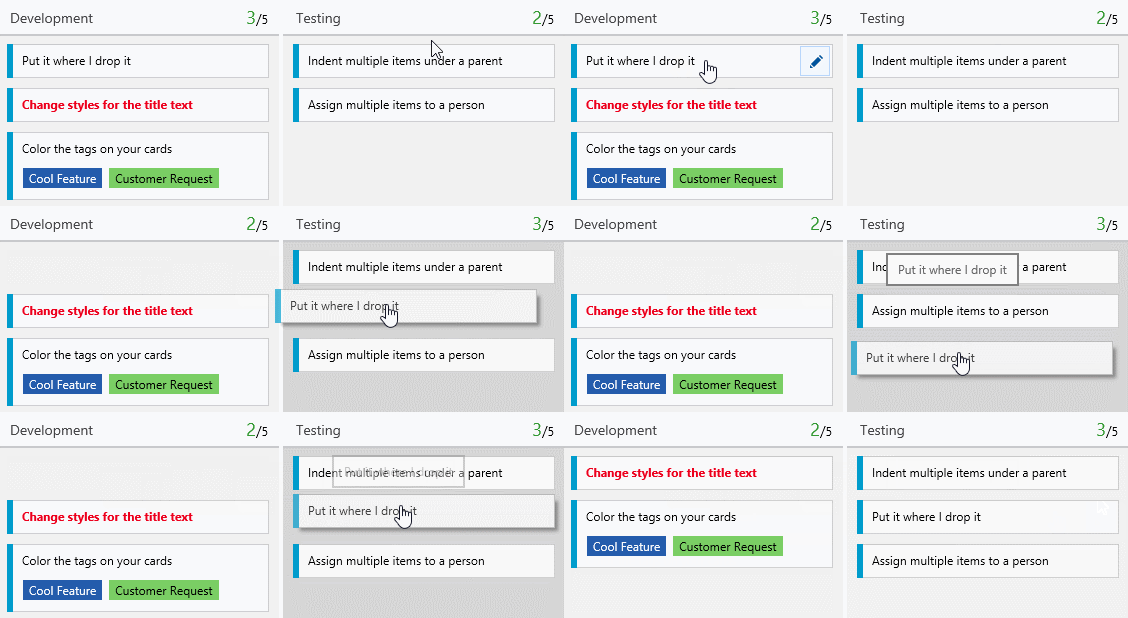
In addition to the dynamic card reordering, you can also move a card to a specific column position.
Note
The last column, typically the Closed or Done column, is always ordered by Closed Date with the most recently closed items appearing towards the top of the column. In all other columns, cards are ordered by the backlog order or they're reordered based on the Card reordering setting selected.
Move a card to a specific column position
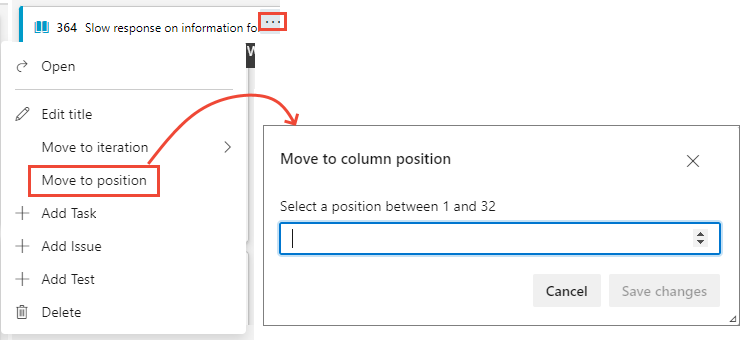
You can reorder the work items within a board column by choosing …Work items action menu, selecting Move to position, and then specifying a value in the dialog.
Note
The Move to column position feature requires the New Boards Hub feature, which is enabled by default. For more information, see Manage or enable features.
Specify a value within the range listed, which corresponds to the number of items currently in the column.
Set the team preference for reordering cards
If you want to preserve the backlog priority when you move a card to a new column, you can change the board card reordering setting for your team.
Open your board. If you're not a team admin, get added as one. Only team and project admins can customize the board.
Select the
gear icon to configure the board and set general team settings.Select Card reordering and select from the two reordering behaviors listed.
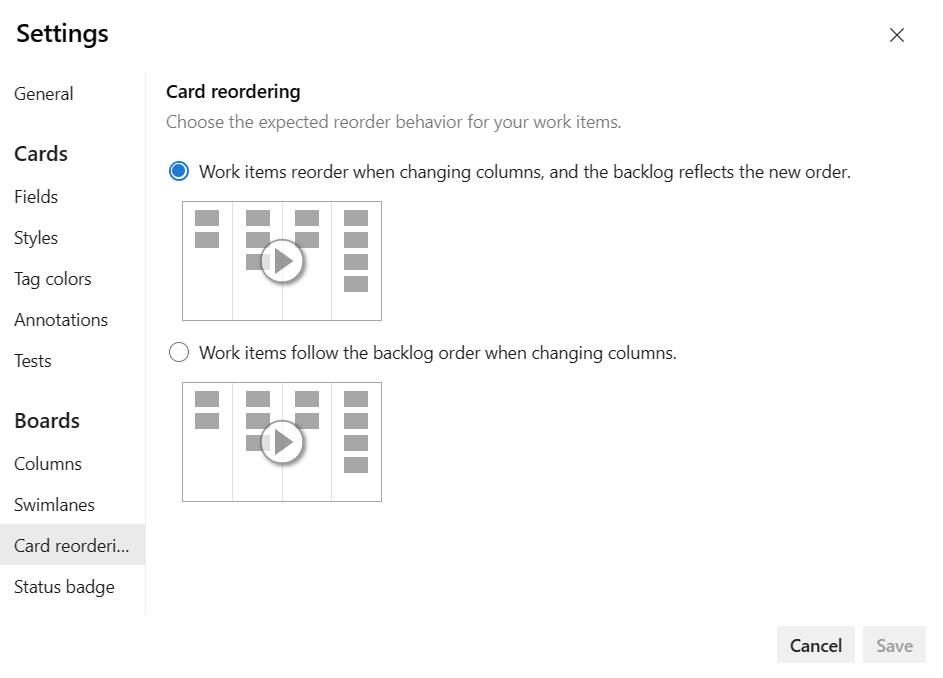
The setting you choose applies to all active boards for your team.
When you're done with your changes, select Save.