Note
Access to this page requires authorization. You can try signing in or changing directories.
Access to this page requires authorization. You can try changing directories.
Managed DevOps Pools provides the option to run a PowerShell script (Windows) or a Bash script (Linux) for an image in a pool before it's assigned to an agent to run a job. This feature enables scenarios such as installing Trusted root CAs and setting environment variables.
Important
Provisioning scripts are currently in preview. The feature might change before general availability.
Managed DevOps Pools uses a managed identity associated with your pool to download the scripts from Azure Blob Storage to the agent, and upload provisioning script logs for troubleshooting. The provisioning script runs when the agent starts, and you can configure the agent to restart after the script runs.
To configure a Managed DevOps Pool image to run a provisioning script, perform the following steps:
- Create two blob containers in a Blob Storage account: one for the provisioning scripts and supporting files, and one for uploading provisioning script logs. Upload your provisioning scripts and any supporting files to the script blob container.
- Associate a managed identity with your Managed DevOps Pool and assign the required roles to the managed identity at the appropriate scopes so the agent can read the provisioning scripts and upload provisioning script logs.
- Configure your images to use the desired provisioning scripts.
Prerequisites
- An Azure Blob Storage account. The supported Azure Storage account type for Managed DevOps Pools provisioning scripts is Standard general-purpose v2.
- A Managed DevOps Pool with an associated managed identity. If your Managed DevOps Pool doesn't have a managed identity, create one by following the steps in Configure a managed identity for your Managed DevOps Pool.
Create the blob containers
Managed DevOps Pools downloads provisioning scripts and their supporting files from blobs in a container in a Blob Storage account. Managed DevOps Pools requires two blob containers in the storage account: one for downloading the provisioning script and supporting files, and one for uploading provisioning script logs.
Create the following two blob containers in your Blob Storage account.
| Blob Storage container | Description |
|---|---|
Scripts blob container. If you don't specify a custom name in Entry point (provisioningScriptEntryPoint) when configuring your image to run a provisioning script, the default name is provisioningscript. |
Contains the provisioning script and any supporting files. The provisioning script must be named Startup.ps1 for Windows images, or Startup.sh for Linux images. |
Provisioning script logs container. You can't configure this container name; it must be mdpprovisioningscriptlogs.Managed DevOps Pools can create the mdpprovisioningscriptlogs blob container automatically, but for least-privilege access we recommend you create the mdpprovisioningscriptlogs container manually. For more information, see Assign Azure roles to the managed identity. |
Contains the stdout and stderr logs generated by the provisioning script and a copy of the script. The blob names use the agent's machine name as a virtual directory. |
Upload your provisioning script and any supporting files to the scripts blob container. The provisioning script must be named Startup.ps1 for Windows images, or Startup.sh for Linux images. You can include any supporting files required by the scripts in the blob. When the agent starts, these files are downloaded to the agent's working directory, and the provisioning script is executed from that location.
Assign Azure roles to the managed identity
Managed DevOps Pools uses a managed identity to access the blob containers for the provisioning scripts and provisioning script logs. You must associate a managed identity with your Managed DevOps Pool and assign the specified roles to the managed identity at the scopes described in this section. If your Managed DevOps Pool doesn't have a managed identity, create one by following the steps in Configure a managed identity for your Managed DevOps Pool.
- If your Managed DevOps Pool has a single associated managed identity, that identity is used to access the provisioning script and provisioning script logs containers.
- If your Managed DevOps Pool has more than one associated managed identity, designate a specific managed identity to use for provisioning scripts by specifying the Managed identity client ID (
provisioningScriptManagedIdentityResourceId) property when configuring your image to use a provisioning script.
Assign the roles in the following table to the Managed DevOps Pool's associated managed identity at the specified scopes to enable the agent to download the scripts and upload the provisioning script logs. For more information about assigning Azure roles, see Steps to assign an Azure role.
| Role | Scope |
|---|---|
| Storage Blob Data Reader | Script blob container scope. If you don't specify a name in Entry point (provisioningScriptEntryPoint) when configuring your image to run a provisioning script, the default name is provisioningscript. |
| Storage Blob Data Contributor | For least-privilege access, manually create the provisioning script logs container (mdpprovisioningscriptlogs) and assign the role to the managed identity at that blob container scope.If you want Managed DevOps Pools to create the container, assign the role to the managed identity at storage account scope. If you assign the Storage Blob Data Contributor role at storage account scope, you don't need to assign the Storage Blob Data Reader role at the script container scope. |
Configure your image to use the provisioning script
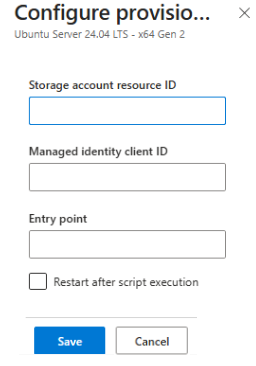
To use a provisioning script with an image, configure the following image properties.
| Property | Description |
|---|---|
Storage account resource IDprovisioningScriptStorageAccountResourceId |
Required. The resource ID of the storage account that contains the script container (default name provisioningscript) and the mdpprovisioningscriptlogs container. |
Entry pointprovisioningScriptEntryPoint |
The name of the blob container that contains the provisioning script and supporting files. If you don't specify a value, the default is provisioningscript. |
Managed identity client IDprovisioningScriptManagedIdentityClientId |
Required if your pool is associated with more than one managed identity. The client ID of the managed identity to use for accessing the blobs in the script and provisioning script logs containers. If your Managed DevOps Pool has more than one associated managed identity, you must specify which one to use here. If your pool has only one identity, this property is optional. |
Restart after script executionprovisioningScriptShouldRestart |
Whether the agent should restart after running the provisioning script and before sending jobs to the agent. If you don't specify a value, the default is false.Restarting after script execution increases provisioning time and should be done only if the provisioning script makes changes that require a restart to take effect. |
Note
Provisioning scripts are available in API version 2026-06-02 or later.
If you update your pool by using a previous API version after configuring provisioning scripts, the provisioning script settings aren't preserved.
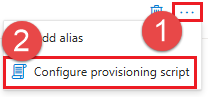
To configure provisioning script settings for an image, go to the Images section of pool settings and select ... > Configure provisioning script.
Add or update the provisioning script settings for the image and select Save.
Provisioning errors
The following table lists provisioning script error codes and descriptions.
| Failure code | Description |
|---|---|
ProvisioningScriptDownloadFailed |
The provisioning script couldn't be downloaded to the machine during provisioning. |
ProvisioningScriptAccessFailed |
The provisioning process couldn't access the provisioning script. Usually, this error occurs because of an access or permissions issue when retrieving the script. |
ProvisioningScriptExecutionFailed |
The provisioning script was downloaded but failed while running on the machine. |
ProvisioningScriptLogUploadFailed |
The provisioning process generated provisioning script logs, but it couldn't upload them. |
Provisioning script logs
Provisioning script logs contain the standard output (stdout) and standard error (stderr) generated by the script. Managed DevOps Pools writes these logs to the mdpprovisioningscriptlogs blob container in the storage account you specify. The blobs are organized under a virtual directory whose name uses the format mdp-{poolName}-{agentMachineName}. This virtual directory contains an output virtual directory with stderr.log and stdout.log files, and a script virtual directory with a copy of the script that ran.
Managed DevOps Pools doesn't manage these logs, so you must manage their retention in your storage account by using Azure Blob Storage lifecycle management policies. The following example policy named DeleteOldMDPLogs deletes log blobs three days after they were last modified.
{
  "rules": [
    {
      "enabled": true,
      "name": "DeleteOldMDPLogs",
      "type": "Lifecycle",
      "definition": {
        "actions": {
          "baseBlob": {
            "delete": {
              "daysAfterModificationGreaterThan": 3
            }
          }
        },
        "filters": {
          "blobTypes": [
            "blockBlob"
          ],
          "prefixMatch": [
            "mdpprovisioningscriptlogs/"
          ]
        }
      }
    }
  ]
}
You can get AI assistance from GitHub Copilot to build Azure Blob Storage lifecycle management policies. Customize the following prompt to create Azure Blob Storage lifecycle management policies.
Build an Azure Blob Storage lifecycle management policy named DeleteOldMDPLogs that deletes logs after three days.
To get more details about the policy generated by Copilot, you can ask Copilot to provide an explanation of the generated policy in your prompt.
Copilot is powered by AI, so surprises and mistakes are possible. For more information, see Copilot general use FAQs.
For more information, see Azure Blob Storage lifecycle management policies and Configure a lifecycle management policy.