Azure Pipelines agents
Azure DevOps Services | Azure DevOps Server 2022 - Azure DevOps Server 2019
To build your code or deploy your software using Azure Pipelines, you need at least one agent. As you add more code and people, you'll eventually need more.
When your pipeline runs, the system begins one or more jobs. An agent is computing infrastructure with installed agent software that runs one job at a time.
Azure Pipelines provides several different types of agents.
| Agent type | Description | Availability |
|---|---|---|
| Microsoft-hosted agents | Agents hosted and managed by Microsoft | Azure DevOps Services |
| Self-hosted agents | Agents that you configure and manage, hosted on your VMs | Azure DevOps Services, Azure DevOps Server |
| Azure Virtual Machine Scale Set agents | A form of self-hosted agents, using Azure Virtual Machine Scale Sets, that can be auto-scaled to meet demands | Azure DevOps Services |
Jobs can be run directly on the host machine of the agent or in a container.
Microsoft-hosted agents
If your pipelines are in Azure Pipelines, then you've got a convenient option to run your jobs using a Microsoft-hosted agent. With Microsoft-hosted agents, maintenance and upgrades are taken care of for you. You always get the latest version of the VM image you specify in your pipeline. Each time you run a pipeline, you get a fresh virtual machine for each job in the pipeline. The virtual machine is discarded after one job (which means any change that a job makes to the virtual machine file system, such as checking out code, will be unavailable to the next job). Microsoft-hosted agents can run jobs directly on the VM or in a container.
Azure Pipelines provides a predefined agent pool named Azure Pipelines with Microsoft-hosted agents.
For many teams this is the simplest way to run your jobs. You can try it first and see if it works for your build or deployment. If not, you can use scale set agents or a self-hosted agent.
Tip
You can try a Microsoft-hosted agent for no charge.
Self-hosted agents
An agent that you set up and manage on your own to run jobs is a self-hosted agent. You can use self-hosted agents in Azure Pipelines or Azure DevOps Server, formerly named Team Foundation Server (TFS). Self-hosted agents give you more control to install dependent software needed for your builds and deployments. Also, machine-level caches and configuration persist from run to run, which can boost speed.
Note
Although multiple agents can be installed per machine, we strongly suggest to only install one agent per machine. Installing two or more agents might adversely affect performance and the result of your pipelines.
Tip
Before you install a self-hosted agent you might want to see if a Microsoft-hosted agent pool will work for you. In many cases this is the simplest way to get going. Give it a try.
You can install the agent on Linux, macOS, or Windows machines. You can also install an agent on a Docker container. For more information about installing a self-hosted agent, see:
Note
On macOS, you need to clear the special attribute on the download archive to prevent Gatekeeper protection from displaying for each assembly in the tar file when ./config.sh is run. The following command clears the extended attribute on the file:
xattr -c vsts-agent-osx-x64-V.v.v.tar.gz  ## replace V.v.v with the version in the filename downloaded.

# then unpack the gzip tar file normally:

tar xvfz vsts-agent-osx-x64-V.v.v.tar.gz
After you've installed the agent on a machine, you can install any other software on that machine as required by your jobs.
Note
Agents are widely backward compatible. Any version of the agent should be compatible with any Azure DevOps version as long as Azure DevOps isn't demanding a higher version of the agent.
We only support the most recent version of the agent since that is the only version guaranteed to have all up-to-date patches and bug fixes.
Node runner versions
The agent ships with several versions of NodeJS libraries to support target tasks that use different Node handlers.
All official Azure DevOps tasks use Node 10 as a universal handler, however, customers might still use custom tasks that use the outdated Node 6 library. To support backward compatibility with Node that has currently reached End-of-Life, we provide the following self-service methods to install the designated Node runner manually.
Manually install the Node 6 runner. For more information on manually installing the Node 6 runner, see Node 6 support for more details.
Use the NodeTaskRunnerInstaller@0 task in your pipelines that require the outdated Node 6 library.
Install an agent package that includes Node 6.
Azure Pipelines provides two versions of agent packages.
- vsts-agent-* packages support Node 6.
- pipelines-agent-* packages do not support Node 6. This version of the package will become the default agent package in the future.
If you know that you are not using any Node 6 dependant tasks, and you don't want Node 6 installed on your agent machine, you can install the agent from the Alternate Agent Downloads section from https://github.com/microsoft/azure-pipelines-agent/releases.
Azure Virtual Machine Scale Set agents
Azure Virtual Machine Scale Set agents are a form of self-hosted agents that can be auto-scaled to meet your demands. This elasticity reduces your need to run dedicated agents all the time. Unlike Microsoft-hosted agents, you have flexibility over the size and the image of machines on which agents run.
You specify a Virtual Machine Scale Set, a number of agents to keep on standby, a maximum number of virtual machines in the scale set, and Azure Pipelines manages the scaling of your agents for you.
For more information, see Azure Virtual Machine Scale Set agents.
Parallel jobs
Parallel jobs represents the number of jobs you can run at the same time in your organization. If your organization has a single parallel job, you can run a single job at a time in your organization, with any additional concurrent jobs being queued until the first job completes. To run two jobs at the same time, you need two parallel jobs. In Azure Pipelines, you can run parallel jobs on Microsoft-hosted infrastructure or on your own (self-hosted) infrastructure.
Microsoft provides a free tier of service by default in every organization that includes at least one parallel job. Depending on the number of concurrent pipelines you need to run, you might need more parallel jobs to use multiple Microsoft-hosted or self-hosted agents at the same time. For more information on parallel jobs and different free tiers of service, see Parallel jobs in Azure Pipelines.
You might need more parallel jobs to use multiple agents at the same time:
Important
Starting with Azure DevOps Server 2019, you do not have to pay for self-hosted concurrent jobs in releases. You are only limited by the number of agents that you have.
Capabilities
Every self-hosted agent has a set of capabilities that indicate what it can do. Capabilities are name-value pairs that are either automatically discovered by the agent software, in which case they are called system capabilities, or those that you define, in which case they are called user capabilities.
The agent software automatically determines various system capabilities such as the name of the machine, type of operating system, and versions of certain software installed on the machine. Also, environment variables defined in the machine automatically appear in the list of system capabilities.
Note
Storing environment variables as capabilities means that when an agent runs, the stored capability values are used to set the environment variables. Also, any changes to environment variables that are made while the agent is running won't be picked up and used by any task. If you have sensitive environment variables that change and you don't want them to be stored as capabilities, you can have them ignored by setting the VSO_AGENT_IGNORE environment variable, with a comma-delimited list of variables to ignore. For example, PATH is a critical variable that you might want to ignore if you're installing software.
When you author a pipeline, you specify certain demands of the agent. The system sends the job only to agents that have capabilities matching the demands specified in the pipeline. As a result, agent capabilities allow you to direct jobs to specific agents.
Note
Demands and capabilities are designed for use with self-hosted agents so that jobs can be matched with an agent that meets the requirements of the job. When using Microsoft-hosted agents, you select an image for the agent that matches the requirements of the job, so although it is possible to add capabilities to a Microsoft-hosted agent, you don't need to use capabilities with Microsoft-hosted agents.
Configure demands
To add a demand to your YAML build pipeline, add the demands: line to the pool section.
pool:
  name: Default
  demands: SpecialSoftware # exists check for SpecialSoftware
You can check for the existence of a capability, or make a comparison with the value of a capability. For more information, see YAML schema - Demands.
Configure agent capabilities
You can view the details of an agent, including its version and system capabilities, and manage its user capabilities, by navigating to Agent pools and selecting the Capabilities tab for the desired agent.
In your web browser, navigate to Agent pools:
Sign in to your organization (
https://dev.azure.com/{yourorganization}).Choose Azure DevOps, Organization settings.
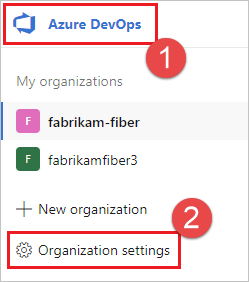
Choose Agent pools.
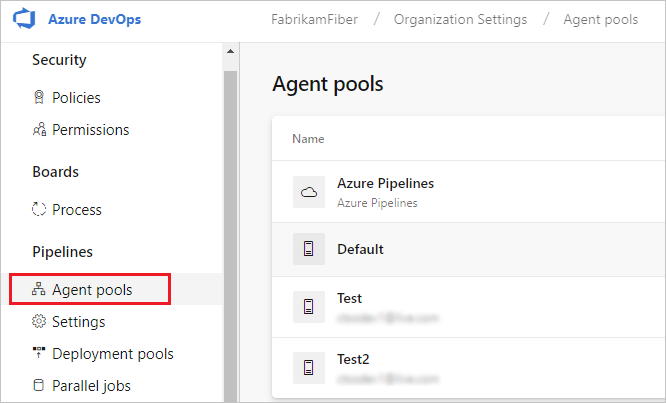
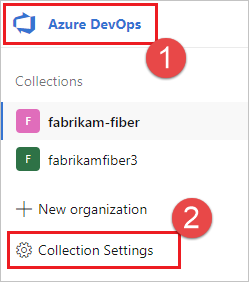
Sign in to your project collection (
http://your-server/DefaultCollection).Choose Azure DevOps, Collection settings.
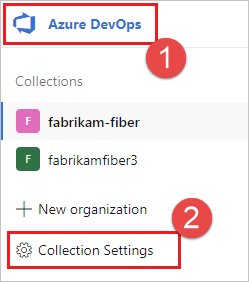
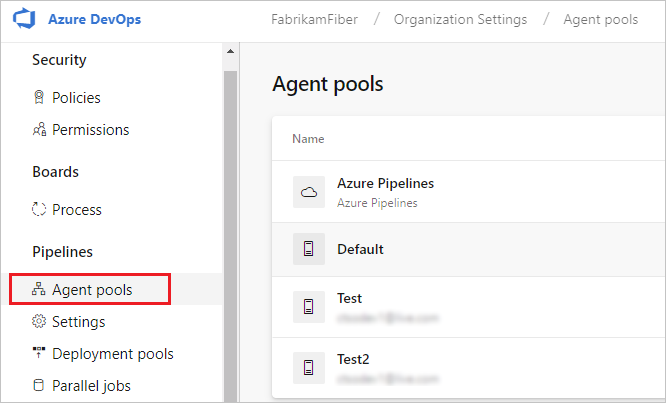
Choose Agent pools.
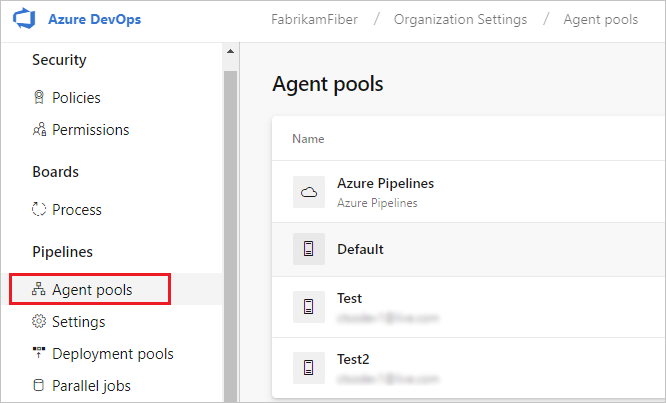
Choose Azure DevOps, Collection settings.
Choose Agent pools.
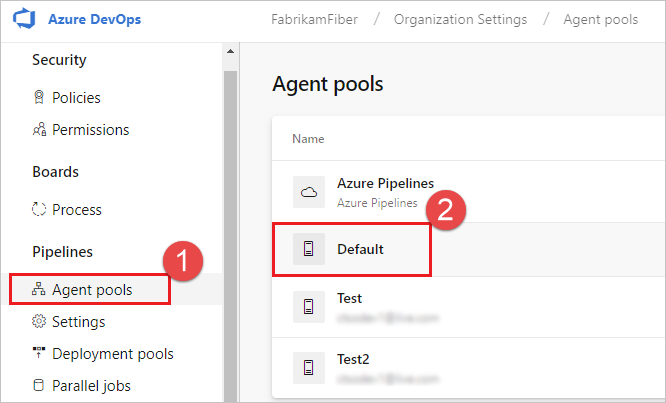
Navigate to the capabilities tab:
From the Agent pools tab, select the desired agent pool.
Select Agents and choose the desired agent.
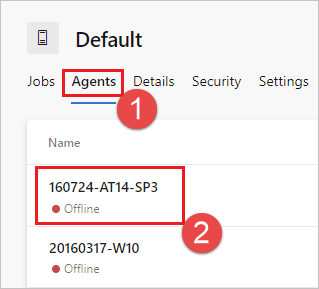
Choose the Capabilities tab.
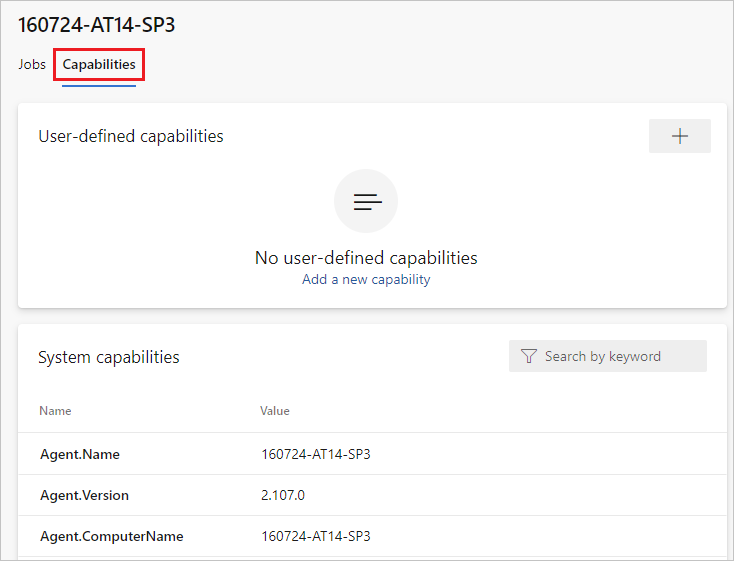
Note
Microsoft-hosted agents don't display system capabilities. For a list of software installed on Microsoft-hosted agents, see Use a Microsoft-hosted agent.
From the Agent pools tab, select the desired pool.
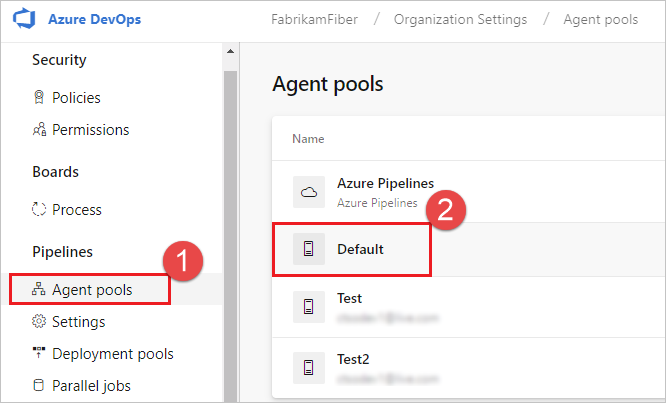
Select Agents and choose the desired agent.
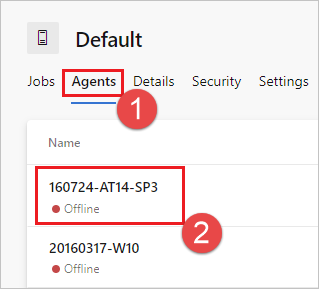
Choose the Capabilities tab.
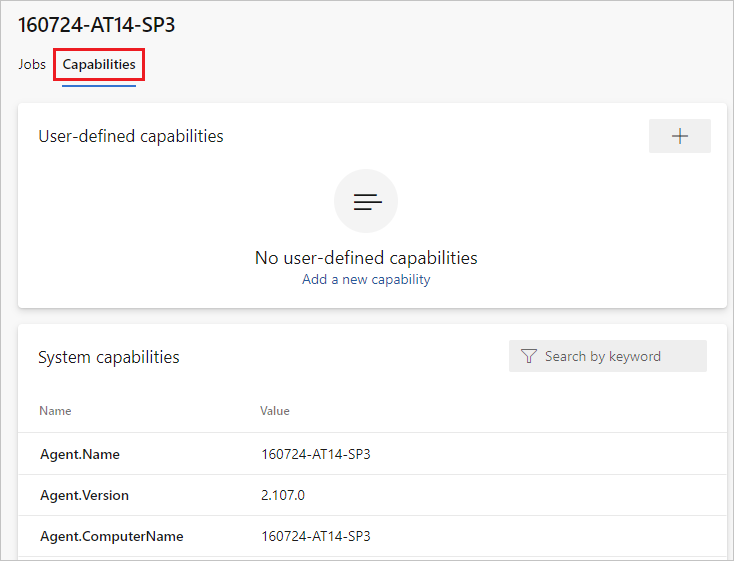
From the Agent pools tab, select the desired pool.
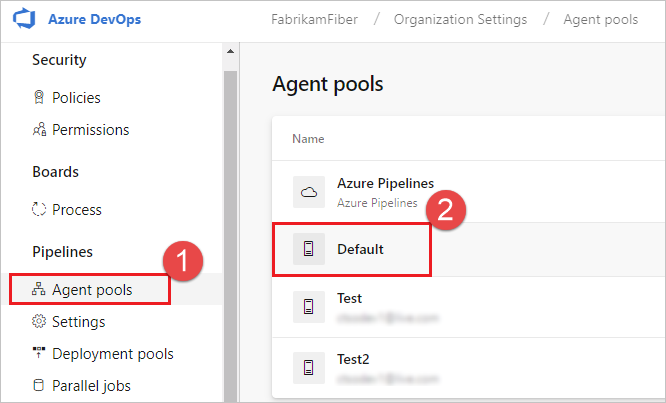
Select Agents and choose the desired agent.
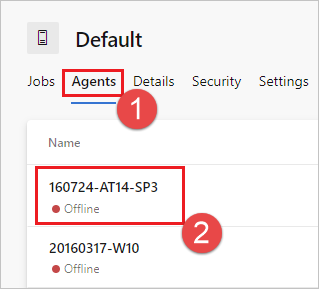
Choose the Capabilities tab.

To register a new capability with the agent, choose Add a new capability.
Tip
After you install new software on a self-hosted agent, you must restart the agent for the new capability to show up. For more information, see Restart Windows agent, Restart Linux agent, and Restart Mac agent.
Communication
Communication with Azure Pipelines
Communication with Azure DevOps Server
The agent communicates with Azure Pipelines or Azure DevOps Server to determine which job it needs to run, and to report the logs and job status. This communication is always initiated by the agent. All the messages from the agent to Azure Pipelines or Azure DevOps Server happen over HTTP or HTTPS, depending on how you configure the agent. This pull model allows the agent to be configured in different topologies as shown below.
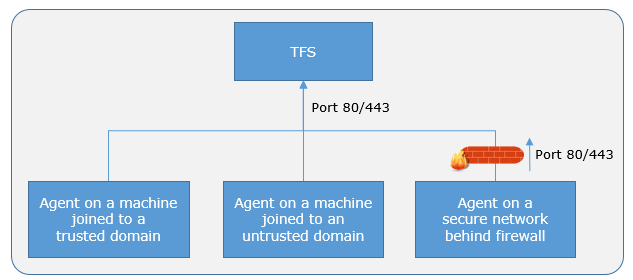
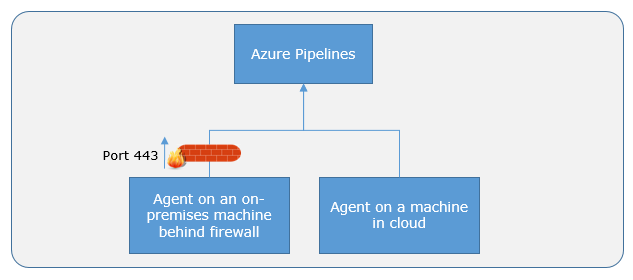
Here is a common communication pattern between the agent and Azure Pipelines or Azure DevOps Server.
The user registers an agent with Azure Pipelines or Azure DevOps Server by adding it to an agent pool. You need to be an agent pool administrator to register an agent in that agent pool. The identity of agent pool administrator is needed only at the time of registration and is not persisted on the agent, nor is it used in any further communication between the agent and Azure Pipelines or Azure DevOps Server. Once the registration is complete, the agent downloads a listener OAuth token and uses it to listen to the job queue.
The agent listens to see if a new job request has been posted for it in the job queue in Azure Pipelines/Azure DevOps Server using an HTTP long poll. When a job is available, the agent downloads the job as well as a job-specific OAuth token. This token is generated by Azure Pipelines/Azure DevOps Server for the scoped identity specified in the pipeline. That token is short lived and is used by the agent to access resources (for example, source code) or modify resources (for example, upload test results) on Azure Pipelines or Azure DevOps Server within that job.
After the job is completed, the agent discards the job-specific OAuth token and goes back to checking if there is a new job request using the listener OAuth token.
The payload of the messages exchanged between the agent and Azure Pipelines/Azure DevOps Server are secured using asymmetric encryption. Each agent has a public-private key pair, and the public key is exchanged with the server during registration. The server uses the public key to encrypt the payload of the job before sending it to the agent. The agent decrypts the job content using its private key. This is how secrets stored in pipelines or variable groups are secured as they are exchanged with the agent.
Note
The agent provides support for UTF-8 client encoding output. However, if your system has a different encoding from UTF-8, you might encounter some problems with the output of logs. For example, the logs might contain characters that aren't recognized by your system’s encoding so they might appear as garbled or missing symbols.
Communication to deploy to target servers
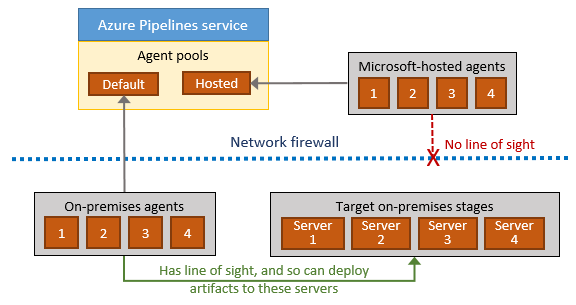
When you use the agent to deploy artifacts to a set of servers, it must have "line of sight" connectivity to those servers. The Microsoft-hosted agent pools, by default, have connectivity to Azure websites and servers running in Azure.
Note
If your Azure resources are running in an Azure Virtual Network, you can get the Agent IP ranges where Microsoft-hosted agents are deployed so you can configure the firewall rules for your Azure VNet to allow access by the agent.
If your on-premises environments do not have connectivity to a Microsoft-hosted agent pool (which is typically the case due to intermediate firewalls), you'll need to manually configure a self-hosted agent on on-premises computer(s). The agents must have connectivity to the target on-premises environments, and access to the Internet to connect to Azure Pipelines or Team Foundation Server, as shown in the following schematic.
Authentication
To register an agent, you need to be a member of the administrator role in the agent pool. The identity of agent pool administrator is needed only at the time of registration and is not persisted on the agent, and is not used in any subsequent communication between the agent and Azure Pipelines or Azure DevOps Server. In addition, you must be a local administrator on the server in order to configure the agent.
When you register an agent, choose from the following authentication types, and agent setup prompts you for the specific additional information required for each authentication type. For more information, see Self-hosted agent authentication options.
- Personal access token
- Alternate Connect to Azure DevOps Server or TFS using Basic authentication. When you select Alternate you'll be prompted for your credentials.
Windows agents have the following two additional authentication options on Azure DevOps Server.
- Negotiate Connect to Azure DevOps Server as a user other than the signed-in user via a Windows authentication scheme such as NTLM or Kerberos. After you select Negotiate you'll be prompted for credentials.
- Integrated (Default) Connect a Windows agent to Azure DevOps Server using the credentials of the signed-in user via a Windows authentication scheme such as NTLM or Kerberos. You won't be prompted for credentials after you choose this method.
Important
Your server must be configured to support the authentication method to use Alternate, Negotiate, or Integrated authentication.
The authentication method used for registering the agent is used only during agent registration. To learn more about how agents communicate with Azure Pipelines after registration, see Communication with Azure Pipelines or Azure DevOps Server.
Interactive vs. service
You can run your self-hosted agent as either a service or an interactive process. After you've configured the agent, we recommend you first try it in interactive mode to make sure it works. Then, for production use, we recommend you run the agent in one of the following modes so that it reliably remains in a running state. These modes also ensure that the agent starts automatically if the machine is restarted.
As a service. You can leverage the service manager of the operating system to manage the lifecycle of the agent. In addition, the experience for auto-upgrading the agent is better when it is run as a service.
As an interactive process with auto-logon enabled. In some cases, you might need to run the agent interactively for production use - such as to run UI tests. When the agent is configured to run in this mode, the screen saver is also disabled. Some domain policies might prevent you from enabling auto-logon or disabling the screen saver. In such cases, you might need to seek an exemption from the domain policy, or run the agent on a workgroup computer where the domain policies do not apply.
Note
There are security risks when you enable automatic logon or disable the screen saver because you enable other users to walk up to the computer and use the account that automatically logs on. If you configure the agent to run in this way, you must ensure the computer is physically protected; for example, located in a secure facility. If you use Remote Desktop to access the computer on which an agent is running with auto-logon, simply closing the Remote Desktop causes the computer to be locked and any UI tests that run on this agent might fail. To avoid this, use the tscon command to disconnect from Remote Desktop. For example:
%windir%\System32\tscon.exe 1 /dest:console
Agent account
Whether you run an agent as a service or interactively, you can choose which computer account you use to run the agent. (Note that this is different from the credentials that you use when you register the agent with Azure Pipelines or Azure DevOps Server.) The choice of agent account depends solely on the needs of the tasks running in your build and deployment jobs.
For example, to run tasks that use Windows authentication to access an external service, you must run the agent using an account that has access to that service. However, if you are running UI tests such as Selenium or Coded UI tests that require a browser, the browser is launched in the context of the agent account.
On Windows, you should consider using a service account such as Network Service or Local Service. These accounts have restricted permissions and their passwords don't expire, meaning the agent requires less management over time.
Agent version and upgrades
We update the agent software every few weeks in Azure Pipelines.
We indicate the agent version in the format {major}.{minor}.
For instance, if the agent version is 2.1, then the major version is 2 and the minor version is 1.
Microsoft-hosted agents are always kept up-to-date. If the newer version of the agent is only different in minor version, self-hosted agents can usually be updated automatically (configure this setting in Agent pools, select your agent, Settings - the default is enabled) by Azure Pipelines. An upgrade is requested when a platform feature or one of the tasks used in the pipeline requires a newer version of the agent.
If you run a self-hosted agent interactively, or if there is a newer major version of the agent available, then you might have to manually upgrade the agents. You can do this easily from the Agent pools tab under your organization. Your pipelines won't run until they can target a compatible agent.
To update self-hosted agents
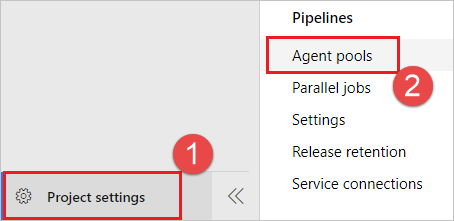
Navigate to Project settings, Agent pools.
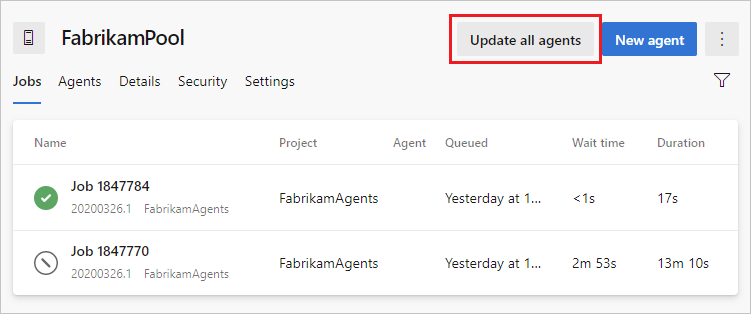
Select your agent pool and choose Update all agents.
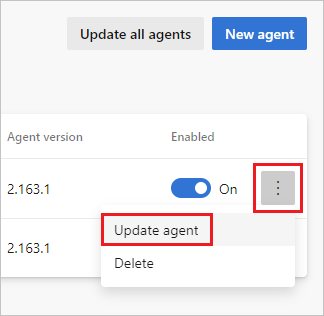
You can also update agents individually by choosing Update agent from the ... menu.
Select Update to confirm the update.
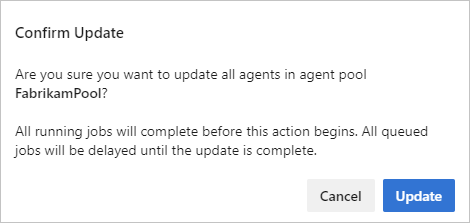
An update request is queued for each agent in the pool, and runs when any currently running jobs complete. Upgrading typically only takes a few moments - long enough to download the latest version of the agent software (approximately 200 MB), unzip it, and restart the agent with the new version. You can monitor the status of your agents on the Agents tab.
We update the agent software with every update in Azure DevOps Server.
We indicate the agent version in the format {major}.{minor}.
For instance, if the agent version is 2.1, then the major version is 2 and the minor version is 1.
When your Azure DevOps Server has a newer version of the agent, and that newer agent is only different in minor version, it can usually be automatically upgraded. An upgrade is requested when a platform feature or one of the tasks used in the pipeline requires a newer version of the agent. Starting with Azure DevOps Server 2019, you don't have to wait for a new server release. You can upload a new version of the agent to your application tier, and that version will be offered as an upgrade.
If you run the agent interactively, or if there is a newer major version of the agent available, then you might have to manually upgrade the agents. You can do this easily from the Agent pools tab under your project collection. Your pipelines won't run until they can target a compatible agent.
You can view the version of an agent by navigating to Agent pools and selecting the Capabilities tab for the desired agent, as described in Configure agent capabilities.
To trigger agent update programmatically you can use Agent update API as described in section How can I trigger agent updates programmatically for specific agent pool?.
Note
For servers with no internet access, manually copy the agent zip file to the following folder to use as a local file. Create the Agents folder if it is not present.
- Windows:
%ProgramData%\Microsoft\Azure DevOps\Agents - Linux:
usr/share/Microsoft/Azure DevOps/Agents - macOS:
usr/share/Microsoft/Azure DevOps/Agents
Create the Agents folder if it is not present.
FAQ
How do I make sure I have the latest v2 agent version?
Navigate to the Agent pools tab:
Sign in to your organization (
https://dev.azure.com/{yourorganization}).Choose Azure DevOps, Organization settings.
Choose Agent pools.
Sign in to your project collection (
http://your-server/DefaultCollection).Choose Azure DevOps, Collection settings.
Choose Agent pools.
Choose Azure DevOps, Collection settings.
Choose Agent pools.
Click the pool that contains the agent.
Make sure the agent is enabled.
Navigate to the capabilities tab:
From the Agent pools tab, select the desired agent pool.
Select Agents and choose the desired agent.
Choose the Capabilities tab.
Note
Microsoft-hosted agents don't display system capabilities. For a list of software installed on Microsoft-hosted agents, see Use a Microsoft-hosted agent.
From the Agent pools tab, select the desired pool.
Select Agents and choose the desired agent.
Choose the Capabilities tab.
From the Agent pools tab, select the desired pool.
Select Agents and choose the desired agent.
Choose the Capabilities tab.
Look for the
Agent.Versioncapability. You can check this value against the latest published agent version. See Azure Pipelines Agent and check the page for the highest version number listed.Each agent automatically updates itself when it runs a task that requires a newer version of the agent. If you want to manually update some agents, right-click the pool, and select Update all agents.
Can I update my v2 agents that are part of an Azure DevOps Server pool?
Yes. Beginning with Azure DevOps Server 2019, you can configure your server to look for the agent package files on a local disk. This configuration will override the default version that came with the server at the time of its release. This scenario also applies when the server doesn't have access to the internet.
From a computer with Internet access, download the latest version of the agent package files (in .zip or .tar.gz form) from the Azure Pipelines Agent GitHub Releases page.
Transfer the downloaded package files to each Azure DevOps Server Application Tier by using a method of your choice (such as USB drive, Network transfer, and so on). Place the agent files under the
%ProgramData%\Microsoft\Azure DevOps\Agentsfolder. Create the Agents folder if it is not present.You're all set! Your Azure DevOps Server will now use the local files whenever the agents are updated. Each agent automatically updates itself when it runs a task that requires a newer version of the agent. But if you want to manually update some agents, right-click the pool, and then choose Update all agents.
Do self-hosted agents have any performance advantages over Microsoft-hosted agents?
In many cases, yes. Specifically:
If you use a self-hosted agent, you can run incremental builds. For example, if you define a pipeline that does not clean the repo and does not perform a clean build, your builds will typically run faster. When you use a Microsoft-hosted agent, you don't get these benefits (unless you use features such as caching) because the agent is destroyed after the build or release pipeline is completed.
A Microsoft-hosted agent can take longer to start your build. While it often takes just a few seconds for your job to be assigned to a Microsoft-hosted agent, it can sometimes take several minutes for an agent to be allocated depending on the load on our system.
Can I install multiple self-hosted agents on the same machine?
Yes. This approach can work well for agents that run jobs that don't consume many shared resources. For example, you could try it for agents that run releases that mostly orchestrate deployments and don't do much work on the agent itself.
You might find that in other cases you don't gain much efficiency by running multiple agents on the same machine. For example, it might not be worthwhile for agents that run builds that consume much disk and I/O resources.
You might also run into problems if parallel build jobs are using the same singleton tool deployment, such as npm packages. For example, one build might update a dependency while another build is in the middle of using it, which could cause unreliable results and errors.
What’s the behavior of agents when the pipeline jobs are canceled?
For Microsoft-hosted agents, the agent is torn down and returned to the Azure Pipelines pool.
For self-hosted agents:
When a pipeline is canceled, the agent sends a sequence of commands to the process executing the current step. The first command is sent with a timeout of 7.5 seconds. If the process has not terminated, a second command is sent with a timeout of 2.5 seconds. If the process has not terminated, the agent issues a command to kill the process. If the process does not honor the two initial termination requests, it will be killed. From the initial request to termination takes approximately 10 seconds.
The commands issued to the process to cancel the pipeline differ based on the agent operating system.
- macOS and Linux - The commands sent are SIGINT, followed by SIGTERM, followed by SIGKILL.
- Windows - The commands sent to the process are Ctrl+C, followed by Ctrl+Break, followed by Process.Kill.
How can I trigger agent updates programmatically for specific agent pool?
You can trigger agent updates for the pool by using the following API:
POST https://dev.azure.com/{organization}/_apis/distributedtask/pools/{poolId}/messages?agentId={agentId}&api-version=6.0
POST https://{server url}/tfs/{collection}/_apis/distributedtask/pools/{poolId}/messages?agentId={agentId}&api-version=6.0
Note
For more information in API and Azure DevOps Server version mapping, see API and Azure DevOps Server version mapping
URI Parameters
| Name | In | Required | Type | Description |
|---|---|---|---|---|
agentId |
query | False | string | The agent to update. If not specified - update will be triggered for all agents. |
organization |
path | True | string | The name of the Azure DevOps organization. |
poolId |
path | True | integer int32 | The agent pool to use |
api-version |
query | False | string | Version of the API to use. This should be set to '6.0' to use this version of the api. |
To trigger agent update - request body should be empty.
Note
Azure Pipelines Agent is open source on GitHub.
Learn more
For more information about agents, see the following modules from the Build applications with Azure DevOps learning path.
Feedback
Coming soon: Throughout 2024 we will be phasing out GitHub Issues as the feedback mechanism for content and replacing it with a new feedback system. For more information see: https://aka.ms/ContentUserFeedback.
Submit and view feedback for