Note
Access to this page requires authorization. You can try signing in or changing directories.
Access to this page requires authorization. You can try changing directories.
Azure DevOps Services | Azure DevOps Server | Azure DevOps Server 2022
Several tools support copy, clone, or import operations for test items such as test plans, test suites, and test cases. Test cases describe the steps to take to run a test and validate a feature implementation or bug fix. Test suites group test cases, and optionally other test suites, into a particular order. Test plans define a collection of test suites to run for a particular iteration or release.
Each test case is designed to confirm a specific behavior. Test cases might belong to one or more test suites. However, test suites can belong to only one test plan.
In general, create a test plan for every major project milestone. Copy, clone, or import operations of test items support the following scenarios:
- Define a test plan for a new sprint or release based on an existing test plan.
- Import test suites from one test plan to another test plan within the same or different project.
- Copy test cases for use in different test suites and test plans.
- Share test objects across projects.
- Move test objects from one project to another, possibly to support consolidating projects into a single project.
For more information, see Overview of test objects and terms.
What each operation preserves
The following table summarizes what each operation preserves and what it doesn't.
| Item | Copy or clone a test plan | Import a test suite | Copy a test case |
|---|---|---|---|
| Test suites and hierarchy | Preserved | Preserved, including subsuites | N/A |
| Test case references | Referenced or duplicated (you choose) | Referenced, not duplicated | Duplicated with new IDs |
| Shared steps | Referenced | Cloned to destination project | Referenced |
| Shared parameters | Referenced | Not cloned | Referenced |
| Test configurations | Preserved | Preserved | N/A |
| Test run history and results | Not preserved | Not preserved | Not preserved |
| Tester assignments | Not preserved | Not preserved | Not preserved |
| Links and attachments | Preserved | Preserved | Optional (you choose) |
| Area and iteration paths | Set to destination values | Inherited from destination plan | Set to destination values |
Prerequisites
| Category | Requirements |
|---|---|
| Project access | Project member |
| Access levels | At least Basic access to view test-related work items. Users with Stakeholder access can't access Azure Test Plans. To add test plans and test suites, delete test artifacts, or define test configurations, you need Basic + Test Plans access or a Visual Studio subscription: Enterprise, Test Professional, or MSDN Platforms. |
| Permissions | Area Path: - Edit work items in this node: Add or modify test plans, test suites, test cases, or other test-based work items. - Manage test plans: Modify test plan properties such as build and test settings. - Manage test suites: Create and delete test suites, add and remove test cases from test suites, change test configurations, and move test suites. Project-level: - Manage test configurations and Manage test environments: Manage test configurations or test environments. - Permanently delete work items: Permanently delete test-based work items. |
For more information, see Manual test access and permissions.
Tip
You can use AI to help with this task later in this article, or see Enable AI assistance with Azure DevOps MCP Server to get started.
Supported copy, clone, and import tools
You can use the clients or tools listed in the following table to copy, clone, or import test plans, test suites, or test cases.
Client/tool
Test Plans
Test Suites
Test Cases
Web portal
✔️ Copy
✔️ Import
✔️ Copy ✔️ Bulk export/import
Web portal (Grid)
Work item form
✔️ Copy
List test plans or test suites
When you perform copy, clone, or import operations related to test plans or test suites, you need their unique ID. This identifier helps you target the specific plan or suite you want to work with. By knowing the assigned ID, you can streamline your testing processes and ensure accurate replication or transfer of test-related data.
To generate a list of test plans, test suites, or other test objects, follow these steps:
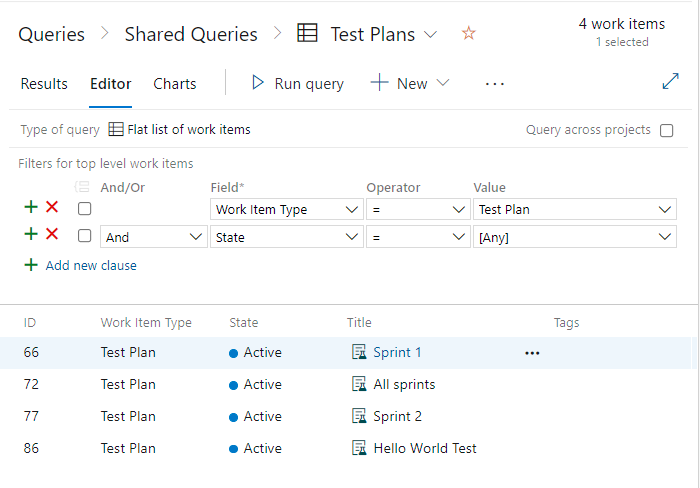
- Select Boards > Queries from your project.
- Enter the parameter
Work Item Type=Test Planin your query editor. You can list all test plans defined for the team project. - Select the Query across projects checkbox. The query lists all test plans defined for all projects. For more information, see Define a work item query.
- Run the query.
Tip
While test plans, test suites, and test cases are related to each other, you can't view the relationships through a work item query. Link types don't link test plans, test suites, and test cases. Only shared steps and shared parameters link to test cases. Also, test cases link to user stories or other work items that they test.
Copy or clone test plans
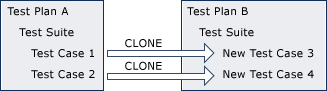
When you create a new test plan for each sprint or release, consider cloning the test plan from the prior cycle. With minimal adjustments, the copied test plan fits the new cycle. This practice streamlines the planning process and ensures consistency across iterations.
Cloning is especially useful when you need to branch your application into two versions. After cloning, you can modify tests independently for each version without affecting the other. It’s an efficient way to manage testing efforts while maintaining separation between different application variants.
Select Test Plans > Test plans from your project.
Choose the test plan you want to copy from the Mine or All page.
Select
 More options > Copy test plan. This option lets you copy or clone test plans within a project.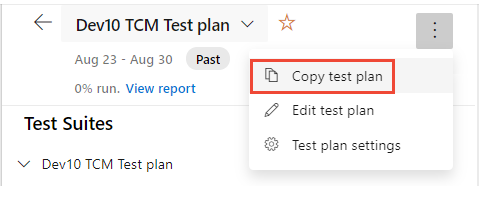
Enter the name of the new test plan, and select an Area Path and Iteration Path for the plan.
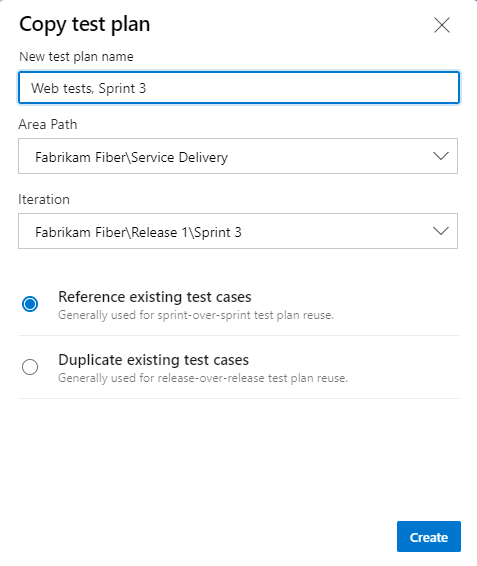
- Choose one of the two radio buttons based on the following guidance:
- Reference existing test cases: The cloned test plan points to the same test cases as the source plan. Changes to a test case appear in both plans, and test results are shared. Choose this option when you plan to merge the two branches eventually and want to keep the same requirements for functionality that you already implemented and tested.
- Duplicate existing test cases: The cloned test plan creates new copies of each test case with new IDs. Each copy has an independent lifecycle — changes to one copy don't affect the other. The duplicated test cases link to the same requirements as the originals. Choose this option when you want separate test cases maintained independently across branches or releases.
If you duplicate existing test cases, the copied test cases get assigned the Area Path and Iteration Path you specified for the cloned test plan.
For more information, see About area and iteration (sprint) paths.
The page refreshes to display the newly copied test plan.
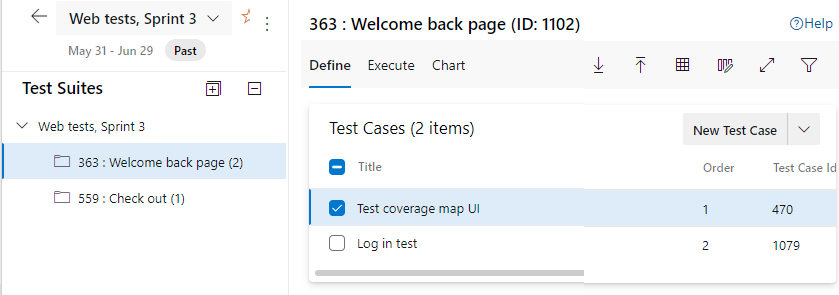
- Choose one of the two radio buttons based on the following guidance:
Update any query-based suites that you copied to use the new area and iteration paths.
If you cloned automated test cases, specify a build and release pipeline in the destination test plan. Automated test method associations are preserved during cloning, but the destination plan must reference the correct build to run those tests. For more information, see Run automated tests from test plans.
Import or clone test suites
When you create the test plan for a new sprint, you often want to repeat some of the tests from the previous sprints. This approach helps you make sure that the functionality you already implemented still works.
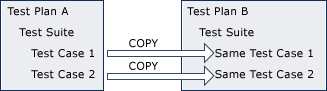
Note
- When you import a test suite to a new project, the new suite contains copies of all test cases in the source suite. However, it doesn't retain any historical data like the previous test runs, related bugs, or old results.
- The process also clones and creates shared steps that the test cases in the destination project reference.
- You can't clone test cases from and to the same test plan, even into a different suite. To accomplish this scenario, you must first move the test cases to a different, temporary test plan. Then, use the temporary test plan as the source plan and clone the test cases back to the source test plan by putting the ID into the destination test plan place. This process also duplicates shared steps present in the test cases.
- Suite import copies all links from source suite to new suite, except child and clone-tracking links.
- Affects/Affected By links on the source suite create reciprocal links on the target work items.
- Repeated imports from the same source accumulate links on the source Test Plan work item. When the 1000-link limit is reached, the import fails with the error TF237201. Workaround: Periodically remove unnecessary Affected By links from the source Test Plan work item by using the REST API.
When you work with Azure Test Plans, you can import a test suite from one test plan into another test plan within the same project or across projects. This process copies or clones the test suite and creates a new test suite. Additionally, this process duplicates any subtest suites. The process doesn't duplicate the test cases that the test suites reference. Instead, the cloned test suites reference those test cases.
Important
When you import across projects, the process doesn't automatically carry over area paths and iteration paths from the source project. The imported test suite inherits the area and iteration paths from the destination test plan. Review and update these paths after import to ensure they match your project structure.
To use the same test cases in different suites and plans, copy and paste test cases by using the Grid view.
Select Test Plans > Test plans.
Choose the test plan where you want to import a test suite from the Mine or All page.
Select
More options > Import test suites. This option lets you import test suites from another test plan.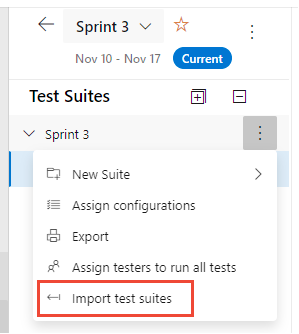
In the opened dialog, select the project if the test plan resides within a different project. Otherwise, enter the Test Plan Name or ID and Test Suite Name or ID. You can also select the name or ID from the dropdown menus.
Create the import. You can only import one suite from a test plan at a time.
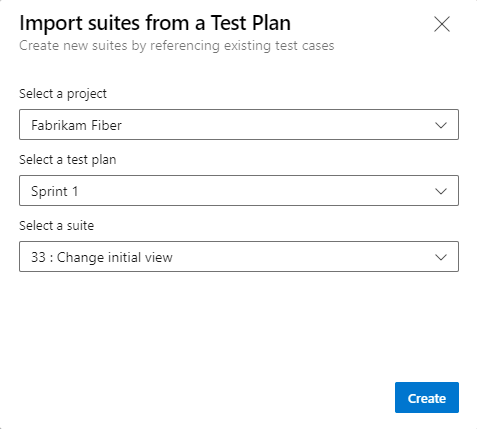
The following message displays:

When the import operation completes, the following message displays. Select Refresh to refresh your browser.

The portal displays the newly added test suite.
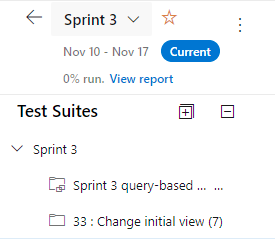
Copy test case
From the web portal, you can copy test cases from within a project or another project to a test suite, or you can use the Grid view to copy and paste test cases from one suite to another. Optionally, you can bulk import and export test cases.
Tip
Don't copy test cases when you want to test with different configurations or different data.
You can copy test cases from either within a project or from another project within the organization or collection. You can choose to include all links and attachments during the copying process.
Select Test Plans > Test plans.
Choose the test plan that contains one or more test cases you want to copy from the Mine or All page.
Select the test suite that contains one or more test cases you want to copy.
From the Define page, select the check box for all test cases you want to copy.
Select
More options > Copy test case.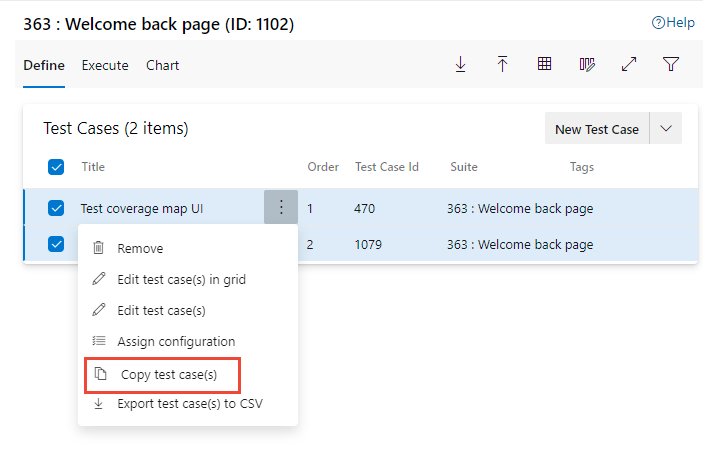
Choose the project from the dropdown menu, and then enter the test plan name or ID and test suite name or ID. You can also select the name or ID from the dropdown menus.
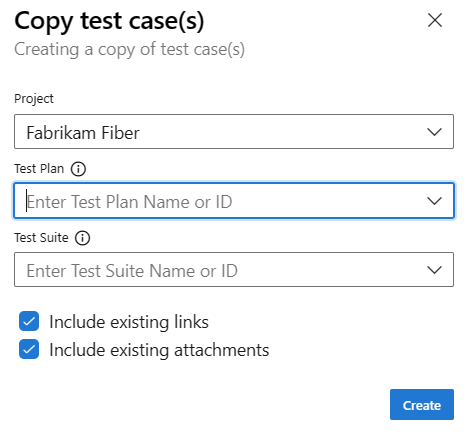
(Optional) Select the check boxes for Include existing links and Include existing attachments.
Create the copy.
The background copy operation depends on the quantity and complexity of the selected test cases. After completion, a notification is sent to you confirming the operation’s success and a link to the test suite where the copied test cases reside.
Copy and paste test case (Grid view)
When you manage test cases, copying and pasting is a valuable technique for reusing the same tests across various suites and plans. For example, you might have a comprehensive test suite and want to create a more focused subset of tests within another suite. The Define > Grid view supports both editing test cases and copying them to different test suites. For more information, see Create test cases, Use the Grid view to edit test cases.
Tip
Don't copy test cases when you want to test with different configurations or different data.
You can copy test cases from the Grid view for one test plan and test suite to another test plan and test suite.
From the Test Plans > Test plans page, choose the test suite containing one or more test cases you want to copy. Within the Define tab, select
 Grid View.
Highlight the rows you want to copy, and then enter CTRL+C.
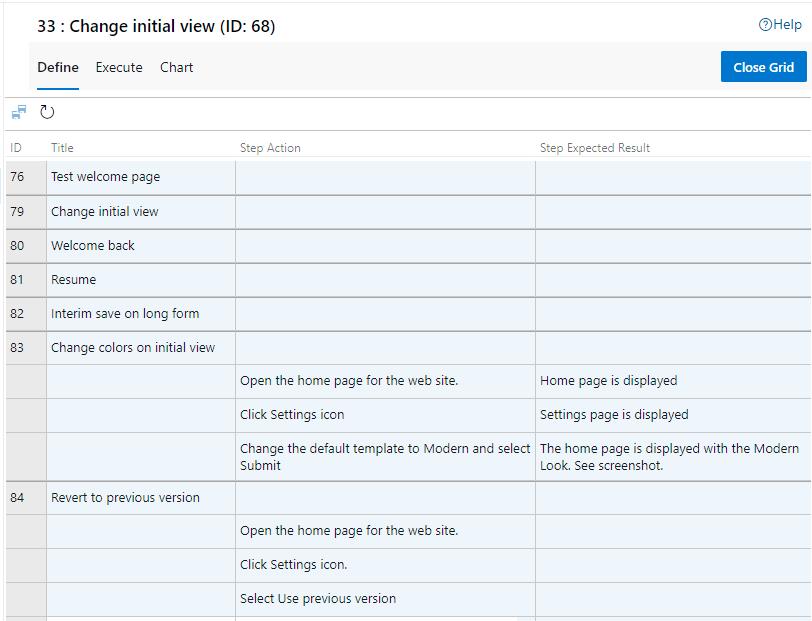
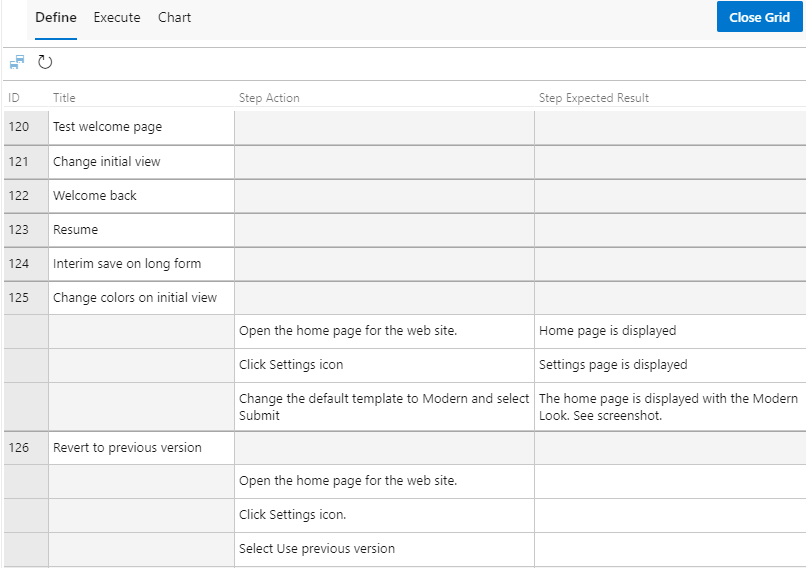
Select a different test suite from the same or different plan and paste with CTRL+V. If you don't select a different suite, nothing happens when you paste, because each suite can only have one reference to any test case.
Choose
 Save test cases.
The new test cases save with new IDs assigned.
REST APIs
You can copy and clone test plans and test suites by using the following REST APIs:
Use AI to copy and clone test items
If you configure the Azure DevOps MCP Server, you can use AI assistants to manage test plans, suites, and cases by using natural language prompts.
Example prompts for copying and cloning test items
| Task | Example prompt |
|---|---|
| List test plans | List all test plans in <Contoso> project |
| View test suites | Show all test suites in test plan <12345> in project <Contoso> |
| Find test cases to copy | List all test cases in test suite <67890> that have State = <Ready> |
| Check plan coverage | Show all test suites in test plan <12345> and the count of test cases in each |
| Compare plans | List test suites in test plan <12345> and test plan <54321> side by side |
| Find duplicate test cases | Find test cases in <Contoso> project with the same title |
| Identify gaps across sprints | Show test cases in test plan <12345> that don't exist in test plan <54321> |
| Find shared test cases | List test cases that appear in more than one test suite in project <Contoso> |
| Prepare for cloning | Show all test suites in test plan <12345> that contain automated test cases |
Tip
- If you're using Visual Studio Code, agent mode is especially helpful for troubleshooting complex copy and clone operations.
- To avoid using stale or cached data from previous queries, add to your prompt, "Do not use previously fetched data."