Note
Access to this page requires authorization. You can try signing in or changing directories.
Access to this page requires authorization. You can try changing directories.
Build an intelligent AI agent by using TypeScript and Azure DocumentDB. This quickstart demonstrates a two-agent architecture that performs semantic hotel search and generates personalized recommendations.
Important
This sample uses LangChain, a popular framework for building AI applications. LangChain provides abstractions for agents, tools, and prompts that simplify agent development.
Prerequisites
You can use the Azure Developer CLI to create the required Azure resources by running the azd commands in the sample repository. For more information, see Deploy Infrastructure with Azure Developer CLI.
Azure resources
Azure OpenAI in Microsoft Foundry Models resource (classic) with the following model deployments in Microsoft Foundry:
gpt-4.1deployment (Synthesizer Agent) - Recommended: 50,000 tokens per minute (TPM) capacitygpt-4.1-minideployment (Planner Agent) - Recommended: 30,000 tokens per minute (TPM) capacitytext-embedding-3-smalldeployment (Embeddings) - Recommended: 10,000 tokens per minute (TPM) capacity- Token quotas: Configure sufficient TPM for each deployment to avoid rate limiting
- See Manage Azure OpenAI quotas for quota management
- If you encounter 429 errors, increase your TPM quota or reduce request frequency
Azure DocumentDB (with MongoDB compatibility) cluster with vector search support:
- Cluster tier requirements based on your preferred vector index algorithm:
- IVF (Inverted File Index): M10 or higher (default algorithm)
- HNSW (Hierarchical Navigable Small World): M30 or higher (graph-based)
- DiskANN: M40 or higher (optimized for large-scale)
- Firewall configuration: REQUIRED. Without proper firewall configuration, connection attempts fail.
- Add your client IP address to the cluster's firewall rules. For more information, see Grant access from your IP address.
- For passwordless authentication, make sure role-based access control (RBAC) is enabled.
- Cluster tier requirements based on your preferred vector index algorithm:
Development tools
- Azure Developer CLI for resource provisioning
- Node.js LTS
- TypeScript 5.0 or later
- Azure CLI for authentication
- Visual Studio Code with the DocumentDB extension for database management (optional)
Agentic RAG application Architecture for Node.js
The sample uses a two-agent architecture where each agent has a specific role.

This sample uses LangChain's agent framework with the OpenAI SDK. It leverages LangChain's function calling abstractions for tool integration and follows a linear workflow between the agents and the search tool. The execution is stateless with no conversation history, making it suitable for single-turn query and response scenarios.
Get the Node.js sample code
Clone or download the repository Azure DocumentDB Samples to your local machine to follow the quickstart.
Navigate to the project directory:
cd ai/vector-search-agent-typescript
Deploy Azure resources with Azure Developer CLI
Use the Azure Developer CLI (azd) to provision the required Azure OpenAI and DocumentDB resources.
Sign in to Azure:
azd auth loginProvision and deploy the infrastructure:
azd upWhen prompted, select your subscription and a location (for example,
swedencentraloreastus2).After deployment completes,
azdoutputs the environment variables you need. Copy them into your.envfile (see Configure environment variables).
Tip
Run azd env get-values at any time to view the current environment values.
To export these values to a .env file, run:
azd env get-values > .env
Note
The infrastructure deploys Azure OpenAI with the Standard SKU (not GlobalStandard). You can customize the SKU and model parameters using azd env set before deployment. See the sample's README for available parameters.
Customize Azure OpenAI deployment (optional)
The infrastructure deploys Azure OpenAI with default model and region settings defined in infra/main.bicepparam. Before running azd up, you can customize any of these parameters:
| Parameter | Default | Description |
|---|---|---|
AZURE_OPENAI_LOCATION |
Same as AZURE_LOCATION |
Region for OpenAI resource deployment |
AZURE_OPENAI_CHAT_MODEL |
gpt-4.1-mini |
Chat completion model name |
AZURE_OPENAI_CHAT_MODEL_VERSION |
2025-04-14 |
Chat model version |
AZURE_OPENAI_CHAT_MODEL_TYPE |
Standard |
Deployment type (Standard or GlobalStandard) |
AZURE_OPENAI_SYNTH_MODEL |
gpt-4.1 |
Synthesis/reasoning model name |
AZURE_OPENAI_SYNTH_MODEL_VERSION |
2025-04-14 |
Synthesis model version |
AZURE_OPENAI_SYNTH_MODEL_TYPE |
Standard |
Deployment type (Standard or GlobalStandard) |
AZURE_OPENAI_EMBEDDING_MODEL |
text-embedding-3-small |
Embedding model name |
AZURE_OPENAI_EMBEDDING_MODEL_VERSION |
1 |
Embedding model version |
AZURE_OPENAI_EMBEDDING_MODEL_TYPE |
Standard |
Deployment type (Standard or GlobalStandard) |
To override a default, use azd env set before running azd up:
# Deploy OpenAI to a different region than your other resources
azd env set AZURE_OPENAI_LOCATION swedencentral

# Switch deployment type from Standard (default) to GlobalStandard
azd env set AZURE_OPENAI_CHAT_MODEL_TYPE GlobalStandard

# Change the chat model
azd env set AZURE_OPENAI_CHAT_MODEL gpt-4.1-mini
azd env set AZURE_OPENAI_CHAT_MODEL_VERSION 2025-04-14
Note
Not all models are available in all regions or with all deployment types. Check Azure OpenAI model availability by region for supported combinations.
Troubleshoot Azure OpenAI provisioning failures
If azd up fails when creating the Azure OpenAI resource or model deployments, the problem is typically one of:
- Region availability: The model isn't available in your chosen region. Try
azd env set AZURE_OPENAI_LOCATION <different-region>(for example,eastus2orswedencentral). - Deployment type mismatch: The model doesn't support the selected deployment type in your region. Switch between
StandardandGlobalStandardusingazd env set AZURE_OPENAI_CHAT_MODEL_TYPE GlobalStandard. - Quota limits: Your subscription reached its quota for the selected model, region, or deployment type combination. Check your quota in the Azure portal under Azure OpenAI > Quotas. You can request a quota increase or try a different region where you have available capacity.
- Model retired or unavailable: Azure OpenAI periodically retires older model versions. If deployment fails because a model version is no longer available, update to a supported version using
azd env set AZURE_OPENAI_CHAT_MODEL_VERSION <new-version>(or the equivalent for embedding/synth models). Check Azure OpenAI model retirements for current model lifecycle status.
After changing any parameters, run azd up again to retry the deployment.
Configure environment variables
If you created your Azure resources manually or want to use your own existing resources, you need to configure environment variables for the application to connect to Azure OpenAI and Azure DocumentDB. If you used azd up, you can skip this step, as the necessary environment variables are automatically set in the azd environment and can be accessed with azd env get-values.
Create a .env file in your project root to configure environment variables. You can create a copy of the .env.sample file from the repository.
Edit the .env file and replace these placeholder values:
This quickstart uses a two-agent architecture (planner + synthesizer) with three model deployments (two chat models + embeddings). The environment variables are configured for each model deployment.
AZURE_OPENAI_PLANNER_MODEL: Your gpt-4.1-mini model nameAZURE_OPENAI_SYNTH_MODEL: Your gpt-4.1 model nameAZURE_OPENAI_EMBEDDING_MODEL: Your text-embedding-3-small model name
You can choose between two authentication methods: passwordless authentication using Azure Identity (recommended) or traditional connection string and API key.
Option 1: Passwordless authentication
Use passwordless authentication with both Azure OpenAI and Azure DocumentDB. Set USE_PASSWORDLESS=true, AZURE_OPENAI_ENDPOINT, and AZURE_DOCUMENTDB_CLUSTER.
# Enable passwordless authentication
USE_PASSWORDLESS=true

# Azure OpenAI Configuration (passwordless)
AZURE_OPENAI_ENDPOINT=your-openai-endpoint
AZURE_OPENAI_PLANNER_MODEL=gpt-4.1-mini
AZURE_OPENAI_PLANNER_API_VERSION=2024-08-01-preview
AZURE_OPENAI_SYNTH_MODEL=gpt-4.1
AZURE_OPENAI_SYNTH_API_VERSION=2024-08-01-preview
AZURE_OPENAI_EMBEDDING_MODEL=text-embedding-3-small
AZURE_OPENAI_EMBEDDING_API_VERSION=2023-05-15

# Azure DocumentDB (passwordless)
AZURE_DOCUMENTDB_CLUSTER=your-mongo-cluster-name
AZURE_DOCUMENTDB_DATABASENAME=Hotels
AZURE_DOCUMENTDB_COLLECTION=hotel_data

# Data Configuration
DATA_FILE_WITHOUT_VECTORS=../data/Hotels.json

# Vector Index Configuration
VECTOR_INDEX_ALGORITHM=vector-ivf
EMBEDDING_DIMENSIONS=1536
Prerequisites for passwordless authentication:
Ensure you're signed in to Azure:
az loginGrant your identity the following roles:
Cognitive Services OpenAI Useron the Azure OpenAI resourceDocumentDB Account ContributorandCosmos DB Account Reader Roleon the Azure DocumentDB resource
For more information about assigning roles, see Assign Azure roles using the Azure portal.
How passwordless authentication works
When USE_PASSWORDLESS=true, the application uses DefaultAzureCredential from the Azure Identity SDK to obtain an OAuth token. For Azure DocumentDB connections, it uses an OIDC token callback that passes the access token directly to the MongoDB driver. This means no passwords or connection strings are stored in configuration files.
The authentication flow:
DefaultAzureCredentialchecks for available credentials (Azure CLI, managed identity, environment variables) in order.- For Azure OpenAI, the token is passed to the LangChain
AzureChatOpenAIandAzureOpenAIEmbeddingsclients automatically. - For Azure DocumentDB, a token callback function fetches an access token and provides it to the MongoDB client via the
MONGODB-OIDCauth mechanism.
import { AzureOpenAIEmbeddings, AzureChatOpenAI } from "@langchain/openai";
import { MongoClient, OIDCCallbackParams } from 'mongodb';
import { AccessToken, DefaultAzureCredential, TokenCredential, getBearerTokenProvider } from '@azure/identity';

/*
This file contains utility functions to create Azure OpenAI clients for embeddings, planning, and synthesis.

It supports two modes of authentication:
1. API Key based authentication using AZURE_OPENAI_API_KEY and AZURE_OPENAI_ENDPOINTenvironment variables.
2. Passwordless authentication using DefaultAzureCredential from Azure Identity library.
*/

// Azure Identity configuration
const OPENAI_SCOPE = 'https://cognitiveservices.azure.com/.default';
const DOCUMENT_DB_SCOPE = 'https://ossrdbms-aad.database.windows.net/.default';

// Azure identity credential (used for passwordless auth)
const CREDENTIAL = new DefaultAzureCredential();

function requireEnvVars(names: string[]) {
  const missing = names.filter((name) => {
    const value = process.env[name];
    return !value || value.trim().length === 0;
  });

  if (missing.length > 0) {
    throw new Error(`Missing required environment variables: ${missing.join(', ')}`);
  }
}

// Token callback for MongoDB OIDC authentication
async function azureIdentityTokenCallback(
  params: OIDCCallbackParams,
  credential: TokenCredential
): Promise<{ accessToken: string; expiresInSeconds: number }> {
  const tokenResponse: AccessToken | null = await credential.getToken([DOCUMENT_DB_SCOPE]);
  return {
    accessToken: tokenResponse?.token || '',
    expiresInSeconds: (tokenResponse?.expiresOnTimestamp || 0) - Math.floor(Date.now() / 1000)
  };
Option 2: Connection string and API key authentication
Use key-based authentication by setting USE_PASSWORDLESS=false (or omitting it) and providing AZURE_OPENAI_API_KEY and AZURE_DOCUMENTDB_CONNECTION_STRING values in your .env file.
# Disable passwordless authentication
USE_PASSWORDLESS=false

# Azure OpenAI Configuration (API key)
AZURE_OPENAI_ENDPOINT=your-openai-endpoint
AZURE_OPENAI_API_KEY=your-azure-openai-api-key
AZURE_OPENAI_PLANNER_MODEL=gpt-4.1-mini
AZURE_OPENAI_PLANNER_API_VERSION=2024-08-01-preview
AZURE_OPENAI_SYNTH_MODEL=gpt-4.1
AZURE_OPENAI_SYNTH_API_VERSION=2024-08-01-preview
AZURE_OPENAI_EMBEDDING_MODEL=text-embedding-3-small
AZURE_OPENAI_EMBEDDING_API_VERSION=2023-05-15

# Azure DocumentDB (connection string)
AZURE_DOCUMENTDB_CLUSTER=your-mongo-cluster-name
AZURE_DOCUMENTDB_CONNECTION_STRING=mongodb+srv://username:password@cluster.mongocluster.cosmos.azure.com/
AZURE_DOCUMENTDB_DATABASENAME=Hotels
AZURE_DOCUMENTDB_COLLECTION=hotel_data

# Data Configuration
DATA_FILE_WITHOUT_VECTORS=../data/Hotels.json

# Vector Index Configuration
VECTOR_INDEX_ALGORITHM=vector-ivf
EMBEDDING_DIMENSIONS=1536
Tip
Unlike some databases, DocumentDB allows you to create and drop vector indexes at any time after container creation. You don't need to define the vector indexing policy at container creation time.
Project structure
The project follows a standard Node.js/TypeScript project layout. Your directory structure should look like the following structure:
vector-search-agent-typescript/
├── src/
│   ├── agent.ts              # Main agent application
│   ├── upload-documents.ts   # Data upload utility
│   ├── cleanup.ts            # Database cleanup utility
│   ├── vector-store.ts       # Vector store and tool implementation
│   ├── utils/
│   │   ├── clients.ts        # Azure OpenAI and DocumentDB client setup
│   │   ├── prompts.ts        # System prompts and tool definitions
│   │   ├── types.ts          # TypeScript type definitions
│   │   └── mongo.ts          # MongoDB utility functions
│   └── scripts/              # Additional utility scripts
├── .env                      # Environment variable configuration
├── package.json              # npm dependencies and scripts
└── tsconfig.json             # TypeScript configuration
Explore the Node.js code for agentic RAG application
This section walks through the core components of the AI agent workflow. It highlights how the agents process requests, how tools connect the AI to the database, and how prompts guide the AI's behavior.
Node.js Agentic RAG application
The src/agent.ts file orchestrates an AI-powered hotel recommendation system.
The application uses two Azure services:
- Azure OpenAI that uses AI models that understand queries and generate recommendations
- Azure DocumentDB that stores hotel data and performs vector similarity searches
Node.js Agent and tool components
The three components work together to process the hotel search request:
- Planner agent - Interprets the request and decides how to search
- Vector search tool - Finds hotels similar to what the planner agent describes
- Synthesizer agent - Writes a helpful recommendation based on search results
Agentic RAG Application workflow
The application processes a hotel search request in two steps:
- Planning: The workflow calls the planner agent, which analyzes the user's query (like "hotels near running trails") and searches the database for matching hotels.
- Synthesizing: The workflow calls the synthesizer agent, which reviews the search results and writes a personalized recommendation explaining which hotels best match the request.
// Authentication
const clients = process.env.USE_PASSWORDLESS === 'true' || process.env.USE_PASSWORDLESS === '1' ? createClientsPasswordless() : createClients();
const { embeddingClient, plannerClient, synthClient, dbConfig } = clients;
console.log(`DEBUG mode is ${process.env.DEBUG === 'true' ? 'ON' : 'OFF'}`);
console.log(`DEBUG_CALLBACKS length: ${DEBUG_CALLBACKS.length}`);


// Get vector store (get docs, create embeddings, insert docs)
const store = await getExistingStore(
  embeddingClient,
  dbConfig);

const query = process.env.QUERY || "quintessential lodging near running trails, eateries, retail";
const nearestNeighbors = parseInt(process.env.NEAREST_NEIGHBORS || '5', 10);

//Run planner agent
const hotelContext = await runPlannerAgent(plannerClient, embeddingClient, query, store, nearestNeighbors);
if (process.env.DEBUG === 'true') console.log(hotelContext);

//Run synth agent
const finalAnswer = await runSynthesizerAgent(synthClient, query, hotelContext);
// Get final recommendation (data + AI)
console.log('\n--- FINAL ANSWER ---');
console.log(finalAnswer);
Node.js Agents for planning and synthesizing
The src/agent.ts source file implements the planner and synthesizer agents that work together to process hotel search requests.
Planner agent
The planner agent is the decision maker that determines how to search for hotels.
The planner agent receives the user's natural language query and sends it to an AI model using LangChain's agent framework along with available tools it can use. The AI decides to call the vector search tool and provides search parameters. LangChain handles the tool execution automatically and returns the matching hotels. Instead of hardcoding search logic, the AI interprets what the user wants and chooses how to search, making the system flexible for different types of queries.
async function runPlannerAgent(
  plannerClient: any,
  embeddingClient: any,
  userQuery: string,
  store: AzureDocumentDBVectorStore,
  nearestNeighbors = 5
): Promise<string> {
  console.log('\n--- PLANNER ---');

  const userMessage = `Use the "${TOOL_NAME}" tool with nearestNeighbors=${nearestNeighbors} and query="${userQuery}". Do not answer directly; call the tool.`;

  const contextSchema = z.object({
    store: z.any(),
    embeddingClient: z.any()
  });

  const agent = createAgent({
    model: plannerClient,
    systemPrompt: PLANNER_SYSTEM_PROMPT,
    tools: [getHotelsToMatchSearchQuery],
    contextSchema,
  });

  const agentResult = await agent.invoke(
    { messages: [{ role: 'user', content: userMessage }] },
    // @ts-ignore
    { context: { store, embeddingClient }, callbacks: DEBUG_CALLBACKS }
  );

  const plannerMessages = agentResult.messages || [];
  const searchResultsAsText = extractPlannerToolOutput(plannerMessages);

  return searchResultsAsText;
}
Synthesizer agent
The synthesizer agent is the writer that creates helpful recommendations.
The synthesizer agent receives the original user query along with the hotel search results. It sends everything to an AI model with instructions for writing recommendations. It returns a natural language response that compares hotels and explains the best options. This approach matters because raw search results aren't user-friendly. The synthesizer transforms database records into a conversational recommendation that explains why certain hotels match the user's needs.
async function runSynthesizerAgent(synthClient: any, userQuery: string, hotelContext: string): Promise<string> {
  console.log('\n--- SYNTHESIZER ---');

  let conciseContext = hotelContext;
  console.log(`Context size is ${conciseContext.length} characters`);

  const agent = createAgent({
    model: synthClient,
    systemPrompt: SYNTHESIZER_SYSTEM_PROMPT,
  });

  const agentResult = await agent.invoke({
    messages: [{
      role: 'user',
      content: createSynthesizerUserPrompt(userQuery, conciseContext)
    }]
  });
  const synthMessages = agentResult.messages;
  const finalAnswer = synthMessages[synthMessages.length - 1].content;
  console.log(`Output: ${finalAnswer.length} characters of final recommendation`);
  return finalAnswer as string;
}
Agent tools for vector store search
The src/vector-store.ts source file defines the vector search tool that the planner agent uses.
The tools file defines a search tool that the AI agent can use to find hotels. This tool is how the agent connects to the database. The AI doesn't search the database directly. It asks to use the search tool, and the tool executes the actual search.
Node.js Function as tool definition
LangChain's tool function creates a tool from a regular TypeScript function. The tool definition includes the name, description, and schema (using Zod for validation). This definition lets the AI know the tool exists and how to use it correctly.
export const getHotelsToMatchSearchQuery = tool(
  async ({ query, nearestNeighbors }, config): Promise<string> => {
    try {
      const store = config.context.store as AzureDocumentDBVectorStore;
      const embeddingClient = config.context.embeddingClient as AzureOpenAIEmbeddings;

      // Create query embedding and perform search
      const queryVector = await embeddingClient.embedQuery(query);
      const results = await store.similaritySearchVectorWithScore(queryVector, nearestNeighbors);
      console.log(`Found ${results.length} documents from vector store`);

      // Format results for synthesizer
      const formatted = results.map(([doc, score]) => {
        const md = doc.metadata as Partial<HotelForVectorStore>;
        console.log(`Hotel: ${md.HotelName ?? 'N/A'}, Score: ${score}`);
        return formatHotelForSynthesizer(md, score);
      }).join('\n\n');

      return formatted;
    } catch (error) {
      console.error('Error in getHotelsToMatchSearchQuery tool:', error);
      return 'Error occurred while searching for hotels.';
    }
  },
  {
    name: TOOL_NAME,
    description: TOOL_DESCRIPTION,
    schema: z.object({
      query: z.string(),
      nearestNeighbors: z.number().optional().default(5),
    }),
  }
);
Node.js Tool execution with Azure DocumentDB vector search
When the AI calls the tool, the function body runs. It generates an embedding by converting the text query into a numeric vector using Azure OpenAI's embedding model. Then it searches the database by sending the vector to Azure DocumentDB, which finds hotels with similar vectors meaning similar descriptions. Finally, it formats results by converting the database records into readable text that the synthesizer agent can understand.
The implementation leverages LangChain's AzureDocumentDBVectorStore for seamless integration with Azure DocumentDB.
Why use this pattern?
Separating the tool from the agent provides flexibility. The AI decides when to search and what to search for, while the tool handles how to search. You can add more tools without changing the agent logic.
Agent prompts for guiding AI behavior
The src/utils/prompts.ts source file contains system prompts and tool definitions for the agents.
The prompts file defines the instructions and context given to the AI models for both the planner and synthesizer agents. These prompts guide the AI's behavior and ensure it understands its role in the workflow.
The quality of AI responses depends heavily on clear instructions. These prompts set boundaries, define the output format, and focus the AI on the user's goal of making a decision. You can customize these prompts to change how the agents behave without modifying any code.
export const PLANNER_SYSTEM_PROMPT = `You are a hotel search planner. Transform the user's request into a clear, detailed search query for a vector database.

CRITICAL REQUIREMENT: You MUST ALWAYS call the "${TOOL_NAME}" tool. This is MANDATORY for every request.

Use a tool call with:
- query (string)
- nearestNeighbors (number 1-20)

QUERY REFINEMENT RULES:
- If vague (e.g., "nice hotel"), add specific attributes: "hotel with high ratings and good amenities"
- If minimal (e.g., "cheap"), expand: "budget hotel with good value"
- Preserve specific details from user (location, amenities, business/leisure)
- Keep natural language - this is for semantic search
- Don't just echo the input - improve it for better search results
- nearestNeighbors: Use 3-5 for specific requests, 10-15 for broader requests, max 20

EXAMPLES:
User: "cheap hotel" → {"tool": "${TOOL_NAME}", "args": {"query": "budget-friendly hotel with good value and affordable rates", "nearestNeighbors": 10}}
User: "hotel near downtown with parking" → {"tool": "${TOOL_NAME}", "args": {"query": "hotel near downtown with good parking and wifi", "nearestNeighbors": 5}}
User: "nice place to stay" → {"tool": "${TOOL_NAME}", "args": {"query": "hotel with high ratings, good reviews, and quality amenities", "nearestNeighbors": 10}}

Do not answer the user directly. Always call the tool.`;

// ============================================================================
// Synthesizer Prompts
// ============================================================================

export const SYNTHESIZER_SYSTEM_PROMPT = `You are an expert hotel recommendation assistant using vector search results.
Only use the TOP 3 results provided. Do not request additional searches or call other tools.

GOAL: Provide a concise comparative recommendation to help the user choose between the top 3 options.

REQUIREMENTS:
- Compare only the top 3 results across the most important attributes: rating, score, location, price-level (if available), and key tags (parking, wifi, pool).
- Identify the main tradeoffs in one short sentence per tradeoff.
- Give a single clear recommendation with one short justification sentence.
- Provide up to two alternative picks (one sentence each) explaining when they are preferable.

FORMAT CONSTRAINTS:
- Plain text only (no markdown).
- Keep the entire response under 220 words.
- Use simple bullets (•) or numbered lists and short sentences (preferably <25 words per sentence).
- Preserve hotel names exactly as provided in the tool summary.

Do not add extra commentary, marketing language, or follow-up questions. If information is missing and necessary to choose, state it in one sentence and still provide the best recommendation based on available data.`;
Prepare and upload data to Azure DocumentDB with Node.js
The sample uses hotel data from a JSON file. The repository includes two versions:
Hotels.json- Hotel data without vector embeddings (used by this sample)Hotels_Vector.json- Hotel data with pre-computed embeddings (used by other samples)
How the upload works
The upload-documents.ts script performs three steps:
- Load data — Reads hotel records from the
Hotels.jsonfile. - Generate embeddings — For each hotel, the script sends the
Descriptionfield to the Azure OpenAItext-embedding-3-smallmodel to generate a 1536-dimensional vector embedding. This converts the text description into a numeric representation that captures its semantic meaning. - Insert and index — The script inserts documents (with their embeddings) into the Azure DocumentDB collection and creates a vector index using the configured algorithm (IVF, HNSW, or DiskANN).
import { createClientsPasswordless, createClients } from './utils/clients.js';
import { getStore } from './vector-store.js';

/**
 * Upload documents to Azure DocumentDB MongoDB Vector Store
 */

async function uploadDocuments() {
  try {
    console.log('Starting document upload...\n');

    // Get clients based on authentication mode
    const usePasswordless = process.env.USE_PASSWORDLESS === 'true' || process.env.USE_PASSWORDLESS === '1';
    console.log(`Authentication mode: ${usePasswordless ? 'Passwordless (Azure AD)' : 'API Key'}`);

    console.log('\nEnvironment variables check:');
    console.log(`  DATA_FILE_WITHOUT_VECTORS: ${process.env.DATA_FILE_WITHOUT_VECTORS}`);
    console.log(`  AZURE_DOCUMENTDB_DATABASENAME: ${process.env.AZURE_DOCUMENTDB_DATABASENAME}`);
    console.log(`  AZURE_DOCUMENTDB_COLLECTION: ${process.env.AZURE_DOCUMENTDB_COLLECTION}`);
    console.log(`  AZURE_DOCUMENTDB_CLUSTER: ${process.env.AZURE_DOCUMENTDB_CLUSTER}`);
    console.log(`  AZURE_OPENAI_EMBEDDING_MODEL: ${process.env.AZURE_OPENAI_EMBEDDING_MODEL}`);

    const requiredEnvVars = [
      'DATA_FILE_WITHOUT_VECTORS',
      'AZURE_DOCUMENTDB_DATABASENAME',
      'AZURE_DOCUMENTDB_COLLECTION',
      'AZURE_DOCUMENTDB_CLUSTER',
      'AZURE_OPENAI_EMBEDDING_MODEL',
    ];

    const missingEnvVars = requiredEnvVars.filter((name) => {
      const value = process.env[name];
      return !value || value.trim().length === 0;
    });

    if (missingEnvVars.length > 0) {
      throw new Error(`Missing required environment variables: ${missingEnvVars.join(', ')}`);
    }

    const clients = usePasswordless ? createClientsPasswordless() : createClients();
    const { embeddingClient, dbConfig } = clients;

    console.log('\ndbConfig properties:');
    console.log(`  instance: ${dbConfig.instance}`);
    console.log(`  databaseName: ${dbConfig.databaseName}`);
    console.log(`  collectionName: ${dbConfig.collectionName}`);

    // Check for data file path
    const dataFilePath = process.env.DATA_FILE_WITHOUT_VECTORS!;

    console.log(`\nReading data from: ${dataFilePath}`);
    console.log(`Database: ${dbConfig.databaseName}`);
    console.log(`Collection: ${dbConfig.collectionName}`);
    console.log(`Vector algorithm: ${process.env.VECTOR_INDEX_ALGORITHM || 'vector-ivf'}\n`);

    // Upload documents using existing getStore function
    const startTime = Date.now();
    const store = await getStore(dataFilePath, embeddingClient, dbConfig);
    const duration = ((Date.now() - startTime) / 1000).toFixed(2);

    console.log(`\n✓ Upload completed in ${duration} seconds`);

    // Close connection
    await store.close();
    console.log('✓ Connection closed');

    // Force exit to ensure process terminates (Azure credential timers may still be active)
    process.exit(0);

  } catch (error: any) {
    console.error('\n✗ Upload failed:', error?.message || error);
    console.error('\nFull error:', error);
    process.exit(1);
  }
}

// Run the upload
uploadDocuments();
Vector index creation
The vector index is what enables fast similarity search. When the index is created, Azure DocumentDB organizes the embedding vectors so that queries like "find hotels similar to this description" can be answered efficiently without scanning every document.
The index type you choose affects performance:
| Algorithm | Cluster tier | Best for |
|---|---|---|
| IVF | M10+ | Small to medium datasets, lower cost |
| HNSW | M30+ | High recall, fast queries |
| DiskANN | M40+ | Large-scale datasets, billion+ vectors |
import {
  AzureDocumentDBVectorStore,
  AzureDocumentDBSimilarityType,
  AzureDocumentDBConfig
} from "@langchain/azure-cosmosdb";
import type { AzureOpenAIEmbeddings } from "@langchain/openai";
import { readFileSync } from 'fs';
import { Document } from '@langchain/core/documents';
import { HotelsData, Hotel } from './utils/types.js';
import { TOOL_NAME, TOOL_DESCRIPTION } from './utils/prompts.js';
import { z } from 'zod';
import { tool } from "langchain";
import { MongoClient } from 'mongodb';
import { BaseMessage } from "@langchain/core/messages";

type HotelForVectorStore = Omit<Hotel, 'Description_fr' | 'Location' | 'Rooms'>;

// Helper function for similarity type
function getSimilarityType(similarity: string) {
  switch (similarity.toUpperCase()) {
    case 'COS': return AzureDocumentDBSimilarityType.COS;
    case 'L2': return AzureDocumentDBSimilarityType.L2;
    case 'IP': return AzureDocumentDBSimilarityType.IP;
    default: return AzureDocumentDBSimilarityType.COS;
  }
}

// Consolidated vector index configuration
function getVectorIndexOptions() {
  const algorithm = process.env.VECTOR_INDEX_ALGORITHM || 'vector-ivf';
  const dimensions = parseInt(process.env.EMBEDDING_DIMENSIONS || '1536');
  const similarity = getSimilarityType(process.env.VECTOR_SIMILARITY || 'COS');

  const baseOptions = { dimensions, similarity };

  switch (algorithm) {
    case 'vector-hnsw':
      return {
        kind: 'vector-hnsw' as const,
        m: parseInt(process.env.HNSW_M || '16'),
        efConstruction: parseInt(process.env.HNSW_EF_CONSTRUCTION || '64'),
        ...baseOptions
      };
    case 'vector-diskann':
      return {
        kind: 'vector-diskann' as const,
        ...baseOptions
      };
    case 'vector-ivf':
    default:
Run the agentic RAG application with Node.js
Install dependencies:
npm installBefore running the agent, upload hotel data with embeddings. The
upload-documents.tscommand loads hotels from the JSON file, generates embeddings for each hotel usingtext-embedding-3-small, inserts documents into Azure DocumentDB, and creates a vector index.npm run uploadRun the hotel recommendation agent by using the
agent.tscommand. The agent calls the planner agent, the vector search, and the synthesizer agent. The output includes similarity scores, and the synthesizer agent's comparative analysis with recommendations.npm startDEBUG mode is OFF DEBUG_CALLBACKS length: 0 Connected to existing vector store: Hotels.hotel_data --- PLANNER --- Found 5 documents from vector store Hotel: Nordick's Valley Motel, Score: 0.49866509437561035 Hotel: White Mountain Lodge & Suites, Score: 0.48731985688209534 Hotel: Trails End Motel, Score: 0.47985398769378662 Hotel: Country Comfort Inn, Score: 0.47431993484497070 Hotel: Lakefront Captain Inn, Score: 0.45787304639816284 --- SYNTHESIZER --- Context size is 3233 characters Output: 812 characters of final recommendation --- FINAL ANSWER --- 1. COMPARISON SUMMARY: • Nordick's Valley Motel has the highest rating (4.5) and offers free parking, air conditioning, and continental breakfast. It is located in Washington D.C., near historic attractions and trails. • White Mountain Lodge & Suites is a resort with unique amenities like a pool, restaurant, and meditation gardens, but has the lowest rating (2.4). It is located in Denver, surrounded by forest trails. • Trails End Motel is budget-friendly with a moderate rating (3.2), free parking, free wifi, and a restaurant. It is close to downtown Scottsdale and eateries. Key tradeoffs: - Nordick's Valley Motel excels in rating and proximity to historic attractions but lacks a pool or free wifi. - White Mountain Lodge & Suites offers resort-style amenities and forest trails but has the lowest rating. - Trails End Motel balances affordability and essential amenities but has fewer unique features compared to the others. 2. BEST OVERALL: Nordick's Valley Motel is the best choice for its high rating, proximity to trails and attractions, and free parking. 3. ALTERNATIVE PICKS: • Choose White Mountain Lodge & Suites if you prioritize resort amenities and forest trails over rating. • Choose Trails End Motel if affordability and proximity to downtown Scottsdale are your main concerns.
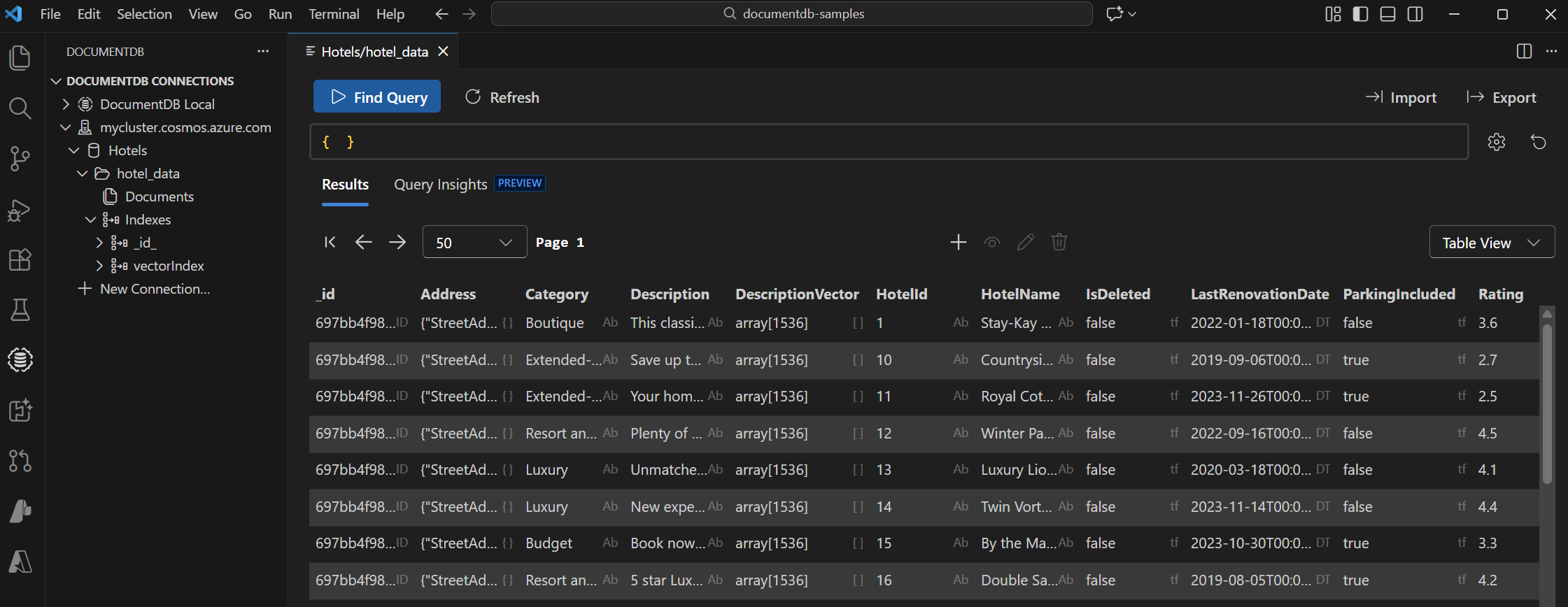
View and manage data in Visual Studio Code
Select the DocumentDB extension in Visual Studio Code to connect to your Azure DocumentDB account.
View the data and indexes in the Hotels database.
Clean up resources
If you used azd up to provision resources, you can remove all Azure resources with:
azd down
If you manually created the resources, and want to remove all the resources, delete the resource group to avoid extra costs.
If you want to reuse the resources, use the cleanup command to delete the test database when you're done. Run the following command:
npm run cleanup