Note
Access to this page requires authorization. You can try signing in or changing directories.
Access to this page requires authorization. You can try changing directories.
This article explains how to configure the Approvals feature in Azure Enclave to enforce governance and oversight for critical infrastructure operations.
Important
The Approvals feature is currently in Preview. This feature is encouraged for testing but shouldn't be used for production workloads while in preview.
Prerequisites
Before configuring Approvals, make sure you have:
- An active Azure subscription
- Access to the Approvals preview
- One of the following roles:
- Community Owner
- Community Contributor
- Subscription Owner/Contributor
- At least one community created in your environment
- Users or groups designated as approvers
Approval scopes
Approval settings can be configured at different scopes:
| Scope | Applies to |
|---|---|
| Community | Community-level resources, such as community endpoints and transit hubs. |
| Enclave | Enclave-level resources, such as enclave endpoints and enclave connections. |
Approval settings for community resources are configured when you create or update a community. Approval settings for enclave resources can be configured at community creation and enclave creation. When both scopes define requirements for the same enclave resource type, Azure Enclave applies the higher-level enforced requirement. You can configure different approval requirements based on the type of resource or operation.
Community owners can also choose not to define a community-level approval setting for a resource type. When the community-level configuration is left blank, enclave-level approval settings can be used without inheriting a community-level requirement for that resource type.
Minimum approvers and required approvers
Approval configuration includes two related concepts:
Minimum approvers: The number of approvers that must approve a request before Azure Enclave can apply the change.Required approvers: The users or groups that are allowed or required to review requests for a resource type.
For example, a resource type might require at least two approvals and require one approval from a specific security operations group. In that case, configure Minimum approvers for the count and configure Required approvers for the approver identities or group.
Tip
If you add required approvers, you should select a security group so an individual leaving your organization doesn't block resource deployments.
Community approvals settings flow down
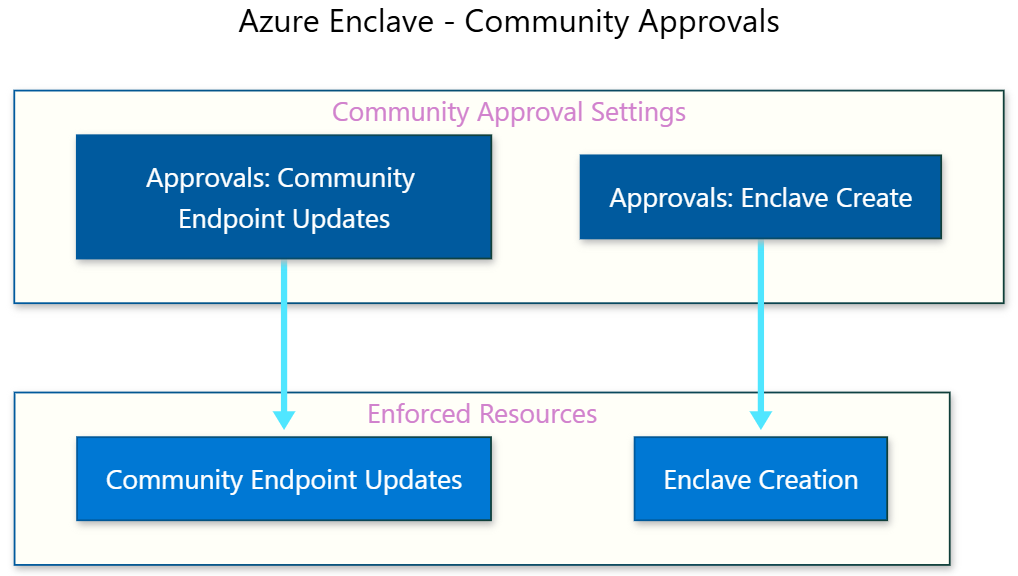
The approvals settings at the community level are the only approvals settings that affect enclave creation, community endpoint updates, or changes to maintenance mode. When each approval type is enabled, the number of minimum approvers and list of required approvers must be satisfied before those resource changes can occur.
Enclave approvals settings flow down
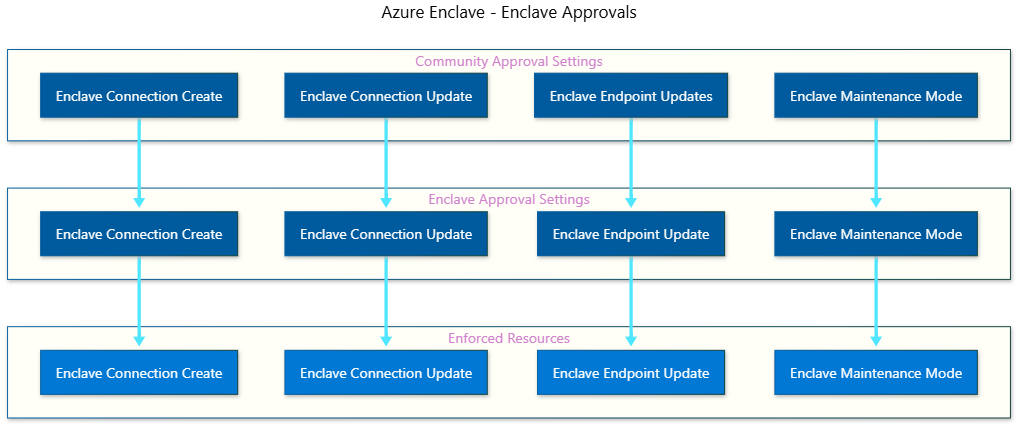
The approvals settings at the community and enclave levels effect enclave connection creation or updates, enclave connection update, or changes to maintenance mode. When each approval type is enabled, the number of minimum approvers and list of required approvers must be satisfied before those resource changes can occur.
Configure approvals for a community
Approvals are configured at the community level. You decide what resource actions require approvals and then those settings apply to all resources of that type within the community.
To configure approval settings when you create a community:
- In the Azure portal, start the community creation workflow.
- Go to the
Approvalsconfiguration tab. - For each supported community or enclave resource type, configure whether approvals are required.
Community endpoint updates: Require approval when modifying community endpoints.Enclave endpoint updates: Require approval when modifying enclave endpoints.Enclave creation: Require approval before a new enclave is created.Enclave connection creation: Require approval when creating enclave connections.Enclave connection updates: Require approval when modifying enclave connections.Maintenance mode changes: Require approval before maintenance mode is changed on an enclave, including toggling it on or off.
- Set the
Minimum approversvalue. - Select the users or groups for
Required approvers. - Review the configuration and create the community.
Community-level approval settings are used for community resources. They can also provide inherited requirements for enclave resource types, unless the community-level configuration leaves that resource type blank.
Configure approvals for an enclave
To configure approval settings when you create an enclave:
- In the Azure portal, start the enclave creation workflow.
- Go to the
Approvalsconfiguration tab. - Review any approval requirements inherited from the community.
- For each supported enclave resource type, configure whether approvals are required.
Enclave endpoint updates: Require approval when modifying enclave endpoints.Enclave connection creation: Require approval when creating enclave connections.Enclave connection updates: Require approval when modifying enclave connections.Maintenance mode changes: Require approval before maintenance mode is changed on an enclave, including toggling it on or off.
- Set the
Minimum approversvalue. - Select the users or groups for
Required approvers. - Review the configuration and create the enclave.
If both the community and enclave define requirements for an enclave resource type, the maximum of Minimum approvers is used and the Required approvers from both community and enclave are combined into a set of Required approvers.
Update approval settings
Community owners can update approval settings after resources are created. Use the Azure portal or CLI support available in your environment to update approval settings for community or enclave resource types.
Before changing approval settings, review:
- Which resource types are affected and look for any pending approvals of that resource type.
- Whether the setting is defined at the community scope, enclave scope, or both.
- Whether the change adds or removes inherited requirements.
- Which users or groups are listed as required approvers.
Assign Enclave Approver Role
After enabling Approvals, assign the Enclave Approver Role to users or groups who will review and approve requests.
Navigate to the subscription or resource group where you want to assign approvers.
In the left navigation menu, select
Access control (IAM).Select
+ Add>Add role assignment.On the
Roletab, search for and selectEnclave Approver Role.Select
Next.On the
Memberstab, select+ Select members.Search for and select the users, groups, or service principals you want to designate as approvers.
Select
Next, thenReview + assign.
Notification behavior
If you need notifications of approval requests, create your own monitoring workflow by using Azure Activity Logs and your organization's alerting tools.
Integration with Microsoft Entra Privileged Identity Management (PIM)
For enhanced security, combine Approvals with PIM to grant approver permissions on a time-limited basis.
Configure PIM for Enclave Approver Role
Navigate to
Microsoft Entra Privileged Identity Managementin the Azure portal.Select
Azure resources>Discover resources.Select your subscription or resource group containing the community.
Navigate to Roles and search for Enclave Approver Role.
Select
Enclave Approver Role>Role settings>Edit.Configure the role settings:
Require approval to activate: Enable this setting.Select approvers: Choose who can approve requests for approver access.Maximum activation duration: Set to 8 hours or less.Require multifactor authentication: Enable for security.
Select
Updateto save the settings.Assign users as eligible for the Enclave Approver Role rather than assigning it permanently.
Learn more about Microsoft Entra PIM integration
Best practices for approval configuration
When configuring Approvals in your environment:
Start with high-risk operations: Begin by requiring approval for the most critical operations, such as community endpoints and transit hub modifications
Define clear approval policies: Document which operations require approval and the criteria for approval decisions
Assign multiple approvers: Ensure at least two users have the Enclave Approver Role to prevent delays when an approver is unavailable
Use Azure PIM for approver access: Grant approver permissions on a just-in-time basis for sensitive environments
Plan approver workflow: Define an operational process so approvers review pending requests promptly
Regular reviews: Periodically review which operations require approval and adjust settings based on operational experience
Test the workflow: Before rolling out to production, test the approval workflow in a development environment
Verify approval configuration
After configuring Approvals, verify the setup is working correctly:
As a user with Enclave Contributor permissions, attempt to create an enclave connection that requires approval
Verify that the connection enters a
Pendingstate.As a user with Enclave Approver permissions, select
Approvalsin the enclave on the left side.Verify that the pending request appears in the approval queue
Approve the request and verify that the connection becomes active
Disable Approvals
If you need to disable the Approvals feature:
Warning
Disabling Approvals allows new operations to proceed without creating new approval requests. Existing pending approval requests remain in the queue. To avoid transition issues, review and resolve or cancel pending requests as part of your change process.
Navigate to your community resource in the Azure portal.
Select
ConfigurationorGovernancein the left navigation menu.Toggle the
Enable Approvalssetting toOff.Select
Saveto apply the changes.
Troubleshooting
Approvers can't see pending requests
Cause: The user doesn't have the Enclave Approver Role or the role is assigned at the wrong scope.
Solution: Verify that the user has the Enclave Approver Role assigned at the enclave or community level.
Approved requests aren't being implemented
Cause: There might be a resource conflict or insufficient permissions to implement the change.
Solution: Check the Azure Activity Log for error messages and ensure the system has the necessary permissions to implement the approved change.