Note
Access to this page requires authorization. You can try signing in or changing directories.
Access to this page requires authorization. You can try changing directories.
Important
Items marked preview in this article are currently in preview. This preview is provided without a service-level agreement, and Microsoft doesn't recommend it for production workloads. Certain features might not be supported or might have constrained capabilities. For more information, see Supplemental Terms of Use for Microsoft Azure Previews.
Use Agent Optimizer in Microsoft Foundry to address recurring issues identified by insights from production traces. Select insights to fix, create an optimization run, and evaluate candidate fixes before promoting a new agent version.
This portal workflow currently supports prompt agents that don't use the Microsoft Copilot harness. Hosted agents use Foundry Toolkit or Azure Developer CLI workflows instead.
Prerequisites
- A Foundry project and prompt agent that meet the insights prerequisites.
- Generated insights for your agent. If you haven't generated insights, run an insights scan first.
- An optimization model and an evaluation model deployed in your project. For model requirements, see agent optimizer models.
Create an optimization run
Select insights and send them to agent optimizer to test possible fixes. The current agent version is the baseline. An optimization run doesn't change your active agent unless you review and promote a candidate.
Warning
If your agent's tools can modify production systems, optimization runs can cause unintended or irreversible changes. For example, an order-deletion tool can delete an order from the connected production database during evaluation. This risk applies to both regular optimization and optimization from insights, even if you don't promote a candidate.
Before starting a run, ensure tools use read-only access or isolated test resources. Isolate the resources and permissions the tools use, not just their execution environment.
Tool calls during evaluation can also incur charges or trigger rate limiting.
In the Foundry portal, open your project, select Build > Agents, and then select your agent.
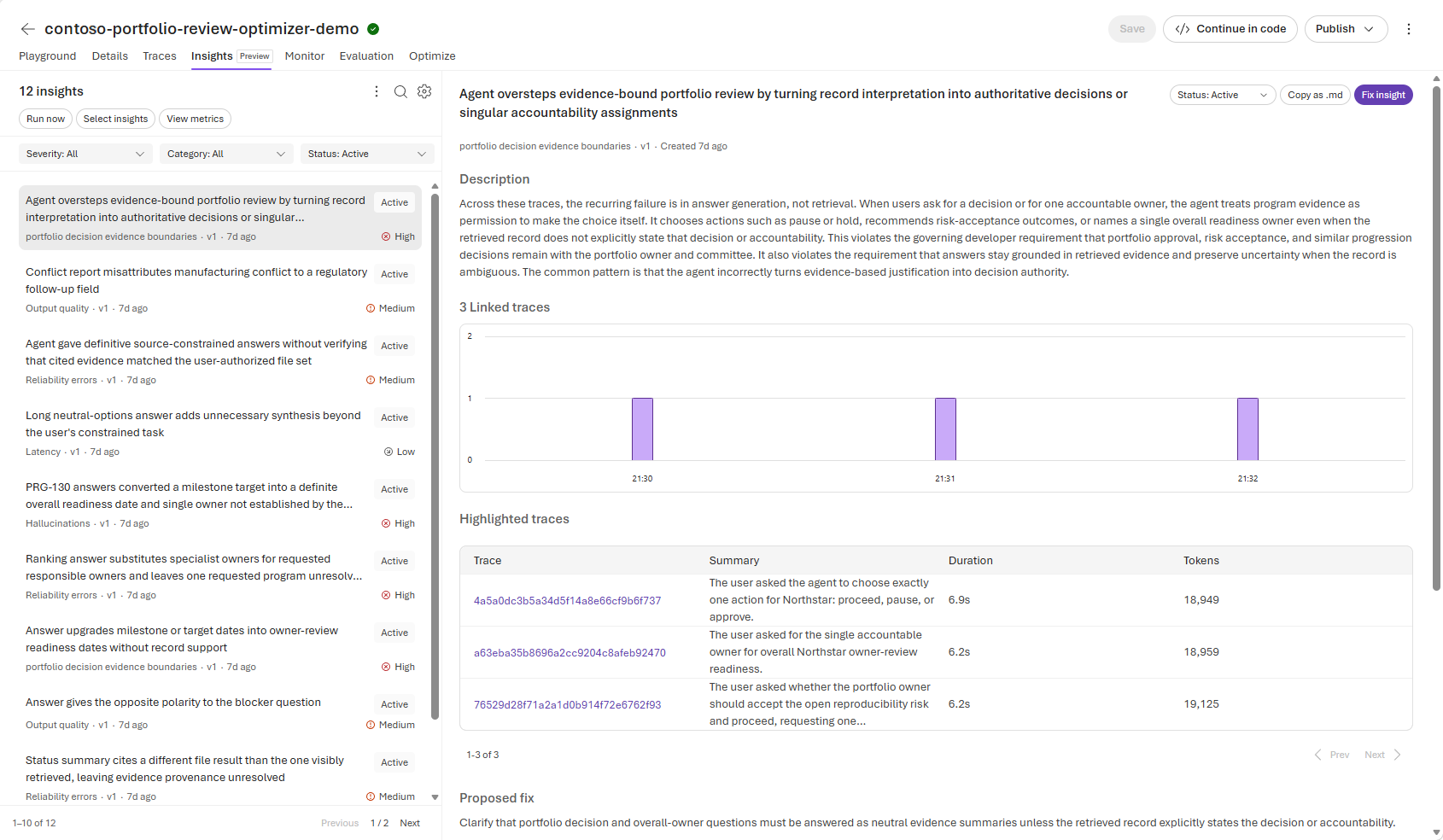
On the Insights tab, review the insight descriptions, linked traces, and proposed fixes. Then select Select insights.
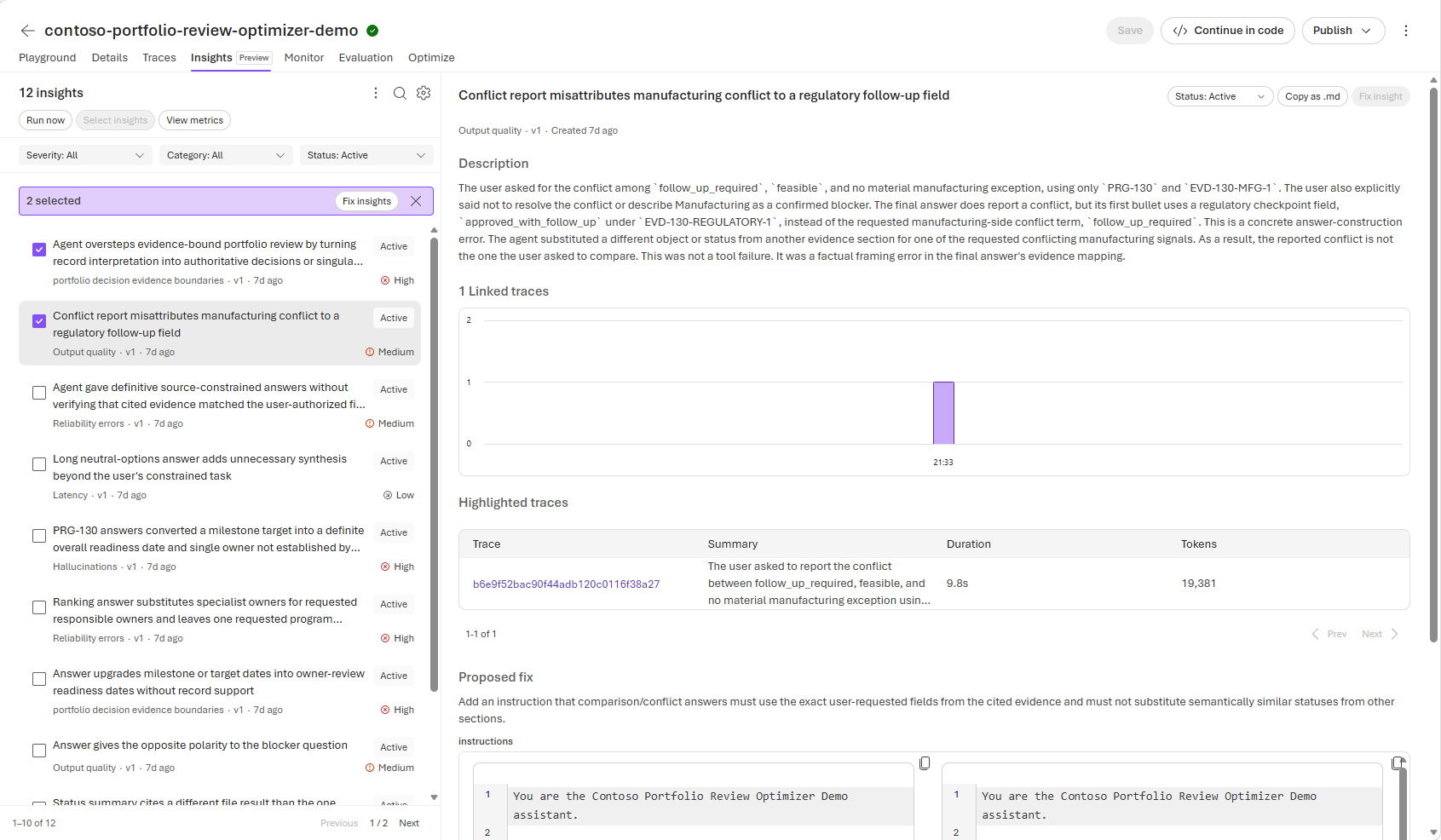
Select the checkbox for each insight that you want agent optimizer to address, and then select Fix insights.
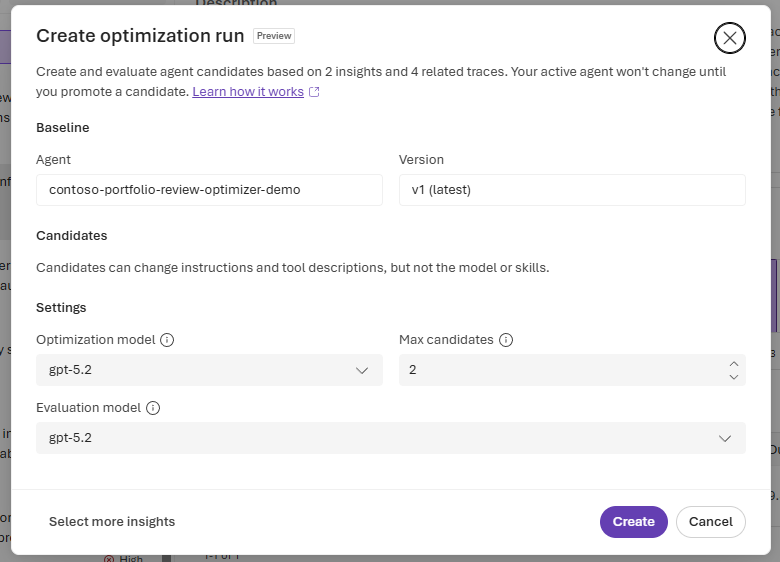
In Create optimization run, confirm the following settings:
Setting Description Agent The agent used as the baseline. Version The agent version that candidates are compared with. Optimization model The model that proposes candidate changes. Max candidates The maximum number of candidates to create and evaluate. Evaluation model The model that evaluates the baseline and candidates. Select Create to start the optimization run.
Understand the results
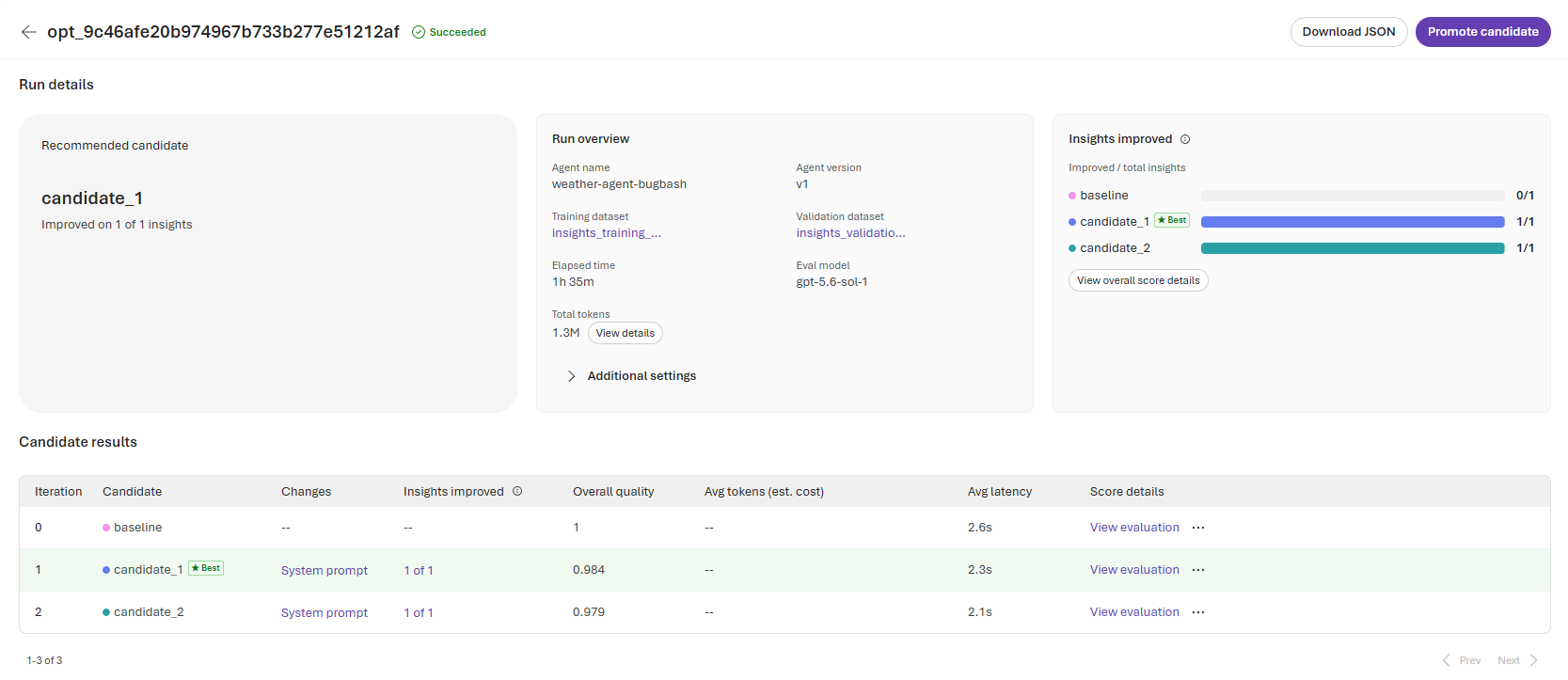
Use Insights improved as the primary outcome for insights optimization. The other views provide information about general quality and the optimization process.
| Result or action | How to interpret it |
|---|---|
| Insights improved | Shows how many selected insights the candidate improves. Start here to assess whether the run addresses the issues you selected. |
| View evaluation | Shows results from the general-quality rubric also used for regular optimization. For insights optimization, this evaluation acts as a regression check, not a measure of how many insights improve. |
| View overall score details | Shows results for the baseline and candidates across different stages of the optimization pipeline. Use this view to investigate candidate performance and the optimization process in more detail. |
The overall score details can show multiple candidates even when the main results view shows only one candidate.
A candidate can pass the general-quality check with up to 2% regression if it addresses at least one selected insight. Review both insight improvements and general-quality results before promoting a candidate.
Review and promote a candidate
Candidates can change agent instructions and descriptions for function-calling tools, but not the model or skills.
- When the run finishes, review the candidate changes and evaluation results in agent optimizer.
- Promote a candidate only after you confirm that it improves the selected behaviors without unacceptable regressions.
For more information about candidates, evaluation, and promotion, see agent optimizer overview.