Note
Access to this page requires authorization. You can try signing in or changing directories.
Access to this page requires authorization. You can try changing directories.
Important
Items marked preview in this article are currently in preview. This preview is provided without a service-level agreement, and Microsoft doesn't recommend it for production workloads. Certain features might not be supported or might have constrained capabilities. For more information, see Supplemental Terms of Use for Microsoft Azure Previews.
Run skill optimization in Microsoft Foundry with the Foundry portal or the Azure Developer CLI (azd). Turn lessons from recorded agent conversations into reusable skills or new versions of existing skills.
Skill optimization learns from existing conversations rather than iteratively searching across agent configurations. You can also evaluate baseline and candidate configurations for prompt and managed agents. For evaluation-driven configuration search, see Optimize agent instructions, skills, tools, and models.
Prerequisites
- A Foundry project with skill optimization available.
- An optimization model deployed in your project.
- For evaluation, an evaluation model deployed in your project.
- An authenticated identity with permissions to submit optimization jobs and read and create skill versions in the project.
- Readable agent conversations in project-authorized Application Insights telemetry. The component must be linked to the project. Ask the project or subscription owner to configure trace access if necessary.
- A registered Foundry agent and its version.
- Azure Developer CLI (
azd) and anazure.ai.agentsextension release that supportsskill_optimization, candidate inspection, and candidate-file downloads. - For the first example, a registered Foundry agent and its version. To learn from telemetry without a registered target, use the agentless configuration.
Choose an evaluation path
Prompt and managed agents can evaluate baseline and candidate agent configurations. Without agent evaluation, the job learns from recorded conversations and existing feedback.
| Target | Baseline/candidate agent evaluation | Adoption |
|---|---|---|
| Prompt or managed agent | Supported when requested. | Promote a completed, evaluated candidate, or adopt published skill versions. |
| Hosted agent | Not supported. | Adopt published skill versions. Agent candidate promotion isn't supported. |
Baseline/candidate evaluation runs the agent configurations against validation data.
Learning from traces doesn't require the hosted-agent load_config() integration.
Create a skill optimization run
This walkthrough configures a run with baseline/candidate evaluation for a prompt or managed agent.
Open your agent in the Foundry portal and select the Optimize tab.
Open the Optimize menu and select Learn from past activity.

In Create optimization run, confirm the Agent and select the baseline Version.
Under Inputs, select the Traces time range and Sample size. Choose a range that contains relevant agent conversations.
Choose an Evaluator and an Evaluation dataset. You can generate them from past traces or use your own existing evaluator and dataset.
Choose an Optimization focus, such as Get the tasks done. Select Show instructions to review the instructions for that focus.
Under Settings, select an Optimization model and an Evaluation model from your project's deployments.
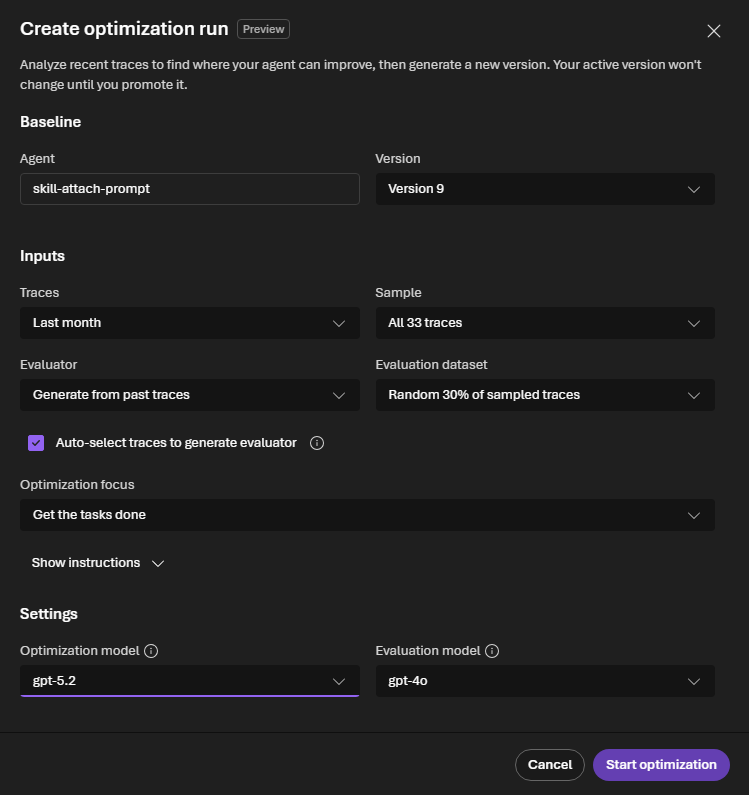
Select Start optimization.
Starting a run doesn't change your active agent version. Review the completed run before adopting its results.
Review the completed run
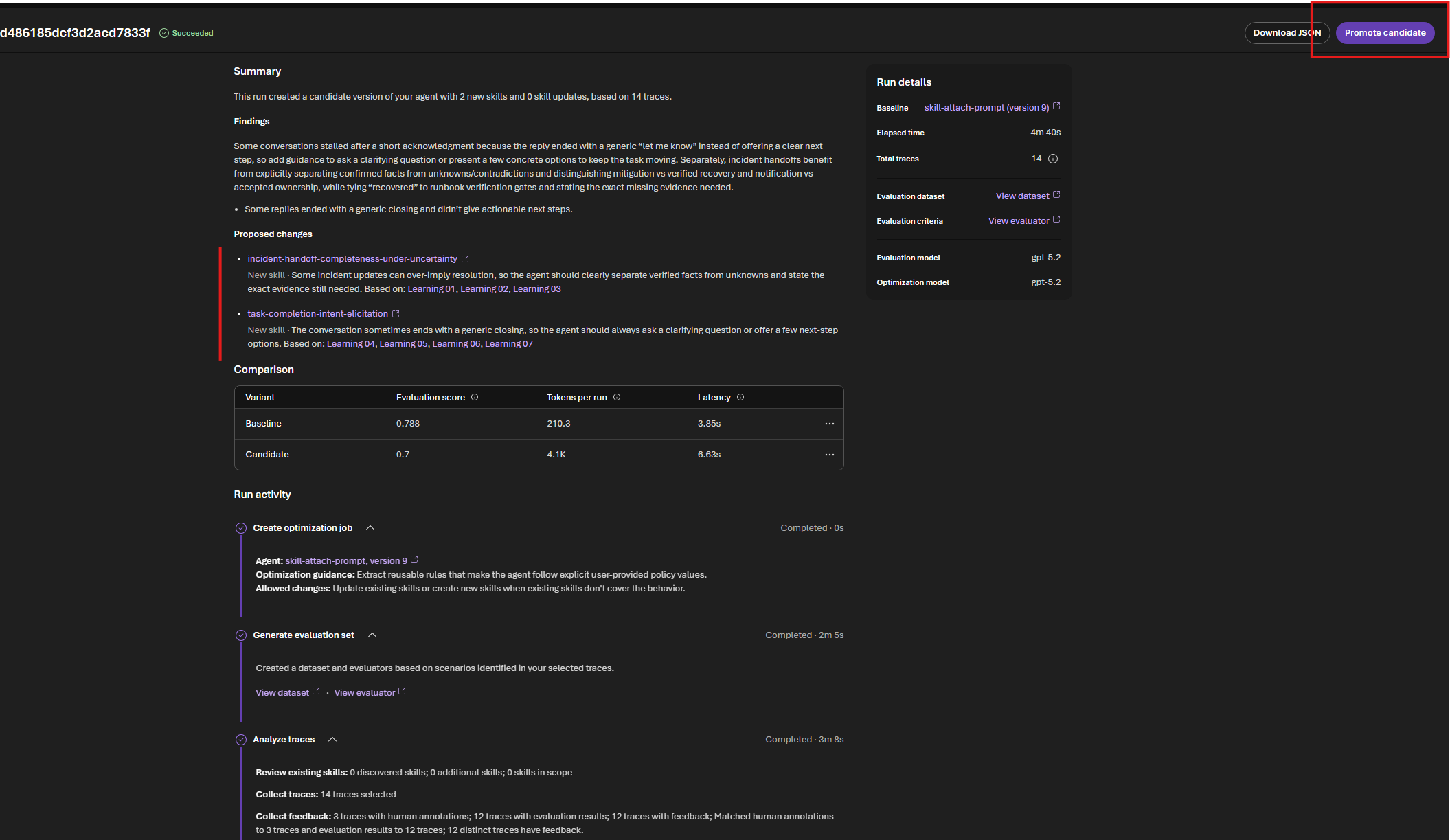
Open the run to understand the proposed changes and compare the candidate with the baseline.
- On the agent's Optimize tab, select the run's Run ID.
- Read Summary and Findings to understand what the run learned from the selected traces.
- Under Proposed changes, open each linked skill to review its content and version.
- In Run details, use View dataset and View evaluator to inspect the evaluation data and criteria.
- In Comparison, compare Baseline and Candidate using their evaluation score, tokens per run, and latency.
- Review the steps in Run activity, including any reported errors.
- Optionally, select Download JSON to save a local copy for further inspection.
A Succeeded status means the run completed, not that the candidate outperforms the baseline. Keep the baseline if the candidate doesn't meet your quality and performance requirements.
Configure a skill optimization job
Create a request that selects the recorded conversations to analyze. The first example uses a registered agent to resolve its telemetry and discover associated skill baselines. Use it as the base request for either path, then configure evaluation if you want to include it.
Save the following configuration as
skill-optimization.yaml. Replace the agent name, version, and optimization-model deployment with your values.display_name: Learn support skills from recorded conversations target_configuration: type: foundry_agent name: support-agent version: "3" optimization_model_configuration: model: optimizer-deployment optimization_configuration: type: skill_optimization context: - type: agent_traces trace_window: type: fixed start_time: 1792454400 end_time: 1793059200 max_traces: 20Reference: Trace-window fields.
Replace the example window with a completed interval that contains your agent's conversations. The example selects October 20 through October 27, 2026, in UTC.
start_timeis inclusive, andend_timeis exclusive. For azd requests, use unquoted integer Unix timestamps in seconds. Don't use ISO strings, milliseconds, floating-point values, or quoted numbers.Start with a small, relevant window and a trace limit suited to your task. Increase the limit when you need more evidence, rather than copying the largest allowed value.
The service selects conversations and uses their context and recorded feedback to extract lessons. It doesn't generate new conversations for this learning step.
Configure evaluation
For a prompt or managed agent, add this field under optimization_configuration in the registered-agent request before submitting the job:
Generate an evaluator from traces
evaluation_configuration:
  evaluation_model:
    model: evaluator-deployment
  evaluator_generation_configuration:
    type: agent_traces
Reference: Skill optimization configuration.
Replace evaluator-deployment with your evaluation-model deployment. This example requests evaluator generation from the selected traces.
Reuse an evaluator and validation dataset
To use an existing evaluator and registered validation dataset, use this configuration instead:
evaluation_configuration:
  evaluation_model:
    model: evaluator-deployment
  evaluators:
    - name: skill-quality
      version: "3"
  validation_set:
    type: target_completion
    source:
      type: dataset_reference
      name: skill-validation
      version: "1"
Reference: Skill optimization configuration.
Replace the evaluator and dataset names and versions with existing project resources. Specify exactly one evaluator: use evaluators with one entry or evaluator_generation_configuration, not both.
Evaluator and dataset choices are independent. You can reuse either resource and let the service generate the other.
For prompt and managed targets, baseline and candidate evaluation use the same validation data. Supply validation_set to use your own data. Otherwise, the service generates validation data from traces.
training_set isn't accepted for skill evaluation. Trace-derived evaluation data isn't independent held-out evidence.
Don't use the agent-search flags --dataset, --eval-model, --evaluator, or --max-candidates for a skill request. Author evaluation in the request file; the CLI doesn't add it automatically.
Submit and monitor the job
Submit the configuration to the project that owns the traces and skill versions. Keep the returned job ID for subsequent inspection.
Authenticate with azd and set your project endpoint:
azd auth login
$ProjectEndpoint = "<foundry-project-endpoint>"
Reference: Set the Foundry project context for azd.
Use the project endpoint, not the resource's ARM ID or an Application Insights endpoint.
Submit the job without waiting for it to finish:
azd ai agent optimize --config ".\skill-optimization.yaml" `
  --project-endpoint $ProjectEndpoint --no-wait
Reference: Skill optimization configuration.
The output includes the job ID and initial status. This command submits a one-time job; it doesn't schedule repeated learning or deploy an agent.
Copy the returned ID and watch that job:
$JobId = "<job-id-returned-by-optimize>"
azd ai agent optimize status $JobId `
  --project-endpoint $ProjectEndpoint --watch
Reference: Inspect candidate details.
Progress and final status describe the job. A successful job doesn't mean that every proposed skill produced a new version.
If watching fails, retain the ID and inspect the same job again. Don't automatically resubmit a job that might have published skill versions.
Inspect candidate details
To understand what the job learned and which skill versions it published, read the full candidate. Candidate lists contain summaries, not the complete result.
Copy the generated candidate ID from the job's results. If the run includes baseline/candidate evaluation, don't select the evaluation baseline instead.
Read the candidate:
$CandidateId = "<generated-candidate-id>"
azd ai agent optimize status $JobId --candidate $CandidateId `
  --project-endpoint $ProjectEndpoint --output json
Reference: Interpret skill outcomes.
--candidateis a one-time detail read. Don't combine it with--watch.Review the candidate's evidence and outcomes:
Field What to review rationaleThe explanation for the proposed changes. resolved_contextSelected trace IDs and discovered agent skill baselines. execution_summaryPersisted step statuses, summaries, errors, and available evidence counts. output.skill_resultsEach skill's status, input and output references, rationale, validations, and errors. filesDeclared paths for reports and other available candidate files. A missing count or validation isn't evidence that the corresponding check passed. Review partial outcomes even when the job fails.
For prompt and managed runs with baseline/candidate evaluation, also compare the baseline and generated candidate scores before deciding whether to promote.
Human-readable output escapes terminal control characters in service-provided text. JSON output preserves the original response values. Job responses can contain ISO-formatted timestamps or Unix seconds; the CLI can read both.
Download the evidence report
Download a declared candidate file to retain the evidence behind a proposed change.
Copy the report's exact
files[].pathfrom the candidate details.Download it to a new local destination:
$FilePath = "<report-path-from-candidate-files>"
azd ai agent optimize download $JobId --candidate $CandidateId `
  --file $FilePath --target-path ".\trace-analysis.json" `
  --project-endpoint $ProjectEndpoint
Reference: Candidate file inventory.
The CLI uses the declared path unchanged. Don't prepend a storage directory or assume that every job uses the same report filename. Downloads don't overwrite existing files; select another --target-path if the destination exists.
Without --target-path, the local filename defaults to the declared path's basename. Downloading a report doesn't attach or deploy a skill.
Interpret skill outcomes
Review each skill's outcome. Use its status, not the overall job status, to decide whether a version is available to review.
Inspect each entry in output.skill_results in the candidate response.
| Status | Meaning | Action |
|---|---|---|
created |
Publication confirms a new skill version. | Review the exact output_skill.name and output_skill.version before adopting it. |
no_change |
The job doesn't publish a new version for this skill. | Retain the existing baseline. Don't infer a new version or automatic attachment. |
rejected |
The proposed skill doesn't pass the reported checks. | Read its validations and rationale before changing inputs. |
pending |
A final publication outcome isn't available yet. | Inspect the same job again before deciding what to adopt. |
failed |
This skill's processing or publication fails. | Read its error and check whether other skills have confirmed outcomes. |
publication_unknown |
The job can't confirm whether publication completed. | Inspect the job, candidate, and skill versions before retrying. |
Only created confirms a newly published output version. For publication_unknown, don't assume either success or failure. Use the skills APIs to verify the available versions before submitting another job.
Adopt the results
Review the results before changing a consumer. Completing a skill optimization job doesn't automatically update a running agent.
Promote an evaluated agent candidate
Prompt and managed agents support promotion of a completed, evaluated skill candidate. Review the baseline and candidate evaluation results, and then promote the generated candidate to release the evaluated agent version.
Don't promote the evaluation baseline. Only completed, evaluated skill candidates can be promoted.
When you're ready to adopt the reviewed candidate, select Promote candidate on the completed run's details page.
Adopt published skill versions
Use these steps when adopting published skills without promoting an evaluated agent candidate. Choose confirmed versions deliberately.
Review the rationale, report, validation coverage, and exact published version.
Use the workflow that matches your consumer:
- For a prompt agent with the Microsoft Copilot harness, add a skill reference.
- For a hosted or local agent, download and use the skill.
- For a compatible MCP client, attach the skill to a toolbox.
Test the consumer with the selected version before changing its deployed configuration or default skill version.
Learn from traces without a registered agent
Use an agentless request when your telemetry doesn't have a registered Foundry target. This configuration uses the same submission and inspection commands as the first example.
Save the following as
skill-optimization-agentless.yaml:display_name: Learn checkout skills from application traces optimization_model_configuration: model: optimizer-deployment optimization_configuration: type: skill_optimization context: - type: agent_traces trace_connection_configuration: type: application_insights resource_id: "/subscriptions/<subscription-id>\ /resourceGroups/<resource-group>\ /providers/Microsoft.Insights/components/<component-name>" agent_name: support.checkout trace_window: type: fixed start_time: 1792454400 end_time: 1793059200 max_traces: 20Reference: Trace-window fields.
Replace the deployment, component ARM ID, telemetry identity, and window with your values. The component must be authorized and linked to the project.
Submit this file with
--config, then save its returned job ID.
Omit target_configuration. trace_connection_configuration.agent_name is the exact emitted telemetry service identity, not a wildcard or KQL expression. Don't supply this field when target_configuration is present.
Agentless jobs don't support fresh evaluation. They can still use recorded human annotations and automated assessments as learning evidence.
Choose a trace window
The examples use a fixed, half-open window. The window controls which existing conversations are eligible for selection.
| Field | Rule for azd requests |
|---|---|
type |
Use fixed for the examples in this article. |
start_time |
Integer Unix seconds on or after January 1, 1970. Included in the window. |
end_time |
Integer Unix seconds after start_time and at or before submission. Excluded from the window. |
max_traces |
Optional integer from 1 to 100. Limits distinct conversations, not telemetry rows. |
Omitting max_traces retains the service default. The service can return fewer conversations than the limit. A larger limit isn't a guarantee of better skills.
Add optional skill baselines and steering
Supply exact existing skill versions when you want the job to consider selected procedures. Append these items to optimization_configuration.context in either configuration:
- type: skill_references
  skill_references:
    - type: foundry_skill
      name: support-procedure
      version: "2"
- type: steering_prompt
  prompt: Focus on repeatable troubleshooting steps supported by the traces.
Reference: Skill optimization configuration.
Replace the skill name and version with a skill that exists in your project. Don't use latest or default as a version. Steering focuses the task; it doesn't replace trace evidence.
The optimization_configuration.additional_skills array is also supported. References from both forms are combined. Conflicting versions of the same skill and more than 20 distinct explicit skill references are rejected.
Troubleshooting
Use the reported error and persisted job state to decide whether to correct an input, restore access, or inspect an uncertain outcome.
| Problem | What to check |
|---|---|
| Fixed-window validation fails | Use integer Unix seconds, a completed past window, and a trace limit from 1 to 100. |
| Agentless source validation fails | Omit the target and provide an exact telemetry identity with an Application Insights component ARM ID. |
| Trace access fails or no usable conversations are available | Check the project link, permissions, emitted telemetry identity, selected window, and trace contents. |
| Skill-reference validation fails | Pin existing exact versions and remove conflicting versions or excessive explicit references. |
| Candidate inspection rejects flags | Don't combine --candidate with --watch. |
| Report download fails | Copy a declared files[].path unchanged and choose a destination that doesn't exist. |
| A skill is rejected or processing fails | Read the per-skill validation and error details; other skills might already have confirmed publications. |
| Publication is uncertain | Inspect the original job and available skill versions before retrying. |
Related content
Use these articles to compare optimization workflows and manage the skills you review: