Note
Access to this page requires authorization. You can try signing in or changing directories.
Access to this page requires authorization. You can try changing directories.
Use the langchain-azure-ai package to load tools and skills from a Foundry
Toolbox into your LangChain and LangGraph agents. A Foundry Toolbox is a
managed multi-MCP server that aggregates multiple configured tools behind a
single Model Context Protocol (MCP) endpoint.
You learn how to load tools, identify tools that require approval, load toolbox skills as resources, and prepare skills for deep agents.
Prerequisites
- An Azure subscription. Create one for free.
- A Foundry project.
- A deployed chat model (for example,
gpt-4.1) in your project. - A toolbox configured in your Foundry project. Note its name.
- Python 3.10 or later.
- Azure CLI signed in (
az login) soDefaultAzureCredentialcan authenticate.
Install the required packages:
pip install -U langchain-azure-ai langchain-mcp-adapters httpx azure-identity
The toolbox integration requires langchain-mcp-adapters and httpx. To load
skills for deep agents, also install deepagents.
Configure your environment
The toolbox needs a project endpoint and a toolbox name. Provide them as constructor arguments or through environment variables.
Set your environment variables:
import os

# Project endpoint (recommended)
os.environ["AZURE_AI_PROJECT_ENDPOINT"] = (
    "https://<resource>.services.ai.azure.com/api/projects/<project>"
)

# Name of the toolbox configured in your Foundry project
os.environ["FOUNDRY_AGENT_TOOLBOX_NAME"] = "<your-toolbox-name>"
The integration also accepts the FOUNDRY_PROJECT_ENDPOINT environment
variable as a fallback for the project endpoint.
Import the common classes and initialize the model used throughout this article:
from langchain.agents import create_agent
from langchain.chat_models import init_chat_model
from langchain.messages import HumanMessage
from azure.identity import DefaultAzureCredential

model = init_chat_model("azure_ai:gpt-4.1")
Connect to a toolbox
Use AzureAIProjectToolbox from the namespace langchain_azure_ai.tools to
connect to a toolbox. The integration detects the project connection when you
set the AZURE_AI_PROJECT_ENDPOINT environment variable. Microsoft Entra ID
is the default authentication method.
from langchain_azure_ai.tools import AzureAIProjectToolbox

toolbox = AzureAIProjectToolbox(
    project_endpoint=os.environ["AZURE_AI_PROJECT_ENDPOINT"],
    toolbox_name="my-toolbox",
)
When you set the environment variables, you can omit the constructor arguments:
toolbox = AzureAIProjectToolbox()
Reference: AzureAIProjectToolbox
Load tools from a toolbox
Call aget_tools() to open a session with the toolbox and load every tool it
exposes as LangChain BaseTool instances. Each call is stateless: it opens a
fresh MCP session, loads the tools, and returns them.
async def main():
    toolbox = AzureAIProjectToolbox(
        project_endpoint=os.environ["AZURE_AI_PROJECT_ENDPOINT"],
        toolbox_name="my-toolbox",
    )

    tools = await toolbox.aget_tools()

    agent = create_agent(model=model, tools=tools)

    result = await agent.ainvoke(
        {"messages": [HumanMessage("What can you do?")]}
    )
    print(result["messages"][-1].content)
What this snippet does: Connects to the toolbox, loads its tools, and binds them to an agent. When you invoke the agent, the model can call any tool the toolbox provides to answer the request.
AzureAIProjectToolbox also supports the asynchronous context manager
protocol. The behavior is identical because each aget_tools() call manages
its own session:
async with AzureAIProjectToolbox(toolbox_name="my-toolbox") as toolbox:
    tools = await toolbox.aget_tools()
Reference: create_agent
Identify tools that require approval
Some toolbox tools are configured to require approval before they run. Call
get_tools_requiring_approval() to retrieve the names of those tools so you
can add a human-in-the-loop step before execution.
tools_needing_approval = await toolbox.get_tools_requiring_approval()

print("Tools that require approval before execution:")
for name in tools_needing_approval:
    print(f"- {name}")
What this snippet does: Inspects the toolbox metadata and returns the
names of tools whose configuration sets require_approval to always. Use
this list to gate sensitive operations behind an approval workflow.
This capability is independent of OAuth consent handling. For more information about human-in-the-loop approvals, see Use Foundry Agent Service with LangGraph.
Handle OAuth consent
Toolbox in Microsoft Foundry can handle on-behalf-of workflows. You can configure the authorization requirements when you add the tools to your toolbox.
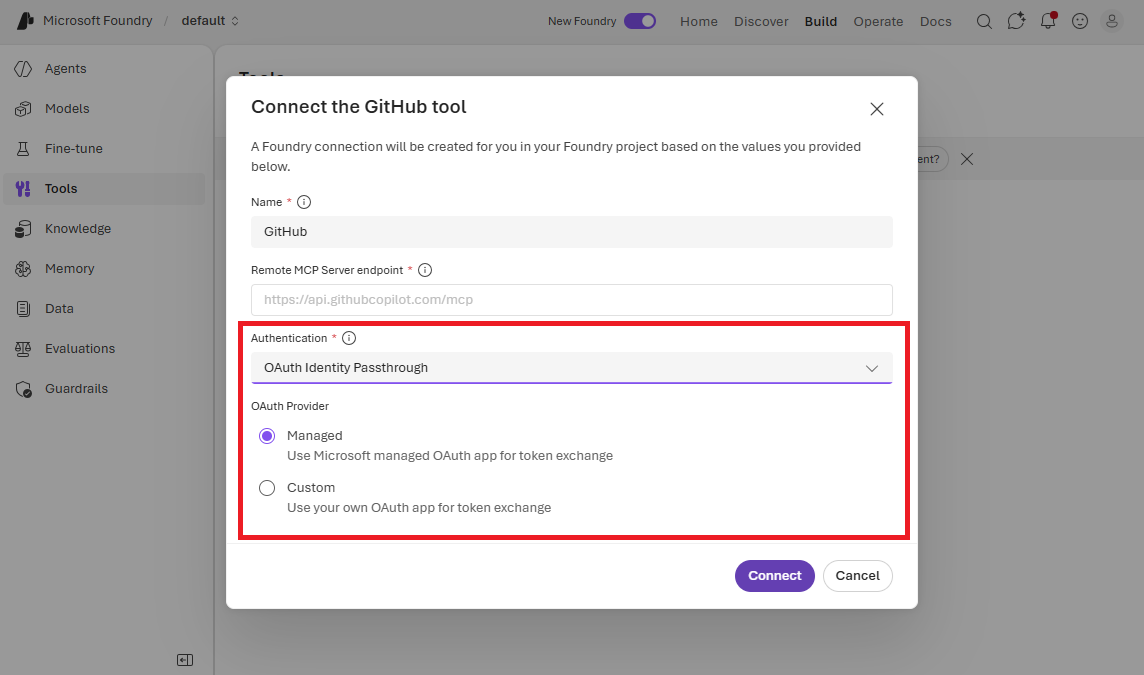
When a toolbox tool connects to a service that hasn't been authorized yet, the
Foundry gateway requires OAuth consent. Instead of raising an exception,
get_tools()/aget_tools() returns a fallback tool that surfaces the consent URL so your
agent can present it to the user.
When you invoke an agent and the model calls the fallback tool, the response contains a message similar to the following:
OAuth consent is required before this toolbox can be used. Open the following
URL in a browser to authorize access, then restart the agent:

  https://consent.azure-apim.net/...
Open the URL in a browser to authorize access, then restart the agent. After you grant consent, the toolbox loads its tools normally.
Load skills from a toolbox
A toolbox can expose skills. A toolbox exposes skills as MCP resources with URIs of the form
skill://{name}. Use get_resources() to load them as LangChain Blob
objects. Each Blob carries the resource name in its source property and
its raw URI under metadata["uri"].
skill_blobs = toolbox.get_resources(scheme="skills")

for blob in skill_blobs:
    print(f"Skill: {blob.source}")
    print(blob.as_string())
Skill: jokes-teller/SKILL.md
{'content': '---\nname: jokes-teller\ndescription: An skill to tell jokes\n---\n\nUse...'}
What this snippet does: Loads every skill:// resource from the toolbox
as a Blob. The scheme="skills" filter restricts the results to skill
resources. The match is case-insensitive and accepts the singular or plural
form ("skill" or "skills").
To load specific resources, pass their URIs explicitly. When you provide
uris, the scheme filter is ignored:
skill_blobs = toolbox.get_resources(uris="skill://my-skill/SKILL.md")
Use aget_resources() for the asynchronous equivalent:
skill_blobs = await toolbox.aget_resources(scheme="skills")
Load skills for deep agents
If you use the deepagents package, call get_skills() to load toolbox
skills as a ready-to-use file mapping for create_deep_agent. This method
builds on get_resources() and removes the boilerplate of converting each
Blob into the file layout that deep agents expect.
Install the package:
pip install deepagents
The following example seeds a StateBackend (the default). Leave the
backend argument unset and pass the returned mapping as the files payload
on invoke:
from deepagents import create_deep_agent
from deepagents.backends import StateBackend

toolbox = AzureAIProjectToolbox(toolbox_name="my-toolbox")
skill_files = toolbox.get_skills()

agent = create_deep_agent(
    model="azure_ai:gpt-4.1",
    backend=StateBackend(),
    skills=["/skills/"],
)

agent.invoke({"messages": [HumanMessage("Use a skill")], "files": skill_files})
What this snippet does: Loads the toolbox skills into a mapping of virtual
SKILL.md paths and seeds them into the agent state through the files
payload. The agent can then use the skills under the /skills/ base path.
To seed a backend with standalone storage, such as FilesystemBackend, pass
it as the backend argument. The skills are written into the backend, and the
same mapping is also returned:
from deepagents.backends import FilesystemBackend

backend = FilesystemBackend(root_dir="./my-project")
toolbox = AzureAIProjectToolbox(toolbox_name="my-toolbox")
await toolbox.aget_skills(backend=backend)

agent = create_deep_agent(
    model="azure_ai:gpt-4.1",
    backend=backend,
    skills=["/skills/"],
)
By default, skill files are placed under the /skills/ base path. Pass a
different base_path to change the location. The value must start and end with
a slash, and you pass the same value to the skills argument of
create_deep_agent.