Note
Access to this page requires authorization. You can try signing in or changing directories.
Access to this page requires authorization. You can try changing directories.
Important
Items marked (preview) in this article are currently in public preview. This preview is provided without a service-level agreement, and we don't recommend it for production workloads. Certain features might not be supported or might have constrained capabilities. For more information, see Supplemental Terms of Use for Microsoft Azure Previews.
Use benchmark evaluations in Microsoft Foundry to evaluate a model or agent against built-in benchmark datasets and evaluation logic. Benchmark evaluations help you compare model deployments, check whether fine-tuning introduced regressions, and review benchmark scores without creating your own dataset or evaluator from scratch.
This article covers how to create a benchmark evaluation in the Foundry portal, select benchmark datasets, choose a judge model, and review results.
Prerequisites
- A Foundry project.
- Access to the Build experience in the Foundry portal.
- The Foundry User role, or equivalent permissions, on the project.
Important
The Foundry RBAC roles were recently renamed. Foundry User, Foundry Owner, Foundry Account Owner, and Foundry Project Manager were previously named Azure AI User, Azure AI Owner, Azure AI Account Owner, and Azure AI Project Manager. You might still see the previous names in some places while the rename rolls out. The role IDs and core permissions are unchanged by the rename.
- At least one target to evaluate, such as a deployed model or an agent.
- Access to built-in benchmark datasets in your project.
- A model deployment that you can select as the Judge model when the benchmark flow asks for one.
How benchmark evaluations work
A benchmark evaluation is a predefined evaluation package. Instead of requiring you to upload evaluation data and define scoring criteria, a benchmark provides the dataset and evaluation logic for you.
Benchmark evaluations typically include:
- Benchmark dataset — A curated dataset with a fixed number of examples.
- Task category — The capability being measured, such as reasoning, quality, math, science, or truthfulness.
- Evaluation logic — A built-in evaluator or benchmark-specific scoring logic, such as
regex_match,string_check, or a benchmark-specific evaluator. - Evaluation result — A score for each run, usually shown as a percentage and an example count.
For example, a TruthfulQA benchmark run might show a result such as 82% with 645 / 790 examples passing the benchmark metric.
Create a benchmark evaluation
To create a benchmark evaluation in the Foundry portal:
- Go to the Build page.
- In the left navigation, select Evaluations.
- Select Create.
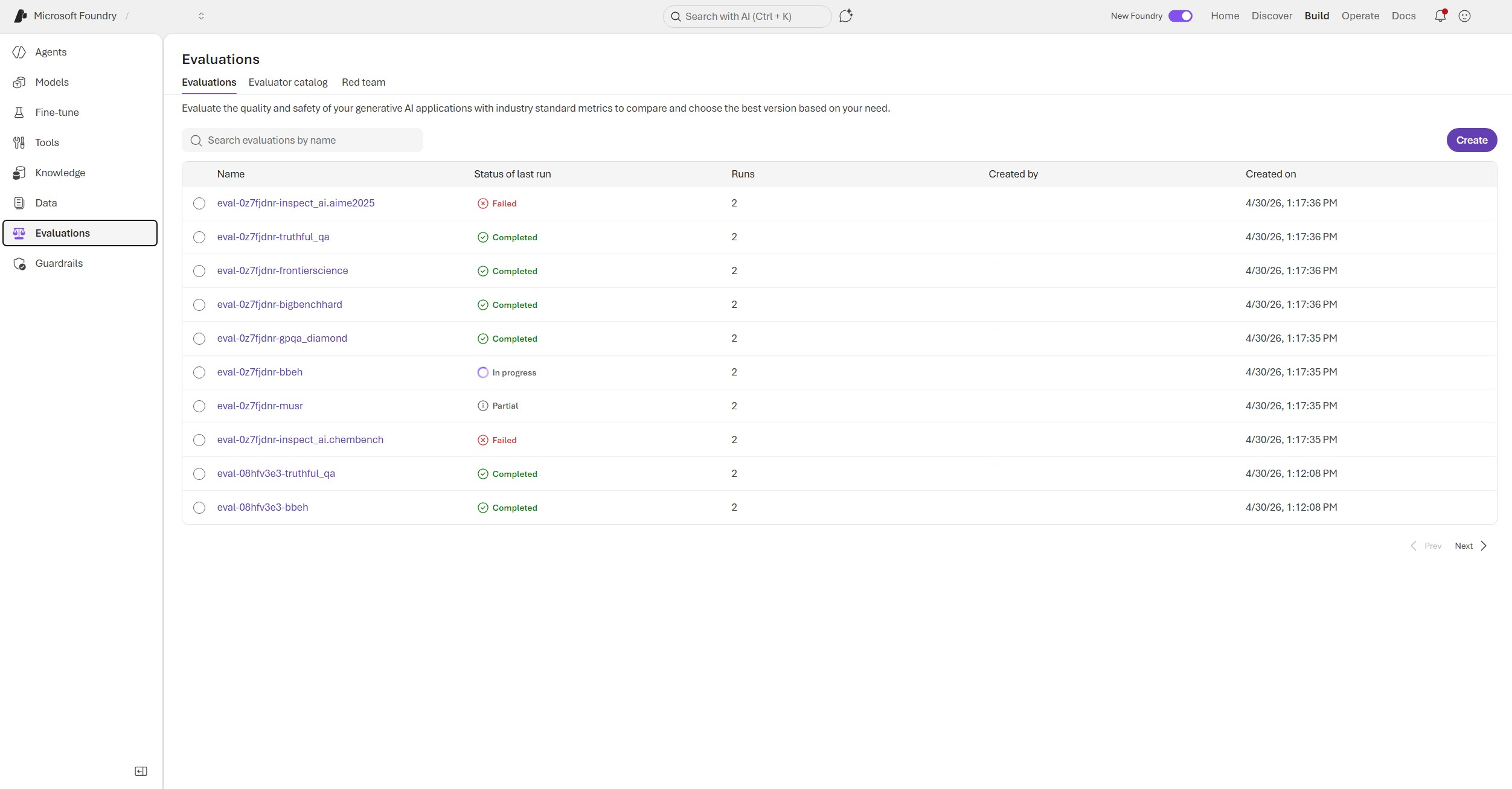
The Evaluations list shows existing evaluation groups, their latest run status, run count, creator, and creation time.
You can also create a benchmark evaluation from an agent page:
- Go to the Build page.
- In the left navigation, select Agents.
- Open an agent.
- Select the Evaluation tab.
The agent evaluation entry point opens the same evaluation creation experience, scoped to that agent.
Select what to evaluate
In Create new evaluation, choose the target type.
For benchmark evaluations, supported target types include:
- Agent — Evaluate the quality and safety of an agent.
- Model — Evaluate the quality and safety of a model deployment.
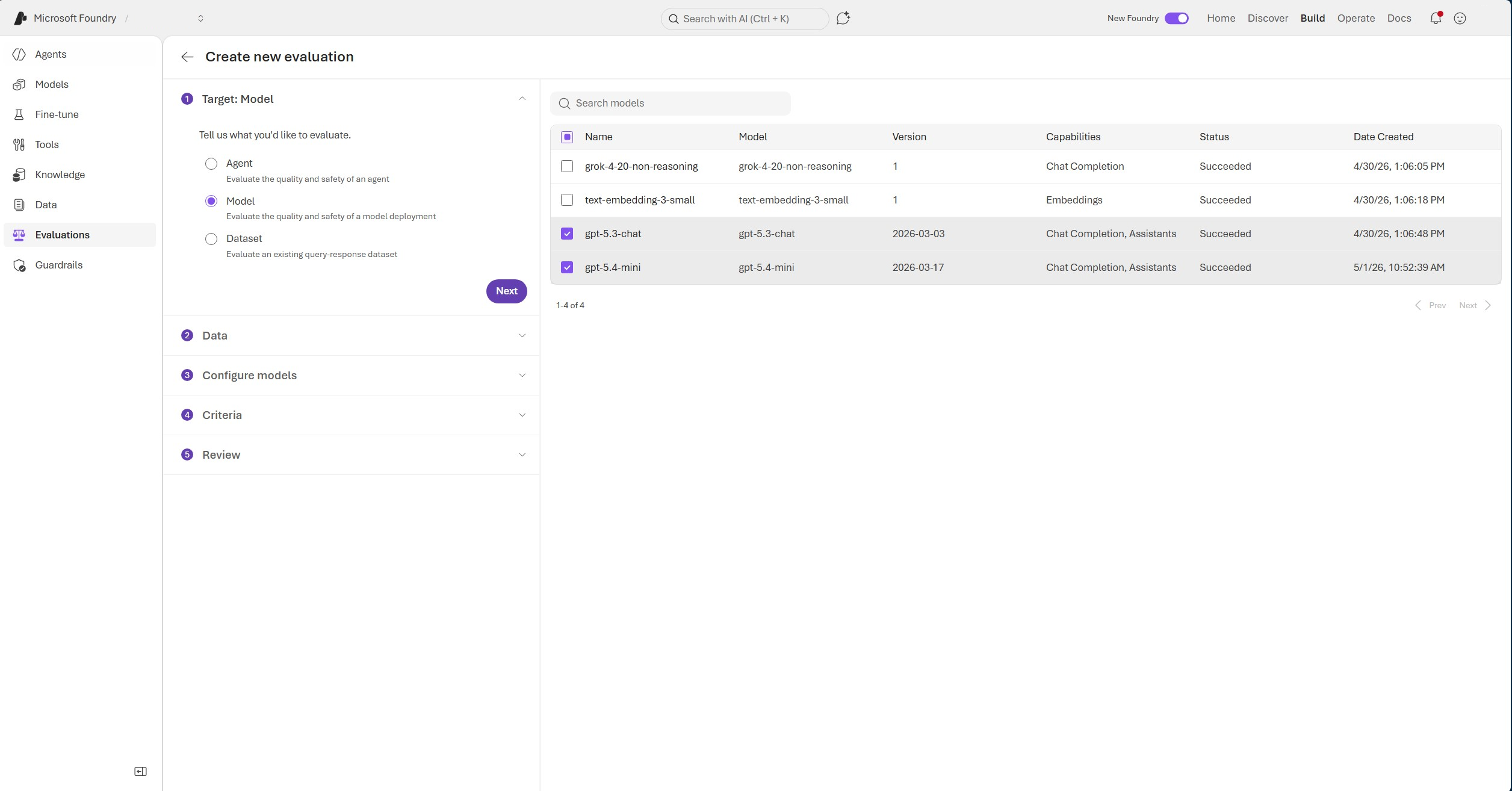
To evaluate model deployments:
- Select Model.
- Select one or more model deployments from the model table.
- Select Next.
The model table shows the model name, model version, capabilities, status, and creation date.
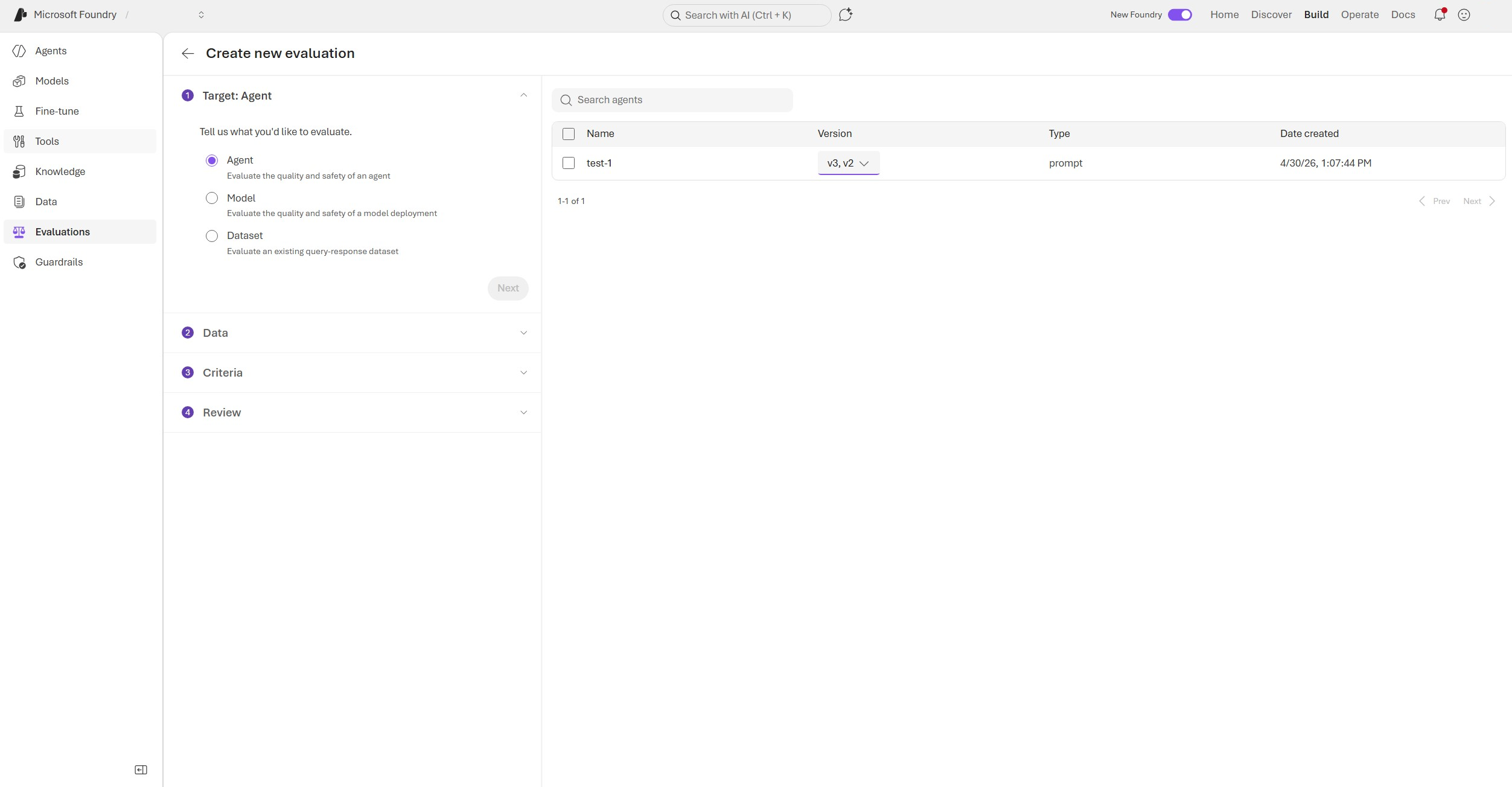
To evaluate an agent, select Agent, choose an agent from the agent table, and select one or more agent versions to evaluate.
Select benchmark data
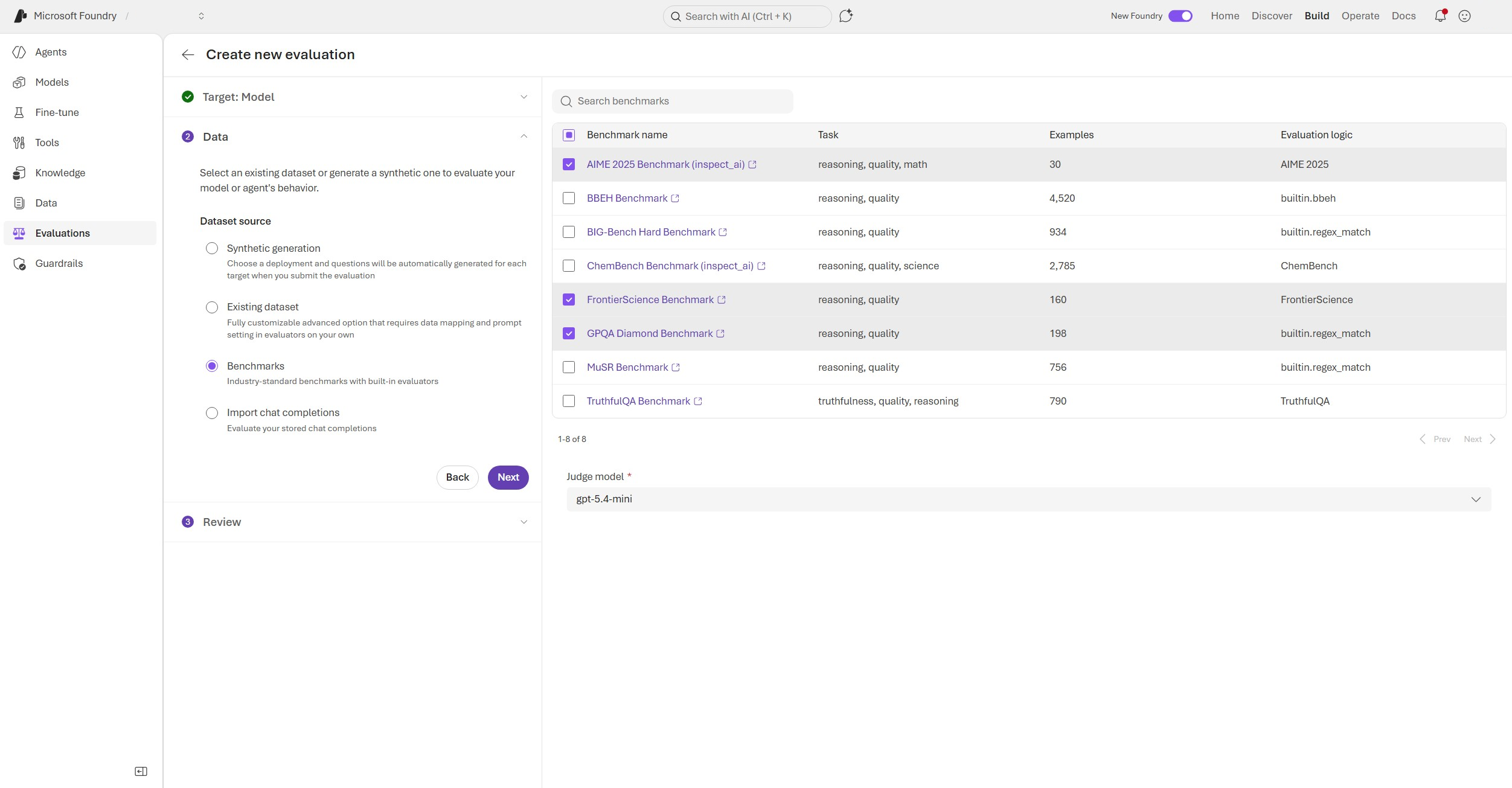
In the Data step, choose Benchmarks as the dataset source.
When you select Benchmarks, choose one or more benchmark datasets from the benchmark table.
The benchmark table includes:
| Column | Description |
|---|---|
| Benchmark name | The benchmark dataset or benchmark suite name. |
| Task | The capability area, such as reasoning, quality, math, science, or truthfulness. |
| Examples | The number of examples in the benchmark. |
| Evaluation logic | The evaluator or benchmark-specific scoring logic used to calculate the result. |
Examples shown in the current UI include the following benchmarks. You can select a benchmark to open its details, including a link to the benchmark source repository when available.
| Benchmark | Task | Examples | Evaluation logic |
|---|---|---|---|
| AIME 2025 Benchmark | reasoning, quality, math | 30 | AIME 2025 |
| BBEH Benchmark | reasoning, quality | 4,520 | builtin.bbeh |
| BIG-Bench Hard Benchmark | reasoning, quality | 934 | builtin.regex_match |
| ChemBench Benchmark | reasoning, quality, sciences | 2,785 | ChemBench |
| FrontierScience Benchmark | reasoning, quality | 160 | FrontierScience |
| GPQA Diamond Benchmark | reasoning, quality | 198 | builtin.regex_match |
| MuSR Benchmark | reasoning, quality | 756 | builtin.regex_match |
| TruthfulQA Benchmark | truthfulness, quality, reasoning | 790 | TruthfulQA |
Select a judge model, if required
After selecting benchmarks, choose a Judge model from the dropdown when the selected benchmark uses model-based judging.
The evaluation service uses the judge model during benchmark scoring. It's separate from the target model or agent being evaluated. For example, you can evaluate {target-deployment-a} and {target-deployment-b} as targets while selecting {judge-deployment} as the judge model.
Important
The target is what you evaluate. The Judge model supports scoring. Don't assume the judge model score represents the judge model's own quality; it's part of the evaluation pipeline.
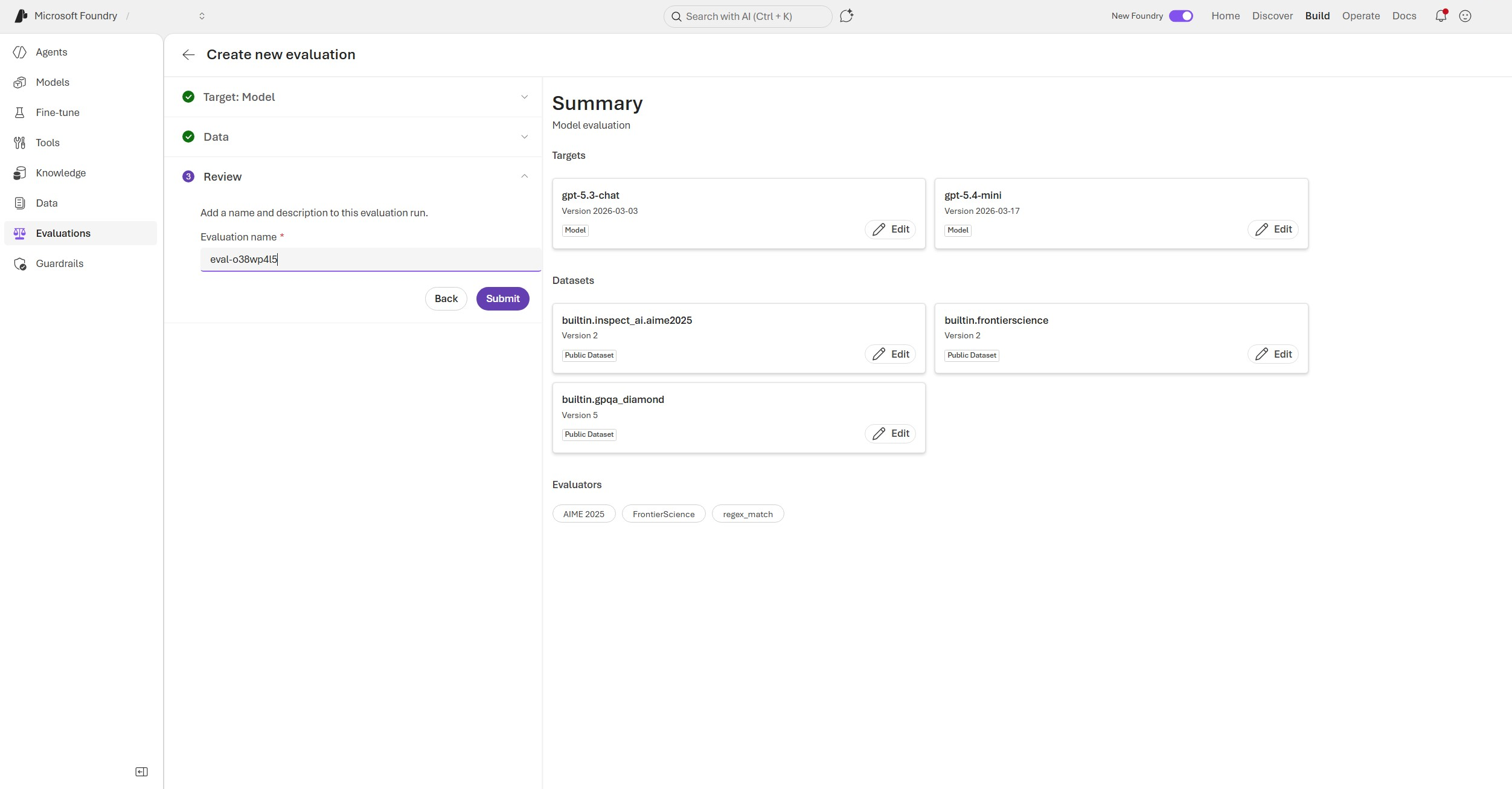
Review and submit
In the Review step:
- Review the selected targets.
- Review the selected benchmark datasets.
- Select Submit.
The review page summarizes the selected targets, datasets, and evaluators.
View benchmark evaluation results
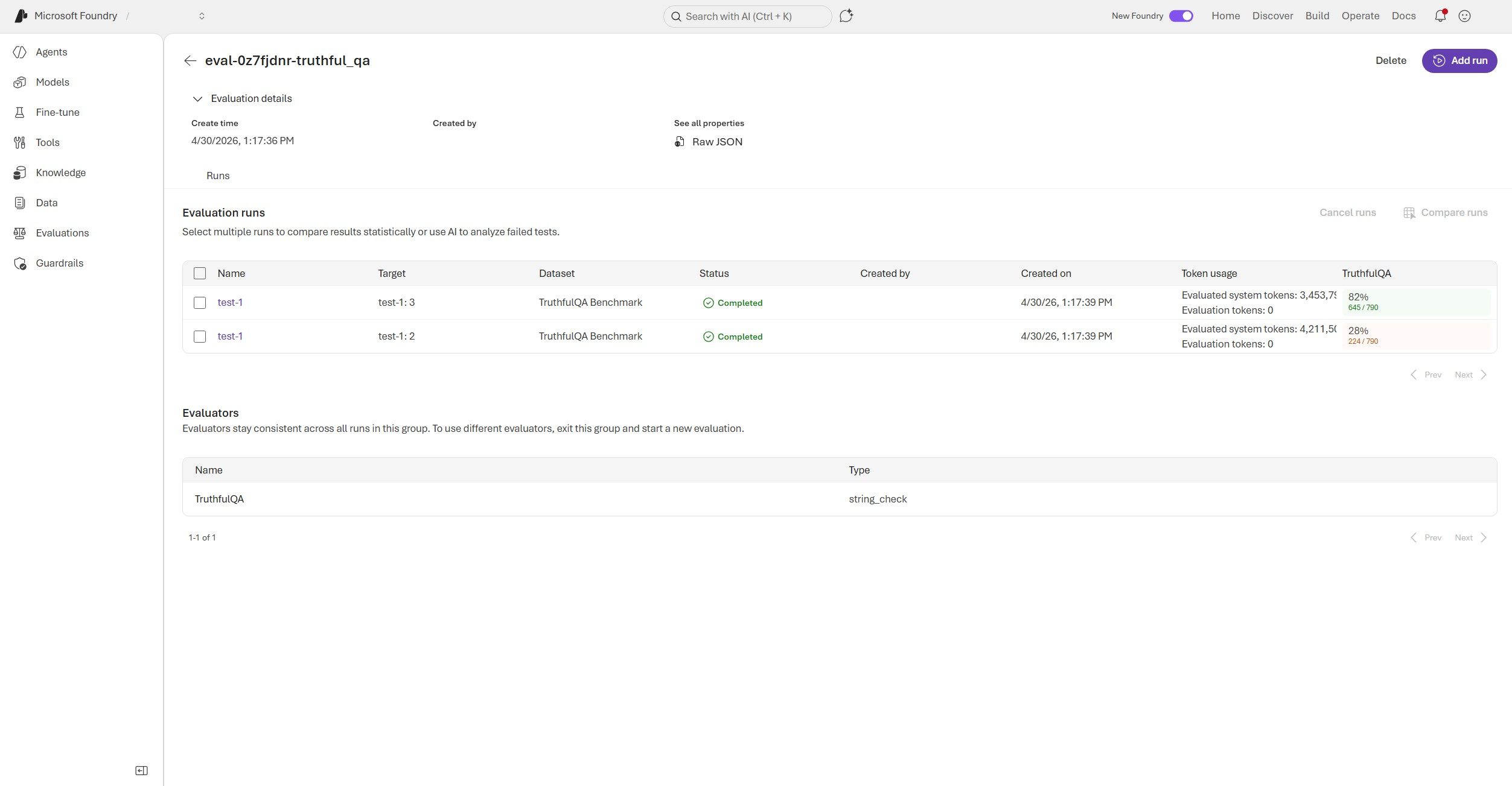
After you submit the evaluation, return to the Evaluations list and open the created evaluation group.
The evaluation group page shows:
- Evaluation details, including create time and creator.
- A Raw JSON link for the evaluation configuration.
- An Add run action.
- A run table with target, dataset, status, token usage, and metric score.
- An evaluator table that lists the evaluator name and type.
Each run represents a target evaluated on the benchmark dataset in that evaluation group. For example, a TruthfulQA evaluation group can contain separate runs for two model versions, with each run showing its own TruthfulQA score.
View a run result
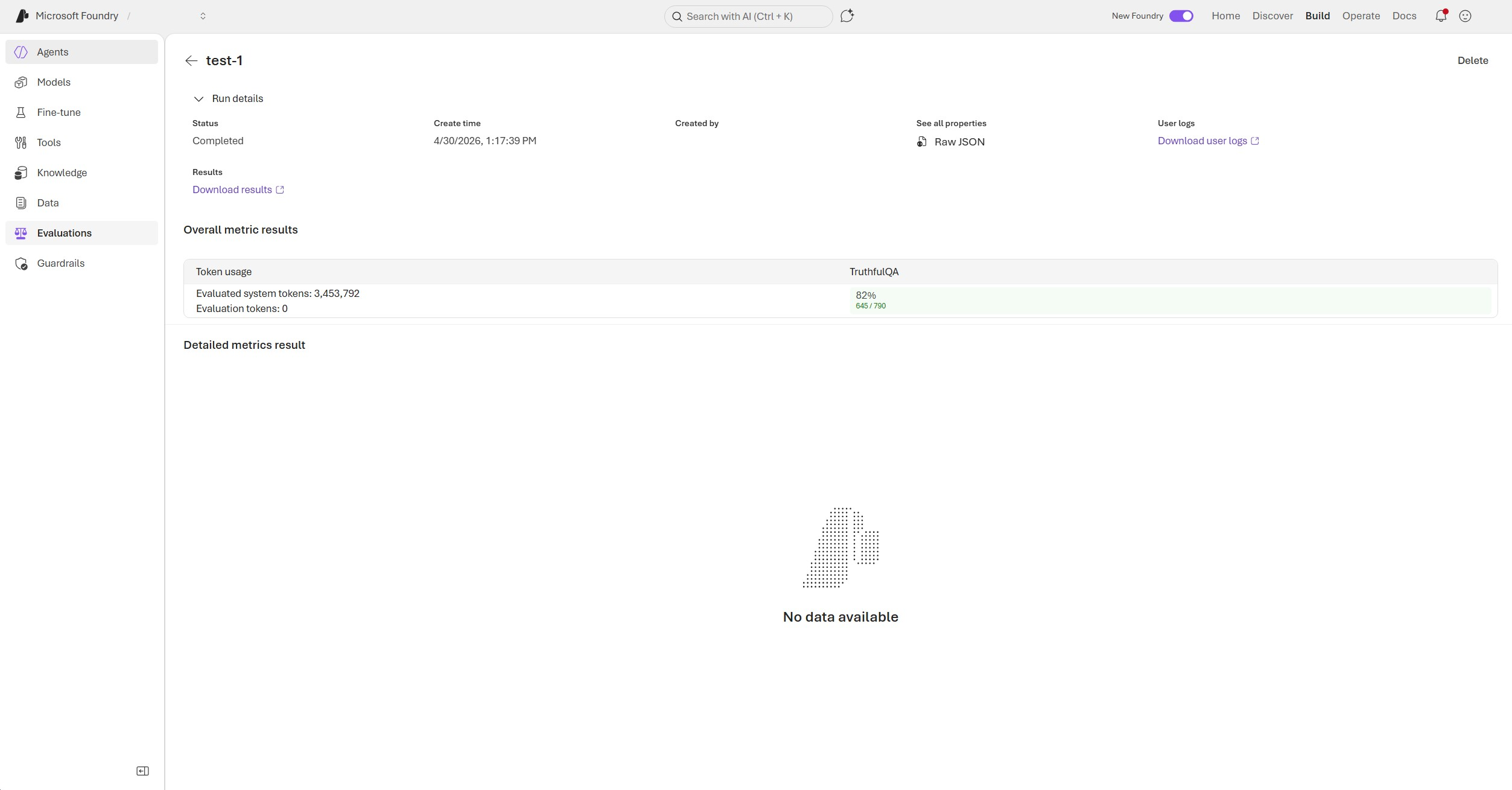
Open a run to see detailed run results.
The run detail page shows:
- Run status.
- Create time and creator.
- Raw JSON.
- Download results.
- Download user logs.
- Overall metric results, including token usage and benchmark score.
Understand scores and token usage
The portal shows benchmark results at both the evaluation group level and run level.
At the evaluation group level, the run table includes:
- Target — The model or agent evaluated in the run.
- Dataset — The benchmark dataset used by the run.
- Status — Run status, such as completed, failed, partial, or in progress.
- Token usage — The number of evaluated system tokens and evaluation tokens.
- Evaluation result — The benchmark score for that run.
At the run level, the Overall metric results section shows the benchmark score and token usage for that specific target and benchmark.
The score can include:
- A percentage, such as
82%. - A pass count and total count, such as
645 / 790.
If detailed metrics aren't available, the detail section might show No data available while the overall metric result is still available.
Use the REST API (preview)
Important
The REST API is in preview. API versions and benchmark identifiers can change. Validate the endpoint, payload, and benchmark availability in your project before using these examples in production automation.
Use your Foundry project endpoint for REST API calls. The endpoint has the following format:
https://{azure-ai-resource}.services.ai.azure.com/api/projects/{project-name}
Use a Microsoft Entra token for the Azure AI resource audience:
az account get-access-token --resource "https://ai.azure.com"
You can create a benchmark evaluation by creating an evaluation group, then adding one or more evaluation runs to that group. The evaluation group defines the benchmark dataset and evaluation logic. Each run evaluates one target model or agent against that benchmark configuration.
Create a benchmark evaluation group
The following example creates an evaluation group for a built-in benchmark.
POST {project-endpoint}/openai/evals?api-version=2025-11-15-preview
Authorization: Bearer {token}
Content-Type: application/json

{
  "name": "truthfulqa-benchmark-eval-group",
  "display_name": "TruthfulQA Benchmark",
  "data_source_config": {
    "type": "azure_ai_source",
    "scenario": "benchmark_preview",
    "benchmark_name": "builtin.truthful_qa",
    "benchmark_version": "3"
  }
}
For benchmarks that use model-based judging, include grader_model in the evaluation group request. In the portal, this value maps to the Judge model selection.
POST {project-endpoint}/openai/evals?api-version=2025-11-15-preview
Authorization: Bearer {token}
Content-Type: application/json

{
  "name": "frontierscience-benchmark-eval-group",
  "display_name": "FrontierScience Benchmark with Judge Model",
  "data_source_config": {
    "type": "azure_ai_source",
    "scenario": "benchmark_preview",
    "benchmark_name": "builtin.frontierscience",
    "benchmark_version": "2",
    "grader_model": "{connection-name}/{judge-deployment}"
  }
}
The grader_model value can be a deployment name, such as {judge-deployment}, or a connection-qualified deployment name, such as {connection-name}/{judge-deployment}, depending on the project configuration.
Add a benchmark run
After you create the evaluation group, add a run for each target you want to evaluate.
POST {project-endpoint}/openai/evals/{evaluation-id}/runs?api-version=2025-11-15-preview
Authorization: Bearer {token}
Content-Type: application/json

{
  "name": "truthfulqa-run-target-a",
  "display_name": "TruthfulQA - {target-deployment-a}",
  "data_source": {
    "type": "azure_ai_benchmark_preview",
    "target": {
      "type": "azure_ai_model",
      "model": "{connection-name}/{target-deployment-a}"
    }
  }
}
To compare multiple target deployments, create one run per target in the same evaluation group.
POST {project-endpoint}/openai/evals/{evaluation-id}/runs?api-version=2025-11-15-preview
Authorization: Bearer {token}
Content-Type: application/json

{
  "name": "truthfulqa-run-target-b",
  "display_name": "TruthfulQA - {target-deployment-b}",
  "data_source": {
    "type": "azure_ai_benchmark_preview",
    "target": {
      "type": "azure_ai_model",
      "model": "{connection-name}/{target-deployment-b}"
    }
  }
}
Handle missing judge model errors
If a benchmark requires model-based judging and you don't provide a grader_model, the service returns a validation error. The following example shows key response fields.
{
  "error": {
    "code": "UserError",
    "message": "Benchmark 'builtin.frontierscience' uses a model grader (LabelModel) but no 'grader_model' was provided in the request. Please specify the grader model in format 'connection_name/deployment_name' or 'deployment_name'.",
    "target": "data_source_config.grader_model",
    "innerError": {
      "code": "BenchmarkGraderModelRequired"
    }
  }
}
Limitations
- Built-in benchmark scope — The current portal flow focuses on built-in benchmark datasets and evaluators.
- Detailed metrics availability — Overall metric results can be available even when detailed metrics don't appear on the run detail page.
Best practices
- Start with one or two benchmarks — Validate your setup before running large benchmark suites.
- Use a stable judge model — Keep the judge model consistent when comparing benchmark results across targets.
- Review token usage — Benchmarks can run across hundreds or thousands of examples. Judge-model scoring can add more token usage.
- Download results for deeper analysis — Use Download results when you need to inspect row-level outputs or debug failures.
Troubleshooting
| Issue | Possible cause | Resolution |
|---|---|---|
| Target model or agent doesn't appear | The target model or agent doesn't exist in the current project, isn't deployed, or you don't have access | Confirm the deployment or agent exists and that you have permission to access it. |
| Benchmark datasets don't appear | Benchmark evaluations might not be enabled for the project or region | Confirm benchmark support for the project. Contact your project administrator or support team if the list is empty. |
| Judge model dropdown is empty | No supported model deployment is available or accessible | Deploy or connect a supported model, then reopen the benchmark setup flow. |
| Run fails or completes partially | Model access, rate limits, dataset loading, or evaluator execution failed | Open the run detail page, review user logs, Raw JSON, token usage, and metric output. |
| Score is available but detailed metrics are empty | Row-level details might not be displayed in the portal | Use Download results to inspect output files when available. |
| Token usage is high | Benchmark datasets can contain many examples, and judge-model scoring can add tokens | Start with smaller benchmark selections and review token usage before scaling up. |
Related content
- Evaluate your AI agents — Run evaluations using your own datasets and built-in evaluators for quality, safety, and agent-specific behaviors.
- Human evaluation for Microsoft Foundry agents — Collect structured human feedback on agent responses to complement automated evaluation results.
- Evaluation cluster analysis — Group and explore evaluation outputs to identify patterns, failure modes, and improvement areas.
- Monitor agents with the Agent Monitoring Dashboard — Track operational metrics, token usage, latency, and evaluation results for agents in production.
- Troubleshoot evaluation and observability issues — Resolve common issues with evaluations, storage account access, RBAC, and network configuration.