Note
Access to this page requires authorization. You can try signing in or changing directories.
Access to this page requires authorization. You can try changing directories.
Important
Items marked (preview) in this article are currently in public preview. This preview is provided without a service-level agreement, and we don't recommend it for production workloads. Certain features might not be supported or might have constrained capabilities. For more information, see Supplemental Terms of Use for Microsoft Azure Previews.
Trace Replay in Microsoft Foundry enables you to inspect, navigate, and analyze conversation traces from agent runs. It can be accessed from any page that references a Conversation ID or Trace ID. Traces can be visualized as a User view for reviewing the user's perspective of the agent interactions, or a Trajectories view for understanding span hierarchy and timing. These views, combined with interactive replay controls and filtering, help you understand execution flow, identify bottlenecks, and troubleshoot issues.
Prerequisites
- A Foundry project with at least one agent.
- Trace data collected for the target agent. If you haven't set up tracing yet, see Set up tracing in Microsoft Foundry.
- Access to the Application Insights resource connected to your project. For background, see Azure Monitor Application Insights.
- A Log Analytics reader role to view traces, insights, and visualizations in Foundry.
Use cases
| Scenario | How Trace Replay helps |
|---|---|
| Root cause analysis | Quickly identify failures or bottlenecks in agent conversations. |
| Token usage optimization | Spot spans with high token consumption to optimize agent prompts and reduce costs. |
| Debugging | Replay execution step-by-step to understand failures or unexpected behaviors. |
| Conversation reconstruction | Visualize the entire conversation flow for audits or reviews. |
Open the Replay Panel
- Sign in to Microsoft Foundry.
- Navigate to the Traces page under your agent.
- Select a Conversation ID or Trace ID to open the Replay Panel.
The Replay Panel opens, showing the Trajectories view by default.
Explore the Replay Panel views
The Replay Panel provides two complementary views of a trace. To switch between them, select the Trajectories or User tab at the top of the Replay Panel.
In both views, you can select any span to inspect the step in the agent loop, including LLM invocations, tool execution, user prompts, sub-agent orchestrations and responses. You can also view raw metadata as JSON and see the results of any evaluations that ran as part of this conversation.
Trajectories view
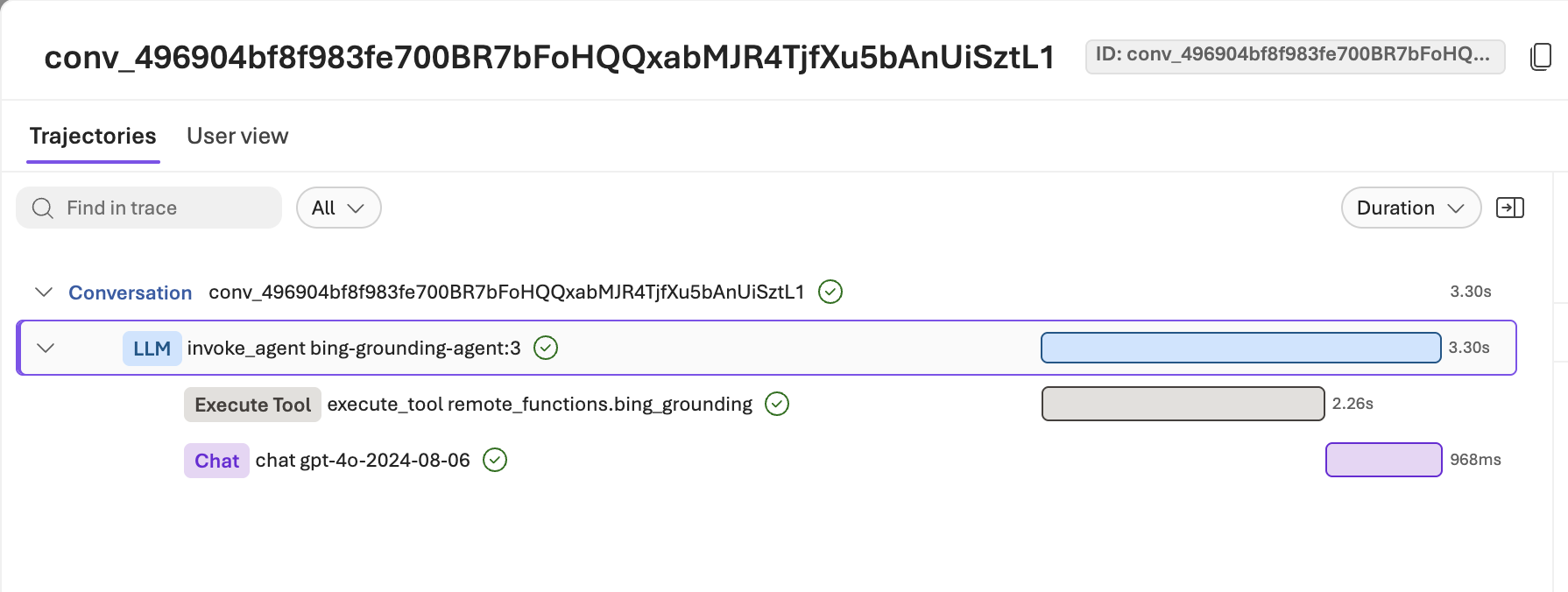
The Trajectories view renders the trace as a hierarchical tree, showing every step in the user and agent interaction — including agent reasoning, tool calls, and conversation turns. Each span displays a waterfall bar that can be measured by either duration or token cost, making it straightforward to compare the relative expense of each step.
This view is most useful for identifying potential agentic failures such as errors, hallucinations, and abnormally long or costly interactions.
User view
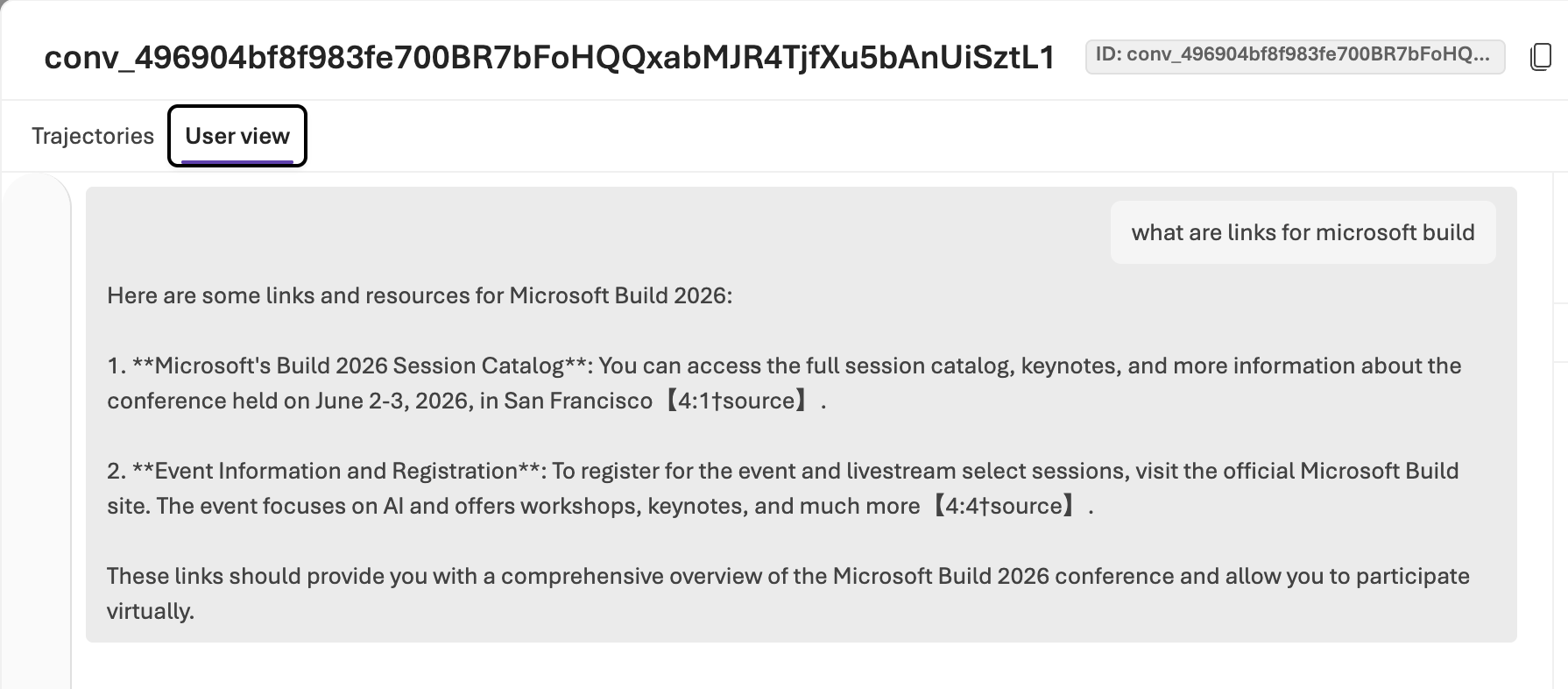
The User view presents the trace as a chat-based visualization of the interactions between the user and agent, reflecting what the end user would have experienced. A collapsible Span tree panel remains accessible alongside the chat, so you can cross-reference the underlying span hierarchy without leaving this view.
Filter traces
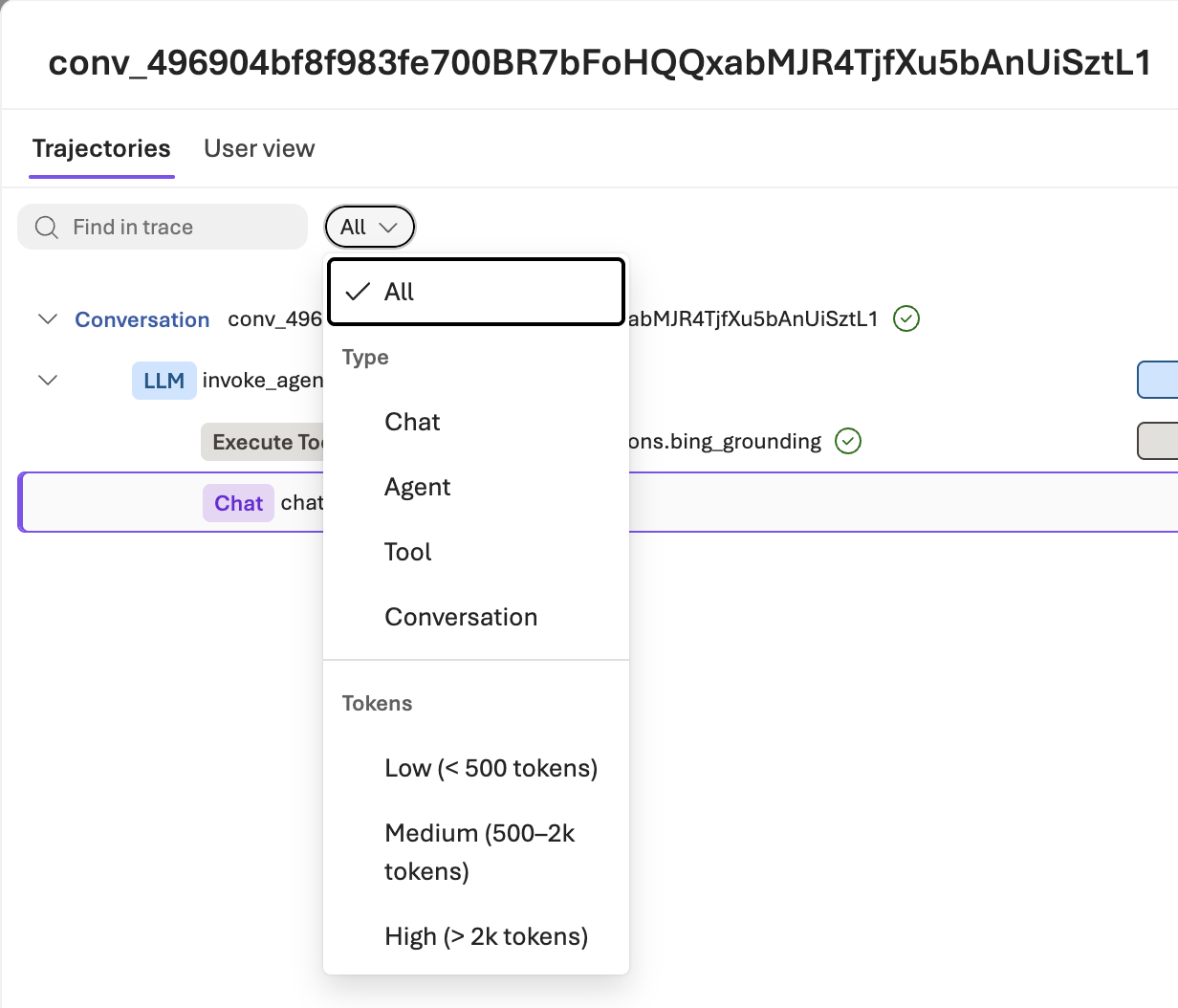
- In the Replay Panel, select the Filter control.
- Choose one or more span types from the list to narrow the trace.
The span tree updates to show only spans matching the selected types.
| Filter | Shows |
|---|---|
| Chat | Chat-specific spans in the trace |
| Agent | Agent invocation |
| Tool | Any tool executions that occurred during the trace |
| Conversation | Conversation-specific spans in the trace |
To search by span name, enter text in the Find in trace field.
Filter by token consumption
Filter spans by token usage level to identify hotspots or outliers.
| Level | Description |
|---|---|
| Low | Less than 500 tokens |
| Medium | 500–2k tokens |
| High | More than 2k tokens — useful for identifying outliers in the trace loop |
Replay a conversation
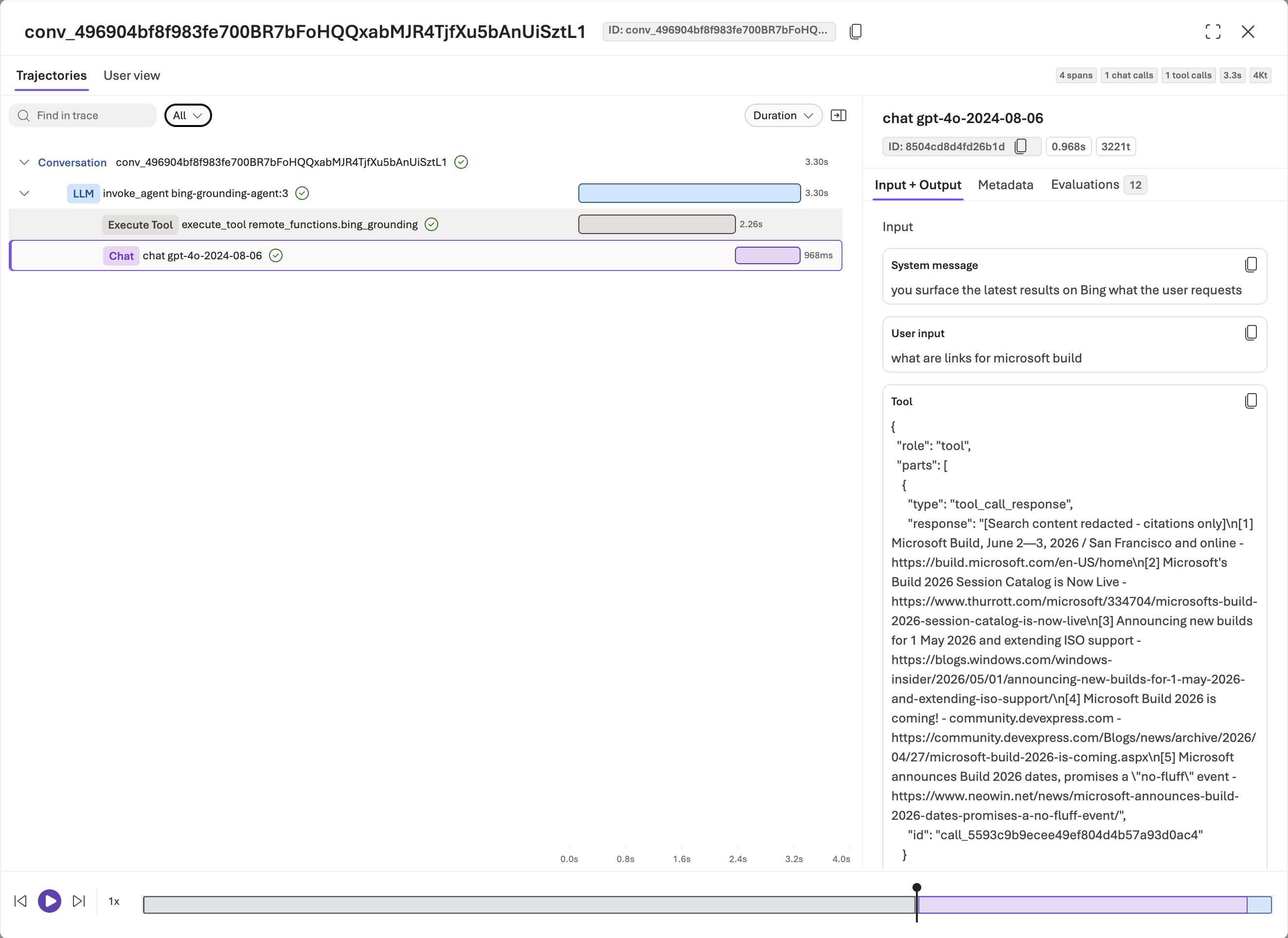
The Playthrough control replays the entire conversation sequentially, keeping the Trajectories view, User view, and span detail panel in sync as each step is highlighted.
Select Play in the Playthrough control at the bottom of the Replay Panel.
Use the playback controls as needed:
- Skip spans at any point to jump ahead in the interaction.
- Adjust playback speed (for example, 1x, 2x, or 4x) to move through long traces faster.
- Scrub to any point in the trace using the timeline scrubber to seek directly to a specific moment without replaying from the beginning.
The Replay Panel highlights each span in sequence across both the Trajectories view and the span detail panel.
Troubleshoot
| Symptom | Resolution |
|---|---|
| Conversation ID or Trace ID isn't visible | Tracing isn't configured for this agent. See Set up tracing in Microsoft Foundry. |
| Replay Panel loads but shows no spans | The trace might still be processing. Wait a few minutes, then refresh the page. |
| Playthrough control is unavailable | Playthrough requires two or more spans. Single-span traces can't be replayed sequentially. |
| Filter applied but no spans are visible | The selected filter type doesn't appear in this trace. Clear the filter and try a broader span type, or verify that the agent uses the filtered capability. |