Note
Access to this page requires authorization. You can try signing in or changing directories.
Access to this page requires authorization. You can try changing directories.
Azure Front Door is designed to provide exceptional resilience and availability for both external customers and Microsoft's internal properties. Although the architecture of Azure Front Door meets or exceeds the needs of most production workloads, no distributed system is immune to failure.
This article provides high‑level, step‑by‑step instructions for implementing Azure Traffic Manager to enable manual failover from Azure Front Door to either an alternate content delivery network (CDN) or an Azure Application Gateway web application firewall (WAF) during rare Azure Front Door service interruptions. It supplements the guidance in Global routing redundancy for mission-critical web applications.
Multiple strategies exist within the industry for achieving high availability (HA) in CDN and web application architectures. The approach outlined in this article focuses on a straightforward, manual "break‑glass" failover pattern. Customers can use the pattern to quickly redirect traffic during an outage and seamlessly restore routing back to Azure Front Door after service health is confirmed.
The article also includes guidance for implementing HA patterns in production environments, establishing health monitoring, and creating operational runbooks to support ongoing readiness.
Key operational differences
This guide presents two proven architectures that use Traffic Manager to provide automated failover. The following table summarizes key operational differences to consider:
| Aspect | Scenario 1 (Azure Front Door + Application Gateway) | Scenario 2 (Azure Front Door + other CDN) |
|---|---|---|
| Failover target | Secondary Traffic Manager instance and multiple Application Gateway instances. | Single other CDN endpoint. |
| Caching during failover | No. Application Gateway doesn't cache. | Yes. |
| Geographic distribution | Two specific Azure regions. | Other CDN's global edge network. |
| WAF protection | Azure Web Application Firewall (consistent rule sets). | Other CDN's WAF (different rule sets). |
| Cost during standby | Fixed compute costs. Application Gateway charges even when idle: ~$200-400/month for WAF_v2 with minimal capacity. | Dependent on the CDN vendor's pricing. |
Considerations for production environments
When you're implementing HA architectures for production workloads, consider the following best practices and important notes:
Don't configure the primary Traffic Manager instance for automatic failover.
Azure Traffic Manager health probes originate only from US-based Azure regions. For probes of Azure Front Door endpoints (or any CDN by using anycast routing), these US-based probes almost always reach US POP servers and leave the health of non-US POP servers unverified. This situation prevents Traffic Manager from automatically failing over between Azure Front Door and another ingress service based on the true global health of the anycast CDN, such as Azure Front Door.
For global workloads that require health validation from multiple geographies, manual failover with weighted routing and monitoring disabled provides more reliable control than automated health-based routing.
If you're currently using Azure Front Door-managed certifications, you must migrate to bring-your-own (BYO) certificates. By using your own certificate, you can keep the TLS certificates consistent regardless of which ingress path the traffic follows.
Ensure that your TLS certificates are compatible with Azure Front Door. For more information, see Configure HTTPS on an Azure Front Door custom domain and TLS encryption with Azure Front Door.
Always test failover procedures in non-production environments first.
Traffic Manager doesn't support CNAME flattening at the DNS zone apex (root domain). If you require Traffic Manager at the apex, you must use DNS providers that support alias records or similar mechanisms. Azure DNS is one such DNS provider.
Use short DNS time-to-live (TTL) values of 300-600 seconds. Monitor DNS TTL propagation times.
Lock down Application Gateway with network security groups (NSGs) and access control lists (ACLs). Allow required platform ranges and inbound application ports. Keep origins secured for all ingress paths. For more information, see Network security groups.
Although an Application Gateway WAF mitigates HTTP/L7 attacks, NSGs provide packet filtering only and don't protect against volumetric or protocol-level (L3/L4) DDoS attacks. All Azure public endpoints benefit from baseline, always-on DDoS protection in the Azure platform. It helps protect the Azure infrastructure but doesn't include workload-specific tuning, telemetry, cost protection, or availability guarantees.
For production and mission-critical workloads, consider using the Azure DDoS Protection service to help protect Application Gateway public IPs. For more information, see Azure DDoS Protection pricing.
Document WAF rule differences between Azure Front Door and failover solutions.
We don't recommend Azure Private Link for these HA architectures because alternate CDN platforms can't access origins protected by Private Link integration in Azure Front Door.
Also, Application Gateway requires extra virtual network and private endpoint configuration to reach private origins. Application Gateway can't use the native Private Link capabilities of Azure Front Door.
For production environments that use Azure Front Door alongside other CDN providers, consider using alternative, CDN‑agnostic origin‑security controls to enforce origin trust when you can't use Private Link or
X‑Azure‑FDIDvalidation. These controls might include token‑based origin authentication (HMAC or signed URLs), mutual TLS (mTLS), custom origin headers, and IP address filtering.Edit the sample commands listed in this guide so that they're tailored to your environment for automation and runbooks.
Establish clear runbooks. Test failover and failback procedures.
Configure comprehensive monitoring and alerting for all endpoints.
Validate functionality during failover to alternate ingress solutions.
Test certificate renewal processes across all platforms.
Regularly validate that failover endpoints remain functional. We recommend quarterly testing.
This guide uses Azure CLI sample commands that you run from PowerShell.
Before you proceed, review Global routing redundancy for mission-critical web applications.
Scenario 1: Traffic Manager failover from Azure Front Door to an Application Gateway WAF
This DNS-based load-balancing solution uses multiple Azure Traffic Manager profiles. In the unlikely event of an availability problem with Azure Front Door, Traffic Manager redirects traffic through the Application Gateway WAF. The primary Traffic Manager instance routes traffic between Azure Front Door (primary) and a nested secondary Traffic Manager instance that points to multi-region Application Gateway instances. During an Azure Front Door outage, traffic is manually failed over to regional Application Gateway deployments that have WAF protection.
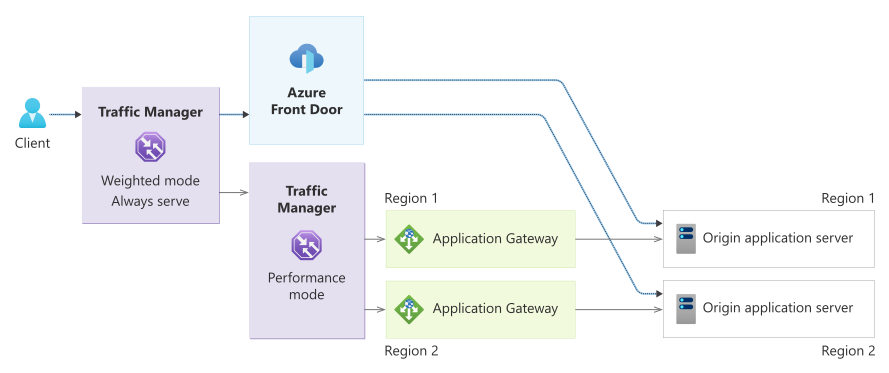
Traffic flow (normal operation): User → DNS query → primary Traffic Manager instance (weighted/always-serve routing) → Azure Front Door (priority 1) → origin servers.
Traffic flow (Azure Front Door failure): User → DNS query → primary Traffic Manager instance (weighted/always-serve routing) → secondary Traffic Manager instance (priority mode) → Application Gateway → origin servers.
Pre-deployment: Azure Front Door vs. Application Gateway
It's important to understand the feature differences between Azure Front Door and an Application Gateway WAF, in case you're using any features that an Application Gateway WAF doesn't offer. The following tables provide an overview.
Important
This solution assumes that you're currently using Azure Front Door to serve traffic across multiple regions or globally. In this design, the steps that follow introduce a secondary Traffic Manager instance that's configured with performance routing between the primary Traffic Manager instance and regional Application Gateway instances.
This approach is necessary because Azure Front Door is a global Layer‑7 service. The secondary Traffic Manager instance effectively replaces global latency‑based routing in Azure Front Door by acting as the global load‑balancing layer. As a result, Traffic Manager preserves latency‑optimized user routing for a geographically distributed audience.
Given this architectural shift, you must evaluate global traffic patterns and deploy Application Gateway instances in regions that have meaningful user volume to ensure optimal performance and resilience.
Feature differences
| Feature | Azure Front Door | Application Gateway |
|---|---|---|
| Core architecture and features | ||
| Service scope | Global service | Regional service |
| OSI layer | Layer 7 (application layer) | Layer 7 (application layer) |
| Load-balancing level | Across regions | Within a region or virtual network |
| Deployment model | Single global instance | Per-region instances |
| Backend scope | Any public endpoint (Azure or external), and selected Private Link endpoints | Any public endpoint (Azure or external), private IP addresses, and Kubernetes pods in a virtual network |
| Content edge caching | Yes | No |
| Network architecture | Microsoft's global edge network with anycast | Azure regional deployment (no anycast) |
| Configuration differences | ||
| Path pattern syntax | /path/* or exact /path |
Regex patterns, path maps |
| WAF rule sets | Default rule set (OWASP), bot manager ruleset, HTTP DDoS ruleset | Default rule set (OWASP), bot manager ruleset, HTTP DDoS ruleset |
| Health probe evaluation | Latency + health for routing | Health status only |
| Backend selection | Based on priority, weight, latency | Round-robin, cookie affinity |
| Routing rules | ||
| Path-based routing | ✓ Yes | ✓ Yes |
| Pattern matching | Exact-match paths, wildcard paths (/*), case-insensitive, wildcard must be preceded by / |
URL path maps, path-based rules, regex patterns supported |
| Host-based routing | ✓ Multiple frontend hosts | ✓ Multi-site hosting |
| URL rewrite | Static path to static path (classic) | URL path rewrite |
| Routing methods | Priority, weight, latency-based | Load aware for latency optimization*, weighted*, session affinity (*available with Application Gateway for Containers) |
| Routing features | ||
| Rules engine/rewrite rules | Rule sets with conditions and actions | Rewrite rule sets with conditions and actions |
| Regex in path patterns | Not supported in Patterns to match | Supported with PCRE |
| Header and request manipulation | ||
| Header rewrite | ✓ Request and response headers | ✓ Request and response headers |
| Header value character limit | No documented limit | 1,000 characters in rewrite rules |
| Host header rewrite | ✓ Supported | ✓ Supported (can't rewrite to external domains) |
| Server variables | ✓ Supported | ✓ Supported |
| Header pattern matching | Conditions with patterns | Regex pattern matching |
| Security features | ||
| WAF availability | ✓ Optional (Premium tier) | ✓ Optional (WAF tier) |
| L3/4 DDoS protection | ✓ Built-in | Via Azure DDoS Protection service |
| SSL/TLS policies | ✓ Configurable | ✓ Configurable |
| End-to-end SSL | ✓ Supported | ✓ Supported |
| Private Link support | ✓ Premium tier | ✓ V2 tier |
| WAF custom rules | ✓ Supported | ✓ Supported |
WAF differences
| Azure Front Door | Application Gateway |
|---|---|
| Microsoft Default Rule Set (DRS) 2.1 | OWASP Core Rule Set (CRS) 3.2 or 4.0 |
| Rule IDs: 949xxx series | Rule IDs: 9xxxxx series |
| Azure Front Door WAF (DRS): inspects first 128 KB of request body | Application Gateway WAF (CRS 3.2+): up to 2-MB inspection; 4-GB file upload; enforcement and inspection can be configured independently |
Recommendations
Because you must maintain distinct rule sets for each WAF, use the Azure Front Door rule set as your baseline. Create an Application Gateway rule set that matches the Azure Front Door rule set as closely as possible.
Test the Application Gateway WAF separately and independently.
Document all custom exclusions for both platforms.
Regularly audit rule sets for consistency.
Adhere to the network guidance in Azure Application Gateway infrastructure configuration. Be sure to exercise the following virtual network and subnet requirements:
Use the following subnet sizing (per region):
Minimum: /27 (32 addresses)
Recommended: /24 (256 addresses) for autoscaling and hitless maintenance
Formula: (maximum instances * 10) + 5 Azure reserved IPs
Example: 20 maximum instances → (20 * 10) + 5 = 205 IPs → use /24
For optimal security, use a dedicated subnet for Application Gateway (no other resources).
Make sure that the inbound connection allows:
443/80 from the internet (or specific source ranges)
65200-5535 from Azure Gateway Manager (Application Gateway v2)
Azure Load Balancer
Block other inbound connections. Don't block required outbound internet connections.
Use application security groups for backend segmentation and least-privilege rules.
For capacity planning and autoscaling strategy, see Architecture best practices for Azure Application Gateway v2.
Key implementation steps
Step 1: Provision prerequisites
Azure Front Door configured with a custom domain and BYO certificate.
A lower DNS TTL for your CNAME record so that Azure Front Door serves traffic to the lowest time setting.
Azure subscription with permissions to create virtual networks, an Application Gateway instance, and a Traffic Manager instance.
SSL/TLS certificate in Azure Key Vault or available for upload.
Origin servers accessible from Azure virtual networks.
Important
If you're currently using Azure Front Door-managed certificates, you must migrate to BYO certificates before implementing this solution. Azure Front Door-managed certificates can't be exported and installed on alternative CDNs. For more information, see Configure HTTPS on an Azure Front Door custom domain.
Step 2: Deploy Application Gateway in the first region
Create a network infrastructure for Application Gateway. For more information, see Application Gateway infrastructure configuration.
Create a managed identity and grant Key Vault access. For more information, see TLS termination with Key Vault certificates.
Application Gateway requires the SSL/TLS certificate in PFX format with a private key. The certificate must be accessible from Key Vault or uploaded directly. Use the same certificate that Azure Front Door uses to ensure consistent TLS behavior.
Create a WAF policy. For more information, see Create WAF policies for Application Gateway.
Create an Application Gateway instance with HTTPS and WAF. For more information, see Configure an Application Gateway instance with TLS termination.
Configure a backend host header. For more information, see Troubleshoot backend health issues in Application Gateway.
Verify Application Gateway:
# Get Application Gateway public IP
$APPGW_IP = az network public-ip show `
    --name $APPGW_PIP_NAME_R1 `
    --resource-group $RESOURCE_GROUP `
    --query ipAddress -o tsv
Write-Host "Application Gateway IP: $APPGW_IP"

# Test Application Gateway directly (SkipCertificateCheck because certificate is for domain, not IP)
Invoke-WebRequest -Uri "https://$APPGW_IP/index.html" -Method Head -SkipCertificateCheck
The expected result is status code 200. If you get "502 Bad Gateway," ensure that the backend HTTP settings have
--host-name-from-backend-pool trueenabled.
Step 3: Configure WAF policy settings (optional)
By default, a WAF is created in detection mode. Prevention mode actively blocks malicious requests. Test thoroughly before you enable prevention mode in production.
Evaluate your global traffic patterns and deploy Application Gateway instances in regions that have a meaningful user volume. If you're deploying Application Gateway in multiple regions, repeat steps 2 and 3 for each additional region (for example, West US 2). Use different virtual network address spaces (10.2.0.0/16, 10.3.0.0/16, and so on) and region-specific variable suffixes (R2, R3, and so on).
Step 4: Create a Traffic Manager architecture to support the Application Gateway WAF endpoints
Create a secondary Traffic Manager instance in performance mode, as shown earlier in the diagram for this scenario. For more information, see Create a Traffic Manager profile.
For a single-region configuration, use these details:
- Routing method: Priority.
- Endpoint: Single Application Gateway public IP address.
For a multi-region configuration, use these details:
- Routing method: Performance (routes users to nearest healthy Application Gateway instance).
- Endpoints: Multiple Application Gateway public IP addresses across regions.
- Endpoint locations: The Azure region for each endpoint (required for performance routing).
Use these configuration settings:
Setting Value Notes Routing method Performance (multi-region) or Priority (single-region) Performance optimizes latency for a multi-region configuration. Protocol HTTPS Validates Application Gateway health via HTTPS. Port 443 Standard HTTPS port. Path /healthor/index.htmlMust match the path of the Application Gateway backend health probe. TTL 300 seconds Balances DNS query load and responsiveness. Note
By default, Azure public IPs for Application Gateway don't have DNS names configured. You must use the public IP address directly in Traffic Manager endpoints, not a DNS name. The
--endpoint-locationparameter is required for performance routing to enable geographic routing.Create a primary weighted/always-serve Traffic Manager instance, as shown earlier in the diagram for this scenario. For more information, see Create a Traffic Manager profile.
For both endpoints, use these configurations:
Setting Value Notes Routing Method Weighted Allows manual control via endpoint status (enabled or disabled). Weight 100 Protocol HTTPS Required for validating SSL/TLS endpoints. Port 443 Standard HTTPS port. Path /index.htmlChoose a lightweight endpoint for health checks. TTL 300 seconds DNS TTL. Lower values enable faster failover but increase DNS queries. Health Check Always serve traffic Don't enable health checks. These configurations are specific to the primary endpoint:
Type: External endpoint
Name: endpoint-afd-primary
Fully-qualified domain name (FQDN) or IP address: Host name of the Azure Front Door endpoint (for example,
myapp-12345.z01.azurefd.net)Enable Endpoint: Selected (enabled)
Custom Header settings:
Host=$CUSTOM_DOMAIN(required for Azure Front Door to route to the correct custom domain)Health Checks: Always serve traffic (disable health checks)
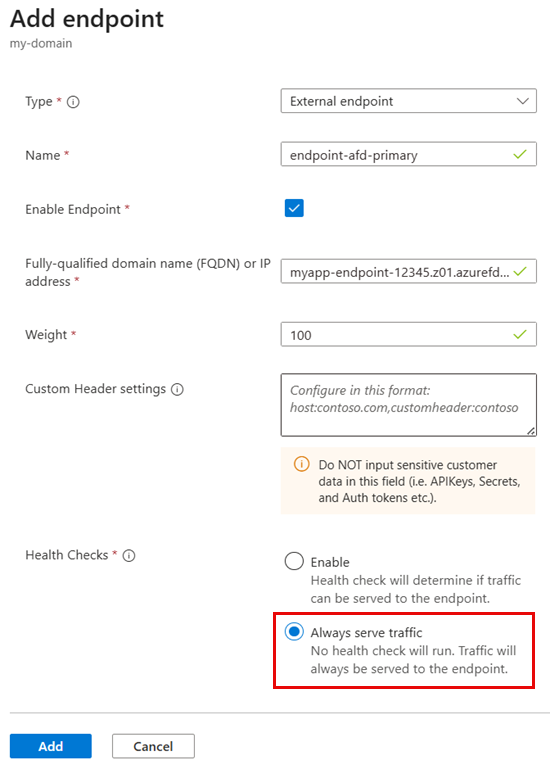
These configurations are specific to the secondary endpoint:
Type: External endpoint
Name: endpoint-appgw-secondary
Fully-qualified domain name (FQDN) or IP address: Secondary Traffic Manager FQDN (for example,
myapp-appgw.trafficmanager.net)Enable Endpoint: Cleared (disabled)
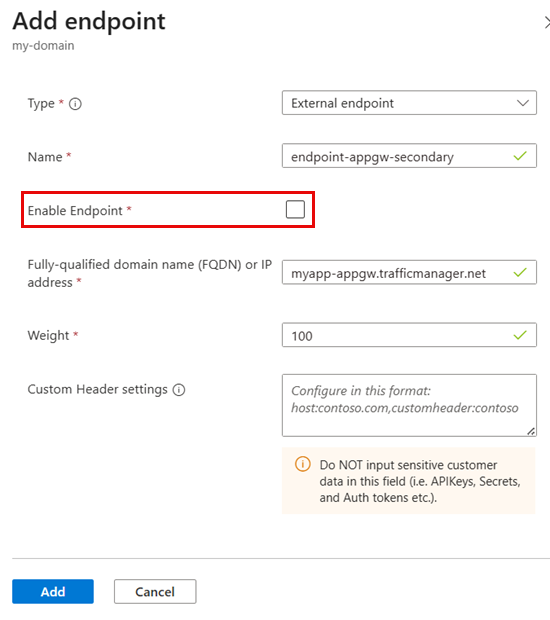
Verify Traffic Manager health:
# Check endpoint health status
az network traffic-manager profile show `
    --name $ATM_PRIMARY_PROFILE `
    --resource-group $RESOURCE_GROUP `
    --query "{ProfileStatus:profileStatus, MonitorStatus:monitorConfig.profileMonitorStatus, Endpoints:endpoints\[\].{Name:name, Target:target, Priority:priority, Status:endpointMonitorStatus}}"
Both endpoints should show
Status: Online. If an endpoint showsDegradedorCheckingEndpoint, wait 1-2 minutes for health probes to finish.
Step 5: Update DNS CNAME to Traffic Manager and verify the update
Warning
The following steps will redirect your production traffic from Azure Front Door directly to Traffic Manager and cause a potential service impact. Before you proceed:
- Test these steps in a non-production environment first. For example, temporarily modify the local
hostsfile on a non‑production workstation to resolve the custom domain to the Traffic Manager endpoint. This modification allows validation without affecting live traffic. - Reduce your DNS CNAME TTL to the lowest value possible (for example, 60-300 seconds) at least 24 hours before you make changes.
- Plan for a maintenance window during low-traffic periods if possible.
- Have rollback procedures ready in case problems arise.
Update your DNS CNAME record to point to the primary Traffic Manager instance instead of directly to Azure Front Door.
Field Old value New value Name/Host www www (no change) Value/Points to Host name of the Azure Front Door endpoint $ATM_DNS_NAME.trafficmanager.netVerify Traffic Manager resolution:
# Verify Traffic Manager profile is resolving
nslookup "$ATM_DNS_NAME.trafficmanager.net"
The test should return the IP address of the Azure Front Door endpoint.
Wait for DNS propagation, and then test HTTPS connectivity. DNS propagation typically takes 5-10 minutes but can take up to 48 hours globally.
# Check DNS from different resolvers
nslookup $CUSTOM_DOMAIN 8.8.8.8 # Google DNS

# Test HTTPS connectivity
Invoke-WebRequest -Uri "https://$CUSTOM_DOMAIN/index.html" -Method Head
This test should return status code 200.
After the DNS cutover, actively monitor the following Azure Front Door metrics:
Request count: The count should remain consistent, with no drop in traffic.
Response time: The time should remain within normal ranges.
Error rates: 4xx/5xx errors shouldn't increase.
Origin health: Backend health should remain
Online.
Step 6: Test failover procedures
Simulate Azure Front Door failure (manual failover to Application Gateway):
# Manual failover to Application Gateway
# Disable Azure Front Door endpoint
az network traffic-manager endpoint update `
    --name "endpoint-afd-primary" `
    --profile-name $ATM_PRIMARY_PROFILE `
    --resource-group $RESOURCE_GROUP `
    --type externalEndpoints `
    --endpoint-status Disabled

# Enable secondary Traffic Manager endpoint (Application Gateway)
az network traffic-manager endpoint update `
    --name "endpoint-appgw-secondary" `
    --profile-name $ATM_PRIMARY_PROFILE `
    --resource-group $RESOURCE_GROUP `
    --type externalEndpoints `
    --endpoint-status Enabled

# Verify Traffic Manager endpoint status
az network traffic-manager endpoint list `
    --profile-name $ATM_PRIMARY_PROFILE `
    --resource-group $RESOURCE_GROUP `
    --query "[].{Name:name, Status:endpointStatus, Health:endpointMonitorStatus}" `
    --output table

# Flush DNS cache (Windows)
ipconfig /flushdns

# Verify DNS resolution (should now point to secondary Traffic Manager instance and Application Gateway)
nslookup $CUSTOM_DOMAIN

# Test - should now work via Application Gateway
curl --head https://$CUSTOM_DOMAIN/
Note
DNS TTL affects failover time. With a TTL of 60 seconds, clients might take up to 60 seconds to see the change. Use
nslookupto verify that resolution points to Application Gateway.Fail back to Azure Front Door:
# Re-enable Azure Front Door endpoint
az network traffic-manager endpoint update `
    --name "endpoint-afd-primary" `
    --profile-name $ATM_PRIMARY_PROFILE `
    --resource-group $RESOURCE_GROUP `
    --type externalEndpoints `
    --endpoint-status Enabled

# Disable Application Gateway (via Secondary Traffic Manager)
az network traffic-manager endpoint update `
    --name "endpoint-appgw-secondary" `
    --profile-name $ATM_PRIMARY_PROFILE `
    --resource-group $RESOURCE_GROUP `
    --type externalEndpoints `
    --endpoint-status Disabled

# Verify endpoint status
az network traffic-manager endpoint list `
    --profile-name $ATM_PRIMARY_PROFILE `
    --resource-group $RESOURCE_GROUP `
    --query "[].{Name:name, Status:endpointStatus, Health:endpointMonitorStatus}" `
    --output table

# Flush DNS cache (Windows)
ipconfig /flushdns

# Verify DNS resolution (should now point back to Azure Front Door)
nslookup $CUSTOM_DOMAIN

# Test - should now work via Azure Front Door
curl --head https://$CUSTOM_DOMAIN/
Verify the current routing:
# Check which endpoint is serving traffic
nslookup $CUSTOM_DOMAIN

Invoke-WebRequest -Uri "https://$CUSTOM_DOMAIN/index.html" -Method Head | Select-Object -ExpandProperty Headers
The response headers can help identify the serving endpoint:
- Azure Front Door includes the
x-azure-refheader. - Traffic that passes through Application Gateway might include
Server: Microsoft-IISor similar.
- Azure Front Door includes the
Scenario 2: Traffic Manager failover from Azure Front Door to an alternative CDN
This solution uses a single Traffic Manager profile with weighted/always-serve routing so that you can manually switch over traffic between Azure Front Door and an alternative CDN.
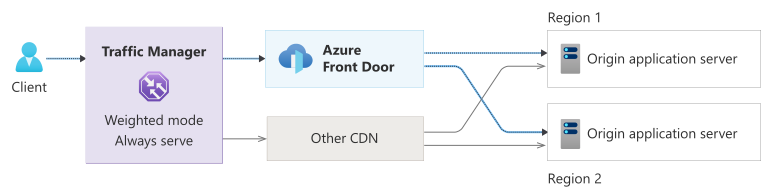
Primary endpoint: Azure Front Door custom domain endpoint.
Secondary endpoint: Alternative CDN endpoint.
Traffic flow (normal operation): User → DNS query → Traffic Manager (weighted/always-serve routing) → Azure Front Door (priority 1) → origin servers.
Traffic flow (Azure Front Door failure): User → DNS query → Traffic Manager (weighted/always-serve routing) → alternative CDN (priority 2) → origin servers.
Key implementation steps
Step 1: Provision prerequisites
Configure your secondary CDN provider with:
Azure Front Door configured with a custom domain and a BYO certificate.
An alternative CDN account.
A lower DNS TTL for your CNAME record so that Azure Front Door serves traffic to the lowest time setting.
Origin servers that both Azure Front Door and the alternative CDN can access.
A custom domain that can modify DNS records.
Important
If you're currently using Azure Front Door-managed certificates, you must migrate to BYO certificates before implementing this HA solution. Azure Front Door-managed certificates can't be exported and installed on alternative CDNs. For more information and configuration instructions for BYO certificates, see Configure HTTPS on an Azure Front Door custom domain.
Step 2: Configure an alternative CDN
Configure your secondary CDN provider:
Set up the CDN zone or property with your custom domain.
Configure origin servers the same way that you configured the Azure Front Door backend pool.
Upload the BYO SSL/TLS certificate. This certificate is the same one that you used in Azure Front Door.
Configure CDN caching rules to match Azure Front Door behavior. For example, configure cache durations and query string handling.
Set up caching settings, control headers, and compression settings to match your Azure Front Door configuration.
Set up WAF rules if the CDN provider offers WAF capabilities. Try to match the Azure Front Door WAF policy.
Configure a custom domain to match your Azure Front Door custom domain (for example,
www.contoso.com).Record the CDN edge's host name for Traffic Manager configuration (for example,
your-site.cdn.provider.net).
Step 3: Create a Traffic Manager profile
Apply the following configurations to create the Traffic Manager profile. For more information, see Create a Traffic Manager profile.
| Setting | Value | Notes |
|---|---|---|
| Routing Method | Weighted | Allows manual control via endpoint status (enabled or disabled). |
| Weight | 100 | Enter 100 when the Traffic Manager profile is created and for both endpoints. |
| Protocol | HTTPS | Required for validating SSL/TLS endpoints. |
| Port | 443 | Standard HTTPS port. |
| Path | /index.html |
Choose a lightweight endpoint for health checks. |
| TTL | 300 seconds | DNS TTL. Lower values enable faster failover but increase DNS queries. |
Step 4: Configure Traffic Manager endpoints
Create two endpoints within the Traffic Manager profile.
Use these configurations for the primary endpoint (Azure Front Door):
Type: External endpoint
Name: endpoint-afd-primary
Fully-qualified domain name (FQDN) or IP address: Host name of the Azure Front Door endpoint (for example,
myapp-endpoint-12345.z01.azurefd.net)Weight: 100
Enable Endpoint: Selected (enabled) initially
Custom Header settings:
Host=$CUSTOM_DOMAIN(required for Azure Front Door to route to the correct custom domain)Health Checks: Always serve traffic (disable health checks)
Note
The --custom-headers "Host=$CUSTOM_DOMAIN" parameter is critical for Azure Front Door endpoints. Without it, Azure Front Door might not properly route requests to your custom domain configuration. It's a supported feature of Azure Traffic Manager.
Use these configurations for the secondary endpoint (alternative CDN):
Type: External endpoint
Name: endpoint-cdn-secondary
Fully-qualified domain name (FQDN) or IP address: CDN edge's host name (for example,
myapp.cdn.net)Weight: 100
Enable Endpoint: Cleared (disabled) initially for standby mode
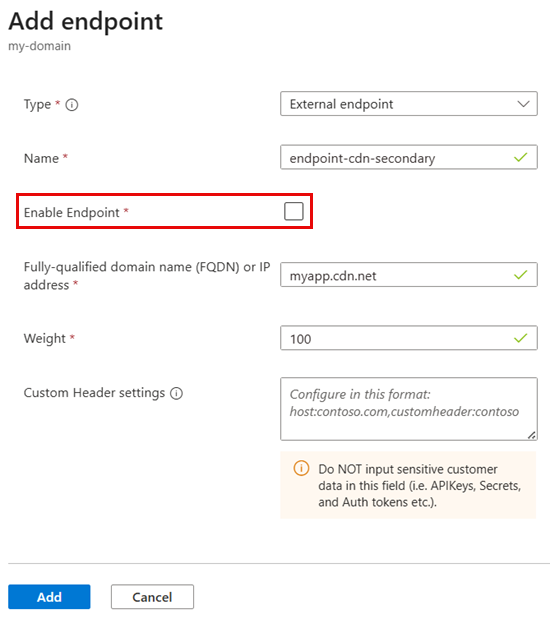
Step 5: Update DNS CNAME to Traffic Manager and verify the update
Warning
The following steps will redirect your production traffic from Azure Front Door directly to Traffic Manager. Before you proceed:
- Test these steps in a non-production environment first.
- Reduce your DNS CNAME TTL to the lowest value possible (for example, 60-300 seconds) at least 24 hours before you make changes.
- Plan for a maintenance window during low-traffic periods if possible.
- Have rollback procedures ready in case problems arise.
Update your DNS CNAME record to point to Traffic Manager instead of directly to Azure Front Door:
Field Old value New value Name/Host www www (no change) Value/Points to Host name of the Azure Front Door endpoint $ATM_CDN_DNS_NAME.trafficmanager.netDNS propagation typically takes 5-10 minutes but can take up to 48 hours globally.
Verify Traffic Manager resolution. Wait for DNS propagation, and then test HTTPS connectivity.
# Verify Traffic Manager profile is resolving
nslookup "$ATM_CDN_DNS_NAME.trafficmanager.net"
# Expected result: Should return IP address of Azure Front Door endpoint

# Check DNS from different resolvers
nslookup $CUSTOM_DOMAIN 8.8.8.8    # Google DNS

# Test HTTPS connectivity
Invoke-WebRequest -Uri "https://$CUSTOM_DOMAIN/index.html" -Method Head
# Expected result: Status code 200
After the DNS cutover, actively monitor the following Azure Front Door metrics:
Request count: The count should remain consistent, with no drop in traffic.
Response time: The time should remain within normal ranges.
Error rates: 4xx/5xx errors shouldn't increase.
Origin health: Backend health should remain
Online.
Step 6: Test failover procedures
Manually fail over to the alternative CDN:
# Failover: Disable Azure Front Door and enable CDN
az network traffic-manager endpoint update `
    --name "endpoint-afd-primary" `
    --profile-name $ATM_CDN_PROFILE_NAME `
    --resource-group $RESOURCE_GROUP `
    --type externalEndpoints `
    --endpoint-status Disabled

az network traffic-manager endpoint update `
    --name "endpoint-cdn-secondary" `
    --profile-name $ATM_CDN_PROFILE_NAME `
    --resource-group $RESOURCE_GROUP `
    --type externalEndpoints `
    --endpoint-status Enabled

# Verify endpoint status
az network traffic-manager profile show `
    --name $ATM_CDN_PROFILE_NAME `
    --resource-group $RESOURCE_GROUP `
    --query "endpoints[].{Name:name, Status:endpointStatus, Health:endpointMonitorStatus, Target:target}"

# Flush local DNS cache and verify resolution
ipconfig /flushdns
nslookup "$ATM_CDN_DNS_NAME.trafficmanager.net"

# Test HTTPS access
curl --head https://$CUSTOM_DOMAIN/
Fail back to Azure Front Door:
# Failback: Enable Azure Front Door, disable CDN
az network traffic-manager endpoint update `
    --name "endpoint-afd-primary" `
    --profile-name $ATM_CDN_PROFILE_NAME `
    --resource-group $RESOURCE_GROUP `
    --type externalEndpoints `
    --endpoint-status Enabled

az network traffic-manager endpoint update `
    --name "endpoint-cdn-secondary" `
    --profile-name $ATM_CDN_PROFILE_NAME `
    --resource-group $RESOURCE_GROUP `
    --type externalEndpoints `
    --endpoint-status Disabled

# Verify
az network traffic-manager profile show `
    --name $ATM_CDN_PROFILE_NAME `
    --resource-group $RESOURCE_GROUP `
    --query "endpoints[].{Name:name, Status:endpointStatus, Health:endpointMonitorStatus}"
Monitoring
Important
Configure synthetic monitors to alert immediately on failures. These alerts should trigger manual failover if automatic failover is insufficient (for example, Azure Front Door custom domain problems that Traffic Manager can't detect).
We recommend the following monitoring solutions for production environments:
Azure Monitor workbooks: Track Traffic Manager queries, Azure Front Door requests, and Application Gateway health. For more information, see the overview of workbooks.
Outside-in monitoring to detect global Azure Front Door problems: Implement outside-in global synthetic monitoring solutions (such as Catchpoint or ThousandEyes) to monitor endpoints. Services like WebPageTest offer a free alternative that provides limited global visibility.
Application Insights availability tests: Use multi-region HTTP checks. For more information, see Application Insights availability tests.
DNS monitoring: Validate CNAME resolution chain and TTL propagation via DNSPerf, Pingdom, or Uptime.com.
Certificate monitoring: Use SSL Server Test from Qualys SSL Labs to analyze your server's configuration.