Note
Access to this page requires authorization. You can try signing in or changing directories.
Access to this page requires authorization. You can try changing directories.
This tutorial shows Azure administrators how to assign Azure Baseline Security Mode (Azure BSM) for the first time. You establish the baseline at your selected scope and review initial compliance. Resource owners can then prepare workloads and enroll supported subscopes for enforcement.
In this tutorial, you learn to:
- Find Azure Baseline Security in the Azure portal.
- Explore the baseline initiative and its included policies.
- Assign the baseline at the highest permitted scope in Enroll mode.
- Check initial compliance on the Azure Baseline Security page.
- Address a noncompliant BSM control.
Note
Azure Baseline Security Mode is in public preview.
What is Azure Baseline Security Mode?
Azure BSM provides a guided way to adopt a Microsoft-curated set of high-priority Azure Policy security controls that Microsoft recommends applying in enforcement mode. It simplifies assessing your security posture, preparing workloads, and enrolling supported scopes for enforcement.
The Microsoft cloud security benchmark initiative is primarily used to assess and audit security compliance. Azure BSM complements that broader benchmark with a prioritized set of policies intended for enforcement.
In Enroll enforcement mode, administrators at a higher Azure scope establish the baseline centrally. Resource owners then investigate affected resources, prepare workloads, and enroll supported scopes when they're ready for enforcement.
Note
Azure BSM doesn't replace Azure Policy. The underlying policy definitions, assignments, evaluation, compliance states, effects, and exemptions continue to use Azure Policy behavior.
For guidance on protecting Microsoft 365 services, see Baseline security mode settings for Microsoft 365.
Why Azure BSM?
Azure BSM is especially useful for new environments, where you can start with Microsoft's recommended policies in enforcement mode.
Existing workloads might depend on Shared Key authorization, anonymous access, older versions of Transport Layer Security (TLS), or public connectivity, making immediate enforcement risky. Enroll enforcement mode lets teams review compliance and prepare workloads before enabling enforcement for supported subscopes through enrollment.
Use Azure BSM when you want to:
- Establish a consistent minimum security baseline across Azure scopes.
- Reduce the need to discover and assemble individual foundational security policies.
Prerequisites
If you don't have an Azure subscription, create a free account before you begin.
Before you enable Azure BSM
- Confirm that you have the required Azure and Azure Policy permissions.
- Review the included controls and identify dependencies on shared keys, public or anonymous access, older TLS versions, or Key Vault deletion settings.
- Review existing noncompliant resources and plan workload changes before enforcement.
- Test potentially disruptive controls in a representative nonproduction environment.
- Establish an exception path for workloads that can't immediately meet the baseline.
Important
Enforcing some Azure BSM controls can disrupt applications that depend on shared keys, public or anonymous access, older TLS versions, or public Key Vault endpoints. Review the control catalog before enrolling production scopes.
Find Azure Baseline Security
Open the Azure Baseline Security page in the Azure portal.
To navigate there from the portal, open Policy, expand Assignment Presets in the table of contents, and select Baseline Security.
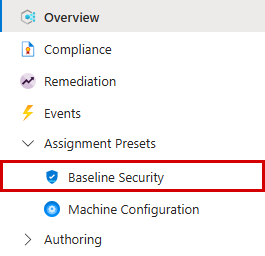
Alternatively, on the Policy Overview page, find Recommended Assignments and select Protect with Baseline Security Mode.
Review the Azure Baseline Security Mode assignments listed for the selected scope. The list is empty if there are no existing Azure Baseline Security assignments yet.
Before assigning the baseline, review the initiative and its included policy definitions to understand what it covers. To find the initiative:
- Under Authoring, select Definitions.
- Search for
Azure Baseline Security Mode. - Open [Preview]: Azure Baseline Security Mode and confirm that its type is Built-in.
- On the Policies tab, explore the included policy definitions.

When you're ready, select Assign initiative on the initiative definition page. You can also start assignment directly from the Baseline Security page.

Assign Azure Baseline Security Mode
Assign the baseline at the highest scope where you have permission, and use Enroll mode. This approach lets you collect compliance data across that scope before resource owners enroll supported subscopes when they are ready for enforcement.
On the Basics tab, use the Scope selector to choose the highest scope where you have permission to assign the baseline.
Set Policy enforcement to Enroll.

Identifying details are redacted in the screenshots.
For Version, open the version selector.
Enable Automatically enroll in minor version changes and choose the version to assign. Select Select to return to the assignment.
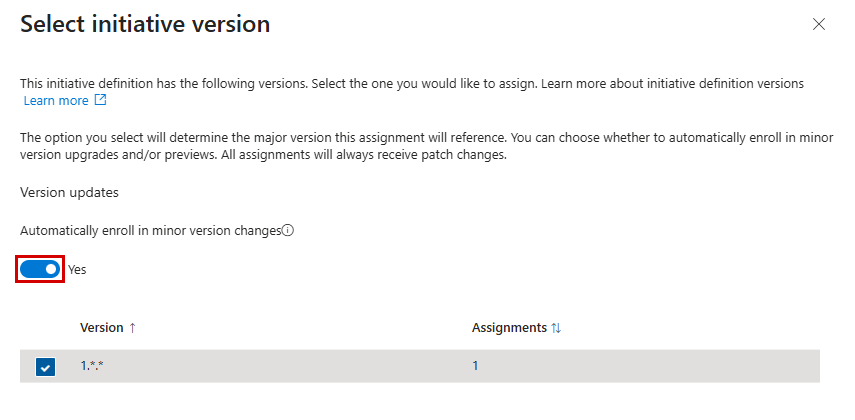
Select Next to continue to Parameters.
Leave each policy's effect at its default Deny setting. To use Audit or Disabled instead, clear Only show parameters that need input or review, and then select the effect for that policy.
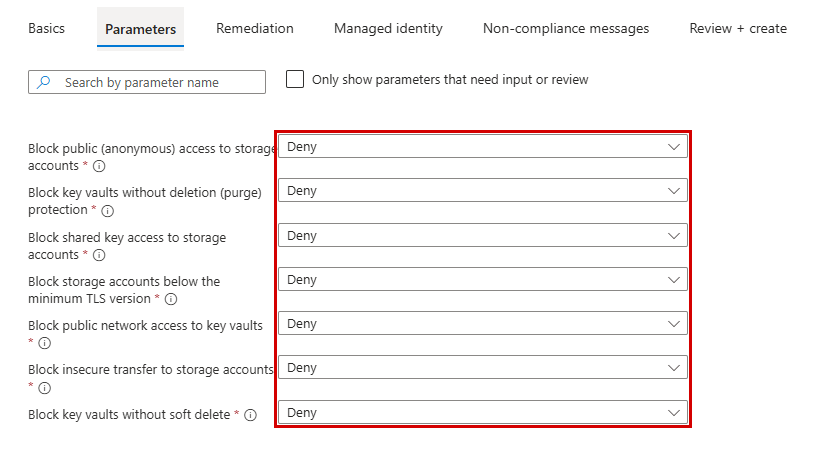
Note
The policy effect and the assignment's enforcement mode serve different purposes. The Deny effect blocks noncompliant resource creation and updates when enforcement applies. Enroll mode lets you review compliance before enrolling supported subscopes for enforcement.
Continue through the remaining assignment settings. The Managed identity and Non-compliance messages settings are optional; leave them unchanged for this walkthrough.
Select Review + create.
Review your configuration. Confirm that you've selected:
- The highest permitted assignment scope.
- Enroll mode.
- Automatic enrollment in minor version changes.
- The policy effects you intend to use. Deny is recommended.
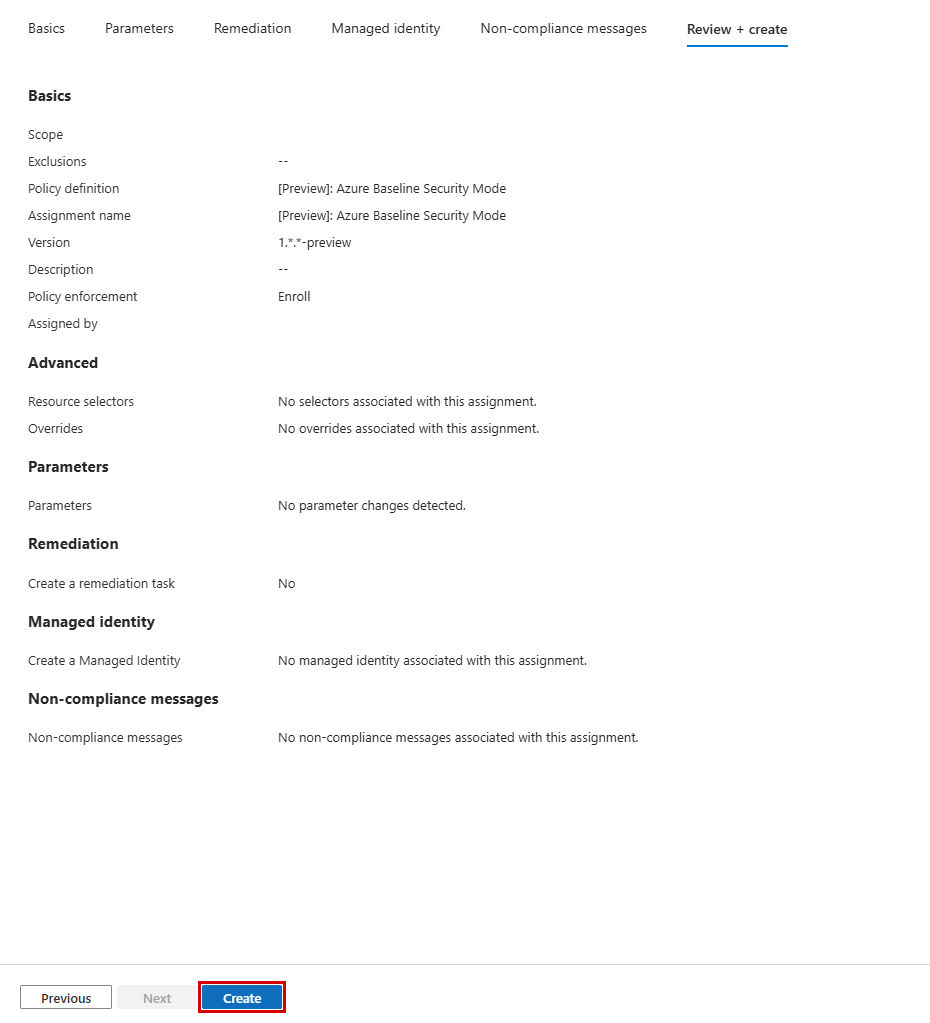
Select Create to assign Azure Baseline Security Mode.

Check initial compliance
After assigning the baseline, return to the Azure Baseline Security page to review your assignments and their overall compliance.
Open Policy in the Azure portal.
Under Assignment Presets, select Baseline Security.
In the assignment list, find the assignment you just created.
Review its overall compliance for the Azure Baseline Security Mode initiative.
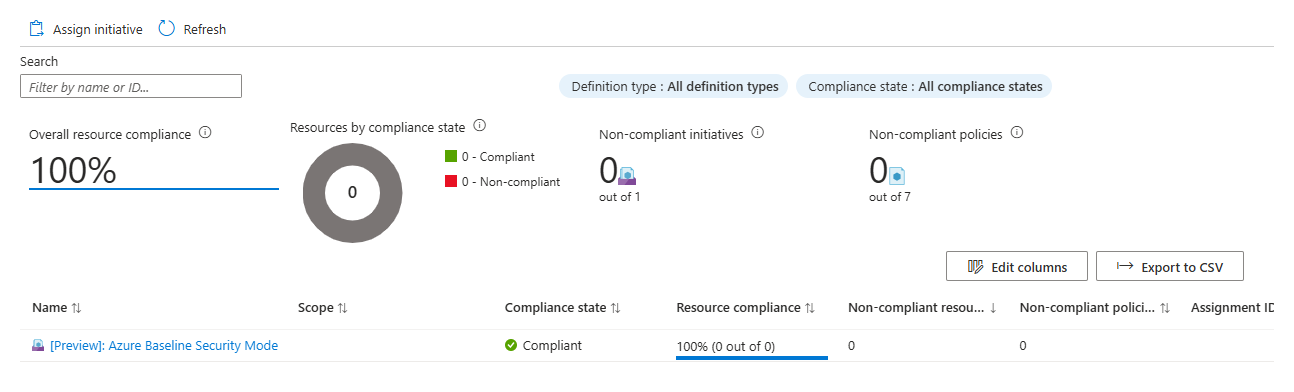
This example shows no evaluated resources. A 100% result for zero evaluated resources doesn't confirm workload compliance.
Note
After you first assign the initiative at a scope, the assignment and compliance information might take a few minutes to appear on this page.
Use this initial compliance information to understand your current posture before resource owners prepare workloads and enroll supported subscopes.
For detailed evaluation triggers, compliance states, and resource-level compliance records, see Get compliance data for Azure resources. Allow evaluation to complete before using the results to decide whether a scope is ready for enforcement.
Address a noncompliant BSM control
- Open the noncompliant BSM control and identify the affected resource.
- Review the control's security intent and potential workload impact.
- Open the linked service-specific Microsoft Learn article in the control catalog.
- Follow the authoritative service guidance to update or replace the dependent configuration.
- Allow Azure Policy to reevaluate the resource.
- Confirm that the Azure BSM control returns to a compliant state.
Azure BSM control catalog
Use this catalog to review each control's security intent, potential workload impact, and safe rollout guidance before enforcement. Review the policies and settings for the initiative version selected in your assignment.
Select a control title to open its built-in policy definition in the Azure portal. Select Learn more at the end of a description for service-specific Microsoft Learn guidance.
Storage
| Control | Description | Potential impact | Safe rollout tips |
|---|---|---|---|
| 1. Block insecure transfer to storage accounts | Unencrypted HTTP connections can expose storage data and credentials to interception or tampering. This control prevents storage accounts from being created or updated to allow insecure transfer. Learn more. | Clients that still use HTTP can fail. Check legacy applications, devices, and protocol dependencies. | Use logs and dependency testing to identify HTTP traffic. Update endpoints and connection strings to use HTTPS, and validate all storage services and protocols used by the account before enforcement. |
| 2. Block public (anonymous) access to storage accounts | Anonymous public access can expose blobs and containers to anyone without authentication, risking unintended data disclosure. This control prevents storage accounts from being created or updated to allow anonymous public access to blobs and containers. Learn more. | Public URLs used by websites, partners, downloads, or automation can stop working. | Inventory containers that intentionally allow anonymous access and identify their consumers. Replace anonymous access with Microsoft Entra authorization or, where appropriate, time-limited user delegation shared access signatures (SAS) for Blob Storage. Test external access paths before disabling anonymous access. |
| 3. Block storage accounts below the minimum TLS version | Older TLS versions can have weaker protections and known vulnerabilities, increasing the risk of interception or tampering. This control prevents storage accounts from being created or updated with a minimum TLS version below the required level. Learn more. | Older operating systems, runtimes, appliances, and SDKs can lose access. | Review storage logs and client inventories to identify older TLS usage. Upgrade or replace incompatible clients, and test the change in a nonproduction environment before raising the minimum TLS version. |
| 4. Block shared key access to storage accounts | Shared keys can be leaked or copied and provide broad access without identity-level accountability. This control prevents storage accounts from being created or updated to allow Shared Key access. Learn more. | Applications, tools, SAS tokens, or integrations that depend on account keys can fail. | Use diagnostic logs to identify Shared Key usage, and verify feature and client support for the replacement authorization method. Assign least-privilege data roles, migrate Blob workloads to Microsoft Entra ID or user delegation SAS where appropriate, and test each storage service before enforcement. |
Key Vault
| Control | Description | Potential impact | Safe rollout tips |
|---|---|---|---|
| 5. Block public network access to Azure Key Vaults | Public network access can expose a key vault endpoint to untrusted networks and increase the risk of unauthorized access attempts. This control prevents key vaults from being created or updated to allow public network access. Learn more. | Applications, administrators, agents, and integrations without a working private path can be blocked. | Validate private endpoints, DNS resolution, firewall rules, and access from every required network before disabling the public endpoint. Keep a tested administrative access path. |
| 6. Block creation of Key Vaults without deletion protection | Without purge protection, a deleted key vault and its contents can be permanently purged during the retention period, causing irreversible data loss. This control requires purge protection to be enabled. Learn more. | Purge protection can't be disabled once enabled. You can't purge or recreate a deleted vault with the same name until its retention period expires. Recover the vault if you need it sooner. | Review the retention period, naming strategy, recovery process, and automation that deletes and recreates vaults before enabling purge protection. |
| 7. Block creation of Key Vaults without soft delete | Without soft delete, accidental or malicious deletion of a key vault or its objects can result in permanent data loss. This control requires soft delete to keep deleted vaults and objects recoverable during the retention period. Learn more. | Soft-deleted vault names remain unavailable for new vaults until the deleted vault is purged or its retention period expires. Automation must handle soft-deleted resources rather than attempting to recreate them with the same name. | Update cleanup, recreation, and recovery automation to handle soft-deleted resources. Confirm that operators have the permissions required to recover them. |
Note
New key vaults have soft delete enabled by default. Once enabled, soft delete and purge protection can't be disabled. Purge protection prevents purging during the retention period. Review the linked recovery guidance before changing these settings.
Disable Azure BSM
- Opt out at the entire assignment scope: Delete the Azure BSM initiative assignment. This method removes the evaluation and enforcement that the assignment provides.
- Stop enforcement for a subscope: For an assignment in Enroll mode, remove the enrollment that covers that scope. The assignment remains in place and continues to evaluate compliance. See Azure Policy enrollments.
Neither option undoes changes already made to resource configurations. Other assignments or enrollments might still enforce the same controls.
Troubleshoot Azure BSM
- Scope unavailable or assignment missing: Check the selected scope and your Azure Policy permissions.
- Enrollment fails: Verify permissions at the enrollment scope and confirm that the referenced assignment uses Enroll mode.
- Compliance information is missing or outdated: Allow evaluation to complete. See Get compliance data.
- Unenrollment fails: Review the reported error and permissions at the enrollment scope.
- A control disrupts a workload: Follow that control's linked service-specific guidance in the control catalog.
Review
In this tutorial, you:
- Found Azure Baseline Security in the Azure portal.
- Explored the initiative and its included policy definitions.
- Assigned the baseline at the highest permitted scope in Enroll mode.
- Enabled automatic enrollment in minor version changes.
- Reviewed policy effects, with Deny as the recommended default.
- Checked initial initiative compliance on the Azure Baseline Security page.
- Addressed a noncompliant BSM control.
Next steps
After reviewing compliance and preparing workloads, enroll supported subscopes when they're ready for enforcement.
Learn how enrollments work in Azure Policy enrollment structure (Preview).