Note
Access to this page requires authorization. You can try signing in or changing directories.
Access to this page requires authorization. You can try changing directories.
The hardest part of working with graphs is building the graph in the first place. Manually curating entities and relationships from thousands of documents is prohibitively expensive. AI Functions in Azure HorizonDB solve this issue by bringing LLM-powered intelligence directly into SQL, so you can extract, structure, and query knowledge graphs without leaving the database.
azure_ai.extract() discovers hidden relationships and entities from unstructured text, right inside a SQL query. Feed it contracts, support tickets, research papers, or any text-heavy data, and it pulls out the structured relationships you need to populate your knowledge graph.
This article walks through a concrete, end-to-end example:
- Extracting entities from IT incident tickets.
- Flowing them into an Apache AGE graph.
- Querying the graph to find cascading failure chains.
Prerequisites
Before running this tutorial, you need an Azure HorizonDB instance, an AI model configured via the model registry, and the required PostgreSQL extensions.
- Azure HorizonDB with a firewall rule that allows connections from your client IP. Configure this rule in the Azure portal under Networking > Firewall rules, or via CLI.
Enable extensions
Allow list vector, azure_ai, and age extensions and add age to shared_preload_libraries via the Azure portal or CLI, then run:
CREATE EXTENSION IF NOT EXISTS vector;
CREATE EXTENSION IF NOT EXISTS azure_ai;
CREATE EXTENSION IF NOT EXISTS age;

SET search_path = ag_catalog, "$user", public;
Configure AI models
You need a chat or generation model, such as gpt-5.4, that the azure_ai extension can call. You have two options:
Option 1: AI Model Management
If AI Model Management (limited preview) is enabled on your HorizonDB instance, the service automatically provisions and registers models in the model registry. You don't need to manage an endpoint or key. AI functions use the Managed Models by default.
You can use the the source data.
Option 2: Manually register a model in the model registry
If you prefer to use your own Microsoft Foundry models (Bring Your Own Model), follow these steps:
Deploy a model through Microsoft Foundry. Select the model you want to use, such as
gpt-5.4, and complete the deployment.In the Microsoft Foundry dashboard, navigate to your project and note the API key and the Azure OpenAI endpoint URL, which looks like
https://<your-resource-name>.openai.azure.com/.Navigate to your model deployment and note the following values:
- Deployment name: The name you assigned during deployment, such as
gpt-5-deployment. - Model name: The underlying model name, such as
gpt-5.4.
- Deployment name: The name you assigned during deployment, such as
Register the model in the model registry:
SELECT model_registry.model_add(
    'my-gpt',                                  -- a unique alias for your model
    'https://my-endpoint.openai.azure.com/',    -- your Azure OpenAI endpoint
    'gpt-5-deployment',                        -- deployment name
    'gpt-5',                                   -- model name
    '2025-01-01-preview',                      -- API version (NULL for latest)
    'subscription-key',                        -- auth type
    '<your-endpoint-key>'                      -- endpoint key
);
For complete details on model registration, see Manual setup with model registry.
The Source Data
Create the sample table and insert a few incident tickets to work with:
CREATE TABLE public.support_tickets (
  ticket_id   INT PRIMARY KEY,
  severity    TEXT NOT NULL,
  created_at  TIMESTAMPTZ NOT NULL DEFAULT now(),
  description TEXT NOT NULL
);

INSERT INTO support_tickets (ticket_id, severity, created_at, description)
VALUES
(4012, 'SEV1', '2025-03-03 14:22:00+00',
 'The API gateway update on March 3rd caused the auth service to return 503 errors. The auth service failure cascaded into the payment service, which timed out all requests. The checkout workflow went down because it depends on the payment service. The Platform team rolled back the API gateway config to resolve the outage.'),

(4013, 'SEV2', '2025-03-05 09:15:00+00',
 'The cache layer restart broke the invalidation hook in the event bus. The search service started returning stale results because it reads from the cache layer. The payment service also received stale fraud-check scores from the cache layer, causing intermittent transaction declines. The data pipeline team patched the event bus hook and the Infra team flushed the cache layer.'),

(4014, 'SEV1', '2025-03-07 03:41:00+00',
 'A DNS resolution failure in the service mesh caused the payment service to lose connectivity to the fraud detection API. The checkout workflow went down again because it depends on the payment service. The Network team fixed the service mesh config to restore the payment service.'),

(4015, 'SEV3', '2025-03-08 11:30:00+00',
 'The API gateway started rate-limiting the auth service token refresh endpoint after a config change. The auth service returned 401 errors to the mobile app. The Platform team raised the API gateway rate limit threshold to fix the auth service.'),

(4016, 'SEV2', '2025-03-10 16:05:00+00',
 'The email provider API started throttling requests, causing the notification service to back up. The checkout workflow confirmation emails were delayed by 4 hours because the checkout workflow sends confirmations through the notification service. The messaging team added retry backoff to the notification service.');
Step 1 - Extract Entities and Relationships
Use azure_ai.extract() to pull structured relationship triples from each document. The extraction prompt instructs the model to capture all meaningful relationships, including operational links (OPERATES_ON), document-to-entity links (INVOLVES), and causal or resolution links. By capturing everything as triples upfront, Step 3 requires zero domain-specific code.
Pass the ticket ID as part of the input text so the model can reference it as a source entity:
Tip
Adapting the extraction prompt: The only thing you change for a different domain is the example relationship types in the ARRAY hint:
- Contracts:
BINDS, REFERENCES, AMENDS, GOVERNS - Research papers:
AUTHORED, CITES, EVALUATES, CONTRADICTS - Healthcare:
DIAGNOSED_WITH, PRESCRIBED, CONTRAINDICATED_BY - Supply chain:
SUPPLIES, ASSEMBLED_IN, DEPENDS_ON
The three-column structure (relationship_sources, relationship_types, relationship_targets) stays the same regardless of domain.
SELECT ticket_id,
  azure_ai.extract(
    format('Ticket %s: %s', ticket_id, description),
    ARRAY[
      'root_cause: string - the root cause of the incident',
      'resolution: string - how the issue was resolved',
      'relationship_sources: string - comma separated source entities (include the Ticket ID, team names, and service names as sources where appropriate), one per relationship',
      'relationship_types: string - comma separated relationship types (e.g. CAUSED_FAILURE_IN, OPERATES_ON, INVOLVES, RESOLVED, PART_OF)',
      'relationship_targets: string - comma separated target entities, one per relationship'
    ],
    'my-gpt'  -- model alias (omit if using AI Model Management)
  ) AS extracted
FROM support_tickets
WHERE ticket_id = 4012;
This returns structured JSON:
{
  "root_cause": "API gateway update on March 3rd",
  "resolution": "rolled back the gateway config",
  "relationship_sources": "API gateway, auth service, payment service, Platform team, Platform team, Ticket 4012, Ticket 4012, Ticket 4012, Ticket 4012",
  "relationship_types": "CAUSED_FAILURE_IN, CAUSED_FAILURE_IN, PART_OF, RESOLVED, OPERATES_ON, INVOLVES, INVOLVES, INVOLVES, INVOLVES",
  "relationship_targets": "auth service, payment service, checkout workflow, API gateway, payment service, payment service, API gateway, auth service, checkout workflow"
}
Step 2 - Deduplicate Extracted Entities
When you run azure_ai.extract() across thousands of tickets, the same entity appears in different surface forms: "API gateway", "api-gateway", "the gateway service". Without deduplication, your graph fills with near-duplicate nodes that fragment your traversals.
Use azure_ai.generate() to normalize entity names into canonical forms before inserting into the graph.
Tip
When to skip this step: If your source data uses controlled vocabulary (for example, service names from a CMDB, or product SKUs from a catalog), entities are already canonical. Skip deduplication and go directly to Step 3.
-- Materialize azure_ai.extract() results for all tickets
CREATE TEMP TABLE extracted_tickets AS
SELECT ticket_id,
  azure_ai.extract(
    format('Ticket %s: %s', ticket_id, description),
    ARRAY[
      'root_cause: string - the root cause of the incident',
      'resolution: string - how the issue was resolved',
      'relationship_sources: string - comma separated source entities (include the Ticket ID, team names, and service names as sources where appropriate), one per relationship',
      'relationship_types: string - comma separated relationship types (e.g. CAUSED_FAILURE_IN, OPERATES_ON, INVOLVES, RESOLVED, PART_OF)',
      'relationship_targets: string - comma separated target entities, one per relationship'
    ],
    'my-gpt'  -- model alias (omit if using AI Model Management)
  ) AS data
FROM support_tickets;

-- Stage ALL extracted entity names into a temp table.
-- Split on comma, then trim whitespace from each element.
-- The LLM may return "A, B" or "A,B" inconsistently;
-- trim() handles both.
CREATE TEMP TABLE raw_entities AS
SELECT DISTINCT trim(entity_name) AS entity_name
FROM (
  SELECT unnest(string_to_array(data->>'relationship_sources', ',')) AS entity_name
  FROM extracted_tickets
  UNION ALL
  SELECT unnest(string_to_array(data->>'relationship_targets', ','))
  FROM extracted_tickets
) sub
WHERE entity_name IS NOT NULL AND trim(entity_name) <> '';
Next, use azure_ai.generate() with structured output to produce canonical names and build a lookup table mapping aliases to canonical forms:
-- Build a lookup table mapping every alias to its canonical name.
-- azure_ai.generate() with json_schema returns reliable structured JSON.
CREATE TEMP TABLE entity_canonical AS
SELECT item->>'canonical' AS canonical, alias
FROM jsonb_array_elements(
  (SELECT azure_ai.generate(
    prompt => format(
      'Given these entity names from incident reports, group names that refer to the same thing.
       Treat partial names as aliases (e.g. "cache" and "cache layer" are the same,
       "notification service queue" and "notification service" are the same).
       Pick the most descriptive name as canonical.
       Entities: %s',
      (SELECT string_agg(DISTINCT entity_name, ', ') FROM raw_entities)
    ),
    json_schema => '{
      "name": "dedup_response",
      "strict": true,
      "schema": {
        "type": "object",
        "properties": {
          "groups": {
            "type": "array",
            "items": {
              "type": "object",
              "properties": {
                "canonical": { "type": "string" },
                "aliases": { "type": "array", "items": { "type": "string" } }
              },
              "required": ["canonical", "aliases"],
              "additionalProperties": false
            }
          }
        },
        "required": ["groups"],
        "additionalProperties": false
      }
    }',
    model => 'my-gpt'  -- model alias (omit if using AI Model Management)
  )->'groups')
) AS item,
jsonb_array_elements_text(item->'aliases') AS alias;
Preview what the model grouped:
SELECT * FROM entity_canonical ORDER BY canonical, alias;
Example output:
| canonical | alias |
|---|---|
| API Gateway | API gateway |
| API Gateway | api-gateway |
| API Gateway | the gateway service |
| Auth Service | auth service |
| Auth Service | authentication service |
| Payment Service | payment service |
| Payment Service | payments svc |
-- Normalize relationships to use canonical names.
-- Uses FROM unnest() to zip the three arrays positionally:
-- source[1] pairs with type[1] pairs with target[1], etc.
CREATE TEMP TABLE normalized_rels AS
WITH raw_rels AS (
  SELECT ticket_id, trim(source) AS source, trim(relationship) AS relationship, trim(target) AS target
  FROM extracted_tickets,
  LATERAL unnest(
    string_to_array(data->>'relationship_sources', ','),
    string_to_array(data->>'relationship_types', ','),
    string_to_array(data->>'relationship_targets', ',')
  ) AS t(source, relationship, target)
)
SELECT
  COALESCE(c1.canonical, r.source) AS source,
  trim(r.relationship) AS relationship,
  COALESCE(c2.canonical, r.target) AS target,
  r.ticket_id
FROM raw_rels r
LEFT JOIN entity_canonical c1 ON lower(r.source) = lower(c1.alias)
LEFT JOIN entity_canonical c2 ON lower(r.target) = lower(c2.alias)
WHERE r.source IS NOT NULL AND trim(r.source) <> ''
  AND r.target IS NOT NULL AND trim(r.target) <> ''
  AND r.relationship IS NOT NULL AND trim(r.relationship) <> '';
Verify that deduplication worked. If canonical names are resolving correctly, aliases like "api-gateway" and "API Gateway" appear under the same canonical name:
-- Check: every source and target should be a canonical name (not an alias)
SELECT DISTINCT source FROM normalized_rels
UNION
SELECT DISTINCT target FROM normalized_rels
ORDER BY 1;
Compare this list against raw_entities. You should see fewer distinct names (aliases collapsed). If raw aliases still appear, check entity_canonical for missing mappings.
Step 3 - Flow Deduplicated Entities into an AGE Graph
Take the normalized output from Step 2 and load it into an Apache AGE graph. The generic pipeline (3a + 3b) works for any domain because it operates entirely on normalized_rels, which has a universal schema: source, relationship, target. No customization is needed.
Important
The DO blocks in the following sections use the agtype type, which resides in the ag_catalog schema. Make sure your search path includes it before running Step 3. If you set it during Enable extensions, run it again in case your session was reset.
SET search_path = ag_catalog, "$user", public;
3a: Create entity nodes
Create one graph node for every unique entity found in normalized_rels. This block is domain-agnostic: it reads the source and target columns without knowing what kind of entities they represent. The MERGE command creates the node only if it doesn't already exist, so this block is safe to rerun.
SELECT ag_catalog.create_graph('incident_graph');

DO $$
DECLARE rec RECORD;
BEGIN
  FOR rec IN
    SELECT DISTINCT name FROM (
      SELECT source AS name FROM normalized_rels
      UNION
      SELECT target AS name FROM normalized_rels
    ) all_names
    WHERE name IS NOT NULL AND name <> ''
  LOOP
    EXECUTE format(
      'SELECT * FROM ag_catalog.cypher(''incident_graph'', $q$ MERGE ({name: %s}) $q$) AS (v agtype)',
      quote_literal(rec.name)
    );
  END LOOP;
END $$;
3b: Create relationship edges
Insert one directed edge per extracted relationship. This block is also domain-agnostic: whatever relationship types the LLM extracted in Step 1 (CAUSED_FAILURE_IN, PRESCRIBED, REFERENCES, SUPPLIES, and so on) become edge labels automatically. The regexp_replace function sanitizes the relationship type into a valid Cypher label (uppercase, underscores only).
DO $$
DECLARE rec RECORD;
BEGIN
  FOR rec IN SELECT DISTINCT source, relationship, target FROM normalized_rels
    WHERE source IS NOT NULL AND source <> ''
      AND target IS NOT NULL AND target <> ''
      AND relationship IS NOT NULL AND relationship <> ''
  LOOP
    EXECUTE format(
      'SELECT * FROM ag_catalog.cypher(''incident_graph'', $q$
        MATCH (a {name: %s})
        MATCH (b {name: %s})
        MERGE (a)-[:%s]->(b)
      $q$) AS (v agtype)',
      quote_literal(rec.source),
      quote_literal(rec.target),
      upper(regexp_replace(trim(rec.relationship), '[^a-zA-Z0-9_]', '_', 'g'))
    );
  END LOOP;
END $$;
At this point, your graph is complete. Steps 3a and 3b are all you need for a working knowledge graph from any domain. Verify:
SELECT * FROM ag_catalog.cypher('incident_graph', $$
    MATCH (a)-[r]->(b)
    RETURN a.name, label(r), b.name
$$) AS (source agtype, edge_type agtype, target agtype);
Step 4 - Query the Graph
With the graph populated, use Cypher traversals to answer operational questions that are difficult with flat tables alone. Each query below represents a real question an on-call engineer or incident reviewer would ask.
"What downstream services did this failure break?"
Trace cascading failures up to three hops deep. The variable-length path pattern *1..3 follows CAUSED_FAILURE_IN edges transitively, revealing the impact that a single-ticket view misses:
SELECT * FROM ag_catalog.cypher(
  'incident_graph', $$
    MATCH (root)-[:CAUSED_FAILURE_IN*1..3]->(affected)
    RETURN root.name AS root_cause,
           affected.name AS impacted_service
$$) AS (
  root_cause agtype,
  impacted_service agtype
);
"Which services are the riskiest single points of failure?"
Count how many other services depend on or are affected by each node. Services with the highest incoming edge count are your reliability hotspots:
SELECT * FROM ag_catalog.cypher(
  'incident_graph', $$
    MATCH (a)-[r]->(target)
    RETURN target.name AS service,
           count(*) AS incoming_edges
$$) AS (
  service agtype,
  incoming_edges agtype
)
ORDER BY incoming_edges DESC;
Tip
The edge labels in your graph depend on what the LLM extracted. Run this query to see all available edge types, and then adjust the patterns in the preceding code:
SELECT * FROM ag_catalog.cypher('incident_graph', $$
MATCH ()-[r]->()
RETURN DISTINCT label(r) AS edge_type
$$) AS (edge_type agtype);
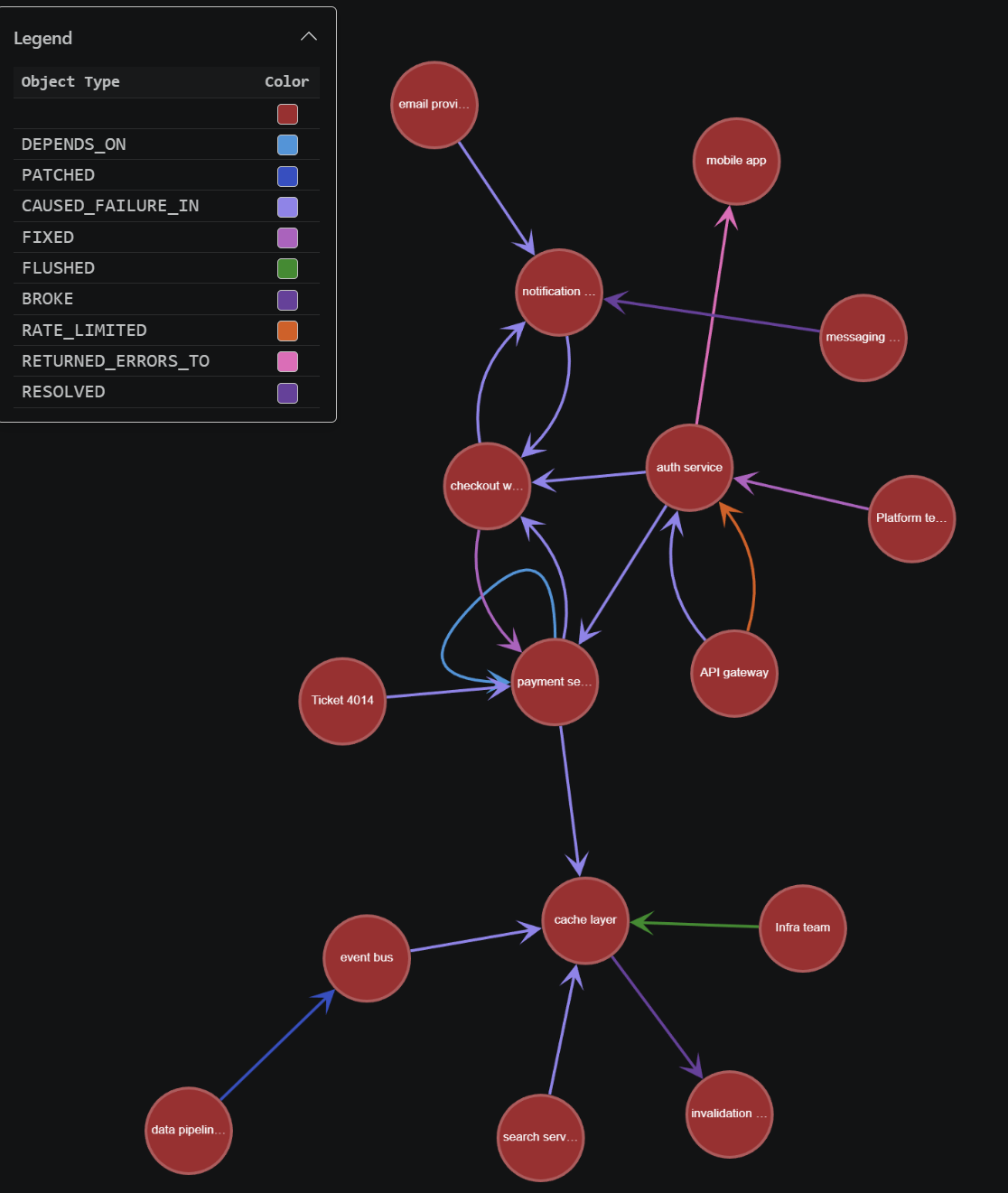
Step 5 - Visualize the graph with Visual Studio Code
The PostgreSQL extension for Visual Studio Code lets you run Apache AGE Cypher queries and explore the results as an interactive node-edge graph. The extension automatically detects graph query results and renders them in a visual explorer with per-node callouts, zoom and pan controls, export support, and theme-aware styling. For more information on the visualizer functionality in the extension, see What is the PostgreSQL extension for Visual Studio Code?
This query finds all nodes reachable via CAUSED_FAILURE_IN chains and expands the neighborhood around each node:
SELECT * FROM ag_catalog.cypher('incident_graph', $$
    MATCH (upstream)-[r:CAUSED_FAILURE_IN*1..3]->(target)
    WITH upstream, target
    MATCH (a)-[r2]->(b)
    WHERE a.name = upstream.name OR a.name = target.name
       OR b.name = upstream.name OR b.name = target.name
    SET a.disp_label = a.name
    SET b.disp_label = b.name
    RETURN DISTINCT a, r2, b
$$) AS (a agtype, r agtype, b agtype);
Scale the pattern
Scale this pattern across thousands of tickets and you have an incident knowledge graph that an AI agent can query to answer questions like:
"What upstream services most commonly cause failures that reach the API gateway?"
"Show me every cascading failure chain that touched the payment service in the last 90 days."
"Which team resolves the most cross-service incidents?"
Production considerations
This tutorial runs extraction, deduplication, and graph loading as interactive SQL statements. For production workloads:
- Azure Batch processing. Wrap Steps 1-3 in a PL/pgSQL function or use
pg_cronto run extraction on a schedule as new tickets arrive. - Incremental updates. Track a
last_processed_idwatermark rather than re-extracting the full table. UseMERGE(as shown in Step 3) for idempotent graph updates. - Error handling. LLM calls can fail or return malformed JSON. Wrap
azure_ai.extract()andazure_ai.generate()inBEGIN ... EXCEPTIONblocks and log failures to a dead-letter table for retry.