Note
Access to this page requires authorization. You can try signing in or changing directories.
Access to this page requires authorization. You can try changing directories.
Azure HorizonDB is a cloud native fully managed, AI-ready database service built on PostgreSQL. It combines a disaggregated compute and storage architecture with a database-as-a-log design to deliver predictable performance, enterprise-grade security, high availability, and seamless scalability for mission-critical workloads.
This quickstart shows you how to create an Azure HorizonDB cluster by using the Azure portal, Azure CLI, or Azure Resource Manager (ARM) templates.
Prerequisites
Before you begin, make sure you have:
- An Azure subscription. If you don't have one, create a free Azure account.
- Appropriate permissions to create resources in your subscription.
Understand what you're creating
An Azure HorizonDB cluster includes:
- A configured set of compute resources and storage resources.
- Deployment within an Azure resource group.
- A
postgresdatabase created by default. - An
azure_maintenancedatabase for managed service processes. - An
azure_sysdatabase for query store and autonomous tuning features.
Create a cluster using the Azure portal
Follow these steps to create an Azure HorizonDB cluster using the Azure portal. The wizard guides you through essential configuration options for compute, storage, and authentication.
Navigate to the creation wizard
- Sign in to the Azure portal.
- Select Create a resource in the upper-left corner.
- Under Categories, select Databases.
- Find and select Azure HorizonDB.
- Select Create.
Configure basic settings
Project details
| Setting | Suggested value | Notes |
|---|---|---|
| Subscription | Your subscription | Choose where to bill the resource |
| Resource group | {resourceGroup} | Create new or select existing |
Cluster details
| Setting | Suggested value | Description |
|---|---|---|
| Cluster name | horizondb-production | Must be unique within the same Azure subscription and resource group. |
| Region | Region closest to you | Consider compliance, data residency, pricing, and proximity to users. |
| PostgreSQL version | Latest available | Only v17 is currently supported. |
Compute details
Select Configure to customize:
| Setting | Suggested value | Description |
|---|---|---|
| vCores | 2 | Number of vCores provisioned for primary and replica compute nodes (memory is automatically adjusted). |
| High availability | Zone redundant | Disable or enable readable high availability replicas. |
| Readable high availability replicas | 1 | Creates one or more replicas to increase availability protection in region and increase read throughput. |
Select Save to confirm or Cancel to discard changes.
Authentication
| Setting | Description | Recommended |
|---|---|---|
| Authentication method | How users authenticate | - PostgreSQL authentication only |
| Admin username | adminuser | - Must be 1-63 characters - Only numbers and letters - Can't start with pg_- Can't be system reserved names |
| Password | Complex password | 8-128 characters with uppercase, lowercase, numbers, and special characters |
Configure networking
Choose your connectivity method (can't be changed after creation):
Network connectivity
Connect through a public endpoint by using firewall rules.
Connectivity method:
| Setting | Description |
|---|---|
| Public access | Only the IP addresses you configure in the Firewall rules section can access this cluster. By default, no public IP addresses are allowed. |
Firewall rules:
| Setting | Description |
|---|---|
| Allow Azure services | Permit connections from all Azure services |
| Add current client IP | Add your IP address to the allow list |
Configure security
| Setting | Can change later | Options |
|---|---|---|
| Data encryption key | ❌ No | The storage used for database and backup is encrypted by default with service managed keys |
Add resource tags (optional)
Organize resources with name-value pairs:
| Name | Value | Purpose |
|---|---|---|
| Environment | Development | Identify environment type |
| CostCenter | IT-Dept | Track costs by department |
| Owner | admin@contoso.com | Identify responsible party |
Review and create
- Select Review + create.
- Review all configurations.
- Select Create to deploy.
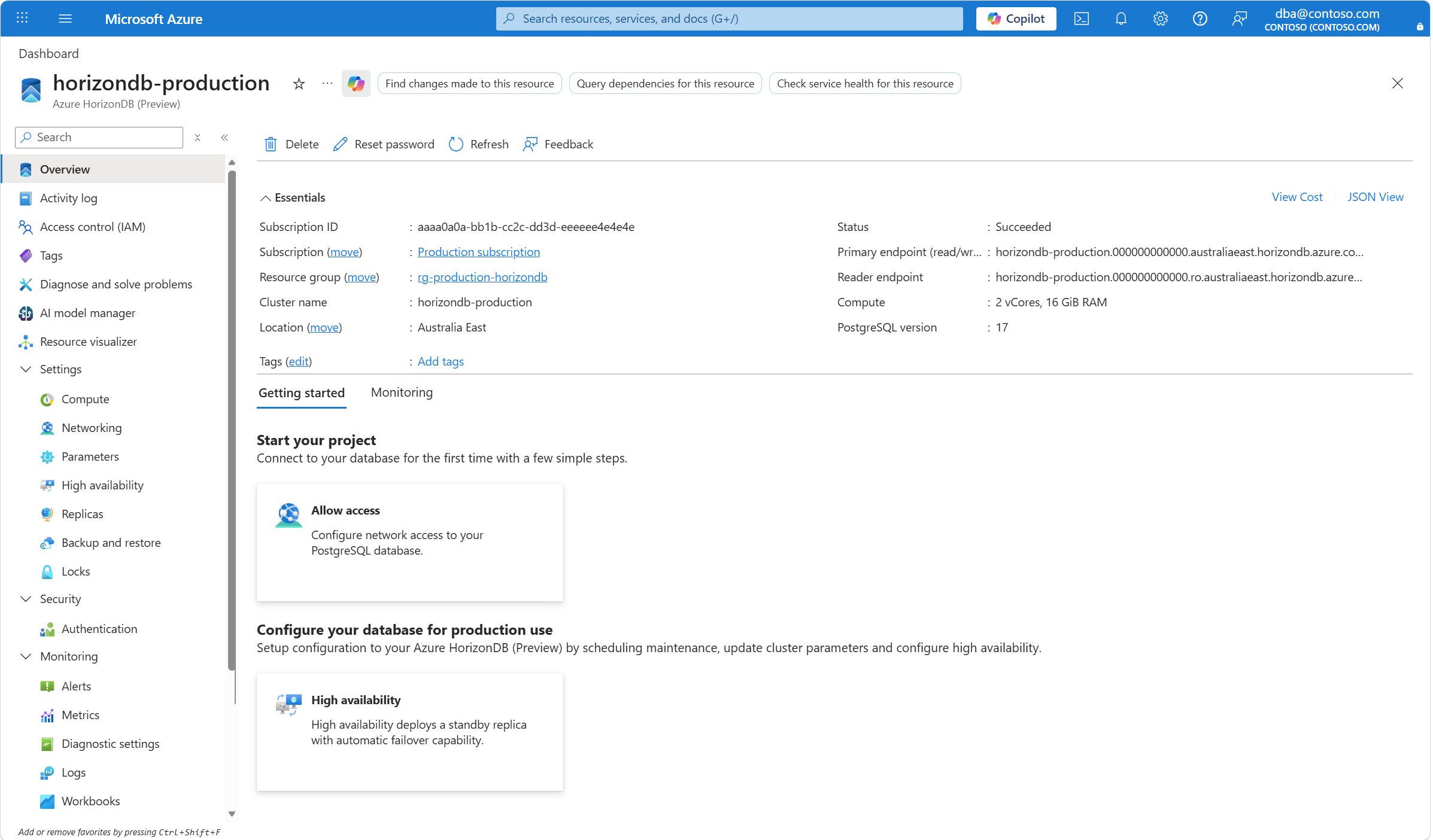
Deployment typically takes 5-10 minutes. When complete, select Go to resource to access your cluster.
Create a cluster using the Azure CLI
Prerequisites for CLI
For this script, use Azure CLI locally as it takes too long to run in Cloud Shell.
Sign in to Azure
Use the following script to sign in using a specific subscription.
subscription="<subscriptionId>" # add subscription here

az account set -s $subscription # ...or use 'az login'
For more information, see set active subscription or log in interactively
If you use Azure Cloud Shell, you're already signed in.
Add the Azure CLI extension for HorizonDB:
az extension add --name horizondb
Create an Azure HorizonDB cluster with CLI
Create a cluster with one command:
az horizondb create \
  --resource-group {resourceGroup} \
  --name {cluster} \
  --location {location} \
  --version 17 \
  --administrator-login {administratorLogin} \
  --administrator-login-password {administratorLoginPassword} \
  --v-cores 2
CLI parameters reference
| Parameter | Description | Example |
|---|---|---|
--resource-group |
Resource group name | {resourceGroup} |
--name |
Cluster name (unique within the subscription and resource group) | {cluster} |
--location |
Azure region | {location} |
--version |
PostgreSQL version | 17 |
--administrator-login |
Administrator username | {administratorLogin} |
--administrator-login-password |
Administrator password | {administratorLoginPassword} |
--v-cores |
Number of vCores assigned to each replica of the cluster | 2 |
--replica-count |
Number of readable high availability replicas | 1 |
--zone-placement-policy |
Defines how replicas are placed across availability zones | BestEffort |
Create a firewall rule on an Azure HorizonDB cluster with CLI
Important
This feature isn't supported yet from Azure CLI via a specific module or extension for HorizonDB.
Add firewall rules for client connectivity:
az rest --method PUT \
  --uri "https://management.azure.com/subscriptions/{subscriptionId}/resourceGroups/{resourceGroup}/providers/Microsoft.HorizonDB/pools/DefaultPool/firewallRules/{firewallRule}?api-version=2026-01-20-preview" \
  --body '{
      "properties": {
        "startIpAddress": "10.0.0.1",
        "endIpAddress": "10.0.0.10",
        "description": "Allow access from corporate network"
      }
  }'
Advanced CLI example
Create a zone-redundant highly available cluster:
az horizondb create \
  --resource-group {resourceGroup} \
  --name {cluster} \
  --location australiaeast \
  --version 17 \
  --administrator-login {administratorLogin} \
  --administrator-login-password {administratorLoginPassword} \
  --v-cores 2 \
  --replica-count 2 \
  --zone-placement-policy Strict
Important
This feature isn't supported yet from Azure CLI via a specific module or extension for HorizonDB.
Add firewall rules for client connectivity:
az rest --method PUT \
  --uri "https://management.azure.com/subscriptions/{subscriptionId}/resourceGroups/{resourceGroup}/providers/Microsoft.HorizonDB/pools/DefaultPool/firewallRules/{firewallRule}?api-version=2026-01-20-preview" \
  --body '{
      "properties": {
        "startIpAddress": "10.0.0.1",
        "endIpAddress": "10.0.0.10",
        "description": "Allow access from corporate network"
      }
  }'
Create a cluster using an ARM template
ARM template overview
Azure Resource Manager (ARM) templates let you define infrastructure as code. Use templates for repeatable deployments.
Minimal ARM template
Save this file as horizondb-template.json:
{
    "$schema": "https://schema.management.azure.com/schemas/2019-04-01/deploymentTemplate.json#",
    "contentVersion": "1.0.0.0",
    "parameters": {
        "clusterName": {
            "type": "String"
        },
        "poolName": {
            "defaultValue": "DefaultPool",
            "type": "String"
        },
        "location": {
            "type": "String"
        },
        "administratorLogin": {
            "type": "String"
        },
        "administratorLoginPassword": {
            "type": "SecureString"
        },
        "version": {
            "type": "String"
        },
        "vCores": {
            "type": "String"
        },
        "apiVersion": {
            "defaultValue": "2026-01-20-preview",
            "type": "String"
        },
        "firewallRules": {
            "defaultValue": [],
            "type": "Array"
        }
    },
    "resources": [
        {
            "type": "Microsoft.HorizonDB/clusters",
            "apiVersion": "[parameters('apiVersion')]",
            "name": "[parameters('clusterName')]",
            "location": "[parameters('location')]",
            "properties": {
                "createMode": "Default",
                "version": "[parameters('version')]",
                "administratorLogin": "[parameters('administratorLogin')]",
                "administratorLoginPassword": "[parameters('administratorLoginPassword')]",
                "vCores": "[parameters('vCores')]"
            }
        },
        {
            "type": "Microsoft.Resources/deployments",
            "apiVersion": "2019-08-01",
            "name": "[concat('firewallRules-', copyIndex())]",
            "dependsOn": [
                "[concat('Microsoft.HorizonDB/clusters/', parameters('clusterName'))]"
            ],
            "properties": {
                "mode": "Incremental",
                "template": {
                    "$schema": "https://schema.management.azure.com/schemas/2014-04-01-preview/deploymentTemplate.json#",
                    "contentVersion": "1.0.0.0",
                    "resources": [
                        {
                            "type": "Microsoft.HorizonDB/clusters/pools/firewallRules",
                            "name": "[concat(parameters('clusterName'),'/',parameters('poolName'),'/',parameters('firewallRules')[copyIndex()].name)]",
                            "apiVersion": "[parameters('apiVersion')]",
                            "properties": {
                                "description": "[parameters('firewallRules')[copyIndex()].name]",
                                "startIpAddress": "[parameters('firewallRules')[copyIndex()].startIpAddress]",
                                "endIpAddress": "[parameters('firewallRules')[copyIndex()].endIpAddress]"
                            }
                        }
                    ]
                }
            },
            "copy": {
                "name": "firewallRulesIterator",
                "count": "[if(greater(length(parameters('firewallRules')), 0), length(parameters('firewallRules')), 1)]",
                "mode": "Serial"
            },
            "condition": "[greater(length(parameters('firewallRules')), 0)]"
        }
    ]
}
Save this file as horizondb-parameters.json:
{
    "$schema": "https://schema.management.azure.com/schemas/2015-01-01/deploymentParameters.json#",
    "contentVersion": "1.0.0.0",
    "parameters": {
        "clusterName": {
            "value": "{cluster}"
        },
        "location": {
            "value": "australiaeast"
        },
        "administratorLogin": {
            "value": "{administratorLogin}"
        },
        "administratorLoginPassword": {
            "value": "{administratorLoginPassword}"
        },
        "version": {
            "value": "17"
        },
        "vCores": {
            "value": "2"
        },
        "apiVersion": {
            "value": "2026-01-20-preview"
        },
        "firewallRules": {
            "value": [
                {
                    "name": "myfirewallrule",
                    "startIpAddress": "{yourIPAddress}",
                    "endIpAddress": "{yourIPAddress}"
                }
            ]
        }
    }
}
Deploy the ARM template
az group create --name {resourceGroup} --location australiaeast

az deployment group create \
  --resource-group {resourceGroup} \
  --template-file horizondb-template.json \
  --parameters horizondb-parameters.json
Get connection information
After creating your cluster, retrieve connection details:
Use Azure portal
- Go to your cluster in the Azure portal.
- Open the Overview page.
- Copy these values:
- Cluster name (Primary endpoint):
{cluster}.{randomId}.australiaeast.horizondb.azure.com - Administrator login:
{administratorLogin}
- Cluster name (Primary endpoint):
Use Azure CLI
az horizondb show \
  --resource-group {resourceGroup} \
  --name {cluster} \
  --query "{clusterName:properties.fullyQualifiedDomainName, adminUser:properties.administratorLogin}" \
  --output table
Connect using psql
Install psql
If you don't have PostgreSQL client tools, download PostgreSQL for your platform.
Connect to your cluster
psql "host={cluster}.{randomId}.australiaeast.horizondb.azure.com port=5432 dbname=postgres user={administratorLogin} sslmode=require"
When prompted, enter the administrator password you set during cluster creation.
Connection string format
host={cluster}.{randomId}.australiaeast.horizondb.azure.com port=5432 dbname={databaseName} user={administratorLogin} password={administratorLoginPassword} sslmode=require
Verify connection
After connecting, you should see:
psql (16.12, server 17.9 (Azure HorizonDB (c8e7b717d05)(release)))
WARNING: psql major version 16, server major version 17.
         Some psql features might not work.
SSL connection (protocol: TLSv1.3, cipher: TLS_AES_256_GCM_SHA384, compression: off)
Type "help" for help.

postgres=>
Create a database
CREATE DATABASE user_database;
\c user_database
\q
Troubleshoot connection issues
Firewall blocking connection
If you see:
connection to server at "{cluster}.{randomId}.australiaeast.horizondb.azure.com" (###.###.###.###), port 5432 failed: Connection timed out
Solution: Make sure that there's a firewall rule whose range of start and end IP addresses includes the IP address with which your computer is trying to access the cluster.
az horizondb firewall-rule create \
  --resource-group {resourceGroup} \
  --cluster-name {cluster} \
  --firewall-rule-name {firewallRule} \
  --start-ip-address {yourIPAddress} \
  --end-ip-address {yourIPAddress}
SSL required but not configured
Ensure your connection string includes sslmode=require.
Clean up resources
When you finish the quickstart, delete the resources to avoid charges.
Delete the entire resource group
az group delete --name {resourceGroup} --yes
Delete only the cluster
az horizondb delete \
  --resource-group {resourceGroup} \
  --name {cluster} \
  --yes