Note
Access to this page requires authorization. You can try signing in or changing directories.
Access to this page requires authorization. You can try changing directories.
The PostgreSQL extension for Visual Studio Code streamlines the development and management of PostgreSQL databases. This guide walks you through connecting to a PostgreSQL database and executing queries within Visual Studio Code.
The same workflow applies whether you're connecting to:
- A local PostgreSQL installation,
- An Azure HorizonDB cluster.
Prerequisites
Before you begin, verify you have the proper tools and resources downloaded and installed.
- Visual Studio Code installed on your machine.
- A PostgreSQL database installed locally, or hosted in Create an Azure HorizonDB cluster.
- PostgreSQL extension installed in Visual Studio Code.
- GitHub Copilot extension.
- GitHub Copilot Chat extension installed.
Install the PostgreSQL extension
To install the PostgreSQL extension:
- Open Visual Studio Code and go to the Extensions view by selecting the Extensions icon in the Activity Bar or by using the View: Extensions command.
- Search for PostgreSQL in the Extensions Marketplace.
- Select the PostgreSQL extension authored by Microsoft and select Install.
After installation, the PostgreSQL extension icon appears in the Visual Studio Code sidebar.
Add a connection to PostgreSQL
Whether hosted locally or on a remote server, connecting to a PostgreSQL database is a fundamental step in managing and interacting with your data. This process involves providing the necessary connection details - such as the server address, port, and authentication credentials - to establish a secure link between your client application and the database.
- Select the elephant icon on the sidebar to open the PostgreSQL extension page.
- Select the Add Connection button.
- Enter your connection details manually or paste a connection string.
- If using Azure, sign in to your Azure account and browse for the database instance. Filter by subscription, resource group, server / cluster, and database name. Azure HorizonDB clusters in the subscriptions you have access to are listed.
Connection string format
An Azure HorizonDB cluster exposes two endpoints. Choose the one that matches your workload:
- Read/write endpoint - Connects to the primary, which accepts both reads and writes. Use this endpoint for application writes, schema changes, and reads that must see the latest committed data.
- Reader endpoint - Automatically load-balances connections across all readable HA replicas in the cluster. Use this endpoint for read scale-out, reporting, and analytics workloads. Up to four readable HA replicas are supported today (increasing to 8), each sized identically to the primary.
Both endpoint hostnames are listed on the cluster Overview page and on the Replicas page in the Azure portal. The connection string format is the standard libpq form:
# Read/write endpoint (primary)
psql "host=<cluster-name>.<region>.horizondb.azure.com port=5432 dbname=<database> user=<user> sslmode=require"

# Reader endpoint (load-balanced HA replicas)
psql "host=<cluster-name>-reader.<region>.horizondb.azure.com port=5432 dbname=<database> user=<user> sslmode=require"
A common pattern is to save two profiles in the Connection Manager - one for the read/write endpoint and one for the reader endpoint - and switch between them based on the task.
Authentication
The extension supports two authentication methods:
- Username/Password - Enter your database credentials directly into the connection fields.
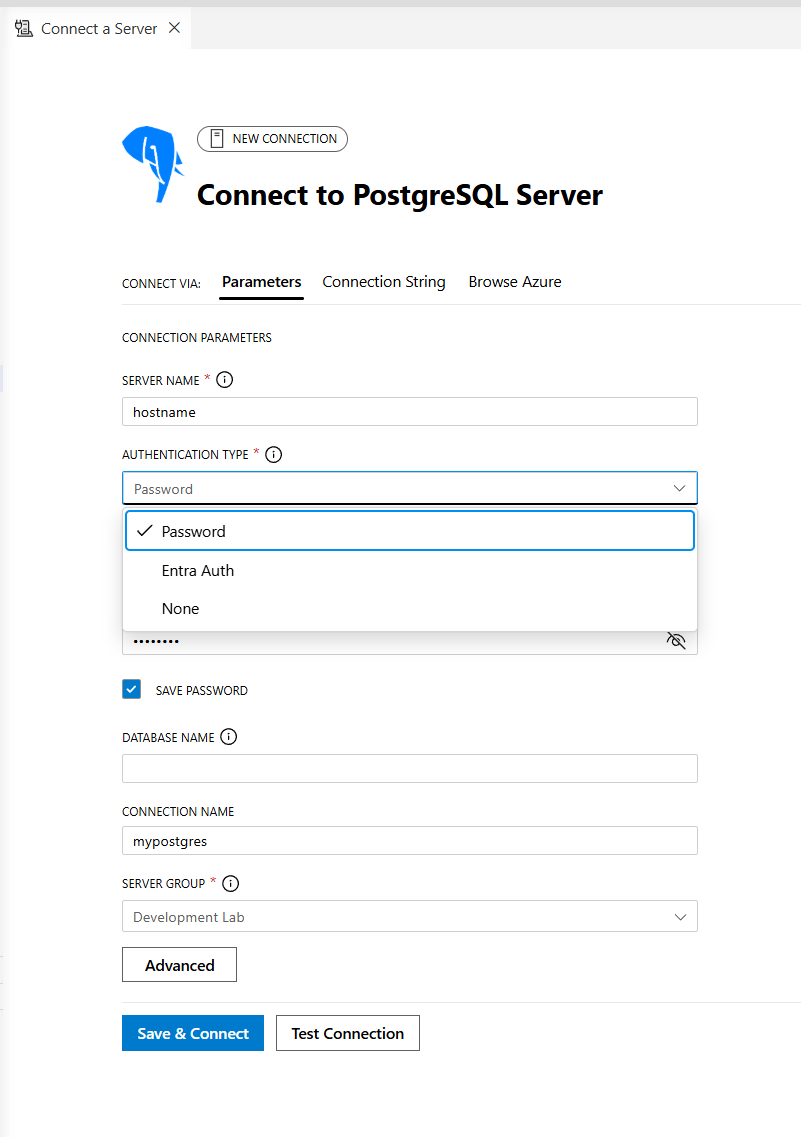
Test and save the connection
- Select Test Connection to verify your connection details.
- Upon successful testing, the test box displays a checkmark.
- Select Connect to establish the connection.
- Your connection automatically saves and appears in the Connections window.
If the test fails when connecting to a cloud-hosted database, confirm that your client IP address is allowed by the cluster's firewall rules (HorizonDB). Both services currently support public access with IP allow-listing; private endpoint support on HorizonDB is on the roadmap.
Explore database objects
The Object Explorer provides a hierarchical view of your database objects:
- Expand the database item to view schemas, tables, views, functions, and stored procedures.
- Right-click on the database to see options to:
- Launch a New Query
- Chat with this database (starts the
@pgsqlchat experience) - Connect with PSQL to launch a
psqlterminal connection
- Right-click on a table and select Select Top 1000 to view its data. The query opens in the Query Editor, and the results appear in the Results Viewer tab.
On an Azure HorizonDB connection, you can also list the allow-listed extensions available on the cluster with:
SELECT * FROM pg_available_extensions ORDER BY name;
Common HorizonDB extensions you might want to install in your database include vector, pg_diskann, azure_ai, and age:
CREATE EXTENSION IF NOT EXISTS azure_ai;
CREATE EXTENSION IF NOT EXISTS vector;
CREATE EXTENSION IF NOT EXISTS pg_diskann;
CREATE EXTENSION IF NOT EXISTS age;
Execute queries
Use the Query Editor to draft and execute SQL queries:
- Take advantage of context-aware IntelliSense to autocomplete SQL keywords and object names.
- Use syntax highlighting and autoformatting for better readability and accuracy.
- Access previously executed queries via the Query History pane.
Route reads and writes on HorizonDB
When you have profiles for both the read/write and reader endpoints, pick the appropriate connection in the Query Editor's connection picker before running a query. Writes and DDL must run against the read/write endpoint; the reader endpoint accepts read-only queries and load-balances them across HA replicas.
Review query results
The Results Viewer offers advanced features to interact with your query results:
- Export results to CSV, JSON, or Excel formats for further analysis.
- Use search, filter, and sort options to refine your data.
- Persistent data views maintain context while switching between tabs.
Use GitHub Copilot for advanced assistance
The GitHub Copilot integration enhances your PostgreSQL development experience by providing AI-powered code suggestions, query optimization tips, and interactive database assistance. This feature helps you streamline your workflow, reduce development time, and gain deeper insights into your database operations.
Ensure the GitHub Copilot and Copilot Chat extensions are installed. Sign in to your GitHub account and enable the @pgsql Copilot Chat agent in the extension settings.
Interactive database prompts
Right-click on a database and select Chat with this database to interact with Copilot.
Write prompts like the following example to receive detailed insights and suggestions.
@pgsql tell me about the tables in the HR schema
When connected to an Azure HorizonDB cluster, Copilot picks up the live connection context - including which extensions are installed - so prompts can take advantage of HorizonDB capabilities such as pgvector, pg_diskann Advanced Filtering, and the azure_ai AI Functions.
For more information, see Quickstart: Configure GitHub Copilot for PostgreSQL extension in Visual Studio Code.
Connect with Visual Studio Code
The Add Connection option in the PostgreSQL extension for Visual Studio Code simplifies connecting to your Azure HorizonDB cluster. This feature streamlines the setup by guiding you through the necessary connection details.
Use the Add Connection button to create a new connection to your HorizonDB cluster. You can choose to prefill the connection with the read/write endpoint or the reader endpoint.
Confirm requirements
- In the side pane, confirm that all prerequisites (Visual Studio Code and the PostgreSQL extension) are satisfied by selecting the appropriate checkboxes.
- If needed, download Visual Studio Code and the extension by using the links in the side pane.
- Optionally, fill out connection parameters such as the default database name, authentication method, and connection pooling.
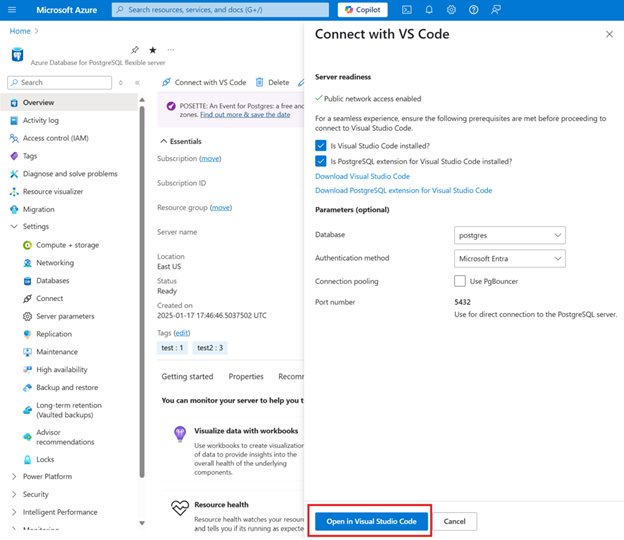
Open in Visual Studio Code
- Select the Open in Visual Studio Code button in the side pane.
- If Visual Studio Code and the extension take more than 40 seconds to open, a Retry Opening in Visual Studio Code button appears in the side pane.
Launch Visual Studio Code
- If Visual Studio Code is installed and running, the PostgreSQL extension's connection dialog box launches automatically.
- If Visual Studio Code is installed but not open, it launches within approximately 40 seconds, followed by the connection dialog box.
Provide authentication details
Select your preferred authentication method:
- Password Authentication - Enter your username and password manually.
Specify other connection details such as Profile Name, Database Name (optional), Server Group, and Port Number.
Save and connect
Select the Save & Connect button to establish the connection. Once connected, expand the server in the Object Explorer tree to view databases, schemas, and tables, or use the built-in query tool to manage your database objects.
Troubleshoot
If you encounter issues during the connection process:
- Verify that Visual Studio Code and the PostgreSQL extension are installed and enabled.
- Ensure your client IP address is allowed in hte Azure HorizonDB cluster.
- For HorizonDB, confirm you're connecting to the correct endpoint for your workload - writes must target the read/write endpoint, not the reader endpoint.
- If you don't meet the prerequisites, the side pane provides feedback and steps to resolve the issue, including retrying the connection.
- Verify your username and credentials are correct for the database.
Feedback and support
For bugs, feature requests, and issues, use the built-in feedback tool in Visual Studio Code. You can complete this feedback process through the Visual Studio Code Help menu or the PGSQL command palette.
- Help menu
- Go to Help > Report Issue
- Command palette
- Open the Command Palette with
Ctrl + Shift + Pand run:PGSQL: Report Issue
- Open the Command Palette with