Note
Access to this page requires authorization. You can try signing in or changing directories.
Access to this page requires authorization. You can try changing directories.
Applies to: ✔️ Fleet Manager ✔️ Fleet Manager with hub cluster
Azure Kubernetes Fleet Manager update runs can pause at approval gates and scheduled start gates. Use Azure Monitor to email recipients when an update run reaches either gate type and the gate enters the Pending state.
In this article, you set up an Azure Monitor alert rule that uses a log search to evaluate gate data in Azure Resource Graph. An action group connected to the rule sends an email notification to a set of recipients.
Before you begin
- You need a Fleet Manager with an update strategy that contains at least one approval or scheduled start gate.
- You need permission to create Azure Monitor alert rules and action groups in the subscription.
- Start an update run that reaches a gate so that you can validate the query and select the query result fields when you configure the alert rule.
Query pending gates
Fleet Manager gate resources are available in the aksresources table in Azure Resource Graph. A gate enters the Pending state when an update run reaches it. Approval gates remain pending until they're approved. Scheduled start gates remain pending until their scheduled time arrives or they're approved manually.
Open Azure Resource Graph Explorer in the Azure portal.
Replace
<fleet-name>in the following query with the name of your Fleet Manager resource, and then run the query:aksresources | where type =~ "microsoft.containerservice/fleets/gates" | where id contains "/fleets/<fleet-name>/gates/" | extend gateProperties = parse_json(properties) | extend gateType = tostring(gateProperties.gateType), gateState = tostring(gateProperties.state) | where gateState =~ "Pending" | where gateType in~ ("Approval", "ScheduledStart") | project gateId = id, gateName = name, gateDisplayName = tostring(gateProperties.displayName), gateType, gateState, fleetName = extract(@"/fleets/([^/]+)", 1, tostring(gateProperties.target.id)), updateRunName = tostring(gateProperties.target.updateRunProperties.name), updateRunId = tostring(gateProperties.target.id), stage = tostring(gateProperties.target.updateRunProperties.stage), group = tostring(gateProperties.target.updateRunProperties.group), timing = tostring(gateProperties.target.updateRunProperties.timing), scheduledStartTime = todatetime(gateProperties.scheduledStartProperties.absoluteStartTime)Confirm that the results contain the pending gates for your fleet. The query returns both
ApprovalandScheduledStartgate types. To receive email for only one type, remove the other value from thein~clause.
Note
Azure Resource Graph Explorer queries start with aksresources. Azure Monitor log search queries must start with arg("").aksresources to access the same Azure Resource Graph data.
Create an email action group
Create an action group that defines the email recipients for the notification.
In the Azure portal, open Monitor.
Select Alerts > Action groups > Create.
On the Basics tab, select the subscription and resource group where you want to store the action group. Enter an action group name and display name.
On the Notifications tab, select Email/SMS message/Push/Voice for the notification type.
Select Email, enter the recipient's email address, select OK, and enter a name for the notification.
Add more email notifications as needed, and then select Review + create > Create.
Verify that each recipient receives the action group confirmation email from Azure Monitor.
For more information about email receivers and delivery limits, see Create and manage action groups in the Azure portal.
Create the alert rule that sends email
Create a log search alert rule that runs the pending gate query and invokes the email action group when the query returns a gate.
In the Azure portal, open Monitor.
Select Alerts > + Create > Alert rule.
On the Scope tab, select the Subscription containing your Azure Kubernetes Fleet Manager. Don't scope to the Fleet Manager as the log query won't be executed.
On the Condition tab, select Custom log search as the signal name.
For Query type select Aggregated logs.
In the Logs pane, enter the following query. Replace
<fleet-name>with your Fleet Manager resource name. You can modify the query to target specific update runs, groups, stages, or particular gates as required.arg("").aksresources | where type =~ "microsoft.containerservice/fleets/gates" | where id contains "/fleets/<fleet-name>/gates/" | extend gateProperties = parse_json(properties) | extend gateType = tostring(gateProperties.gateType), gateState = tostring(gateProperties.state) | where gateState =~ "Pending" | where gateType in~ ("Approval", "ScheduledStart") | project gateId = id, gateName = name, displayName = tostring(gateProperties.displayName), gateType, fleetName = extract(@"/fleets/([^/]+)", 1, tostring(gateProperties.target.id)), updateRunName = tostring(gateProperties.target.updateRunProperties.name), updateRunId = tostring(gateProperties.target.id), stage = tostring(gateProperties.target.updateRunProperties.stage), group = tostring(gateProperties.target.updateRunProperties.group), timing = tostring(gateProperties.target.updateRunProperties.timing), scheduledStartTime = todatetime(gateProperties.scheduledStartProperties.absoluteStartTime)Select Continue Editing Alert.
In Measurement, configure the alert rule to count table rows, set to granularity of 5 minutes.
Under Split by dimensions, for Resource ID column leave as Don't split, then select
gateIdas the dimension and select all current and future values. Splitting by gate ID allows Azure Monitor to evaluate each gate separately when more than one gate is pending.For Alert logic Set Threshold type to Static, Operator to Greater than and Threshold value to
0. Set Frequency of evaluation to 5 minutes.On the Actions tab, select Select action groups, and then select the email action group that you created.
On the Details tab, select the subscription and resource group where you want to store the rule. Enter a severity, alert rule name, and description.
Depending on your environment, choose the appropriate Identity to use to create an run the new alert rule.
Expand Advanced options and set either Automatically resolve alerts to fire the alert only once when the gate is reached, or configure a time period for Mute actions so that you don't receive alerts more frequently than you wish.
Select Review + create > Create.
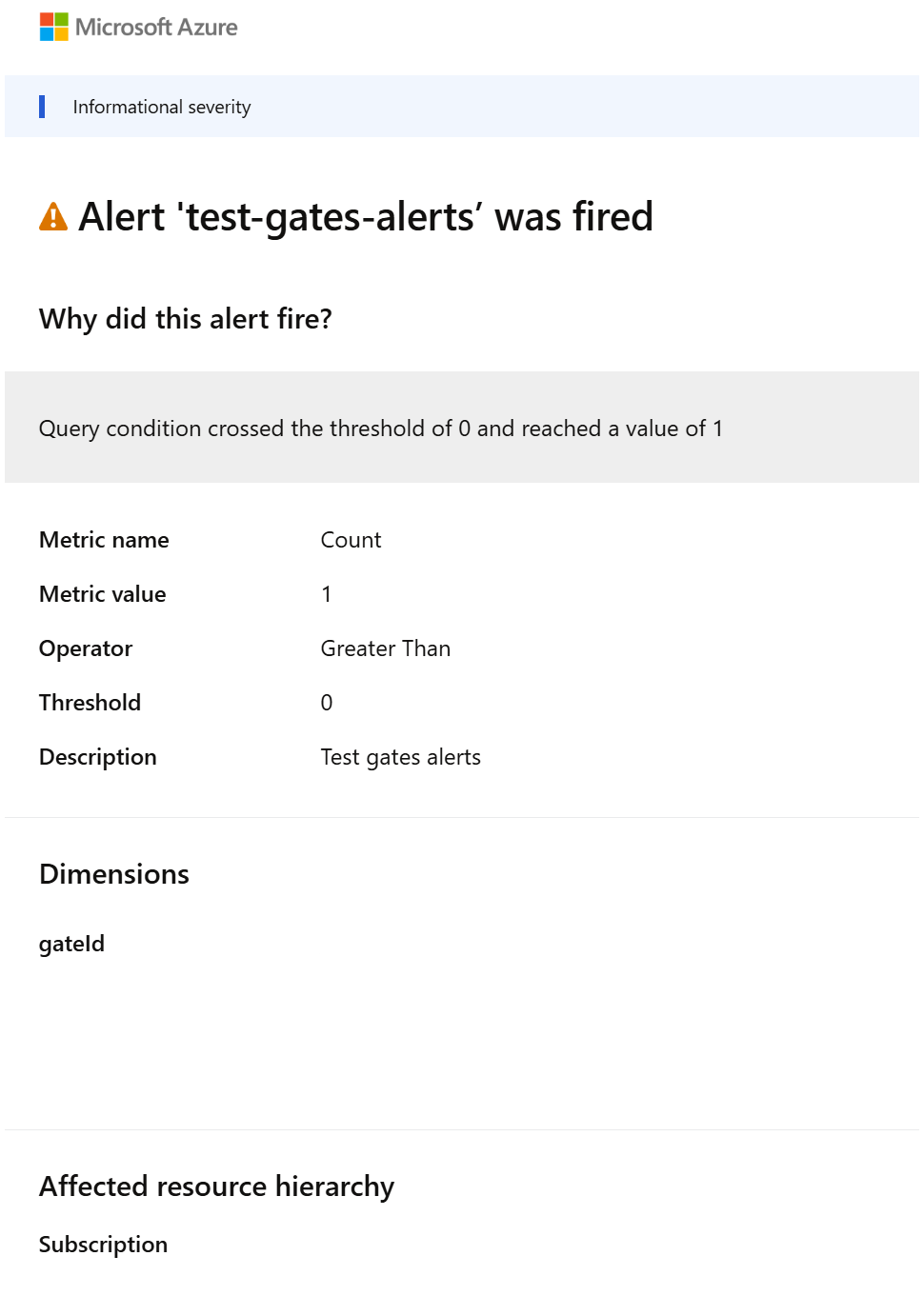
When an approval or scheduled start gate enters the Pending state, the query returns the gate and Azure Monitor invokes the action group. The email body has the alert context including the gateId, Subscription, alert details, and rule.
Important
The identity assigned to the log search alert rule must be assigned the Reader RBAC role for the Azure subscription where the Fleet Manager resides. Failing to assign this role means the alert won't fire as the Kusto query can't be executed.
A sample alert email is shown below.
To create customized email alerts, see Automate approval gates with Event Grid events, which shows how you can use an event-driven trigger custom code to send email via service APIs.