Note
Access to this page requires authorization. You can try signing in or changing directories.
Access to this page requires authorization. You can try changing directories.
Applies to: Azure Logic Apps (Consumption)
Important
This capability is in preview and is subject to the Supplemental Terms of Use for Microsoft Azure Previews. During preview, this capability is only available in Azure public regions.
Compared to Consumption logic app workflows, Standard logic app workflows run in single-tenant Azure Logic Apps and offer many different and improved capabilities. For example, you get compute isolation, virtual network integration, and private endpoints along with App Services Environment hosting, local development and debugging using Visual Studio Code, low latency with stateless workflows, and more.
If you want the benefits from Standard workflows, but you have Consumption workflows that run in multitenant Azure Logic Apps, you can now clone your Consumption workflows to single-tenant Azure Logic Apps. This operation is useful when you require some Standard capabilities, such as isolation and network integration, lower latency, or better cost predictability.
You can now directly clone your Consumption logic app to a Standard logic app in the Azure portal, replicating your logic app as stateful workflows in a Standard logic app resource.
Note
The clone capability doesn't migrate your Consumption logic apps. Instead, this capability replicates artifacts, such as workflow definitions, connections, and others. Your source logic app resource remains operational, and your workflow, trigger history, run history, and other data stay intact.
You control the cloning process and your migration journey. You can test and validate your cloned workflows to your satisfaction with the destination environment. You choose when to disable or delete your source logic app. Regular billing charges still apply to your source logic app when still enabled.
Known issues and limitations
The clone capability doesn't export any infrastructure information, such as integration account settings.
By default, connection configuration, including credential details, isn't cloned from source logic app workflows. You must reconfigure these connections before your destination logic app workflows can run.
Action and workflow parameters using secure string or secure object aren't cloned to the destination. Placeholders are created for those parameters with sanitized as the value. You have to reconfigure those parameters with secure content from KeyVault before running your workflows.
By default, all connectors are cloned as managed, shared connectors, even when built-in connector versions are available.
Cloning doesn't support workflows with the following items and actions:
Integration account references
- Transform XML
- XML Validation
- Flat file encoding and decoding
- EDIFACT actions
- X12 actions
Nested workflows
Choose or call an Azure function
Prerequisites
An Azure account and subscription. If you don't have a subscription, sign up for a free Azure account.
A Standard logic app resource as the destination for cloning your Consumption logic app.
For more information, see Create a Standard logic app workflow in the Azure portal.
To update cloned connections, you need the Logic Apps Standard Contributor built-in role, which gives you resource group-level access.
Review and meet the requirements for how to set up Visual Studio Code with the Azure Logic Apps (Standard) extension.
Clone Consumption to Standard
In the Azure portal, open the Consumption logic app resource to clone.
On the resource sidebar, select Overview. On the page toolbar, select Clone to Standard.

Provide information about destination logic app, such as the subscription, resource group, and Standard logic app resource name.
Note
You can rename the workflow to match your naming convention, if necessary. The Azure portal checks whether the name is valid and that it doesn't conflict with an existing workflow in the destination Standard logic app to avoid overwriting the destination workflow.
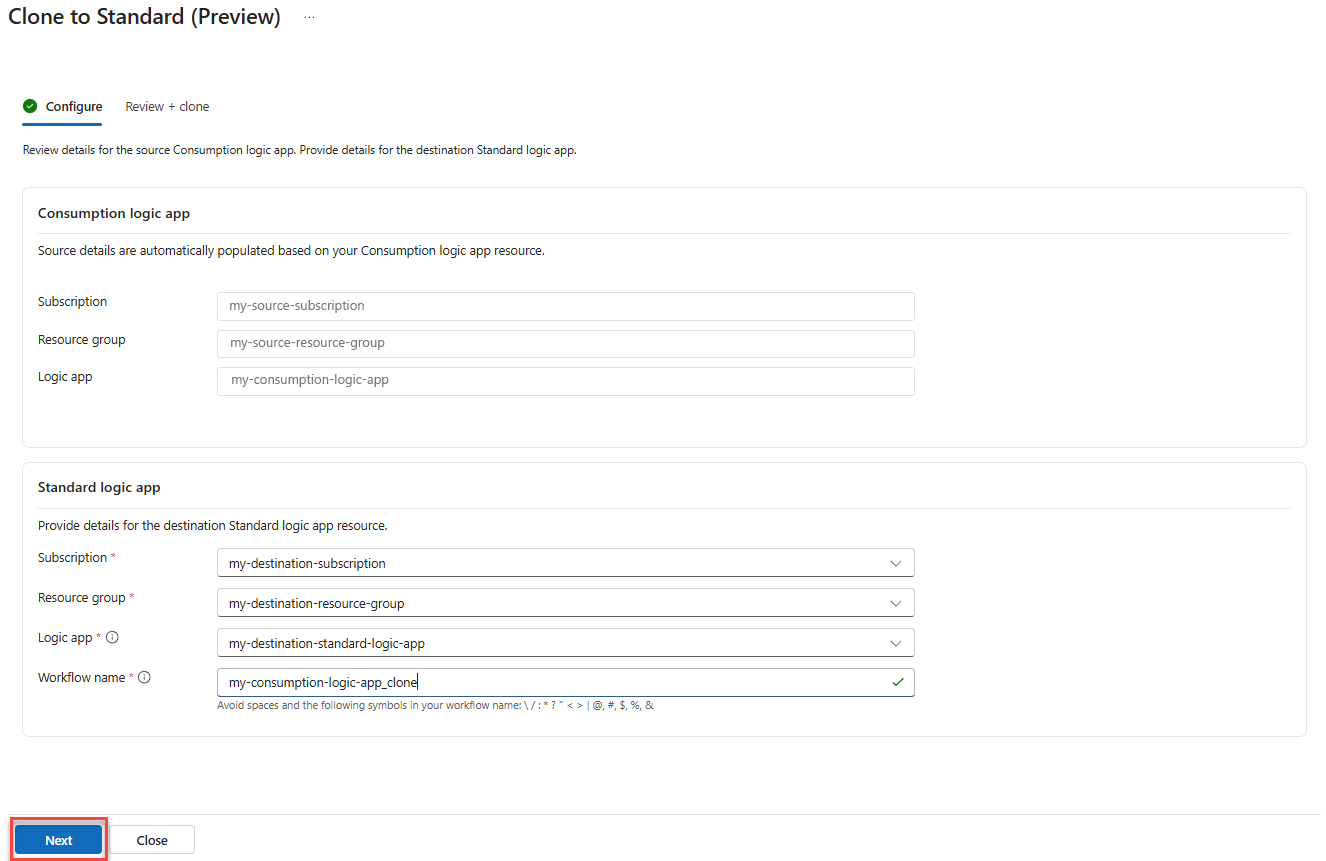
When you're done, select Next.
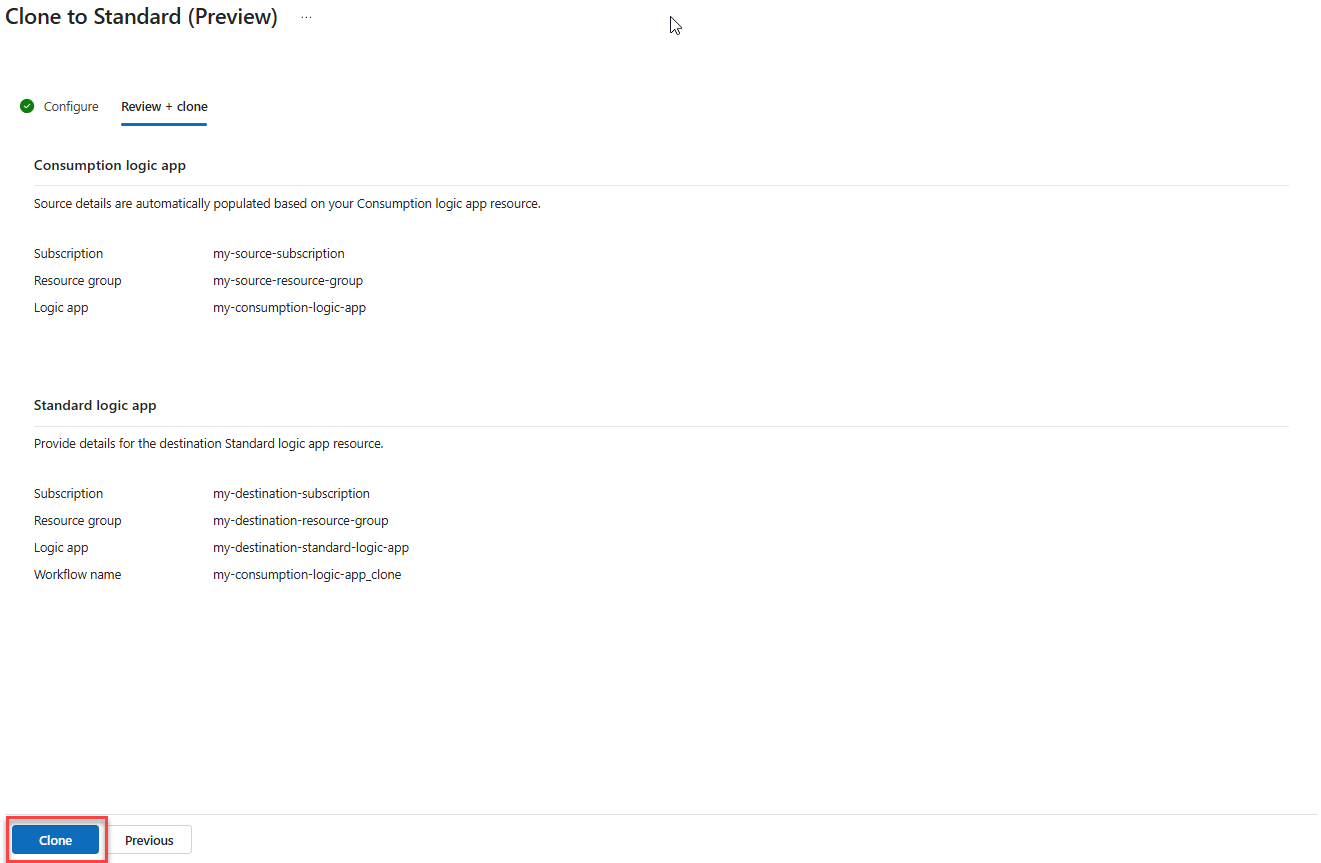
Confirm the logic app destination settings, and then select Clone.
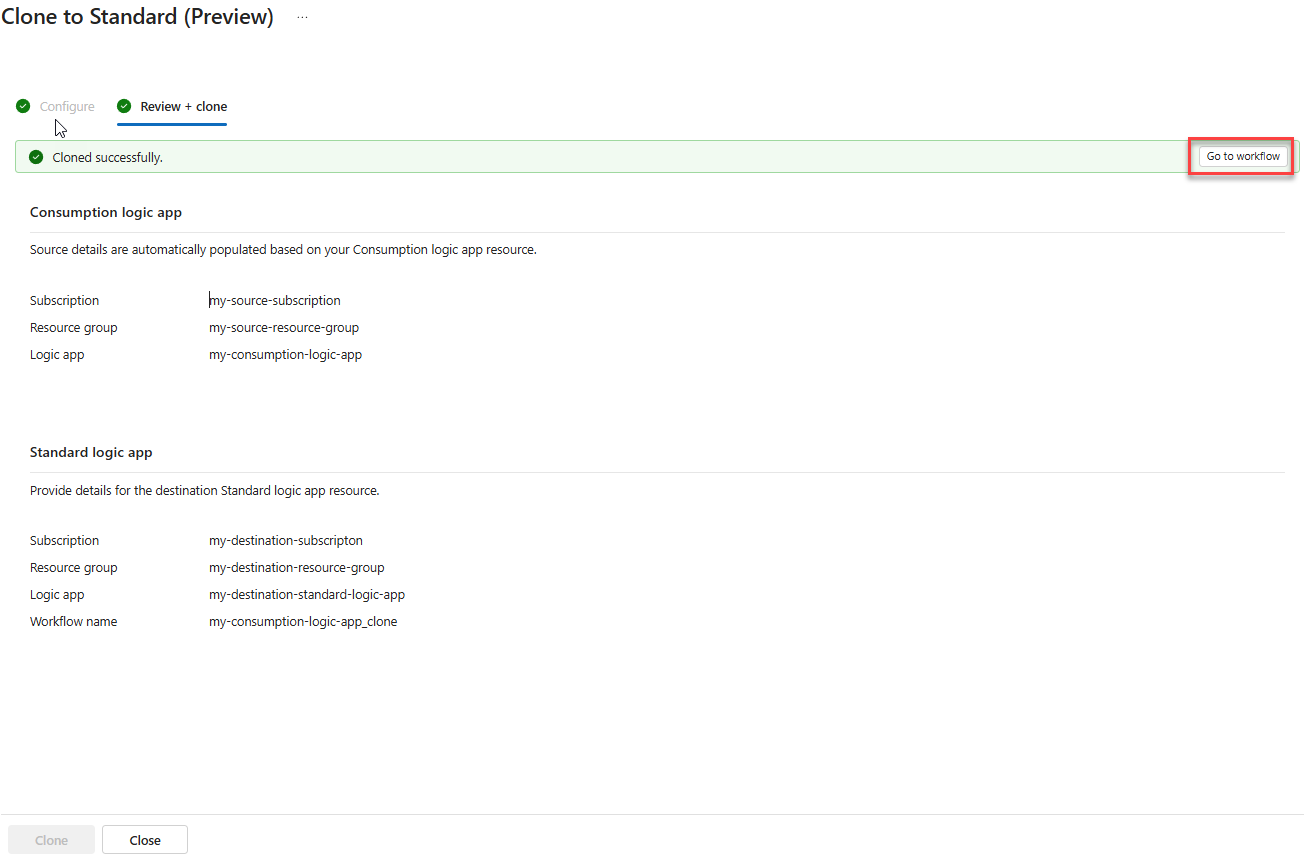
After the cloning process completes, select Go to workflow to open the new workflow.
Note
The new workflow is created in a disabled state to avoid conflicts with any existing workflows or execution errors before you complete the configuration.

Review the new workflow configuration
Before you enable your workflow, you must review and complete any required actions for the following workflow areas:
Configure connections
If your source Consumption workflow has any managed API connections, copies of these connections are created in the same resource group as your Standard logic app resource.
In the Azure portal, open your Standard logic app resource.
On the resource sidebar, under Workflows, select Workflows. Select the new workflow.
On the workflow designer toolbar, select Connections to find any connection errors:

The Connections pane opens so that you can review each connection.
Expand each connection that has an error (red dot), and then select Open Connection to go to the connection and reconfigure its properties, including any authentication properties.
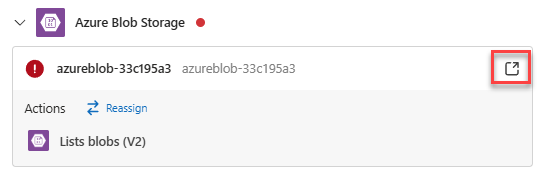
Configure networking
If your source Consumption logic app connects to a system using a firewall, you might have to update the firewall rules with new outbound IPs. To find the outbound IPs for your Standard logic app, follow these steps:
In the Azure portal, open your Standard logic app resource.
On the resource sidebar, under Settings, select Properties.
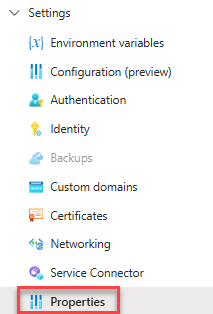
Under Outbound IP addresses, find the outbound IPs list:

If your Standard logic app connects to an Azure virtual network, use Virtual Network Integration instead. This approach gives you more control over traffic and separates the communication between your logic app and resources inside the virtual network. For more information, see Secure traffic between Standard logic apps and Azure virtual networks using private endpoints.
Disable the source Consumption logic app
If your Standard workflow uses a polling or event-based trigger, and your new API connections point to the same resource as the source Consumption workflow, disable your source logic app before you enable your Standard workflow. This action prevents concurrency between the source and clone workflows.
To find the source Consumption logic app, follow these steps:
On the Standard logic app resource sidebar, under Workflows, select Workflows.
On the Workflows page, select the new workflow.
On the workflow sidebar, under Configuration, select Properties.
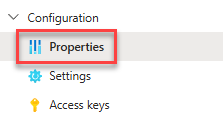
Under Source workflow, find the source Consumption logic app.

Enable your new workflow clone
After you finish workflow setup and are ready to test, you must enable your workflow clone by following these steps:
On the Standard logic app resource sidebar, under Workflows, select Workflows.
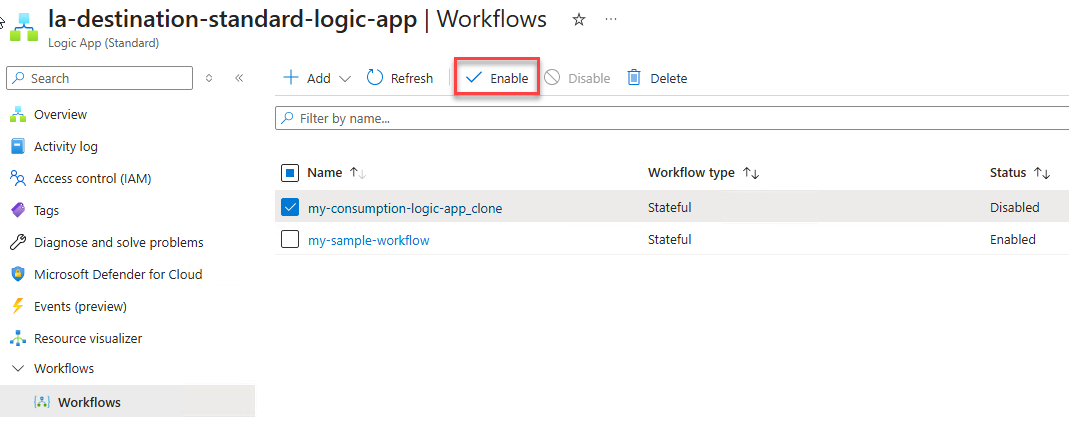
On the Workflows page, select the checkbox for the new workflow. On the page toolbar, select Enable.