Note
Access to this page requires authorization. You can try signing in or changing directories.
Access to this page requires authorization. You can try changing directories.
Applies to: Azure Logic Apps (Standard)
Note
This preview feature is subject to the Supplemental Terms of Use for Microsoft Azure Previews.
The migration process for integration projects can stall when complex source artifacts are difficult to transform into deployable resources in Azure Logic Apps (Standard). In the Conversion stage, the Azure Logic Apps Migration Agent in Visual Studio Code solves this problem by running the task plans in your migration plan. This process creates complete artifacts that include ready to deploy Standard workflow definitions, connection configurations, and supporting files.
This article describes how the Azure Logic Apps Migration Agent creates conversion tasks that map the source integration artifacts to ready-to-deploy Standard logic app project resources and how the agent runs these tasks to produce ready-to-deploy-and-run project artifacts.
Conversion stage actions
In the Azure Logic Apps Migration Agent, after you finish the Plan Logic App Design activity, the Create Conversion Tasks activity becomes available. When you select the Create Conversion Tasks activity, the @migration-converter GitHub Copilot agent creates the conversion tasks necessary to generate the target logic app project artifacts.
After you review these tasks and select the Execute Conversion Tasks activity, the @migration-converter GitHub Copilot agent processes each task plan and takes the following actions.
1: Generate logic app project artifacts
The @migration-converter agent generates the outputs described in the following sections.
Project scaffold structure
The @migration-converter agent generates a Standard logic app project. This project contains one Standard workflow definition file per logical flow group, a connections configuration file, a host configuration file, and other supporting files:
<project-root>/
├── host.json                    # Host configuration for Standard logic app
├── local.settings.json          # Local development settings
├── connections.json             # Connector configurations
├── <workflow-name>/
│   └── workflow.json            # Workflow definition file per flow group
├── <workflow-name-2>/
│   └── workflow.json            # Workflow definition file per flow group
└── lib/
    └── custom/
        └── <function-name>.cs   # .NET local function, if necessary
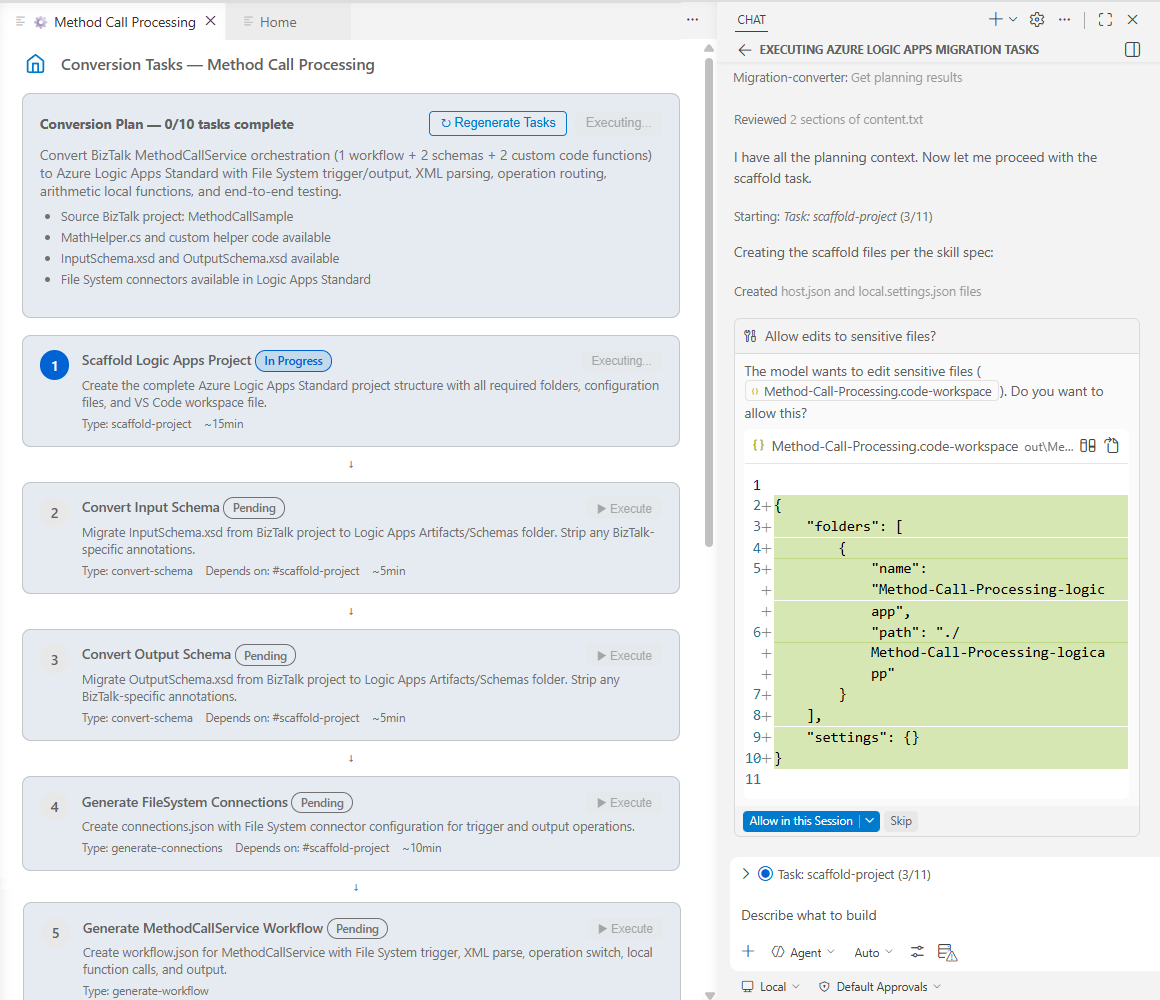
The following example shows the @migration-converter agent creating the project scaffold structure and files:
Workflow definition file
For each logical flow group, the @migration-converter agent generates a workflow.json file that contains the following workflow operations:
| Operation | Description |
|---|---|
| Trigger | Each workflow always starts with a single trigger, which is the workflow's entry point. The agent maps this trigger from the receive ports or listeners in the source. |
| Action | Each workflow has one or more actions that perform tasks. The agent maps these actions from the orchestration shapes, flow processors, or activities in the source. |
| Conditions or loops | Actions that perform control flow logic, such as If, For each, and Until. The agent translates these actions from decision shapes and loops in the source. |
| Scopes | Actions with run-after configurations that you can use to set up error handling. |
Connection configurations
The @migration-converter agent generates a connections.json file, which stores the necessary configurations for connector operations in your workflows.
The following table describes the high-level connector groups:
| Connector group | Description and examples |
|---|---|
| Built-in | Connectors with operations that run in the same process as the Azure Logic Apps (Standard) runtime. For example, these connectors include Request, File System, HTTP, Azure Blob Storage, Service Bus, SQL Server, AS2, EDIFACT, X12, and others. For more information, see: - Built-in connectors in Azure Logic Apps - Azure Logic Apps (Standard) built-in connectors reference |
| Shared or "managed" | Connectors with operations that run in multitenant Azure. For example, these connectors include Salesforce, SAP, Office 365 Outlook, Power BI, SharePoint, and more. Azure Logic Apps supports 1,400+ shared connectors for Microsoft, Azure, and other platforms in the cloud, on-premises, and hybrid environments. For more information, see Managed or shared connectors in Azure Logic Apps. |
| Custom | Connectors from other publishers or your organization that you create for custom APIs or other services. For more information, see Create custom built-in connectors for Standard workflows. |
For more information, What are connectors in Azure Logic Apps.
.NET local functions
If you have source platform components that don't have a direct connector equivalent in Azure Logic Apps (Standard), the @migration-converter agent generates .NET local functions. This behavior commonly happens in scenarios where you have the following:
- Custom data transformation logic
- Complex parsing or validation rules
- Calls to on-premises systems through custom protocols
- Business rules evaluation
2. Check output completeness and quality
The @migration-converter agent produces complete, ready-to-run, deployable artifacts. To confirm that all generated code is fully functional and complete, the agent uses the no-stubs-code-generation skill to make sure all generated code is complete, fully functional, and that no stub implementations, placeholder code, or TODO comments exist.
The agent uses the following standards to verify each generated file meets the following standards:
| Standard | Description |
|---|---|
| No stubs or placeholder code | All generated code is complete and functional. |
| Valid JSON | All workflow.json and connections.json files are valid and conform to the Azure Logic Apps schema. |
| Correct references | Workflow actions reference the correct connections and parameters. |
| Error handling | Workflows include the appropriate error handling scopes. |
To prepare the generated output for the Validation stage where you locally run the workflows for testing, make sure that you manually inspect the workflow definitions, connections, and any generated .NET local functions for inaccuracies.
Important
As a best practice, always review any AI generated outputs before you use them. Such outputs might include incorrect information.
For more information, see Quickstart: Migrate an integration project using the Azure Logic Apps Migration Agent.
Related content
- Migration automation from integration platforms to Azure Logic Apps
- Quickstart: Migrate an integration project using the Azure Logic Apps Migration Agent