Note
Access to this page requires authorization. You can try signing in or changing directories.
Access to this page requires authorization. You can try changing directories.
The Microsoft Discovery Studio preview experience now includes integrated support for GitHub Copilot, giving you AI-assisted orchestration of Microsoft Discovery agents, compute jobs, and research workflows directly within the preview experience.
Important
GitHub Copilot in Microsoft Discovery is currently in preview. You need a GitHub account to use AI features with GitHub-hosted models.
Prerequisites
- An Azure subscription with access to Microsoft Discovery
- A Microsoft Discovery workspace
- A GitHub account (required for GitHub Copilot features)
- Microsoft Discovery Platform Administrator role assignment to manage workspace tags in the Azure portal
Security considerations
GitHub Copilot integration affects your Microsoft Discovery workspace's security posture. Review the Microsoft Discovery network security concepts to understand how enabling GitHub Copilot affects data access and connectivity.
Administrators can enforce feature availability by using Azure Policy at the subscription level to maintain organizational control. To learn more, see build policies to enforce compliance.
Enable GitHub Copilot for a workspace
GitHub Copilot is disabled by default for all workspaces. Enable it through resource tags on the workspace, which gives you granular control over which workspaces have GitHub Copilot AI features activated.
The following tags control feature availability:
| Tag | Description | Default |
|---|---|---|
discovery.workbench.enableGhcpAiFeatures |
Enables GitHub Copilot and AI features | false |
discovery.workbench.enableExtensions |
Enables the VS Code Extension Marketplace | false |
Steps to enable
Sign in to the Azure portal.
Go to your Microsoft Discovery workspace resource. You can create a new workspace or search for an existing one.
On the workspace Overview page, select Tags > Edit.
Add the following tag:
- Name:
discovery.workbench.enableGhcpAiFeatures - Value:
true
- Name:
(Optional) To enable the Extension Marketplace, add an extra tag:
- Name:
discovery.workbench.enableExtensions - Value:
true
- Name:
Select Save.


Open the preview experience with GitHub Copilot
Note
- For public access: You need to recreate the workspace with the tag
NetworkIsolationset tofalse. This setting enables public access to the workbench and other managed resource group (MRG) resources. - For private access: You need to be connected on a VPN to the virtual network where the workspace is deployed.
After enabling the tags, open the preview experience from Microsoft Discovery Studio:
Go to Microsoft Discovery Studio.
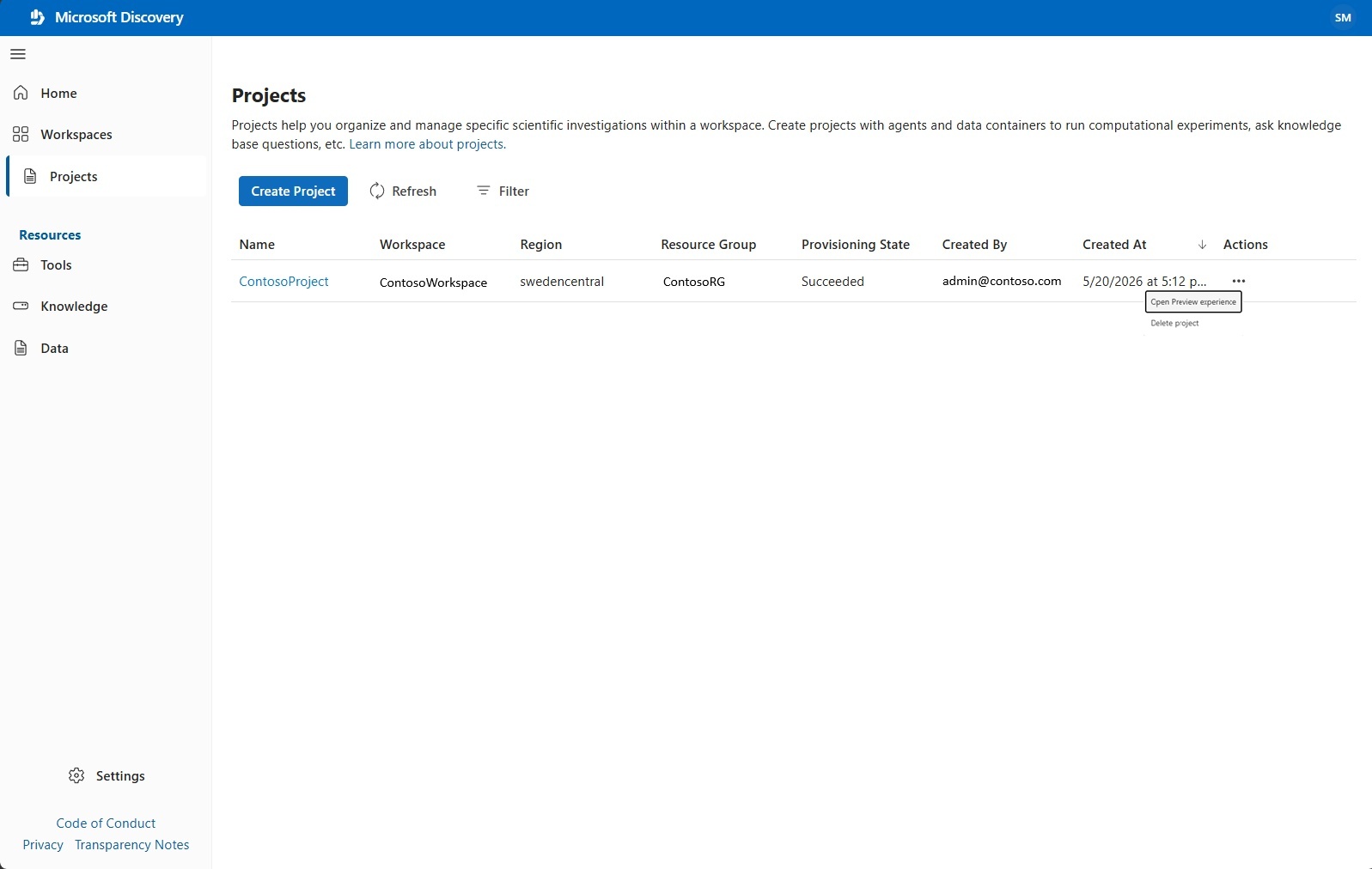
Select the Workspaces tab and open the workspace where you enabled GitHub Copilot. Or select Projects tab to list all projects.
Create a new project or select an existing project.
Select the ... (more actions) menu on the project.
Select Open in preview experience.
The VS Code environment opens with GitHub Copilot enabled and full Microsoft Discovery capabilities available.
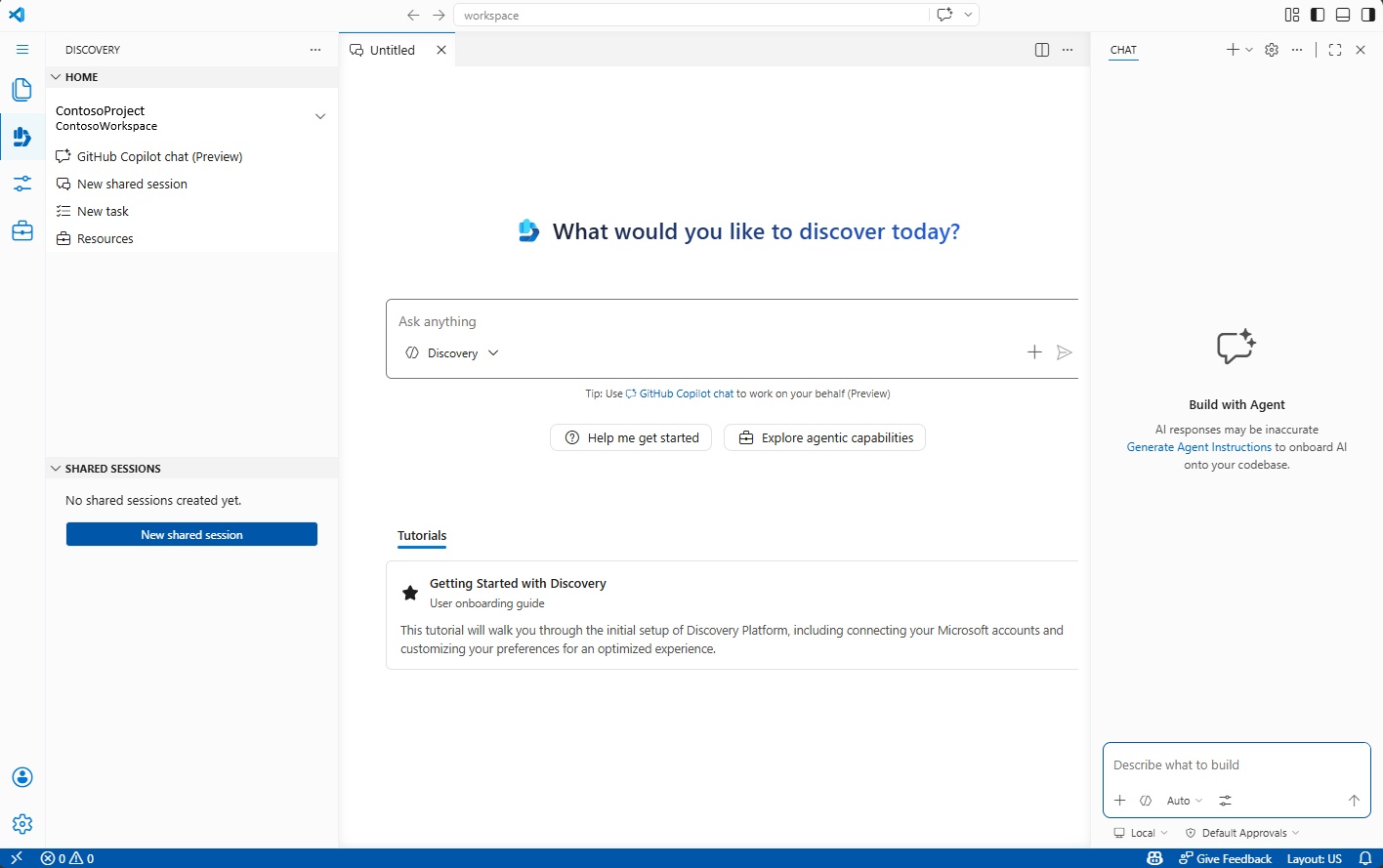
What you can do with GitHub Copilot in Microsoft Discovery
Once the preview experience is open, you can use GitHub Copilot to:
- Ask scientific questions — Copilot routes your queries to the appropriate Microsoft Discovery Foundry agent (chemistry, biology, physics, and more).
- Manage Microsoft Discovery resources — Create and configure workspaces, projects, agents, knowledge bases, and compute jobs through natural language.
- Run compute jobs — Submit tool runs to Microsoft Discovery supercomputers and monitor their progress.
- Conduct autonomous research — Create tasks and start the Microsoft Discovery Engine for deep, long-running scientific investigations (requires enabling the
discovery-platformMCP server).
Built-in skills
The preview experience includes built-in skills optimized for Microsoft Discovery workflows. These skills provide guided, step-by-step orchestration for common research tasks like invoking agents, creating shared sessions, and managing the Microsoft Discovery Engine.
Data privacy and sharing
Private to you
The following are private to each user per workspace and cannot be shared with other users:
- Preview experience session state
- Files stored in your file explorer
Files persist in your Microsoft Discovery workspace's managed resource group across sessions.
Shared across the project
All users within the same project and workspace can access the following resources:
- Shared sessions (investigations) and their chat history
- Storage containers and storage assets
- Foundry agents
- Tools
- Knowledge bases
Note
You can continue to access shared sessions through the Microsoft Discovery Studio UI alongside GitHub Copilot. Use Copilot as the orchestrator for your Foundry agents to combine the interactive UI experience with AI-powered automation.