Note
Access to this page requires authorization. You can try signing in or changing directories.
Access to this page requires authorization. You can try changing directories.
Azure Payment HSM v2 supports audit logging through Azure Monitor diagnostic settings. Send logs to an Azure Storage account for retention and to a Log Analytics workspace for queries, analysis, and monitoring.
Operation event logging provides a consistent record of hardware security module (HSM) access and operations to support accountability and traceability.
Operation logs help you detect unauthorized access, investigate security incidents, support regulatory compliance, and identify anomalies that could indicate breaches or misconfigurations. These capabilities help protect the integrity and confidentiality of cryptographic operations.
In this tutorial, you:
- Create a storage account and a Log Analytics workspace, and configure audit logging.
- Query audit logs to retrieve specific HSM operation events.
- Review common HSM operation commands.
Important
To maintain security and privacy, logging excludes sensitive details such as key IDs, key names, and other identifiable information related to keys, users, or sessions. Logs capture the HSM operation performed, the time of the operation, and relevant HSM metadata.
Prerequisites
- An Azure account with an active subscription. If you don't have an Azure account, create a free account before you begin.
- An Azure Payment HSM v2 resource that you deployed, initialized, and configured. For information, see Quickstart: Create a Payment HSM v2.
Set up and configure audit logging
Use the commands in the following sections to set up the resources that you want to monitor.
Create a storage account to store HSM logs
The storage account archives audit logs for compliance analysis and backup. The Log Analytics workspace supports interactive queries and monitoring. Configure both destinations to retain logs and analyze events.
First, create a resource group. Then, create a storage account in that resource group to store HSM logs.
az group create --name "<resource-group>" --location "<location>"

az storage account create \
  --name "<storage-account-name>" \
  --resource-group "<resource-group>" \
  --location "<location>" \
  --sku Standard_LRS \
  --kind StorageV2
Create a Log Analytics workspace
Use one of the following commands to create a Log Analytics workspace for storing and analyzing HSM logs.
az monitor log-analytics workspace create \
  --resource-group "<resource-group>" \
  --workspace-name "<workspace-name>"
For more information about creating a Log Analytics workspace for Azure Monitor, see Create a Log Analytics workspace.
Enable diagnostic settings
Use the following code to configure diagnostic settings for Azure Payment HSM v2 audit logging. Replace the placeholders with the appropriate values for your environment.
resourceId="/subscriptions/<subscription-id>/resourceGroups/<resource-group>/providers/Microsoft.HardwareSecurityModules/paymentHsmClusters/<hsm-name>"

storageAccountId="/subscriptions/<subscription-id>/resourceGroups/<resource-group>/providers/Microsoft.Storage/storageAccounts/<storage-account-name>"

workspaceId="/subscriptions/<subscription-id>/resourceGroups/<resource-group>/providers/Microsoft.OperationalInsights/workspaces/<workspace-name>"

az monitor diagnostic-settings create \
  --resource $resourceId \
  --name "my-phsmv2AuditLogs" \
  --storage-account $storageAccountId \
  --workspace $workspaceId \
  --logs '[{"category":"HsmOperations","enabled":true}]'
Verify the configuration of Payment HSM v2 logging
After you create the diagnostic setting, data should start flowing to the selected destinations within 90 minutes.
In the Azure portal, use the Log Analytics workspace to query Payment HSM v2 audit logs. The storage account keeps exported logs for audit or backup.
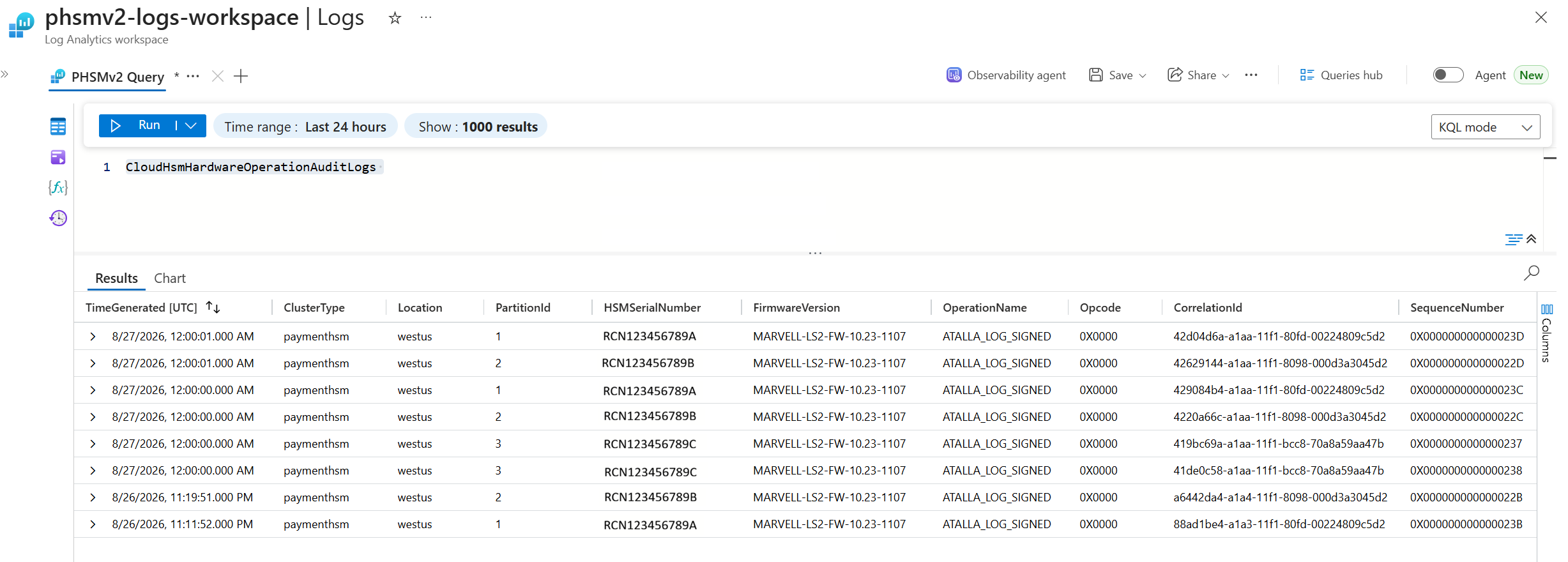
Use the Azure CLI or Azure PowerShell to query Payment HSM v2 audit logs.
workspaceId=$(az monitor log-analytics workspace show \
  --resource-group "<resource-group>" \
  --workspace-name "<workspace-name>" \
  --query customerId --output tsv)

az monitor log-analytics query \
  --workspace $workspaceId \
  --analytics-query "CloudHsmHardwareOperationAuditLogs | take 10"
The query returns audit log records similar to the following example. Values are illustrative, and the example omits fields for readability.
[
  {
    "TimeGenerated": "2026-08-27T00:00:01.000Z",
    "ClusterType": "paymenthsm",
    "Location": "westus",
    "PartitionId": "1",
    "HSMSerialNumber": "RCN123456789A",
    "FirmwareVersion": "MARVELL-LS2-FW-10.23-1107",
    "AuditLogType": "ATALLA_LOG_SIGNED",
    "OperationName": "ATALLA_LOG_SIGNED",
    "ResultType": "Success",
    "CorrelationId": "42d04d6a-a1aa-11f1-80fd-00224809c5d2",
    "SequenceNumber": "0X000000000000023D",
    "BinaryLogData": "AAAAB2VjaG8gdGVzdA...",
    "BinarySignature": "MEUCIQDf8h2c...=="
  },
  {
    "TimeGenerated": "2026-08-27T00:00:01.000Z",
    "ClusterType": "paymenthsm",
    "Location": "westus",
    "PartitionId": "2",
    "HSMSerialNumber": "RCN123456789B",
    "FirmwareVersion": "MARVELL-LS2-FW-10.23-1107",
    "AuditLogType": "ATALLA_LOG_SIGNED",
    "OperationName": "ATALLA_LOG_SIGNED",
    "ResultType": "Success",
    "CorrelationId": "42629144-a1aa-11f1-8098-000d3a3045d2",
    "SequenceNumber": "0X000000000000022D",
    "BinaryLogData": "AAAAC2FwbSB2ZXJzaW9u...",
    "BinarySignature": "MEQCIH2fY9a...=="
  }
]
For a full description of each column, see the CloudHsmHardwareOperationAuditLogs table reference.
Registration error
If you get the error message "<subscription> is not registered to use microsoft.insights," your Azure subscription isn't registered to use the Microsoft.Insights resource provider. To resolve this problem, register the Microsoft.Insights provider in your subscription.
az provider register --namespace Microsoft.Insights

az provider show --namespace Microsoft.Insights --query "registrationState" --output table
After you run the command, verify that the resource provider is registered. If it's still registering, wait a few moments and check again.
Query operation event logs
Run CloudHsmHardwareOperationAuditLogs in Azure Monitor Logs to list Azure Payment HSM v2 operation events captured in audit logging.
Note
Azure Payment HSM v2 audit logs use the CloudHsmHardwareOperationAuditLogs table. This table contains hardware operations performed on Azure Payment HSM partitions.
Daily self-test log entries
Your audit log includes a normal entry such as Daily self-tests passed. The Utimaco Atalla Payment Module (APM) generates this entry to satisfy PCI compliance requirements. The automated daily validation verifies HSM integrity, tamper protections, and cryptographic functions to confirm that the platform remains unchanged and compliant for payment processing workloads.
Validate Payment HSM v2 connectivity
Run the following command to validate basic connectivity and confirm that audit logging captures Azure Payment HSM v2 operation events. Replace <private-ip-address> with the private IP address of your Payment HSM v2 management interface. The management interface always uses port 7005. For details about what each command does, see the glossary of operations.
{
  for c in \
    '<00#EchoTest#>' \
    '<1101#>' '<1100#>' '<1120#>' '<1200#>' \
    '<9A#ID#>' '<9A#INFO#>' '<9A#INFO#CLOUD#>' '<9A#MFK#>' '<9A#KEY#>' '<9A#SERIAL#>'; do
    printf '%s\r\n' "$c"
    sleep 1
  done
  sleep 3
} | timeout 25 openssl s_client -connect <private-ip-address>:7005 -quiet 2>/dev/null
Glossary of operations
The following commands are related to HSM operation events. For an exhaustive list of commands, see the Atalla Payment Module (APM) Command Reference Manual from Utimaco.
Basic connectivity
| Command | Description |
|---|---|
<00#EchoTest#> |
Echoes data back and proves basic connectivity and the command parser are working. |
Key and Master File Key health
| Command | Description |
|---|---|
<9A#MFK#> |
Shows Master File Key information. |
<9A#KEY#> |
Shows key status information. |
Compliance and audit
| Command | Description |
|---|---|
<1200#> |
Returns compliance information. |
<1101#> |
Returns APM software version. |
<1100#> |
Returns extended software version information. |
<1120#> |
Returns general APM system information. |
<9A#ID#> |
Returns appliance identification and status. |
<9A#SERIAL#> |
Returns HSM serial number information. |
<9A#INFO#> |
Returns HSM information, including configuration, software state, security settings, and operational health. |
<9A#INFO#CLOUD#> |
Returns cloud-specific administrative information. |