Note
Access to this page requires authorization. You can try signing in or changing directories.
Access to this page requires authorization. You can try changing directories.
In this quickstart, you build a web application that displays satellite imagery and geospatial data from your GeoCatalog on an interactive map. You authenticate users with Microsoft Entra ID, query STAC collections, and render map tiles—all from browser JavaScript.
What you learn:
- Authenticate users and acquire access tokens using MSAL.js
- Query the STAC API to discover collections and items
- Display raster tiles on a MapLibre GL map with authorization headers
- Create seamless mosaic layers across entire collections
- Download raw assets using SAS tokens
The code patterns work with any modern JavaScript framework (React, Vue, Angular) or vanilla JavaScript. GeoCatalog APIs have full CORS support, so you can call them directly from localhost during development—no proxy required.
You can download and test this code from the Microsoft Planetary Computer Pro public GitHub repository.
Prerequisites
- An Azure account with an active subscription. Create an account for free.
- A deployed GeoCatalog resource with at least one collection containing items.
- Your user identity must have GeoCatalog Reader (or higher) access to the GeoCatalog resource. See Manage access to a GeoCatalog resource.
- Node.js version 18 or later.
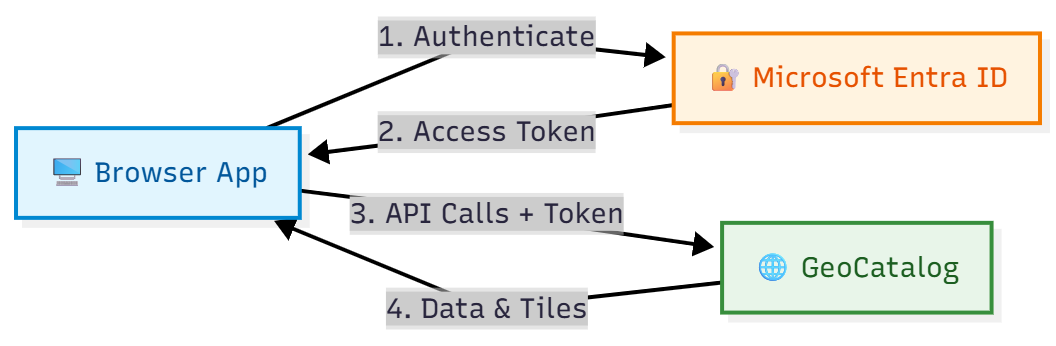
Architecture overview
A typical GeoCatalog web application follows this architecture:
Register your application in Microsoft Entra ID
Before your web application can authenticate users, register it in Microsoft Entra ID. This quickstart uses a Single Page Application (SPA) registration, which is ideal for client-side JavaScript applications and local development. The API integration patterns shown in later steps work with any application type.
Note
For production applications with a backend server, consider choosing a different registration type (Web, Native, etc.). See Configure application authentication for guidance on choosing the right approach for your scenario.
Register as a single-page application
- Go to Microsoft Entra ID in the Azure portal.
- Select App registrations from the side panel.
- Select New registration.
- Enter a name for your application (for example, "GeoCatalog Web App").
- Under Supported account types, select Accounts in this organizational directory only.
- Under Redirect URI, select Single-page application (SPA) and enter your development URL (for example,
http://localhost:5173). - Select Register.
After registration, note the following values from the Overview page:
- Application (client) ID
- Directory (tenant) ID
For more information, review quickstart app registration.
Grant API permissions
Your application needs permission to call the GeoCatalog API on behalf of signed-in users:
- In your app registration, select API permissions > Add a permission.
- Select APIs my organization uses and search for Azure Orbital Spatio.
- Select Delegated permissions and check user_impersonation.
- Select Add permissions.
- If you're an admin, select Grant admin consent to consent on behalf of all users in your tenant.
Configure your application
Your application needs the following configuration values. How you provide these values depends on your build tooling (environment variables, config files, and so on):
| Configuration | Value | Description |
|---|---|---|
| Catalog URL | https://{name}.{region}.geocatalog.spatio.azure.com |
Your GeoCatalog endpoint |
| Tenant ID | From app registration | Your Microsoft Entra tenant |
| Client ID | From app registration | Your application's client ID |
| API Scope | https://geocatalog.spatio.azure.com/.default |
Always use this exact value |
Install dependencies
Install the Microsoft Authentication Library (MSAL) for browser applications and a map library:
npm install @azure/msal-browser maplibre-gl
- @azure/msal-browser - Handles OAuth 2.0 authentication with Microsoft Entra ID
- maplibre-gl - Open-source map library for tile visualization
Tip
Project structure: The code samples in this quickstart are standalone functions you can organize however you prefer. A common pattern:
auth.js: MSAL configuration and token functionsapi.js: STAC API, Tiler API, and SAS token functionsmap.js: MapLibre initialization and tile layer managementApp.jsormain.js: Wire everything together with your UI
Each function receives its dependencies (access tokens, URLs) as parameters, making them easy to integrate into any framework or project structure.
Implement MSAL authentication
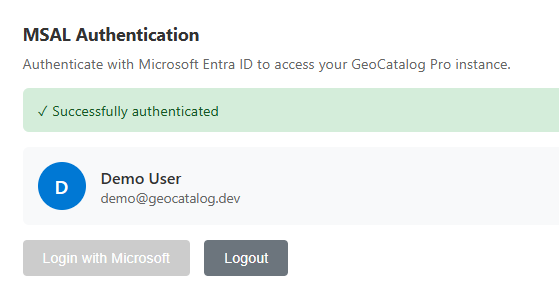
Configure MSAL for browser authentication. The following example shows the key configuration and token acquisition pattern:
import { PublicClientApplication, InteractionRequiredAuthError } from '@azure/msal-browser';

// Configuration - replace with your values or load from environment/config
const msalConfig = {
  auth: {
    clientId: 'YOUR_CLIENT_ID',
    authority: 'https://login.microsoftonline.com/YOUR_TENANT_ID',
    redirectUri: window.location.origin,
  },
  cache: {
    cacheLocation: 'sessionStorage',
    storeAuthStateInCookie: false,
  },
};

// Create MSAL instance
const msalInstance = new PublicClientApplication(msalConfig);

// GeoCatalog API scope - always use this exact value
const scopes = ['https://geocatalog.spatio.azure.com/.default'];

/**
 * Acquire an access token for GeoCatalog API calls.
 * Tries silent acquisition first, falls back to popup if needed.
 */
async function getAccessToken() {
  const account = msalInstance.getActiveAccount() || msalInstance.getAllAccounts()[0];

  if (!account) {
    throw new Error('No authenticated account. Call login() first.');
  }

  try {
    // Try silent token acquisition (uses cached token)
    const result = await msalInstance.acquireTokenSilent({ account, scopes });
    return result.accessToken;
  } catch (error) {
    // If silent fails (token expired), fall back to popup
    if (error instanceof InteractionRequiredAuthError) {
      const result = await msalInstance.acquireTokenPopup({ scopes });
      return result.accessToken;
    }
    throw error;
  }
}

/**
 * Sign in the user via popup.
 */
async function login() {
  const result = await msalInstance.loginPopup({ scopes });
  msalInstance.setActiveAccount(result.account);
  return result.account;
}

/**
 * Sign out the user.
 */
function logout() {
  msalInstance.logoutPopup();
}
STAC API: Query collections and items
The GeoCatalog STAC API provides endpoints for discovering and querying geospatial data. All requests require an Authorization header with a Bearer token obtained from Implement MSAL authentication.
List collections
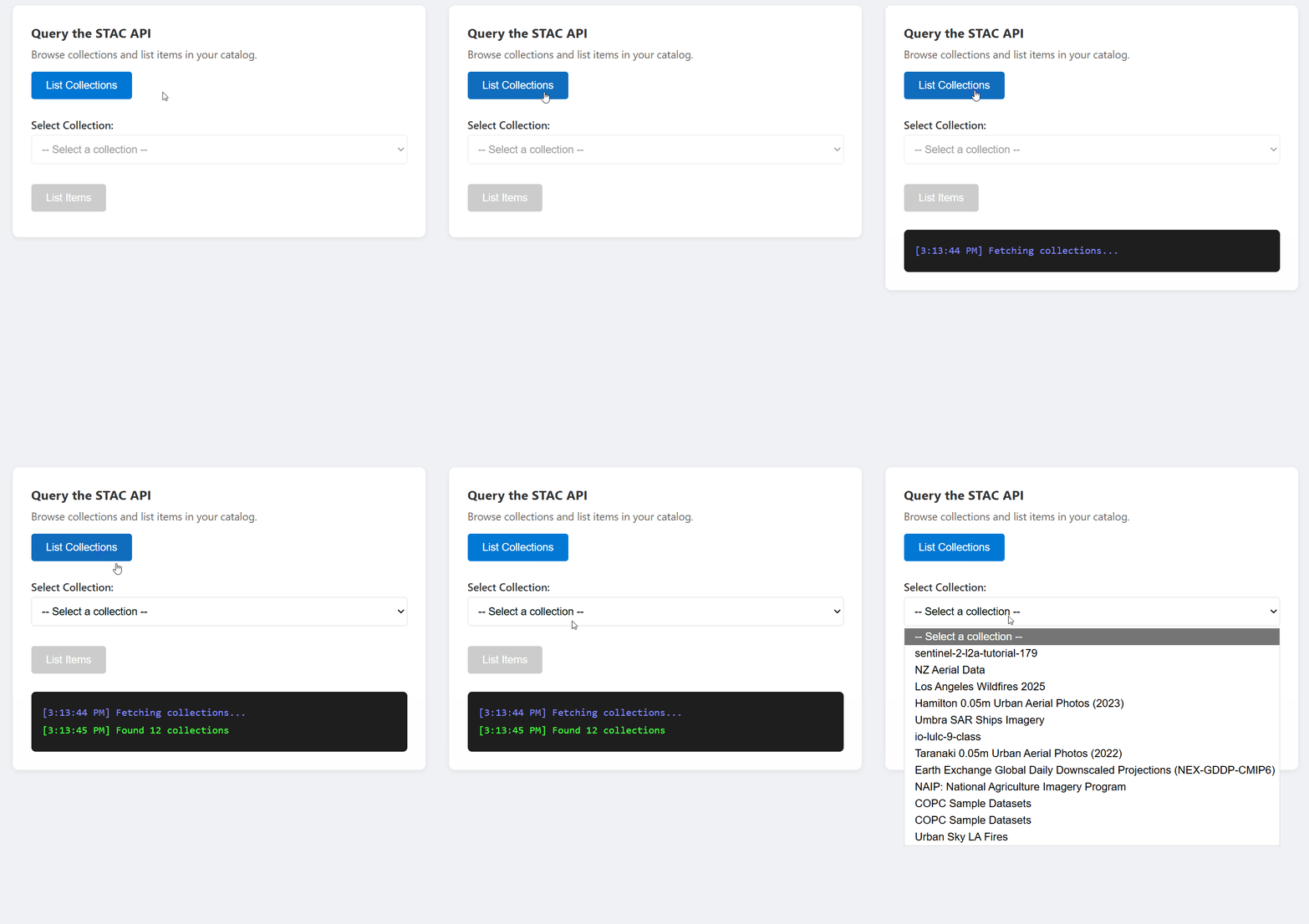
const API_VERSION = '2026-04-15';

async function listCollections(accessToken, catalogUrl) {
  const url = `${catalogUrl}/stac/collections?api-version=${API_VERSION}`;

  const response = await fetch(url, {
    headers: {
      'Authorization': `Bearer ${accessToken}`,
    },
  });

  if (!response.ok) {
    throw new Error(`Failed to list collections: ${response.statusText}`);
  }

  const data = await response.json();
  return data.collections; // Array of STAC Collection objects
}
List items in a collection
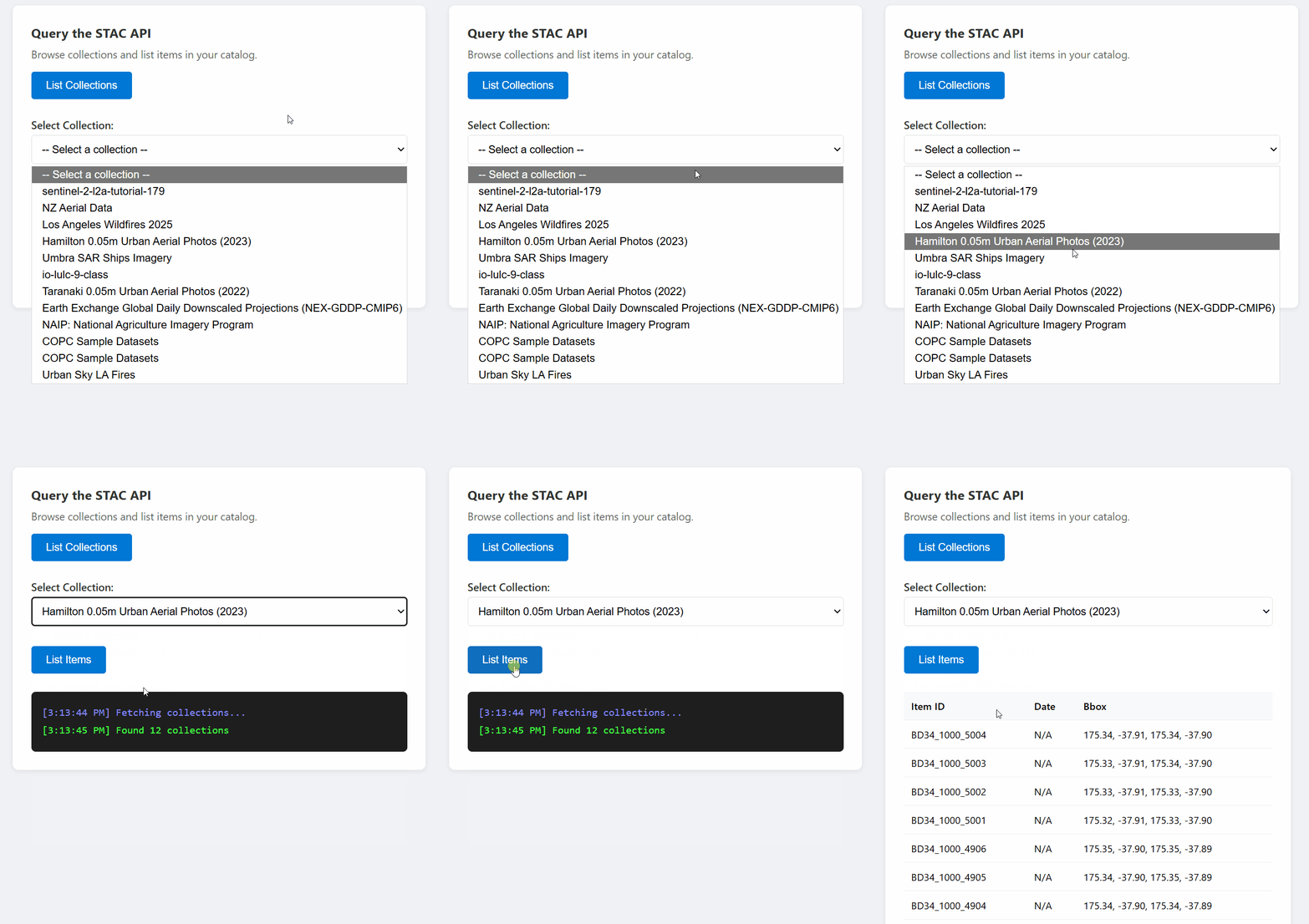
const API_VERSION = '2026-04-15';

async function listItems(accessToken, catalogUrl, collectionId, limit = 10) {
  const url = `${catalogUrl}/stac/collections/${collectionId}/items?limit=${limit}&api-version=${API_VERSION}`;

  const response = await fetch(url, {
    headers: {
      'Authorization': `Bearer ${accessToken}`,
    },
  });

  if (!response.ok) {
    throw new Error(`Failed to list items: ${response.statusText}`);
  }

  const data = await response.json();
  return data.features; // Array of STAC Item objects
}
Search across collections
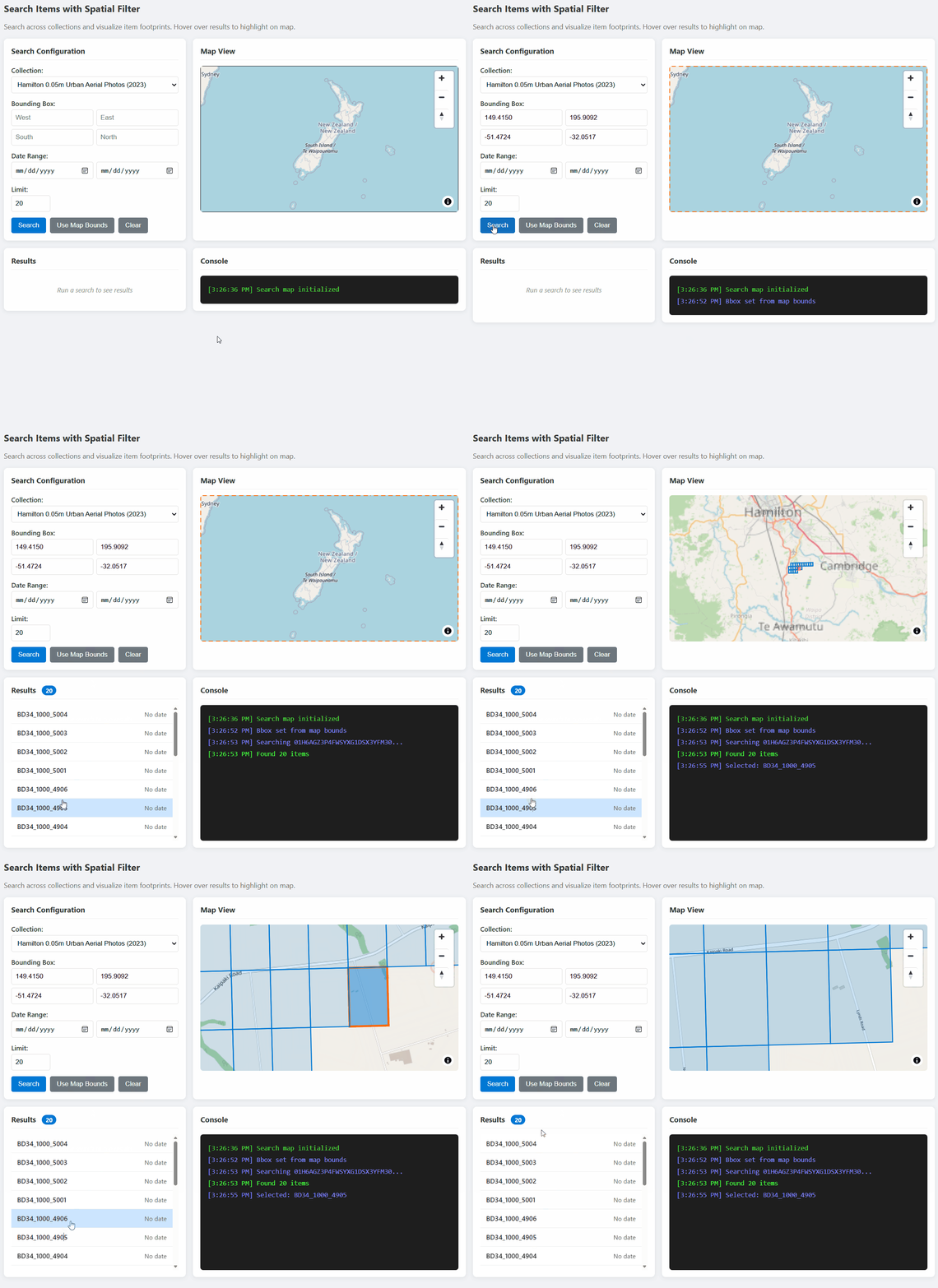
const API_VERSION = '2026-04-15';

async function searchItems(accessToken, catalogUrl, searchParams) {
  const url = `${catalogUrl}/stac/search?api-version=${API_VERSION}`;

  const response = await fetch(url, {
    method: 'POST',
    headers: {
      'Authorization': `Bearer ${accessToken}`,
      'Content-Type': 'application/json',
    },
    body: JSON.stringify(searchParams),
  });

  if (!response.ok) {
    throw new Error(`Search failed: ${response.statusText}`);
  }

  return await response.json();
}

// Example usage:
const results = await searchItems(token, catalogUrl, {
  collections: ['my-collection'],
  bbox: [-122.5, 37.5, -122.0, 38.0],  // [west, south, east, north]
  datetime: '2024-01-01/2024-12-31',
  limit: 20,
});
Tile URLs: Build URLs for map visualization
The GeoCatalog Tiler API serves raster data as map tiles. Construct tile URLs with the following pattern:
Single item tiles
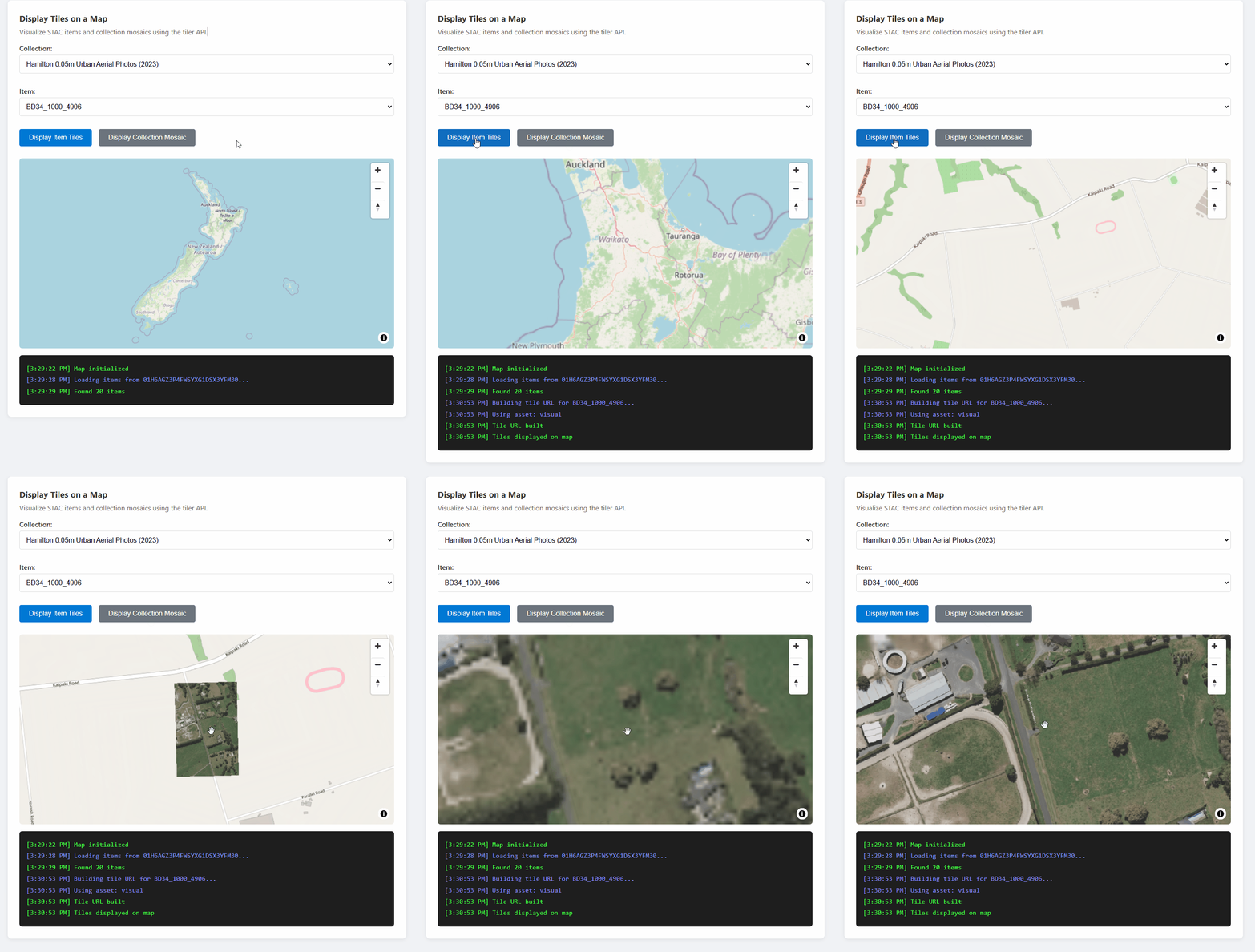
{catalogUrl}/data/mosaic/collections/{collectionId}/items/{itemId}/tiles/{z}/{x}/{y}@1x.png
  ?api-version=2026-04-15
  &tileMatrixSetId=WebMercatorQuad
  &assets=visual
Tile URL builder function
const API_VERSION = '2026-04-15';

/**
 * Build a tile URL template for a STAC item.
 * Returns a URL with {z}/{x}/{y} placeholders for use with map libraries.
 */
function buildTileUrl(catalogUrl, collectionId, itemId, options = {}) {
  const { assets = 'visual', colormap, rescale } = options;

  const base = `${catalogUrl}/data/mosaic/collections/${collectionId}/items/${itemId}/tiles/{z}/{x}/{y}@1x.png`;

  const params = new URLSearchParams();
  params.set('api-version', API_VERSION);
  params.set('tileMatrixSetId', 'WebMercatorQuad');
  params.set('assets', assets);

  if (colormap) params.set('colormap_name', colormap);
  if (rescale) params.set('rescale', rescale);

  return `${base}?${params.toString()}`;
}

// Example usage:
const tileUrl = buildTileUrl(
  'https://mygeocatalog.northcentralus.geocatalog.spatio.azure.com',
  'aerial-imagery',
  'image-001',
  { assets: 'visual' }
);
Key tile parameters
| Parameter | Required | Description |
|---|---|---|
api-version |
Yes | API version (2026-04-15) |
tileMatrixSetId |
Yes | Use WebMercatorQuad for web maps |
assets |
Yes | Asset names to render (example: visual, image) |
colormap_name |
No | Named colormap (example: viridis, terrain) |
rescale |
No | Value range for scaling (example: 0,255) |
asset_bidx |
No | Band indices (example: image\|1,2,3 for RGB) |
Note
For collections with four-band imagery (like NAIP with RGB + NIR), use asset_bidx=image|1,2,3 to select only the RGB bands. The tiler can't encode four bands as PNG.
Map integration: Display tiles with MapLibre GL
Map libraries like MapLibre GL, Leaflet, and OpenLayers can display raster tiles. The key challenge is adding authorization headers to tile requests, since these libraries fetch tiles directly.
MapLibre GL example
MapLibre GL provides a transformRequest option to inject headers:
import maplibregl from 'maplibre-gl';
import 'maplibre-gl/dist/maplibre-gl.css';

// Store the current access token
let currentAccessToken = null;

function initializeMap(containerId, accessToken) {
  currentAccessToken = accessToken;

  const map = new maplibregl.Map({
    container: containerId,
    style: {
      version: 8,
      sources: {
        osm: {
          type: 'raster',
          tiles: ['https://tile.openstreetmap.org/{z}/{x}/{y}.png'],
          tileSize: 256,
          attribution: '© OpenStreetMap contributors',
        },
      },
      layers: [{ id: 'osm', type: 'raster', source: 'osm' }],
    },
    center: [0, 0],
    zoom: 2,
    // Add authorization header to tile requests
    transformRequest: (url, resourceType) => {
      // Only add auth for GeoCatalog tile requests
      if (url.includes('geocatalog.spatio.azure.com') && currentAccessToken) {
        return {
          url,
          headers: { 'Authorization': `Bearer ${currentAccessToken}` },
        };
      }
      return { url };
    },
  });

  return map;
}

function addTileLayer(map, tileUrl, bounds) {
  // Remove existing layer and source if present
  if (map.getLayer('data-layer')) {
    map.removeLayer('data-layer');
  }
  if (map.getSource('data-tiles')) {
    map.removeSource('data-tiles');
  }

  // Add tile source
  map.addSource('data-tiles', {
    type: 'raster',
    tiles: [tileUrl],
    tileSize: 256,
    minzoom: 10,  // Many aerial collections require zoom 10+
    maxzoom: 18,
  });

  // Add tile layer
  map.addLayer({
    id: 'data-layer',
    type: 'raster',
    source: 'data-tiles',
  });

  // Zoom to bounds [west, south, east, north]
  if (bounds) {
    map.fitBounds([[bounds[0], bounds[1]], [bounds[2], bounds[3]]], { padding: 50 });
  }
}
Important
The transformRequest function is called for every tile request. Store the access token in a variable that transformRequest can access, and update it when the token refreshes.
Mosaic tiles: Display collection-wide imagery
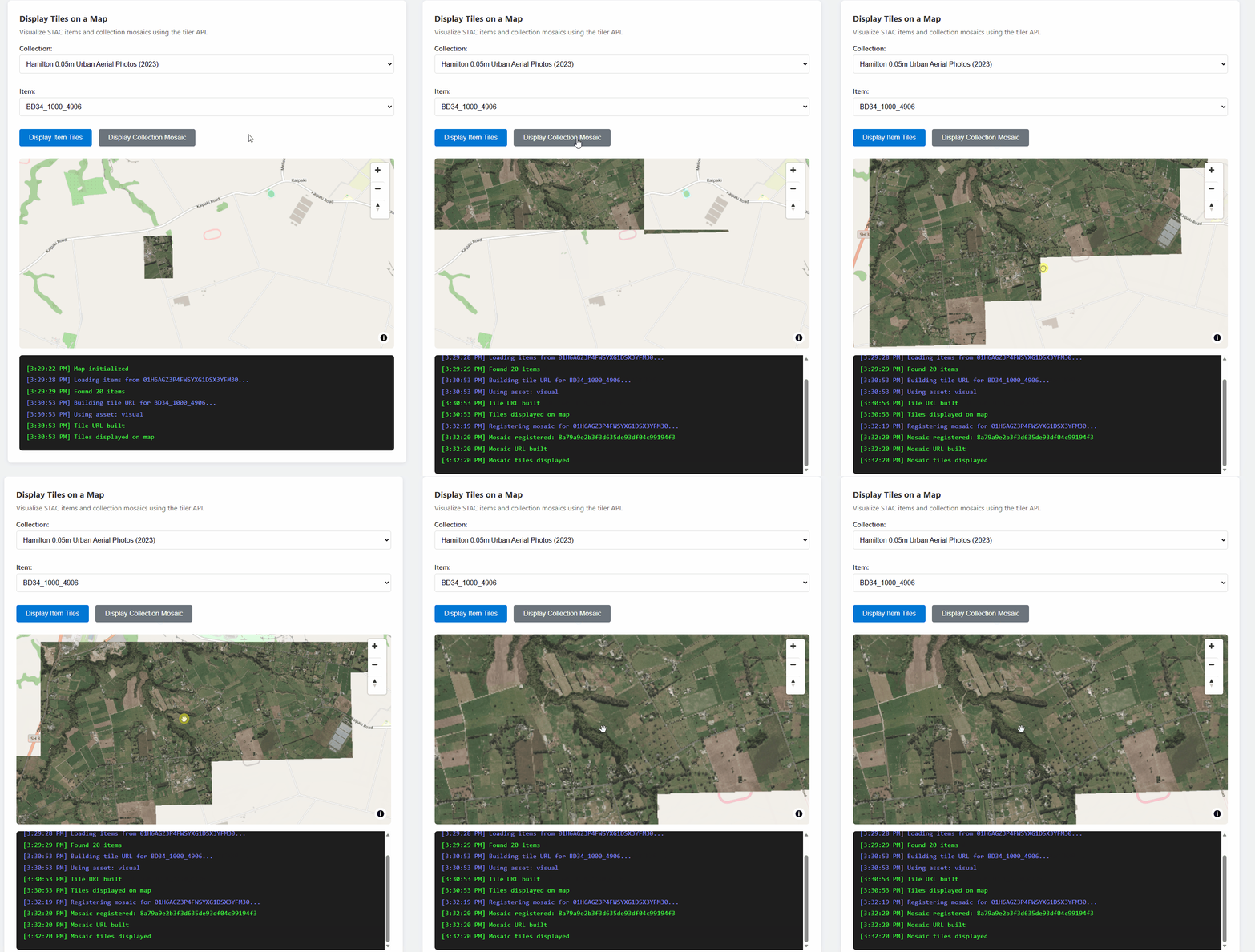
To view all items in a collection as a seamless layer, register a mosaic search and use the returned search ID:
const API_VERSION = '2026-04-15';

/**
 * Register a mosaic search for a collection.
 * Returns a search ID that can be used to fetch mosaic tiles.
 */
async function registerMosaic(catalogUrl, collectionId, accessToken) {
  const url = `${catalogUrl}/data/mosaic/register?api-version=${API_VERSION}`;

  const response = await fetch(url, {
    method: 'POST',
    headers: {
      'Authorization': `Bearer ${accessToken}`,
      'Content-Type': 'application/json',
    },
    body: JSON.stringify({
      collections: [collectionId],
    }),
  });

  if (!response.ok) {
    throw new Error(`Failed to register mosaic: ${response.statusText}`);
  }

  const data = await response.json();
  // Note: API returns 'searchid' (lowercase), not 'searchId'
  return data.searchid;
}

/**
 * Build a mosaic tile URL template.
 */
function buildMosaicTileUrl(catalogUrl, searchId, collectionId, options = {}) {
  const { assets = 'visual' } = options;

  const base = `${catalogUrl}/data/mosaic/searches/${searchId}/tiles/{z}/{x}/{y}@1x.png`;

  const params = new URLSearchParams();
  params.set('api-version', API_VERSION);
  params.set('tileMatrixSetId', 'WebMercatorQuad');
  params.set('collection', collectionId);
  params.set('assets', assets);

  return `${base}?${params.toString()}`;
}
SAS tokens: Download raw assets
The SAS API provides time-limited tokens for downloading raw asset files (GeoTIFFs, COGs, and other files) directly from Azure Blob Storage. Use this option when you need the original source files rather than rendered tiles.
Important
SAS tokens enable downloads only in browser applications. Due to Azure Blob Storage CORS policies, browsers can't read blob data via JavaScript fetch(). See the Browser limitations section.
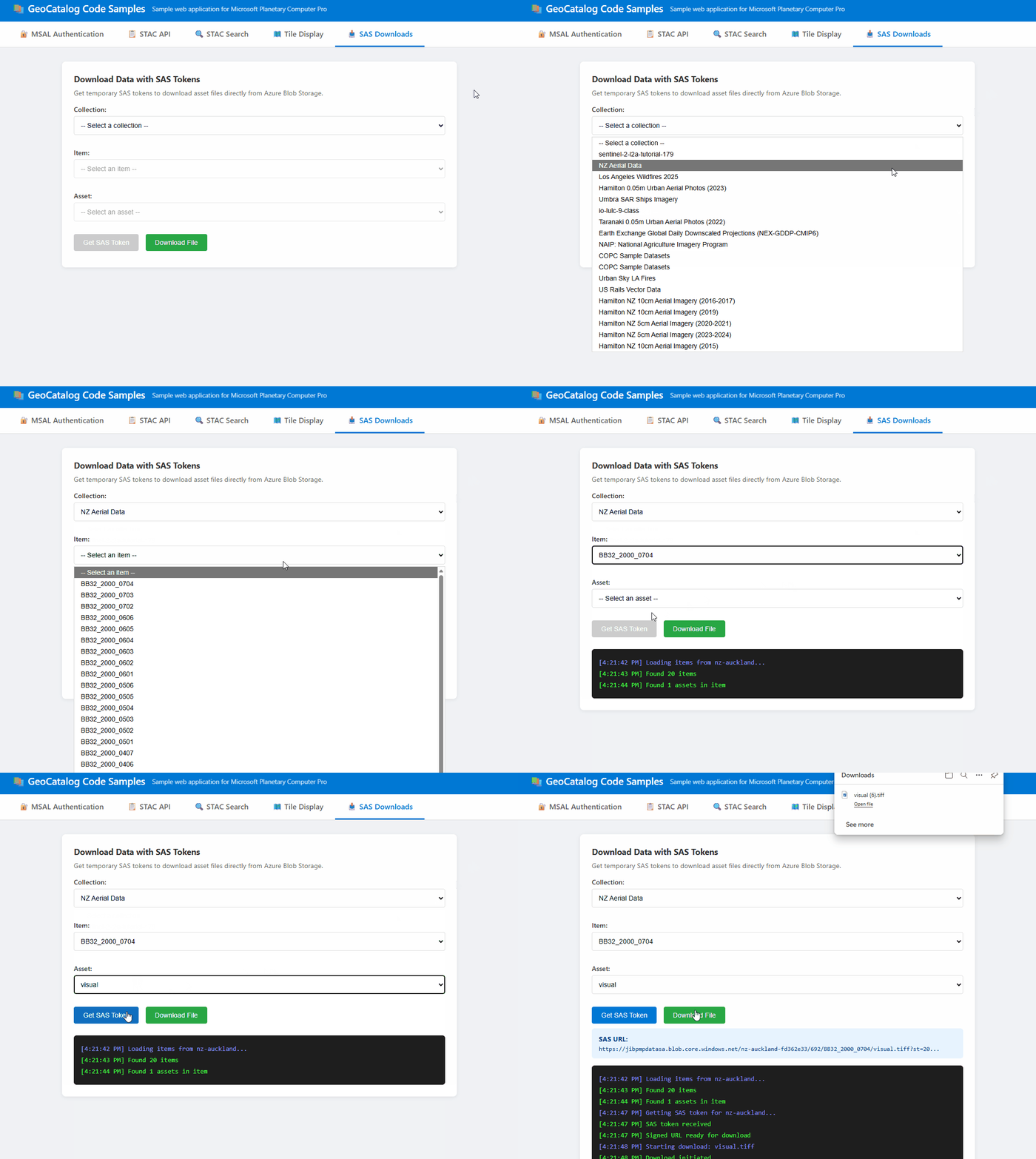
Get a SAS token
const API_VERSION = '2026-04-15';

/**
 * Get a SAS token for accessing assets in a collection.
 * Returns a token string that can be appended to asset URLs.
 */
async function getCollectionSasToken(accessToken, catalogUrl, collectionId) {
  const url = `${catalogUrl}/sas/token/${collectionId}?api-version=${API_VERSION}`;

  const response = await fetch(url, {
    headers: {
      'Authorization': `Bearer ${accessToken}`,
    },
  });

  if (!response.ok) {
    throw new Error(`Failed to get SAS token: ${response.statusText}`);
  }

  const data = await response.json();
  return data.token; // SAS token string
}
Build a signed download URL
/**
 * Build a signed URL for downloading an asset.
 * Appends the SAS token to the asset's href.
 */
function buildSignedAssetUrl(assetHref, sasToken) {
  const separator = assetHref.includes('?') ? '&' : '?';
  return `${assetHref}${separator}${sasToken}`;
}

// Example usage:
const sasToken = await getCollectionSasToken(accessToken, catalogUrl, 'my-collection');
const assetHref = item.assets['visual'].href;
const signedUrl = buildSignedAssetUrl(assetHref, sasToken);
Trigger a file download
/**
 * Trigger a browser download for an asset file.
 * Works by creating a temporary anchor element.
 */
function downloadAsset(signedUrl, filename) {
  const link = document.createElement('a');
  link.href = signedUrl;
  link.download = filename || 'download';
  document.body.appendChild(link);
  link.click();
  document.body.removeChild(link);
}

// Example: Download an asset
downloadAsset(signedUrl, 'aerial-image.tif');
Browser limitations
SAS tokens work differently in browsers versus server-side code:
| Use Case | Browser | Server-side |
|---|---|---|
| Download files (user selects link) | ✅ Works | ✅ Works |
Read blob data via fetch() |
❌ CORS blocked | ✅ Works |
| Process raw pixels in JavaScript | ❌ Not possible | ✅ Works |
Browser downloads work because navigation (clicking links) bypasses CORS. However, fetch() requests to Azure Blob Storage are blocked because the storage account doesn't include your application's origin in its CORS policy.
If your application needs to read and process raw asset data in the browser, implement a server-side proxy:
Note
The following code is a simplified example to illustrate the proxy pattern. For production applications, your proxy endpoint should authenticate requests (for example, by forwarding the user's Bearer token or using session authentication) and validate that the user is authorized to access the requested resources.
// ❌ Browser: This fails due to CORS
const response = await fetch(signedUrl);
const data = await response.arrayBuffer(); // Error!

// ✅ Browser: Call your backend instead
const response = await fetch('/api/proxy-asset', {
  method: 'POST',
  body: JSON.stringify({ collectionId, itemId, assetName })
});
const data = await response.json(); // Works!
Your backend can fetch the blob using the SAS token and return processed results.
Development considerations
CORS support
GeoCatalog APIs include full CORS support with Access-Control-Allow-Origin: *. Browser-based applications can make direct requests to GeoCatalog from any origin, including http://localhost during development. No proxy or workaround is required.
The API allows the Authorization header in CORS requests, so authenticated fetch() calls work directly from browser JavaScript.
Choosing the right data access method
| Method | Browser fetch() |
Browser Downloads | Server-side | Best For |
|---|---|---|---|---|
| Tiler API | ✅ Fully supported | ✅ Yes | ✅ Yes | Map visualization |
| SAS Tokens | ❌ CORS blocked | ✅ Yes | ✅ Yes | Raw file downloads |
Tiler API: Use for displaying imagery on maps. Returns rendered PNG or WebP tiles with full CORS support. See Tile URLs and Map integration.
SAS Tokens: Use for downloading original source files (GeoTIFFs, COGs). Browser downloads work, but
fetch()is blocked by Azure Blob Storage CORS policies. See SAS tokens for details and workarounds.
Token refresh
Access tokens expire, typically after one hour. Your application should:
- Handle 401 errors by acquiring a new token.
- Use MSAL's silent token acquisition, which automatically refreshes expired tokens.
- Update the token reference used by your map's
transformRequest.
Error handling
Handle common error scenarios:
| HTTP Status | Cause | Solution |
|---|---|---|
| 401 | Token expired or invalid | Refresh the access token |
| 404 | Item or collection not found | Verify IDs exist |
| 424 | Tile outside data extent | Expected - handle gracefully |
Troubleshooting
| Error | Cause | Solution |
|---|---|---|
| "AADSTS50011: Reply URL mismatch" | Redirect URI in code doesn't match Microsoft Entra ID registration | Add your development URL (for example, http://localhost:3000) as a SPA redirect URI in your app registration |
| "Invalid scope" error | Using GeoCatalog URL instead of API scope | Use https://geocatalog.spatio.azure.com/.default as the scope |
| 401 Unauthorized on tile requests | Map library not including auth headers | Use transformRequest (MapLibre) to add the Bearer token; ensure token is current |
| Tiles don't align with basemap | Wrong tile matrix set | Use tileMatrixSetId=WebMercatorQuad for Web Mercator projection (EPSG:3857) |
| "Couldn't decode image" | Wrong asset name, multiband imagery, or outside data extent | Check item_assets for valid names; use asset_bidx=image\|1,2,3 for RGB; 404/424 outside coverage is expected |